
Appearance
8. Undo a mistake
When you need this: you deleted a template you still needed. You changed the wording on a letter and liked the old wording better. You made a batch of letters for the wrong month. Almost everything you do in Documents can be taken back, and you do it yourself.
Steps
Save something. A green message slides in at the top right of the screen. It says what you did, and it has an Undo button.
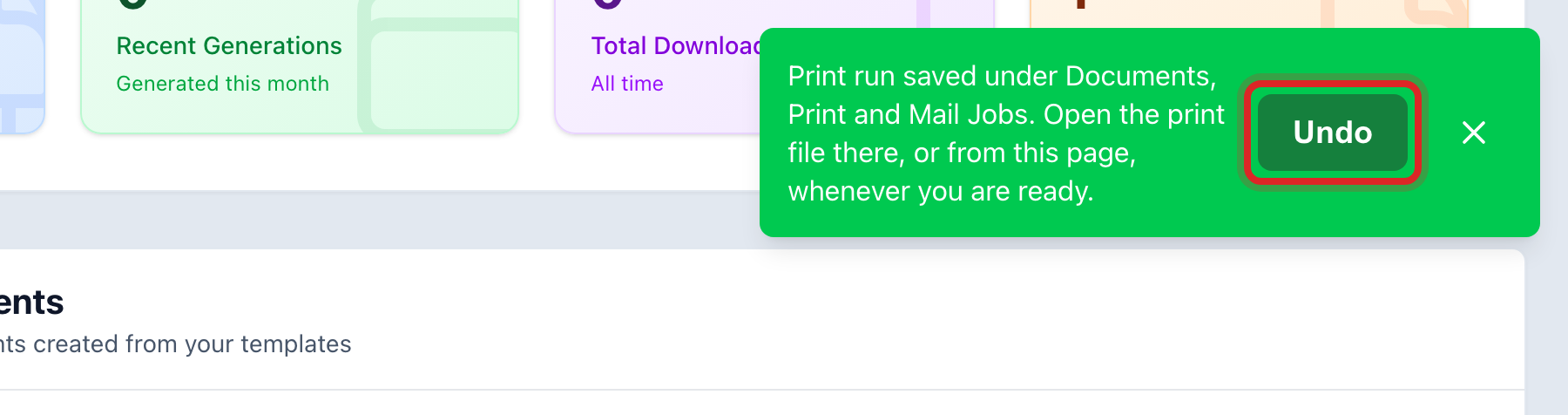
Click Undo. A small window asks if you are sure. Click Undo again. The template or the file goes back the way it was.
The green message waits five minutes, then it goes away. If it is gone, look at the bottom left corner of the screen. There is a round blue button with a number on it. Click it.
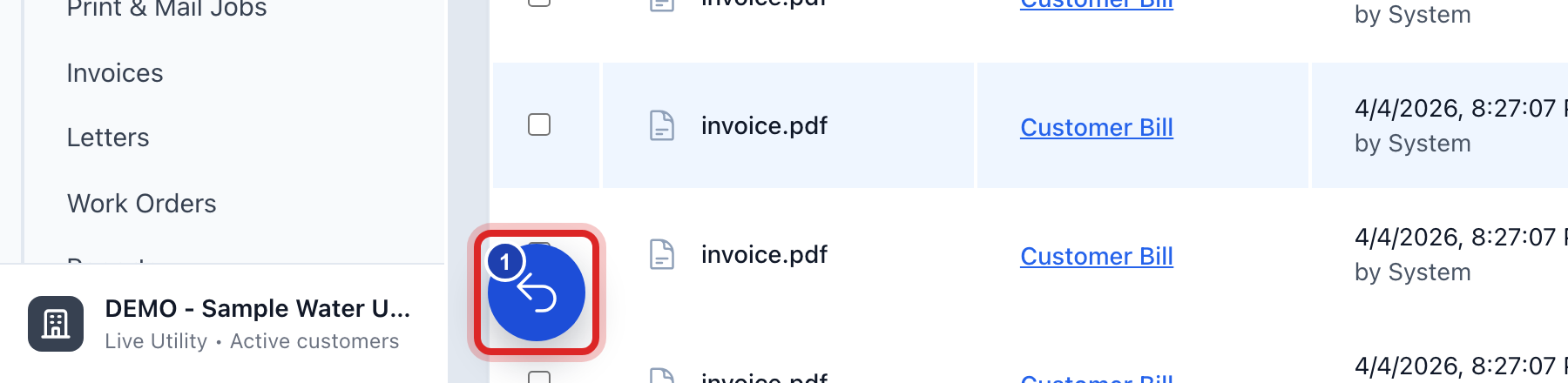
The panel is called Recent actions. It lists your last ten actions in this section, newest first. Find yours and click Undo on its row.
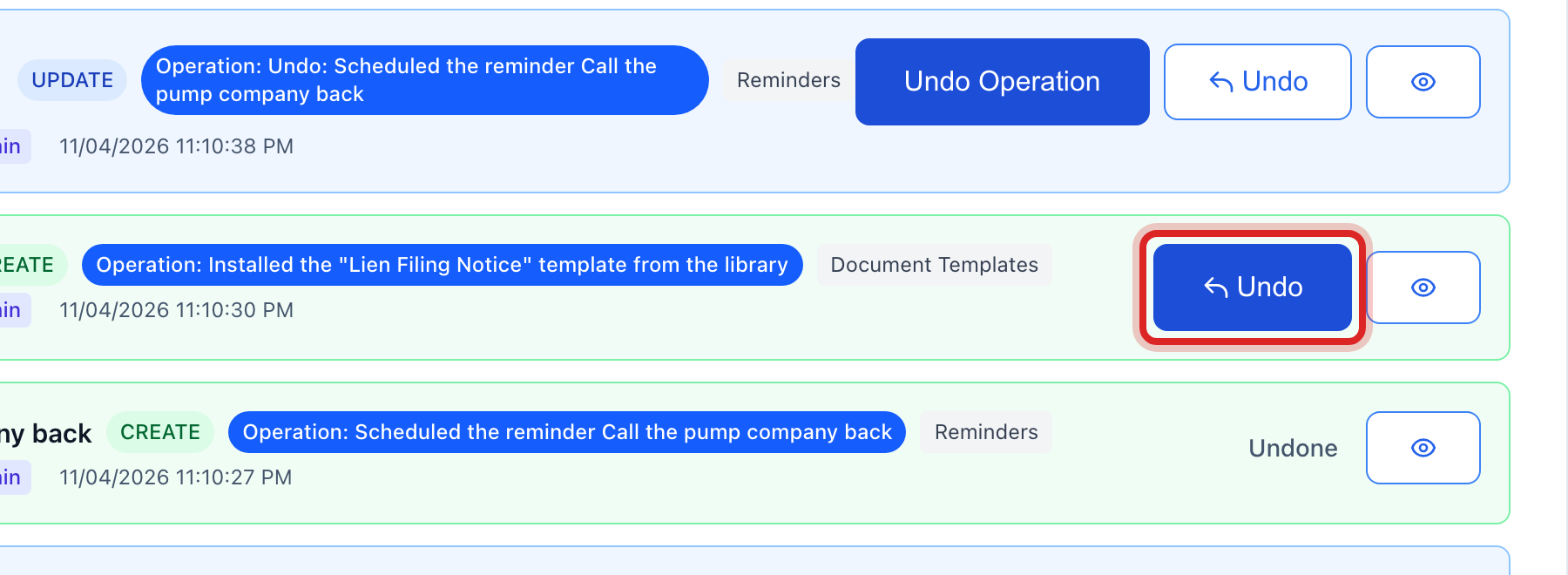
For something older than that, click Data Management on the left side, then click Change History. Every change is listed with who made it and when. Rows that can be taken back have an Undo button.
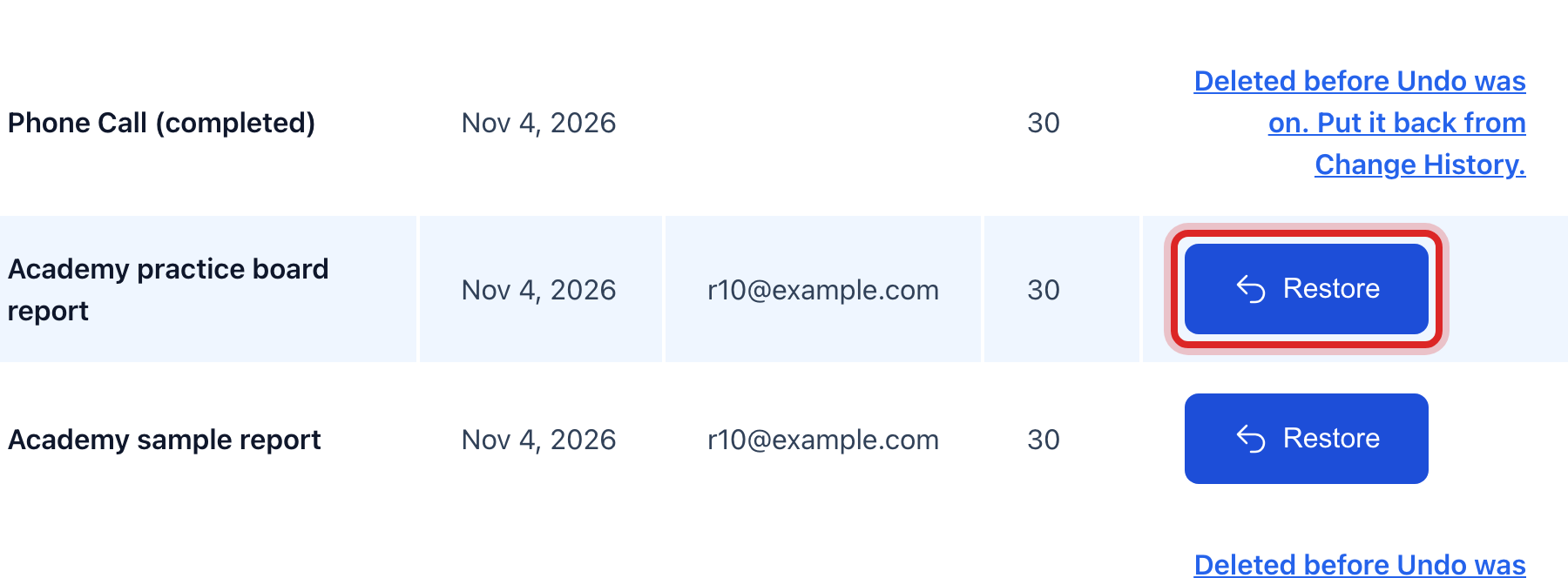
If what you need is a file or a template you deleted, click Data Management, then click Recycle Bin. Deleted records wait there for 30 days. Click the blue Restore button on the row to put it back.
What cannot be taken back here
- A mail job already handed to the mailing company. Once it is with them it is printed and stamped. Catch it early: a job you have not sent yet can still be stopped with Cancel on its row.
- A letter you already printed and put in the envelope. Fix the template, make a fresh copy, and mail that.
- A request for a signature that already went out by email. Open the row and click Cancel so the link stops working, then tell the signer a new one is coming.
- An email you sent with a document attached. Send a second short email that says which copy is the right one.
- A report already filed with the state. Call the agency and ask how they want a correction.
Utilops tells you which one you are in. When an action cannot be taken back, the green message says so in plain words and tells you what to do instead. It never offers a fake Undo.
Made a mistake? Click Undo on the green message that appears, or open Show me how at the top and pick Undo a mistake.
You are done when
The template or the file reads the way it did before. The green message says the action was undone, and the row drops out of Recent actions.
If something looks different
There is no round button in the corner. You have not done anything undoable on this page yet. The button only shows when there is something to take back.
The row says Undo is not available. Read the words under the row. They say why, and what to do instead.
Undo will not run for you. Undo needs the same permission the action needed. If you could not have made the change, you cannot take it back. Ask your administrator.
You only want the old wording back, not the whole change. A template keeps every version you saved. Open the template and look for its history, and bring back the version you want.