
Appearance
5. Make the same letter for many customers
When you need this: every customer needs the rate change letter. Every past due account needs a notice. You pick the template once, pick who gets it, and Utilops makes one finished letter per customer with their name and address on it.
Steps
On the left side of the screen, click Documents, then click Bulk Generate.
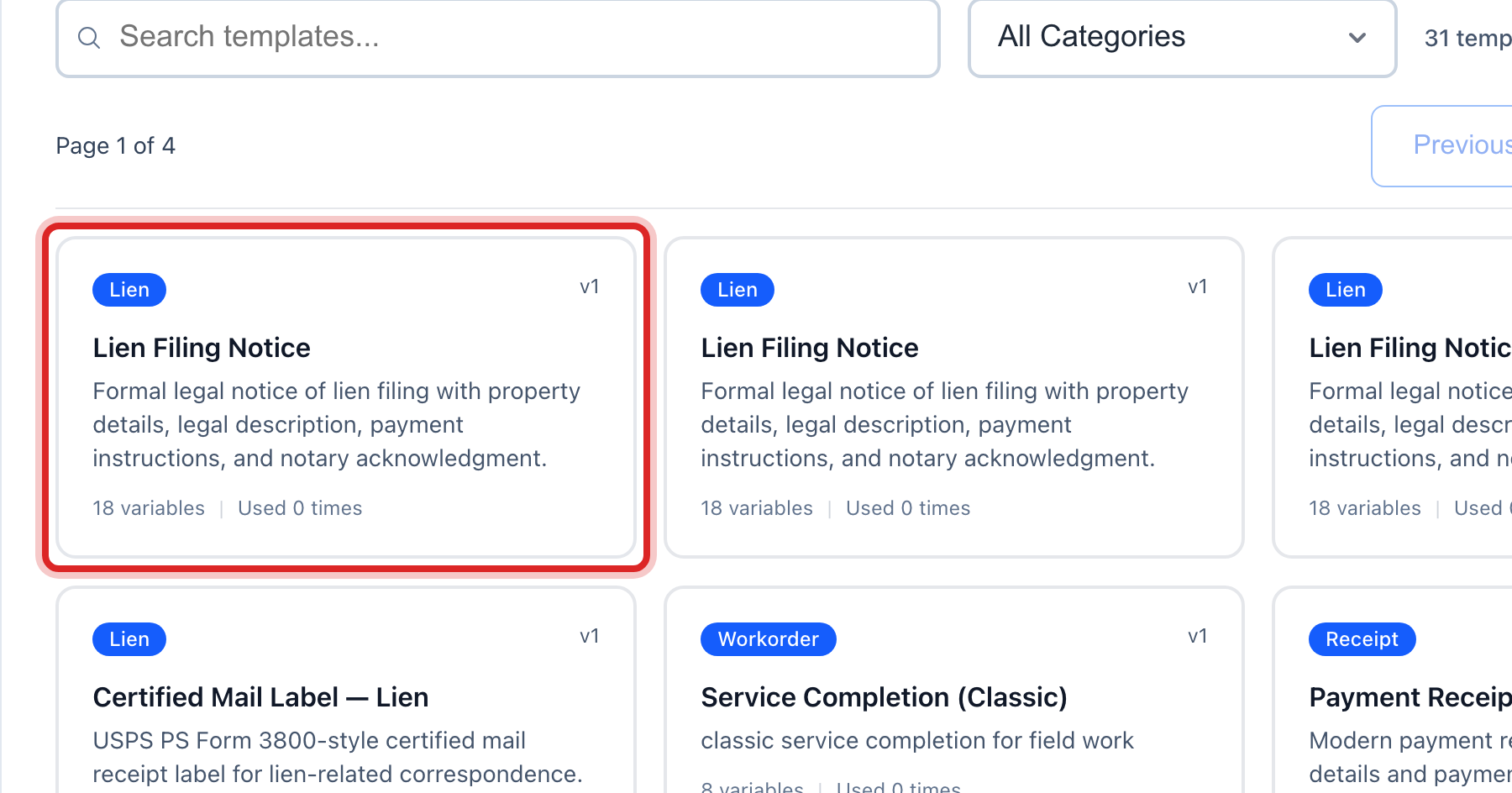
Under Select Template, click the template you want. Type in the Search box if the list is long.
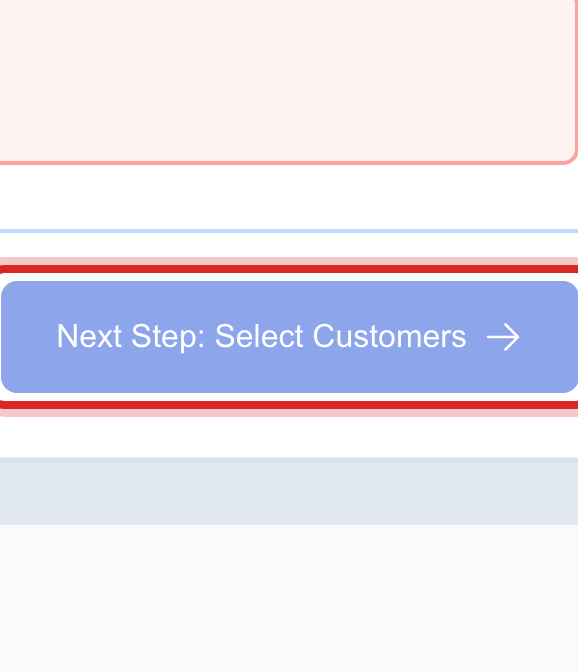
Click Next Step: Select Customers.
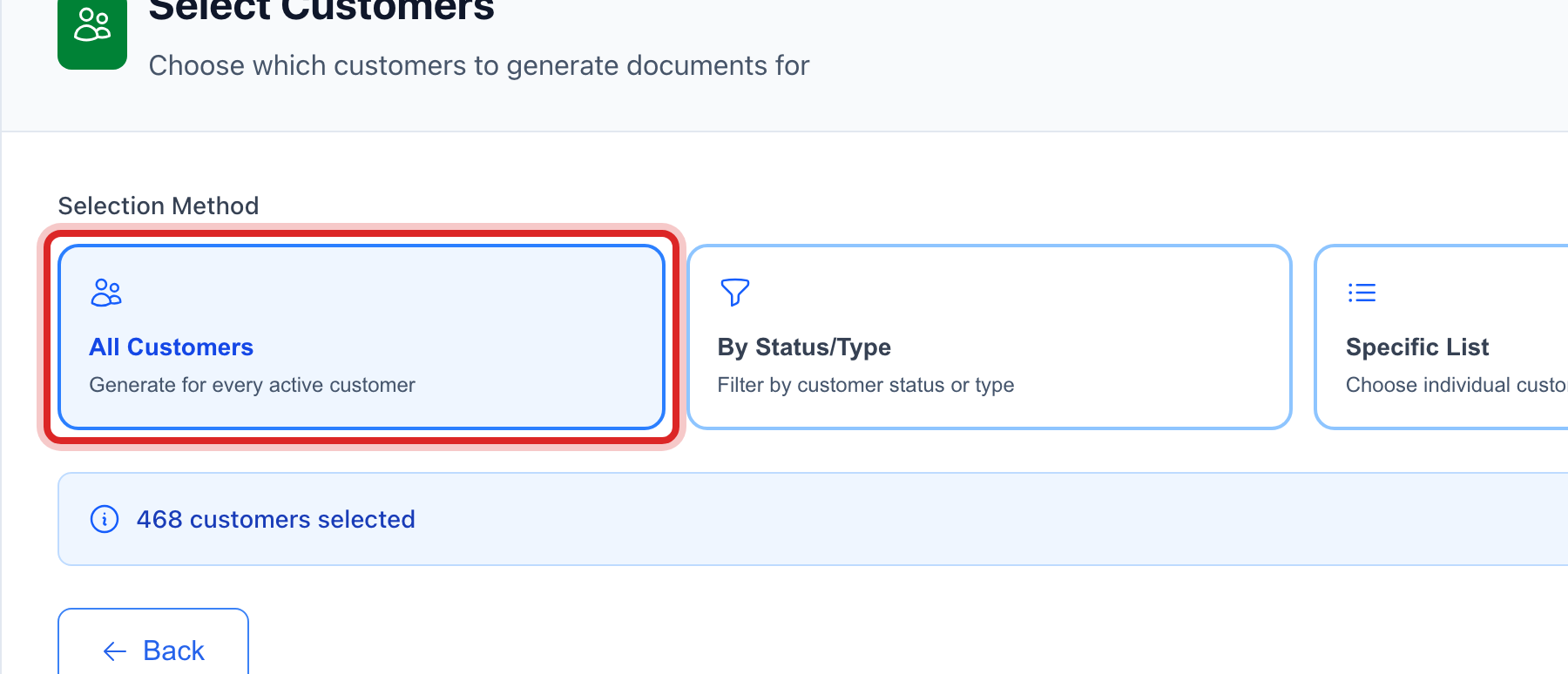
Under Selection Method, pick who gets the letter. All Customers is everyone. By Status/Type picks by account status or kind. Specific List lets you tick names one by one.
Click Next: Preview.
Read the Generation Summary. It says how many letters will be made. The preview shows the first letter filled in. A green box says every field has data.
Click Start Generation.
Watch the bar fill. When it is done, click Open these in Generated Documents to see them, print them or mail them. Lesson 6 covers mailing.
Made a mistake? Click Undo on the green message that appears, or open Show me how at the top and pick Undo a mistake.
You are done when
The Generation Progress card says the job is complete, with one row per customer and a page count on each. The job also shows under Job History at the bottom.
If something looks different
The button says Fix Template to Continue. A field on the template has no data for these customers. The yellow box names it. Fix the template, lesson 4, or pick a different one.
You want only the people who owe money. Pick By Status/Type, then pick the status. For a saved group of your own, make a segment first, Customer Management lesson 7.
It is only one customer. Open Generated Documents and click Generate Documents at the top. Pick the template and type the account number.
You started the wrong one. Click Cancel Job while the bar is still moving. Letters already made can be discarded from Generated Documents.