
Appearance
6. Send your letters out in the mail
When you need this: the letters are made. Now they need to reach the mailbox. You have two ways. Print them at the office and mail them yourself. Or hand the whole batch to a mailing company that prints, stuffs and stamps them for you. Either way, Utilops keeps a record of the job.
Printed mail is the one thing not included in your Utilops subscription. Texts, emails and calls are unlimited. Paper through the post office costs postage, so you either print locally or pay a mailing company of your own.
Steps
On the left side of the screen, click Documents, then click Generated Documents.
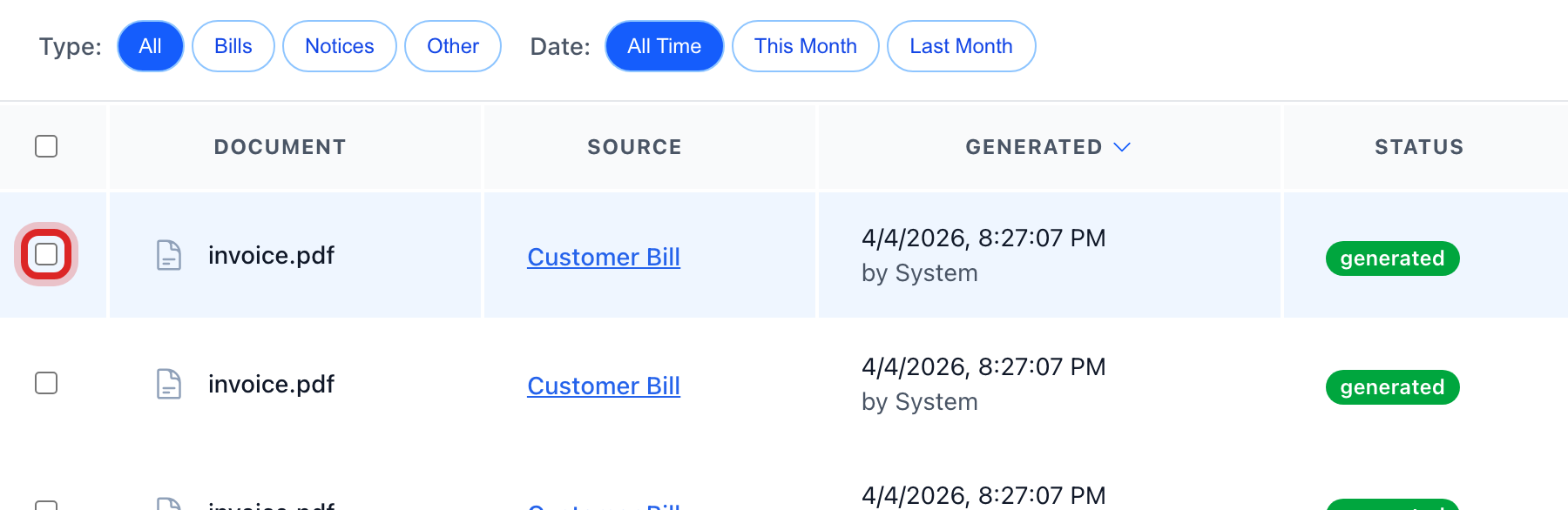
Tick the box on the left of each letter to send. To send a whole batch, open it from Bulk Generate and the top bar has the buttons for all of them at once.
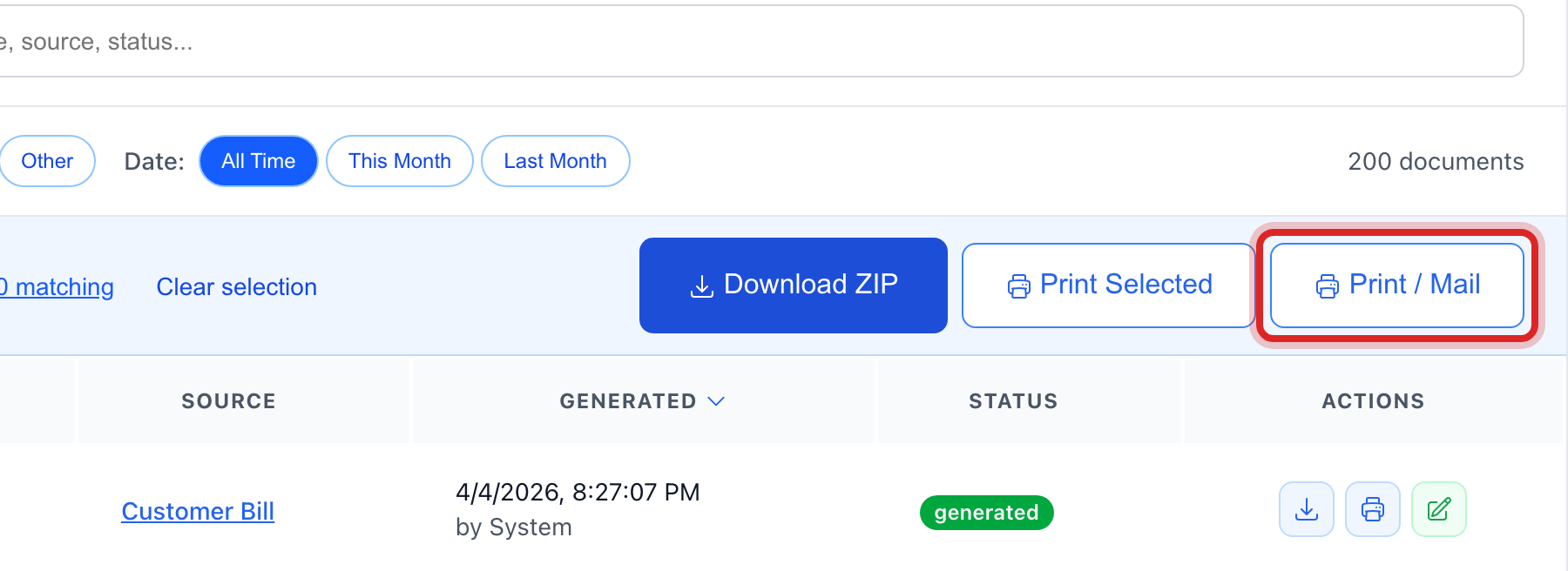
Click Print / Mail in the blue bar.
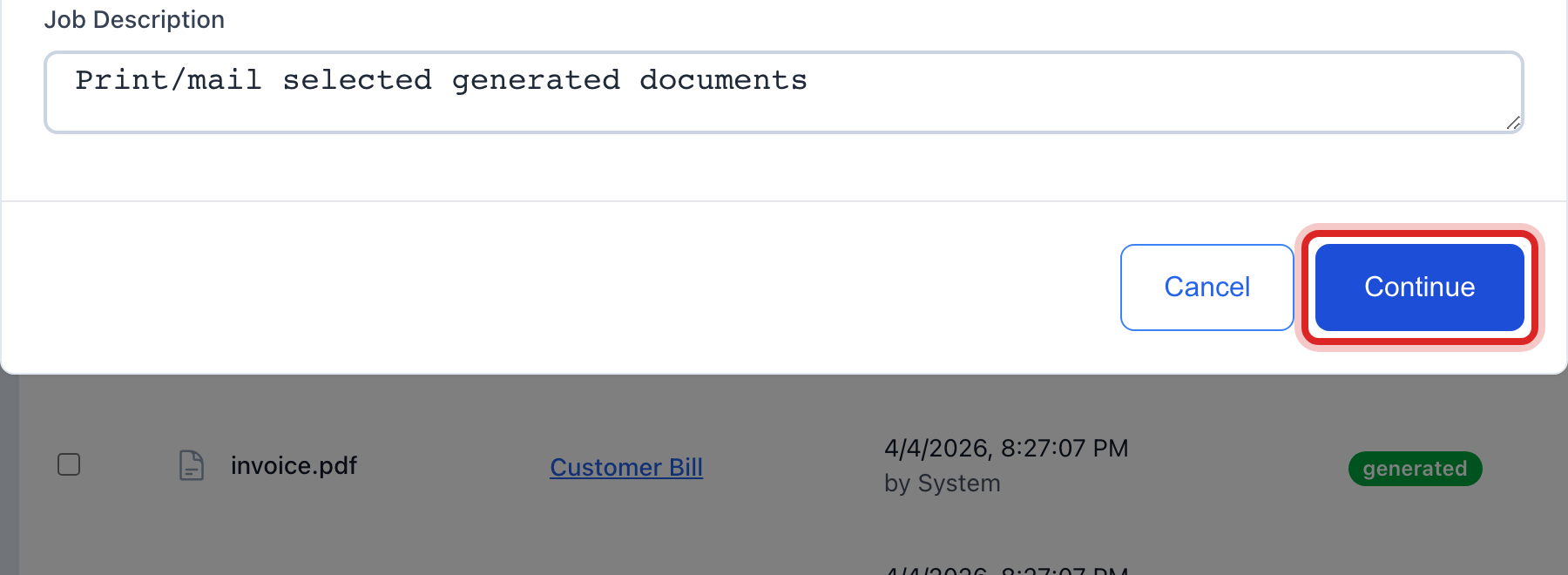
A window opens. Check the count under Recipients. Click Continue.
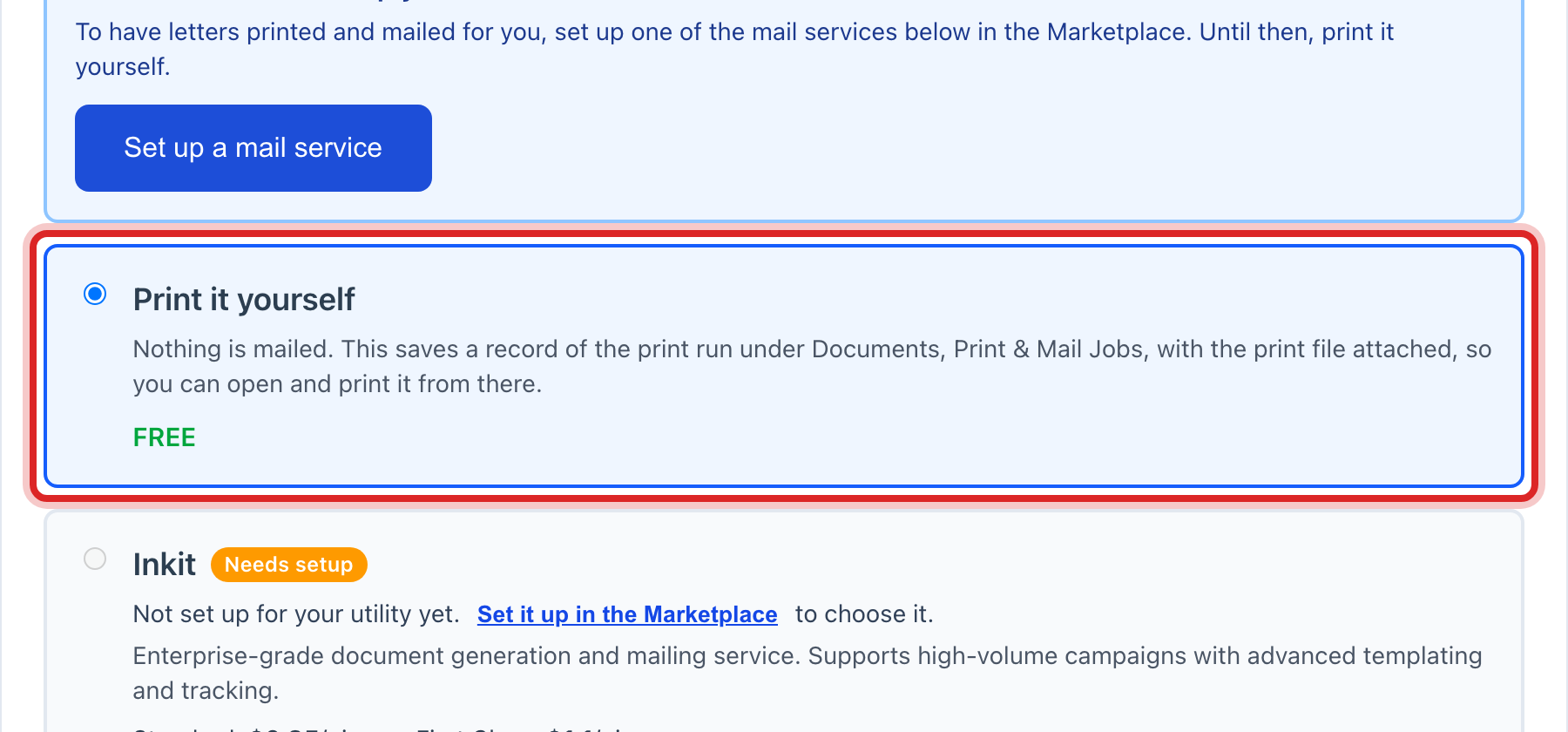
Under Delivery Method, pick how it goes out. Local Printing means you print it here. A mailing company you have set up shows as its own card. Click Continue.
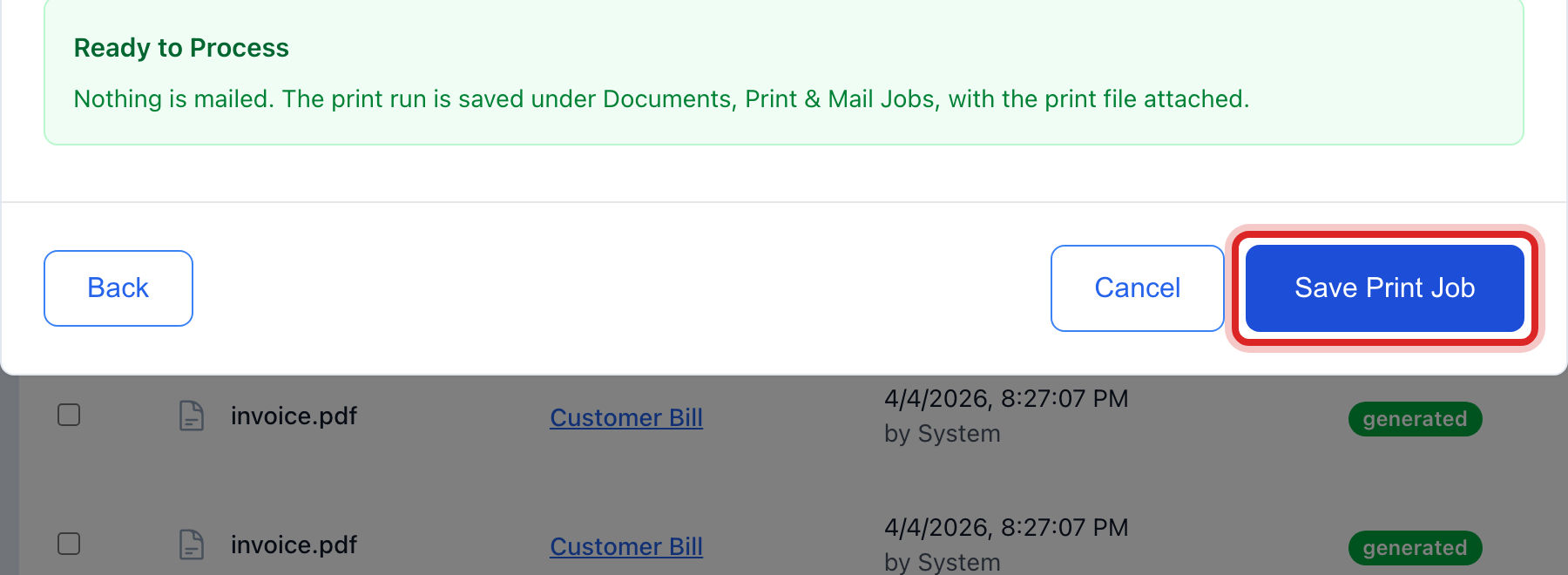
Read the Job Summary. For local printing, click Save Print Job. For a mailing company, click Send to Mail House.
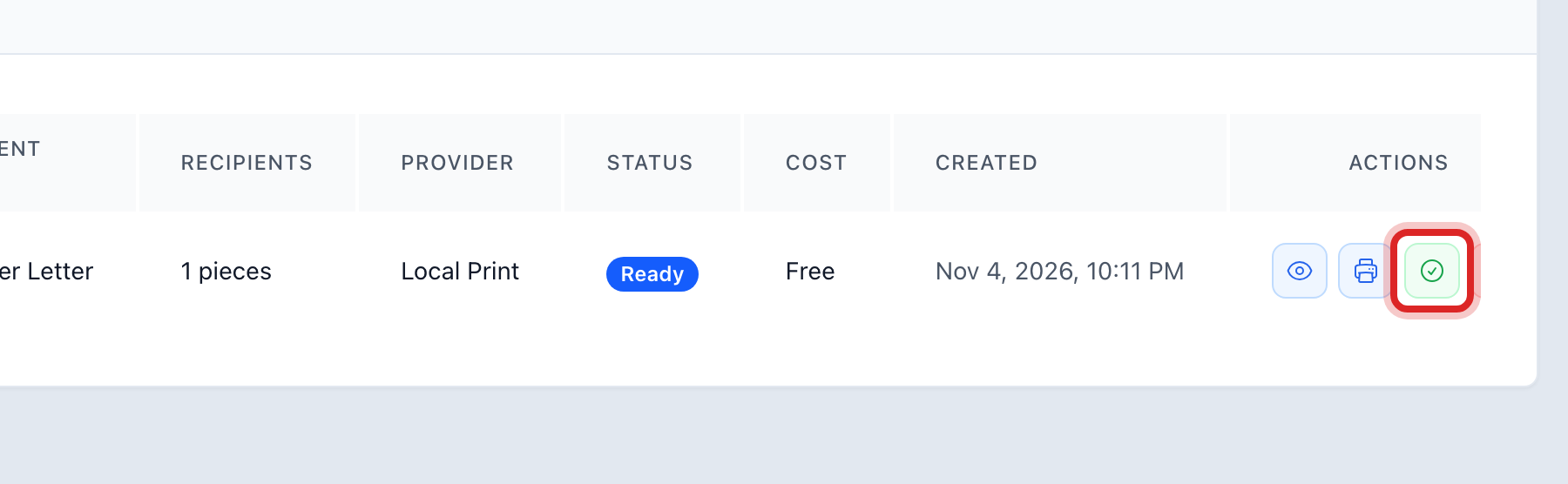
For local printing, go on the left to Documents, then Print & Mail Jobs. Find your job. Click the printer button to open the print file, print it, and stuff the envelopes. Then click the check button. Its tip says Mark as printed.
Made a mistake? Click Undo on the green message that appears, or open Show me how at the top and pick Undo a mistake.
You are done when
The job is a row under Print & Mail Jobs. A local job reads Printed once you mark it. A mail house job moves from Sent to Provider to Mailed on its own.
If something looks different
No mailing company shows. None is set up yet. The window has a Set up a mail service button. It opens the Marketplace, where your utility signs up with a mailing company of its own. Postage and printing are billed by that company, not by Utilops.
The mailing company card is faded. It is installed but its key is not saved. Click the link on the card to finish it in the Marketplace.
A job needs a manager's say so. Your office may require approval over a set size. The button reads Create for Approval. The manager approves it under Print & Mail Jobs.
You sent the wrong batch. A local job can be cancelled from its row with Cancel. A job already with the mailing company cannot. Call them.