
Appearance
3. Look at one customer's papers
When you need this: a customer says she signed a leak form last spring. You want to see it. Papers that belong to one customer, like applications, agreements and scanned letters, are listed here by account.
Steps
On the left side of the screen, click Documents, then click Customer Documents.
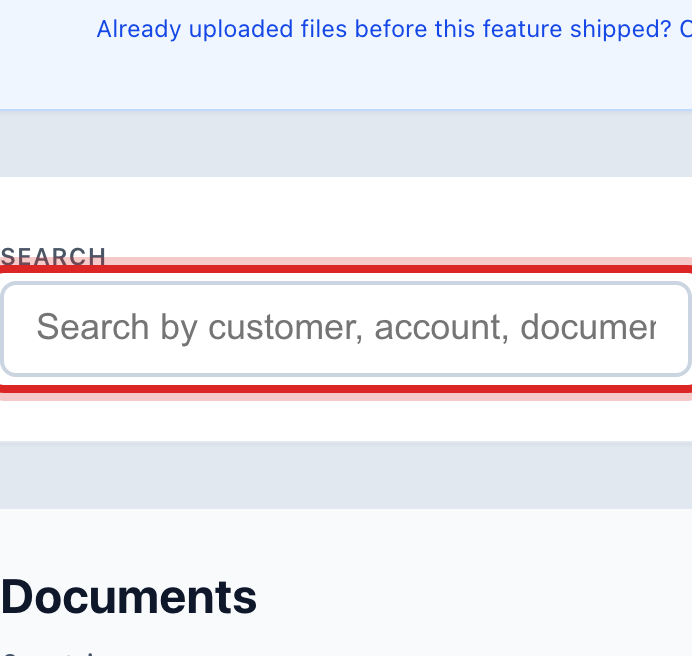
Click in the Search box. Type the customer's name or account number.
The table shows one row per paper. The Document type column says what it is. The Status column says Attached when the file is here.
Click View on the right of the row. The paper opens in a new tab.
You are done when
The paper opens on your screen. Close the tab to come back to the list.
If something looks different
The row says Path only. Your old records knew the paper existed but the file never came across. Click Upload file on the row and pick the scan from your computer. The status changes to Attached.
You are already on the customer's page. Scroll down on the Overview tab to the Customer Documents card. The same papers are there, with Open on each.
You want letters and bills Utilops made for them. Those are under Generated Documents, lesson 2. This page is for papers that came from the customer or from your old files.
You cannot see the page. Only some roles may open Customer Documents. Ask your administrator.