
Appearance
7. Get a paper signed online
When you need this: a new customer must sign the service agreement. A landlord must sign the owner form. Instead of mailing it and waiting, you email a link. They sign on their phone or computer. The signed copy comes back to Utilops on its own.
Steps
On the left side of the screen, click Documents, then click E-Signatures.
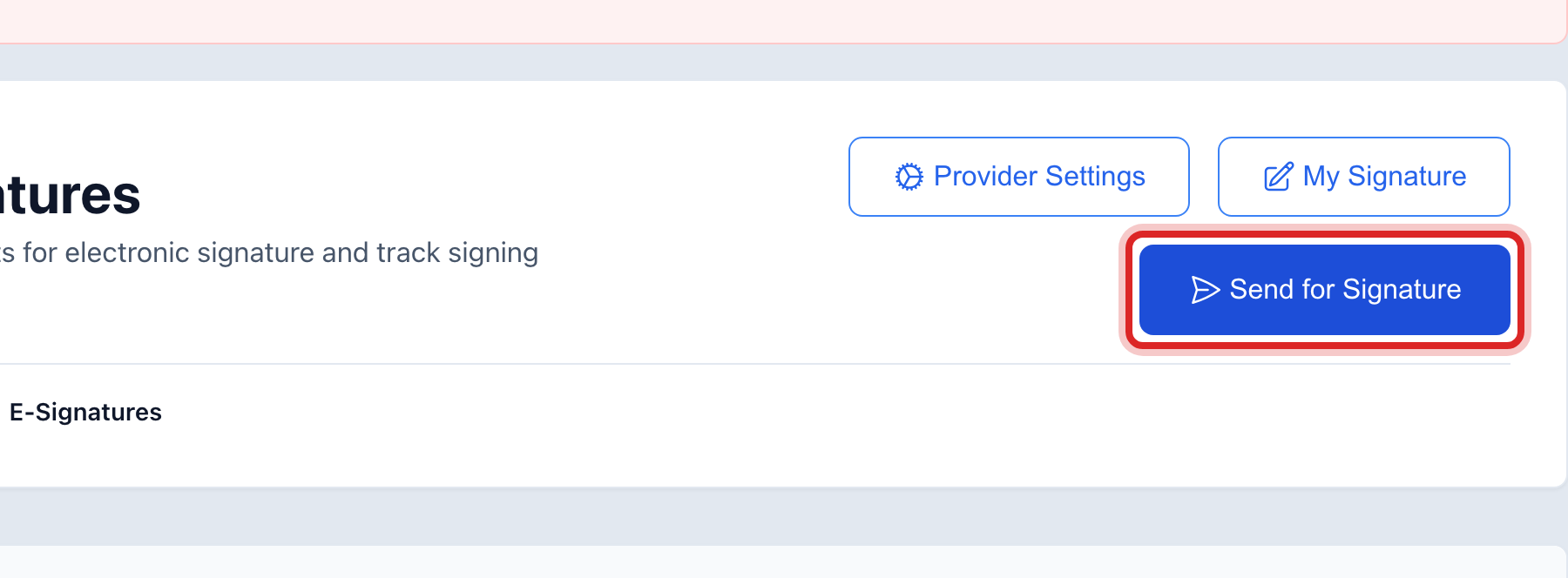
Click Send for Signature at the top right.
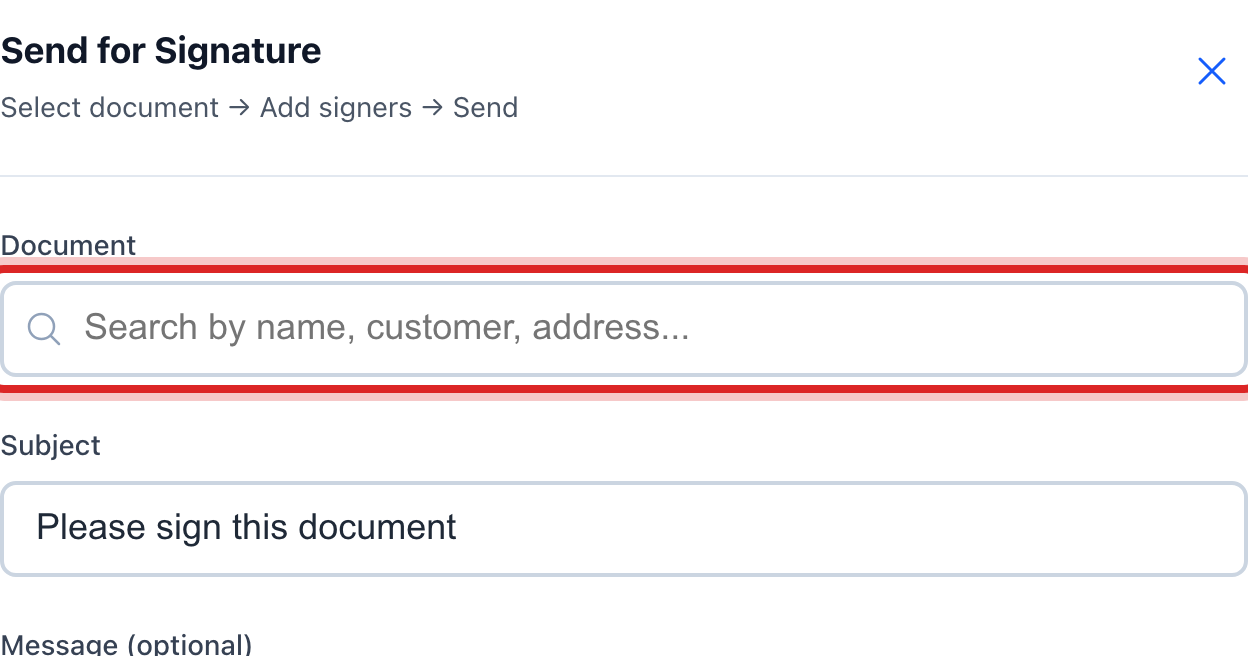
Under Document, click in the search box and type the customer's name or the document's name. Click the right one in the list.
Type a short Subject, like "Please sign your service agreement". Add a Message if you like.
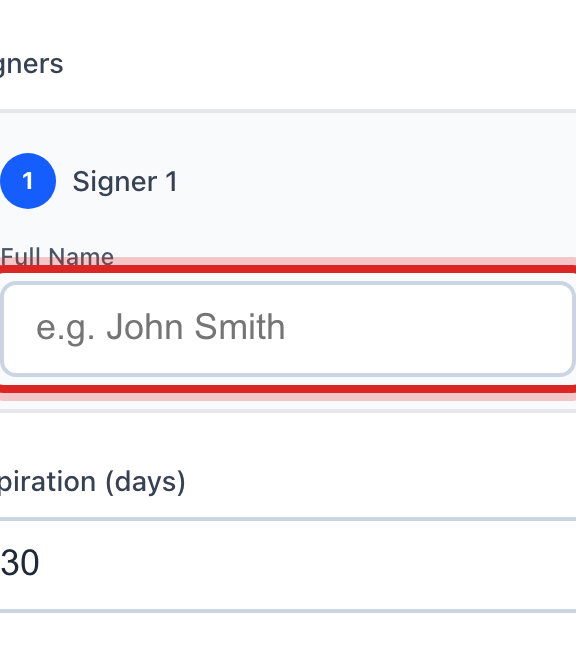
Under Signers, type the person's name in Full Name.
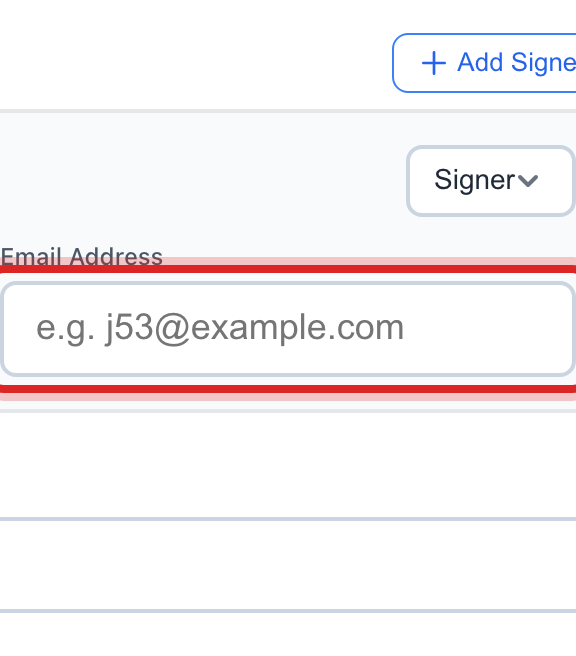
Type their email in Email Address. Click Add Signer if a second person must sign too.
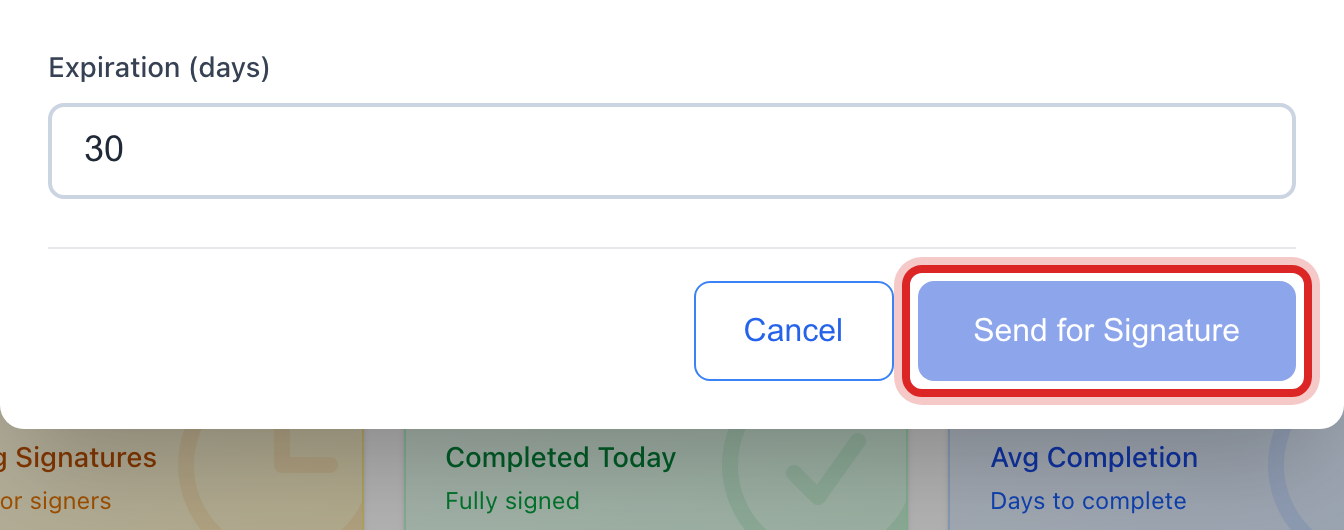
Click the blue Send for Signature button at the bottom.
Made a mistake? Click Undo on the green message that appears, or open Show me how at the top and pick Undo a mistake.
You are done when
The request shows in the Signature Requests table with the status sent. When they sign, it reads completed and a download button appears on the row.
If something looks different
The page tells you to set up a provider. Online signing needs a signing company connected first. Click Provider Settings and ask your administrator to finish it.
They have not signed after a few days. Click the bell on the row. Its tip says Resend Reminder.
You sent it to the wrong person. Click the X on the row. Its tip says Cancel Request. The link stops working. Then send a new one.
The document is not in the list. Only documents already made show here. Make it first under Generated Documents or Bulk Generate, then come back.
You want your own signature on file. Click My Signature at the top. It takes you to your settings page.