
Appearance
2. Find and print a document you already made
When you need this: a customer wants another copy of the shutoff notice. The auditor asks for the letter you sent in March. Every bill, letter and notice Utilops made for you is listed here, newest first, with who it went to.
Steps
On the left side of the screen, click Documents, then click Generated Documents.
Click in the Search box. Type the customer's name, the kind of document, or a word from its name.
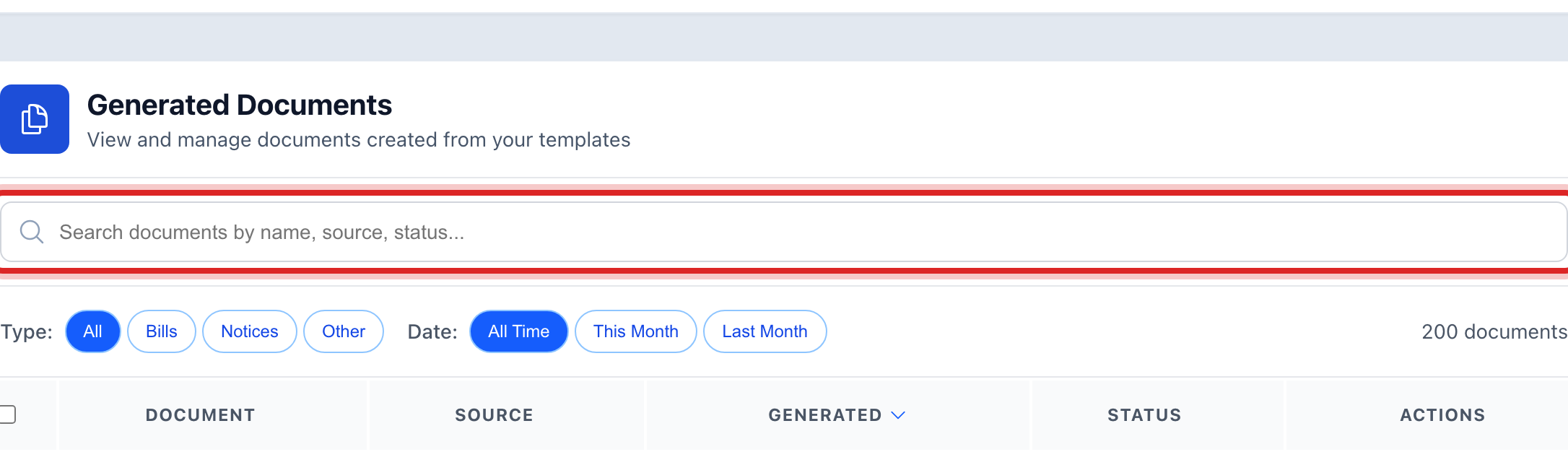
The matches show in the table. Each row says what the document is, who it is for, the day it was made, and its status.
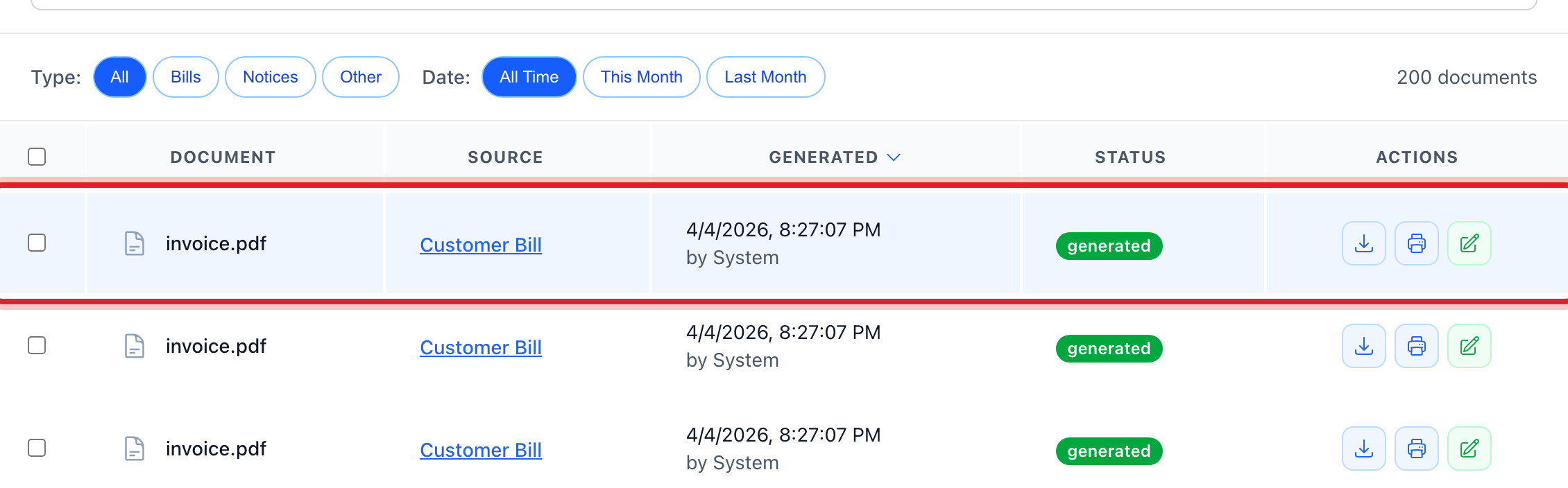
On the right of the row, click the printer button. Its tip says Print. The document opens ready to print.
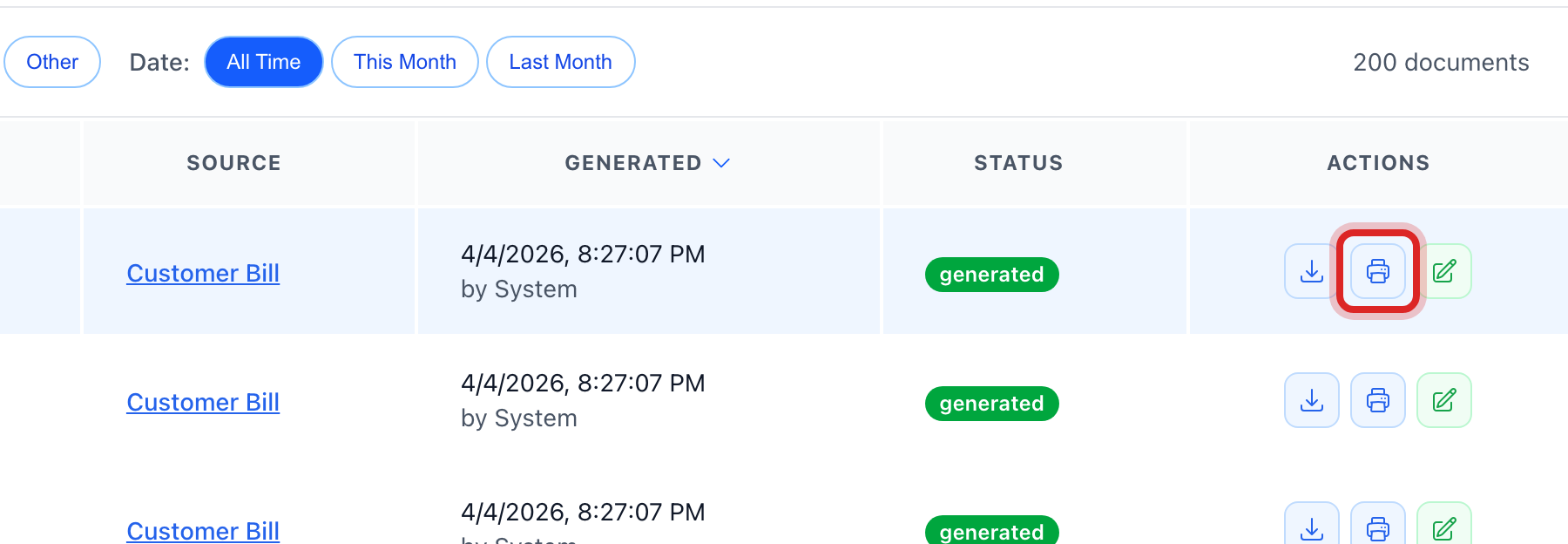
To save a copy instead, click the button beside it. Its tip says Download.
You are done when
The document opens in a new tab with the print window on top. Pick your printer and print.
If something looks different
You need to print a bill. Bills live under Billing & Payments, then Bills. Quick start page 5 shows the fast way.
You cannot find an old one. Older documents move to the archive. Click Archived at the top right to see them. Click Keep this one on a row to bring it back to the everyday list.
You want to print a whole batch again. Open the batch from Bulk Generate, then Job History, and the buttons at the top of this page print or mail the whole set.
You want to send it for a signature. Click the pen button on the row. Its tip says Send for Signature. Lesson 7 shows the rest.