
Appearance
8. Join two accounts for the same person
When you need this: Mary Smith is in Utilops twice. One record came from your old records, one was typed in last year. Her bills and payments are split between them. Joining them puts everything on one account and keeps the other as history. Take your time here. Read the window before you confirm.
Steps
On the left side of the screen, click Customer Management, then click Merge Duplicates.
Click Scan for Duplicates at the top right. Utilops looks for records that share a name, a phone, an email or an address. Any it finds show under the Duplicate Groups tab, each with a Merge button.
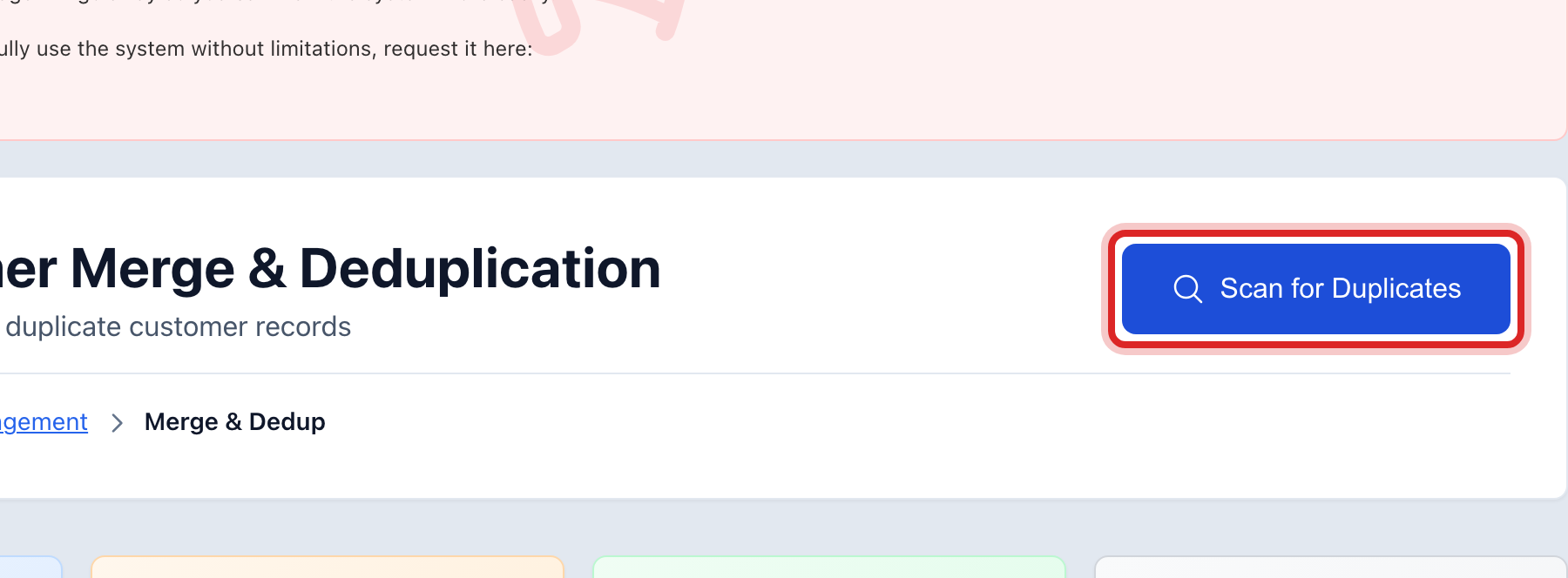
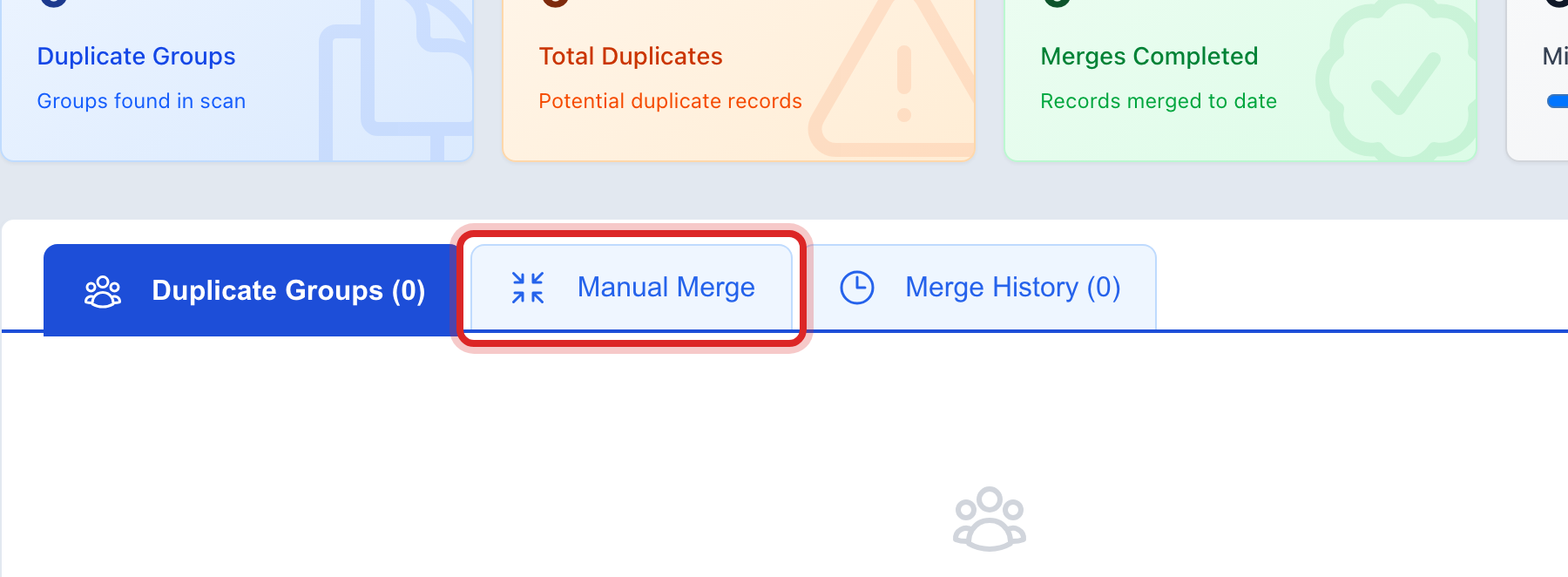
If the two you want are not in a group, click the Manual Merge tab.
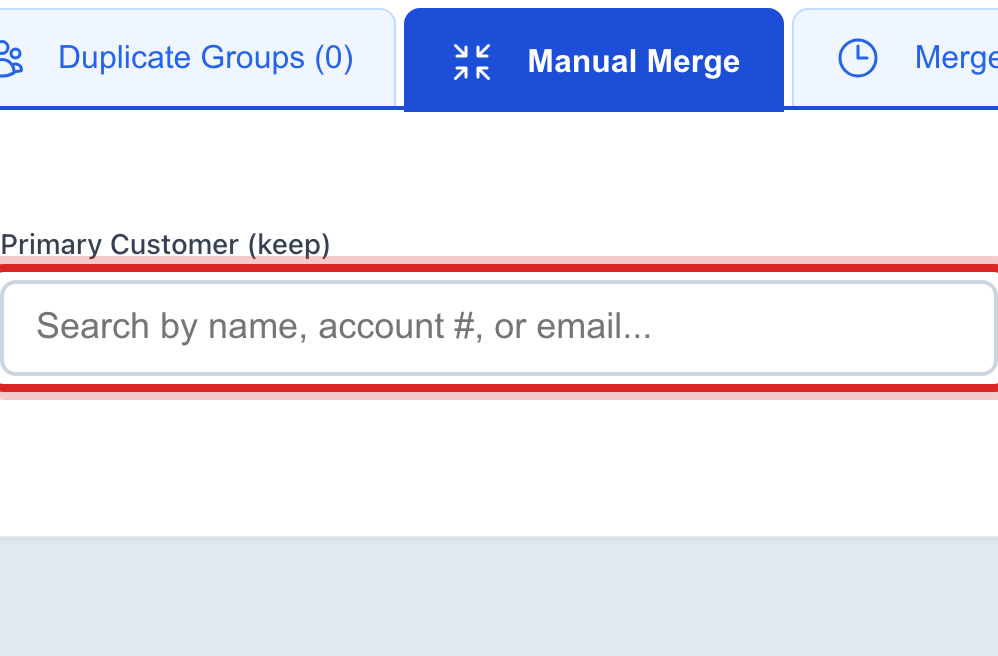
Under Primary Customer (keep), type the name and click the account to keep. This is the one that stays.
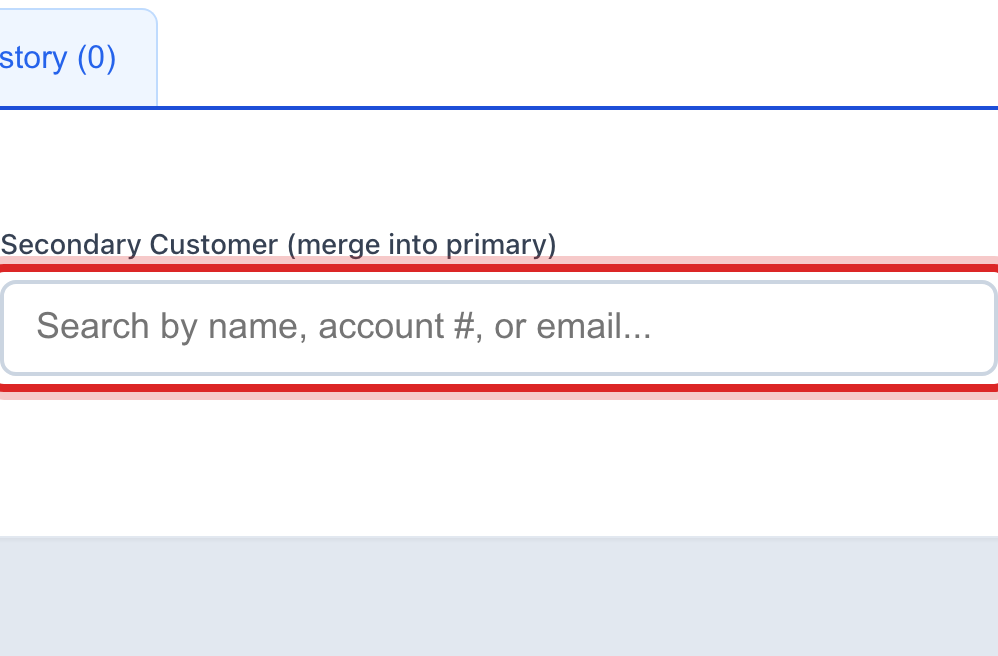
Under Secondary Customer (merge into primary), type the name and click the other account. This one folds into the first.
Click Compare & Merge.
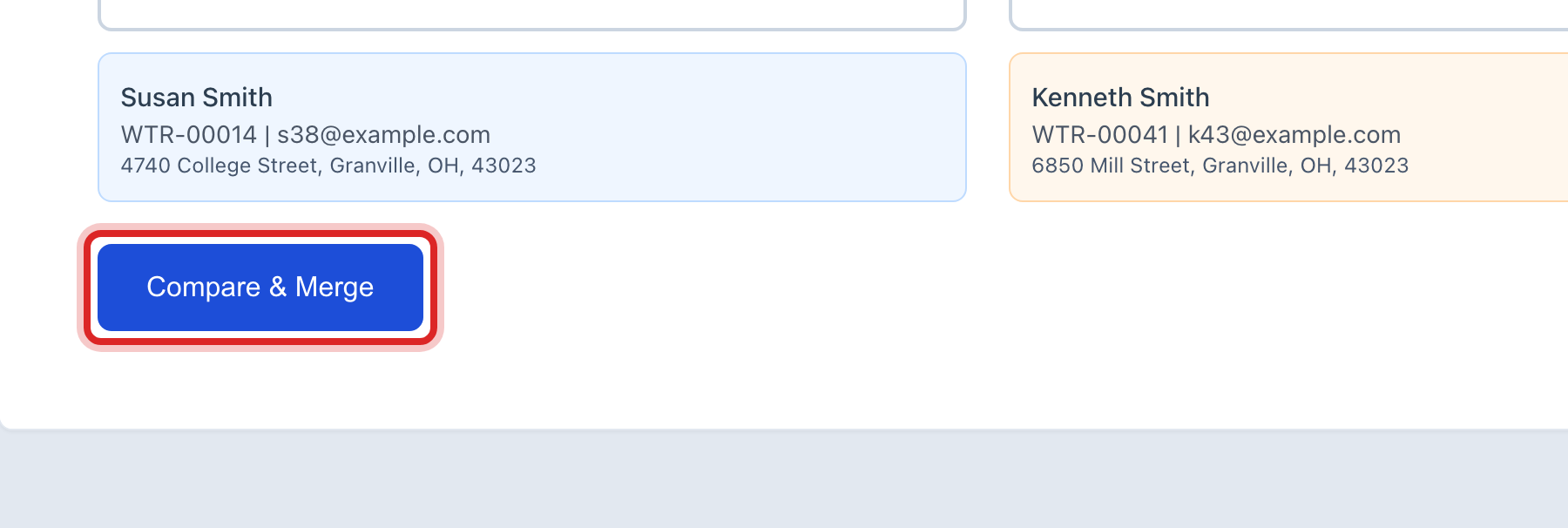
A window shows both records side by side. Check the names and addresses. Type a short reason in Reason for Merge if you like.
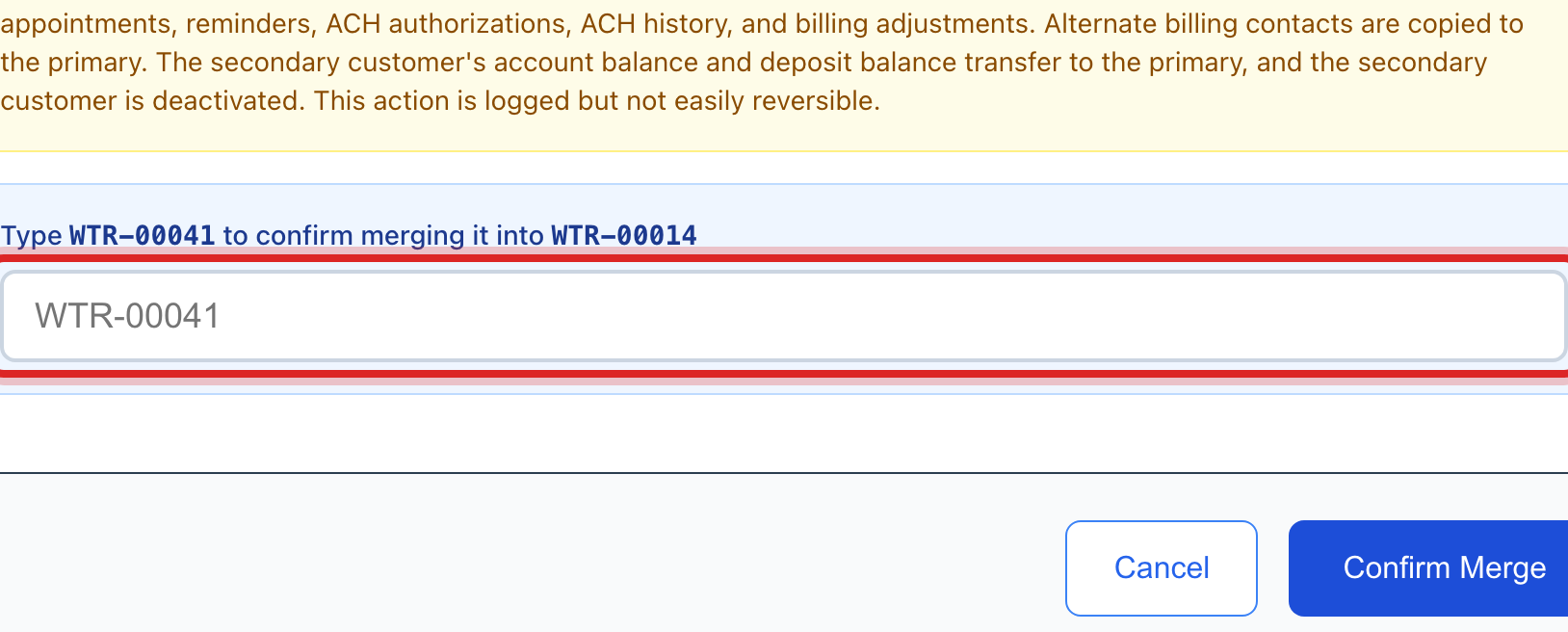
Type the second account's number in the blue box, exactly as shown. This proves you mean it.
Click the blue Confirm Merge button.
Made a mistake? Click Undo on the green message that appears, or open Show me how at the top and pick Undo a mistake.
You are done when
The Merge History tab shows a new row with both account numbers and today's date. Open the kept account: the bills, payments and notes from both are on it.
If something looks different
The Confirm Merge button stays faded. The account number you typed does not match. Type it again, exactly as it is shown above the box.
The two people are not the same person. Do not merge. Two neighbours with the same name are two customers.
The scan found nothing. Good. Your records are clean. Use the Manual Merge tab only when you know two records are one person.
You cannot see Merge Duplicates on the left. It is under the advanced pages. Ask your administrator.