
Appearance
7. Make a group of customers
When you need this: you want a list of every customer who owes more than 100 dollars. Or everyone who used more than 10,000 gallons last month. A segment is a saved rule like that. Utilops keeps the list fresh on its own, so you never make it twice.
Steps
On the left side of the screen, click Customer Management, then click Segmentation.
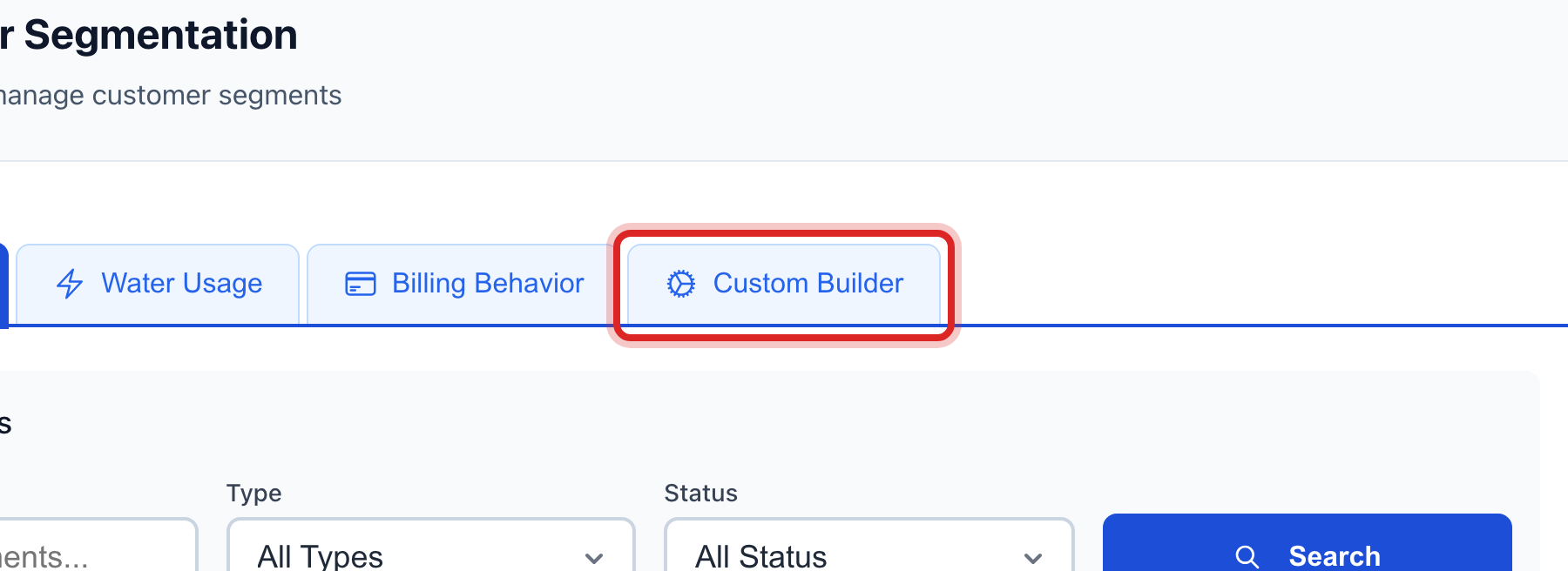
Click the Custom Builder tab.
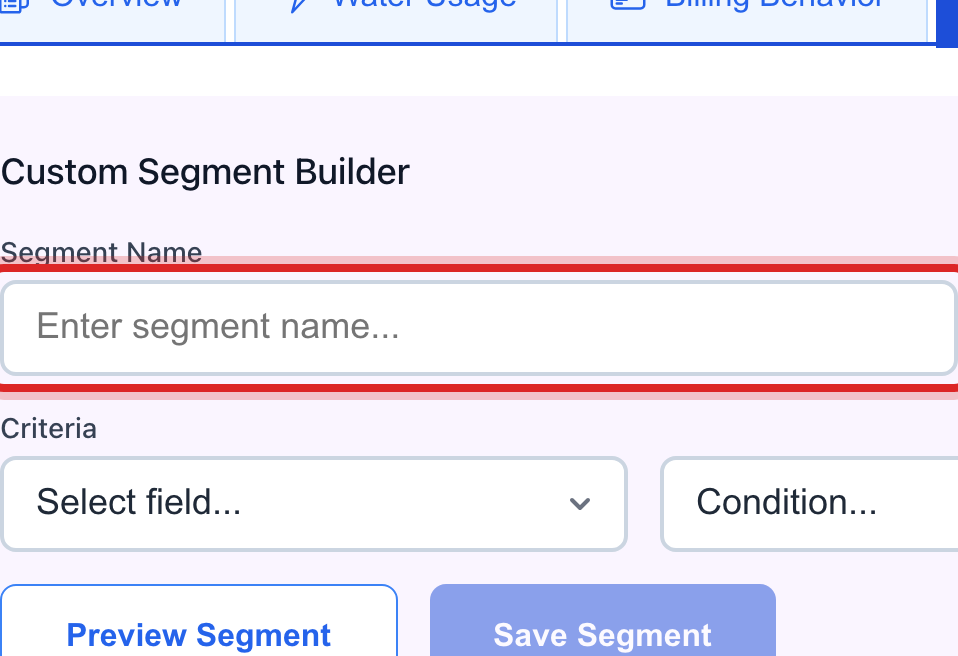
Type a name in the Segment Name box, like "Owes over 100".
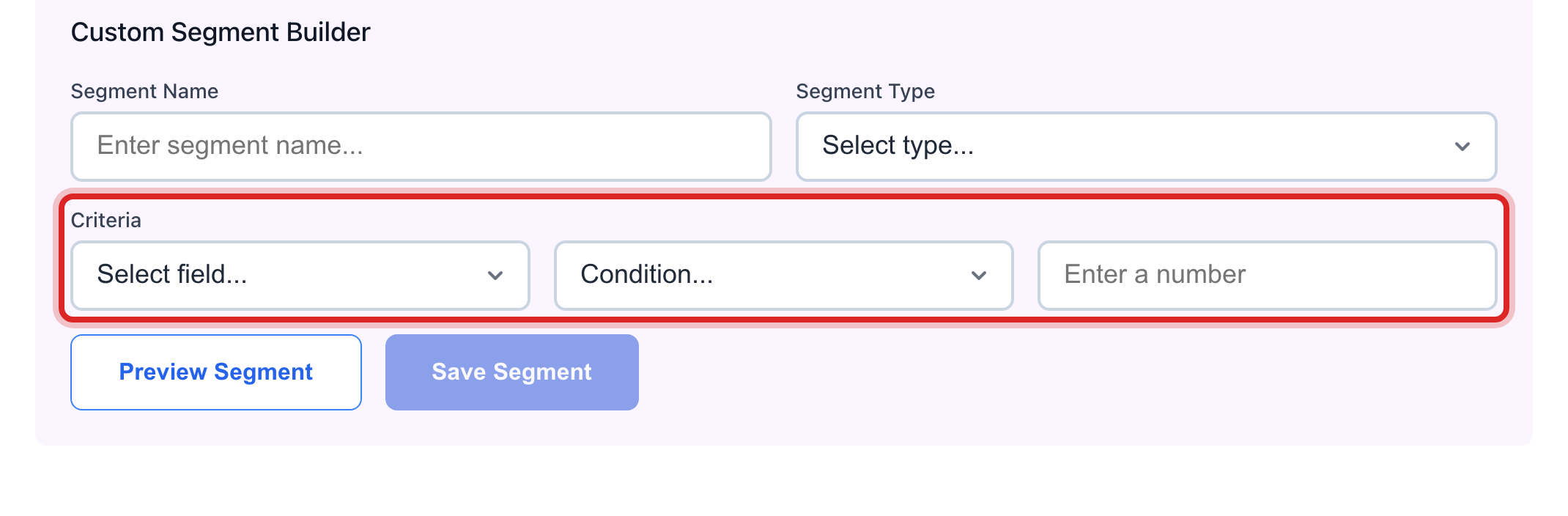
Click the Segment Type list and pick the one that fits. For a money rule, pick Value Based.
Under Criteria, set the rule with the three boxes. Pick Current balance ($), then Greater than, then type 100.
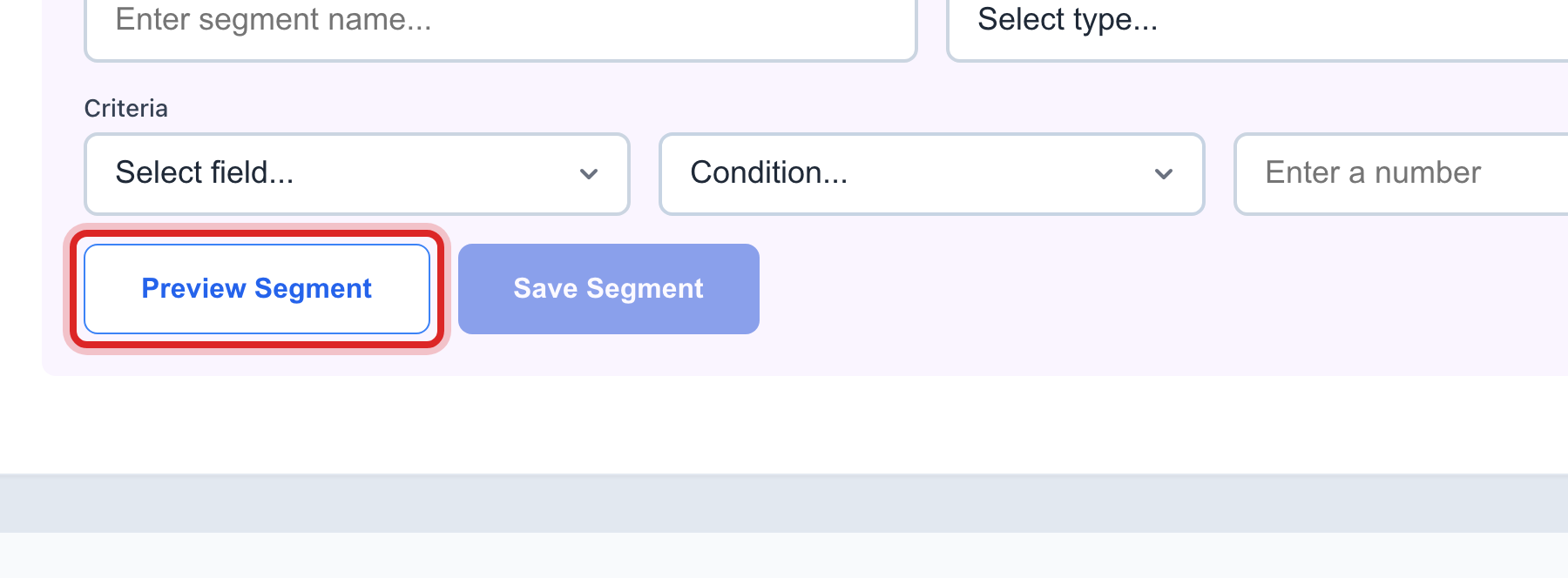
Click Preview Segment. A line tells you how many customers match.
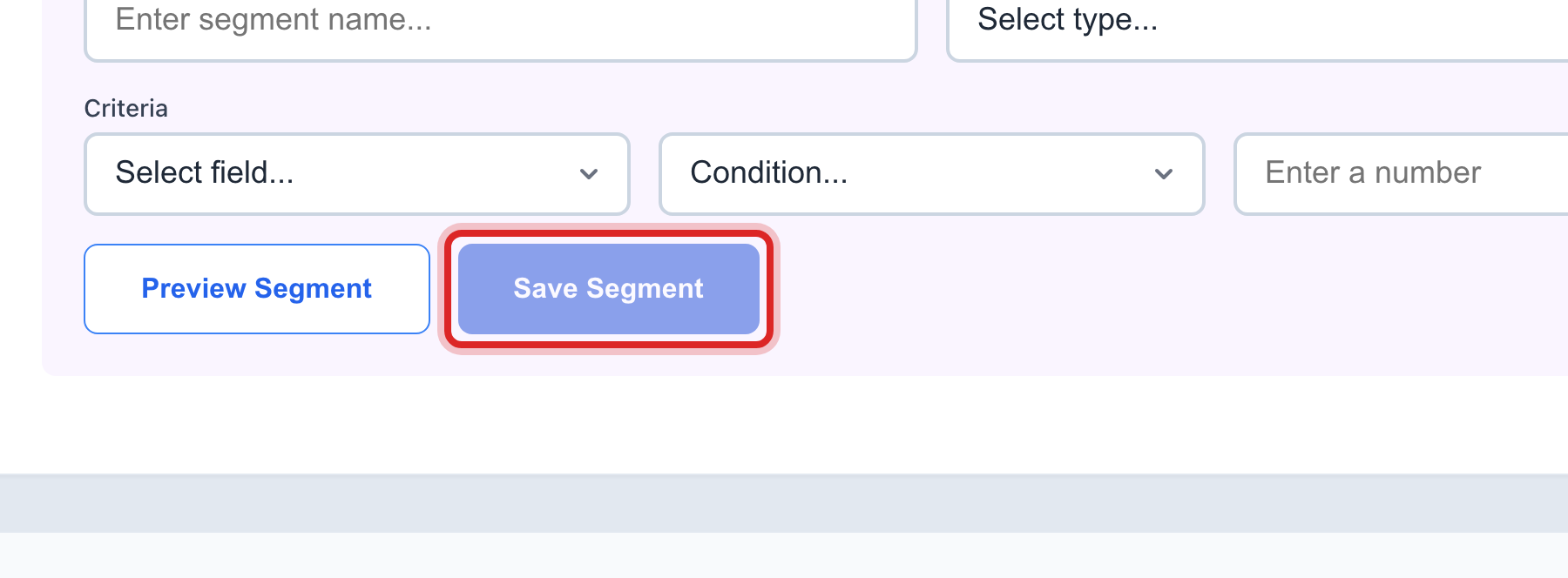
Click the blue Save Segment button.
Made a mistake? Click Undo on the green message that appears, or open Show me how at the top and pick Undo a mistake.
You are done when
The segment shows in the Customer Segments list lower on the page, with the number of customers in it.
If something looks different
You want to text or email the group. A segment is a list. To send to a list, open Customer Messaging, then Contact Groups, and make a group there. Customer Messaging lesson 4 shows how.
You see Water Usage or Natural Gas Usage tabs. Those make ready made groups by how much they use. Click one and press the button for the group you want.
You cannot see Segmentation on the left. It is under the advanced pages. Ask your administrator to show them, or to make the segment for you.
The preview says zero. Check the rule. For account status, the value is a word like active. For money and usage it is a number with no dollar sign.