
Appearance
1. Find a customer and read their account
When you need this: a customer calls, or walks up to the counter. You need their account in front of you. Their balance, their bills, their meter, their notes and every call they ever made are all on one page.
Steps
On the left side of the screen, click Customer Management, then click Search.
Click in the big search box. Type part of the last name. The account number, the phone number or the street name also work.
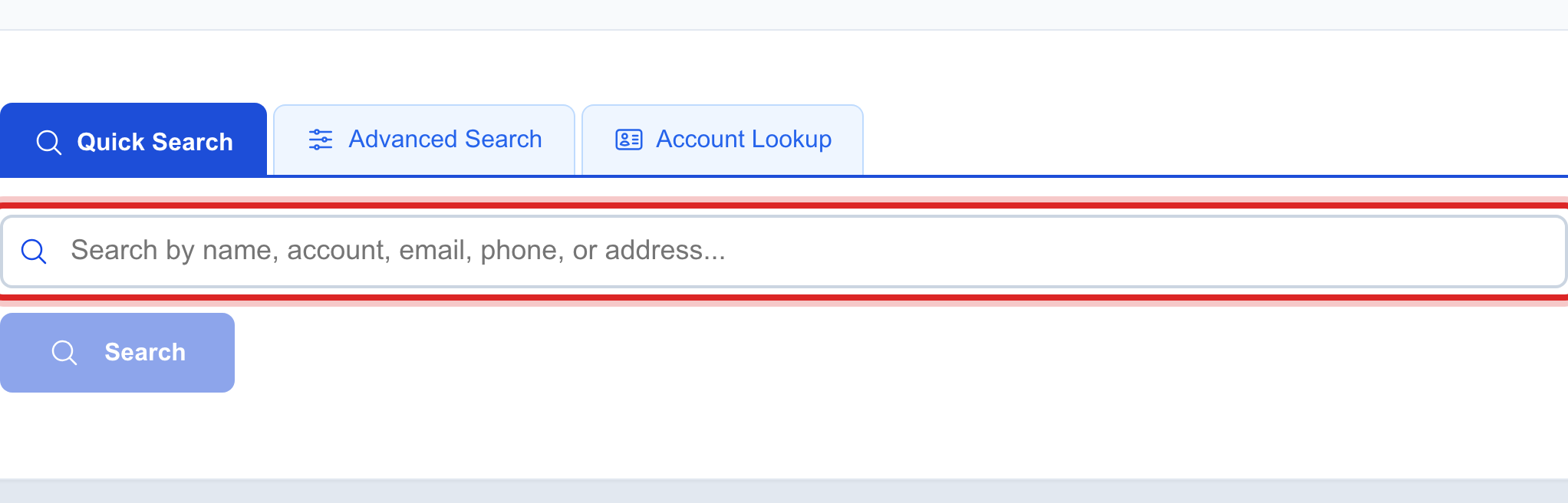
Click the blue Search button, or press Enter.
The matches show in a list. Click the right person.
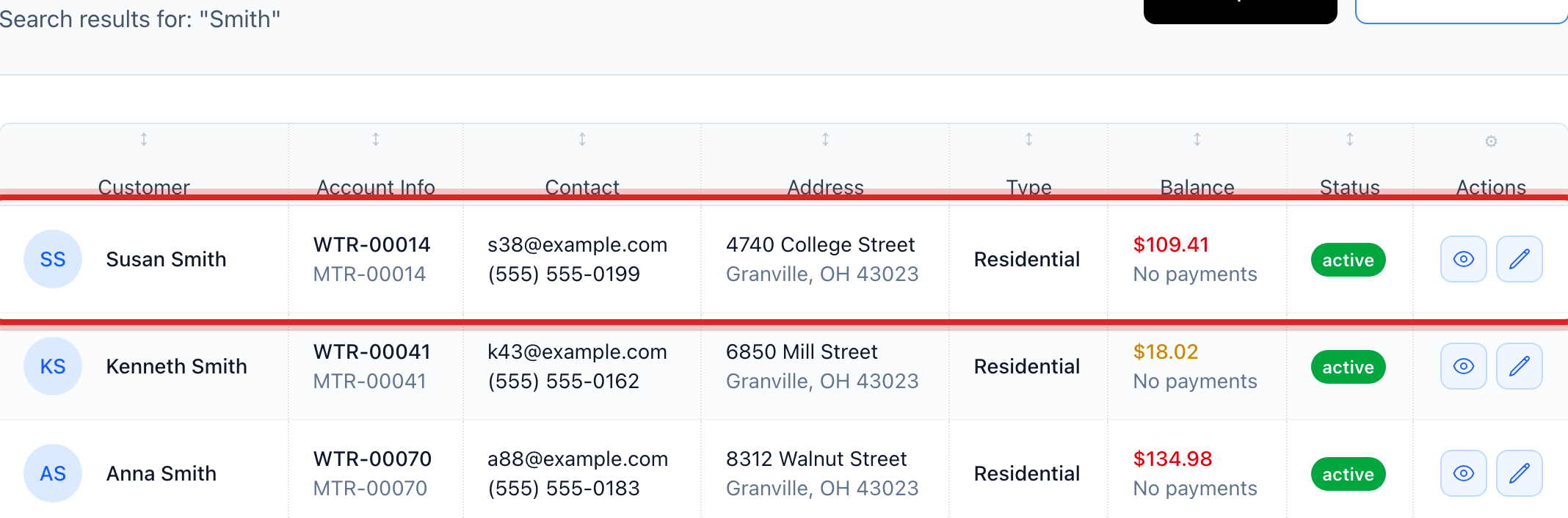
Their page opens. The name is at the top. Under it is the balance and the service address.
The row of big buttons under the name takes you to each part of the account. Overview is where you start. Activities is every call, note, text and payment. Usage History is what the meter read each month. Service History is the work done at the house. Support Tickets is every problem they reported. Bill Settings is how the bill goes out and how it gets paid.
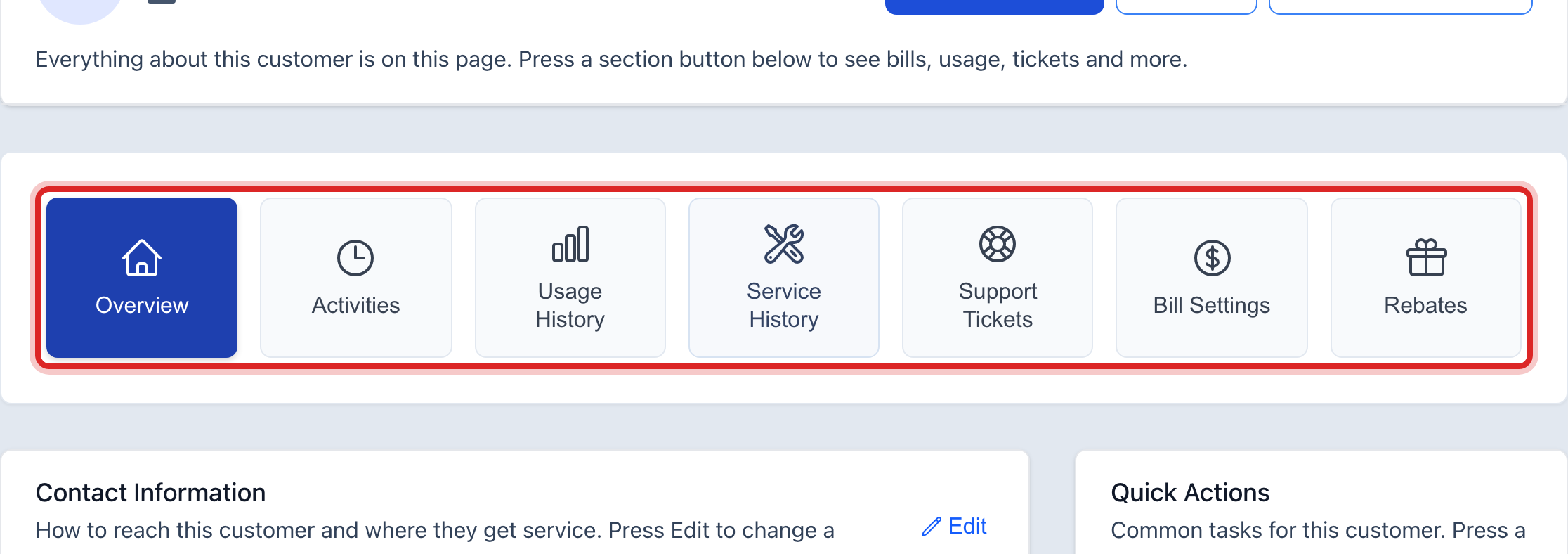
Scroll down on Overview. The contact details, the account details, the meters and the latest bills are all there.
You are done when
You see the customer's name at the top of the page, with the balance under it and the row of section buttons below that.
If something looks different
No one shows up. Check the spelling, then try fewer letters. "Smi" finds every Smith and Smithson.
Too many show up. Type the street name after the last name, like "Smith Main".
You see the list of all customers instead. You clicked All Customers. That page lists everyone. Click a name there and the same page opens.
The account is marked closed. A red box at the top says so. Nothing happens on a closed account until it is opened again.