
Appearance
4. Add another person who can call about the account
When you need this: a daughter handles her mother's bills. A property manager handles a rental. A spouse wants to call in too. Put that person on the account so the office knows they may ask about it, and so the bill can go to them if that is what the family wants.
Steps
On the left side of the screen, click Customer Management, then click Search. Find the customer and click their name.
On the Overview tab, scroll down to the card named Alternate Billing Contacts.
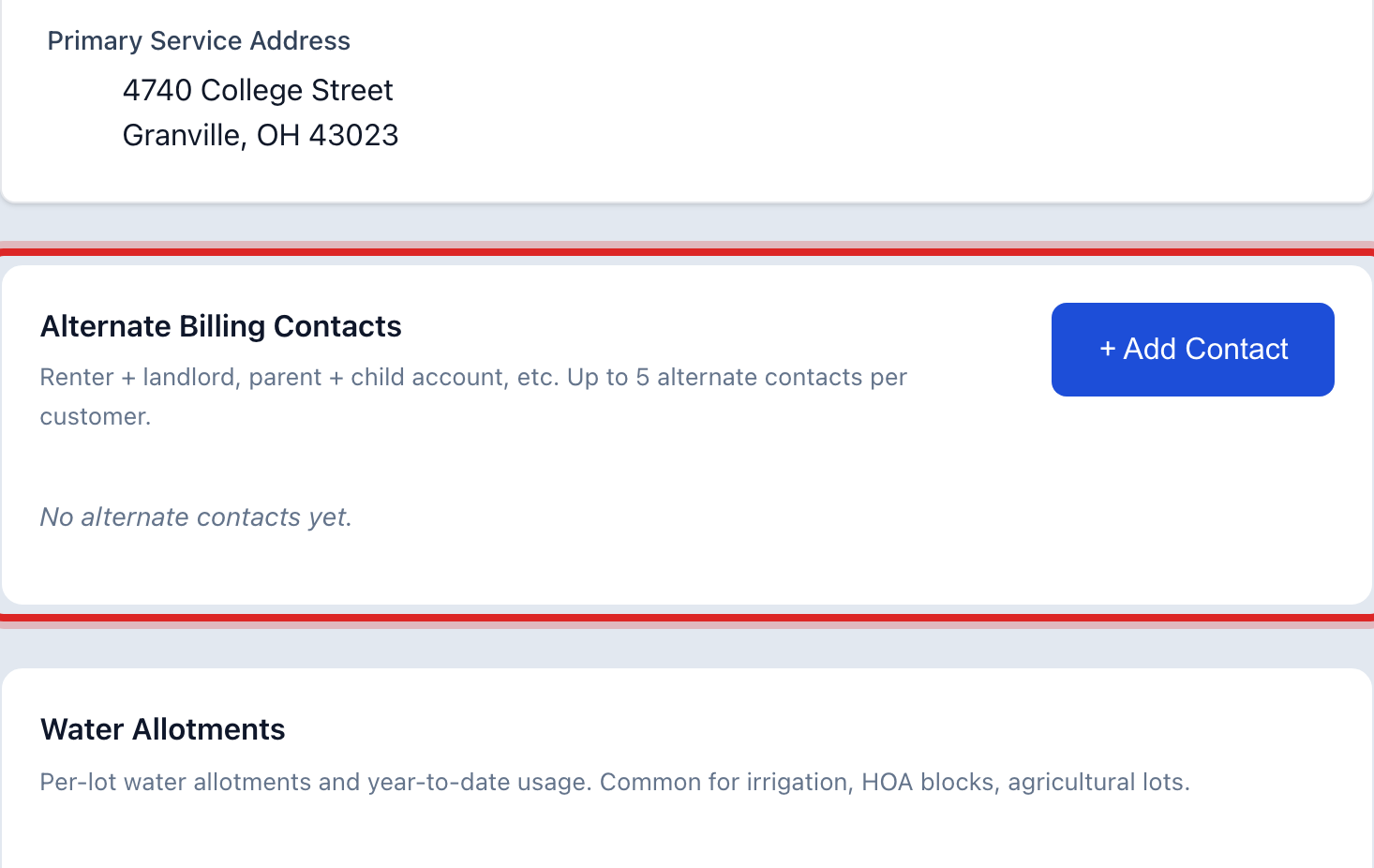
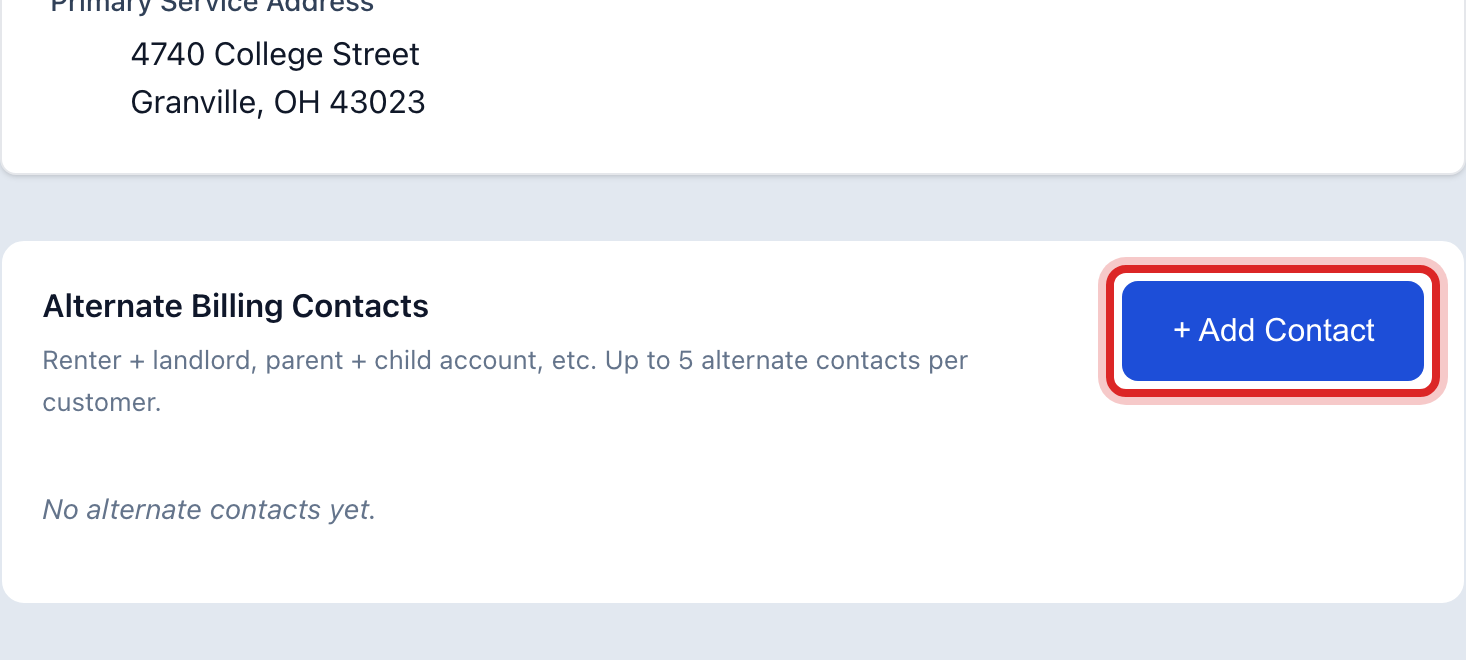
Click + Add Contact.
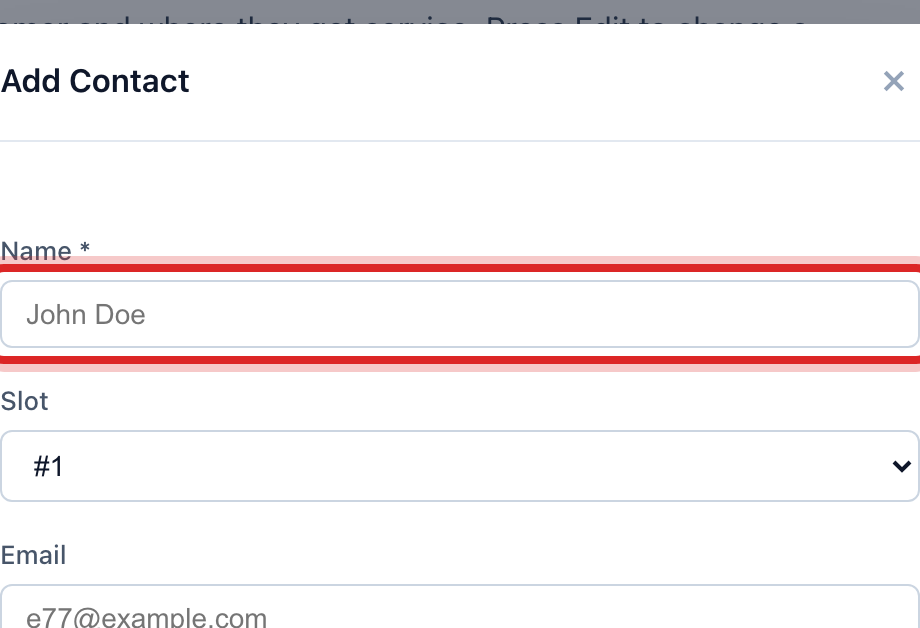
Type the person's name in the Name box.
Type their Email and Phone. Type their address if the bill should go to them.
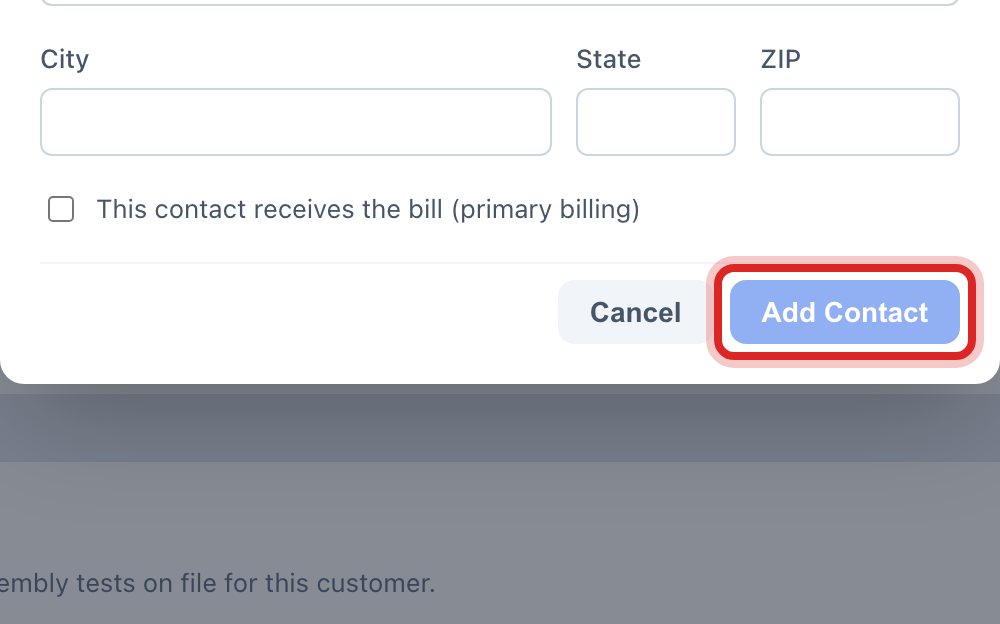
If this person should get the bill instead of the customer, tick This contact receives the bill (primary billing).
Click the blue Add Contact button at the bottom.
Made a mistake? Click Undo on the green message that appears, or open Show me how at the top and pick Undo a mistake.
You are done when
The person shows as a row on the Alternate Billing Contacts card, with Edit and Remove beside the name.
If something looks different
The Add Contact button is gone. An account holds five contacts at most. Remove one you no longer need.
The person only wants to get texts about outages. That is a different job. Open Customer Messaging, then Contact Groups, and add them there.
You need to take someone off. Click Remove on their row.
You cannot see the card. Only staff who may edit customers see it. Ask your administrator.