
Appearance
3. Write down a call and set a follow up
When you need this: a customer calls about a high bill. You promise to look into it and call back Friday. Write the call down on their account so anyone in the office can see it. Then set a reminder so Friday does not slip by.
Steps
On the left side of the screen, click Customer Management, then click Search. Find the customer and click their name. Lesson 1 shows how.
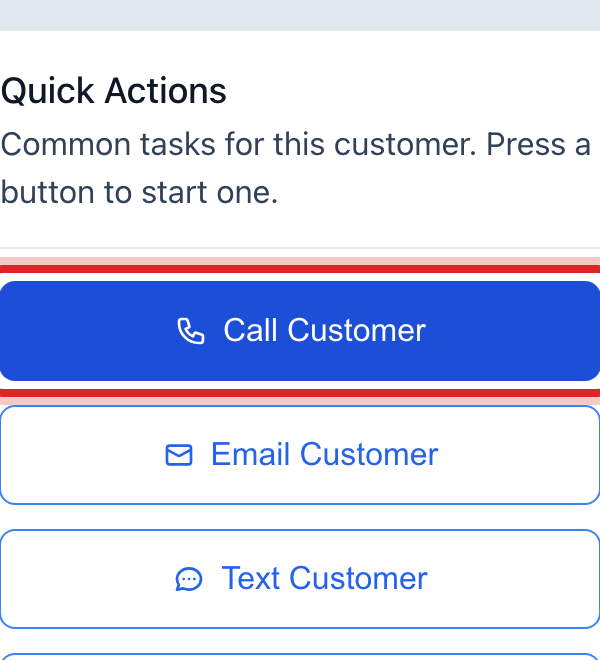
On the Overview tab, look for the Quick Actions card on the right. Click Call Customer.
A window opens with their phone number. Under Who called?, pick The customer called us or We called the customer.
Under What happened?, pick what fits. Talked with the customer is the usual one.
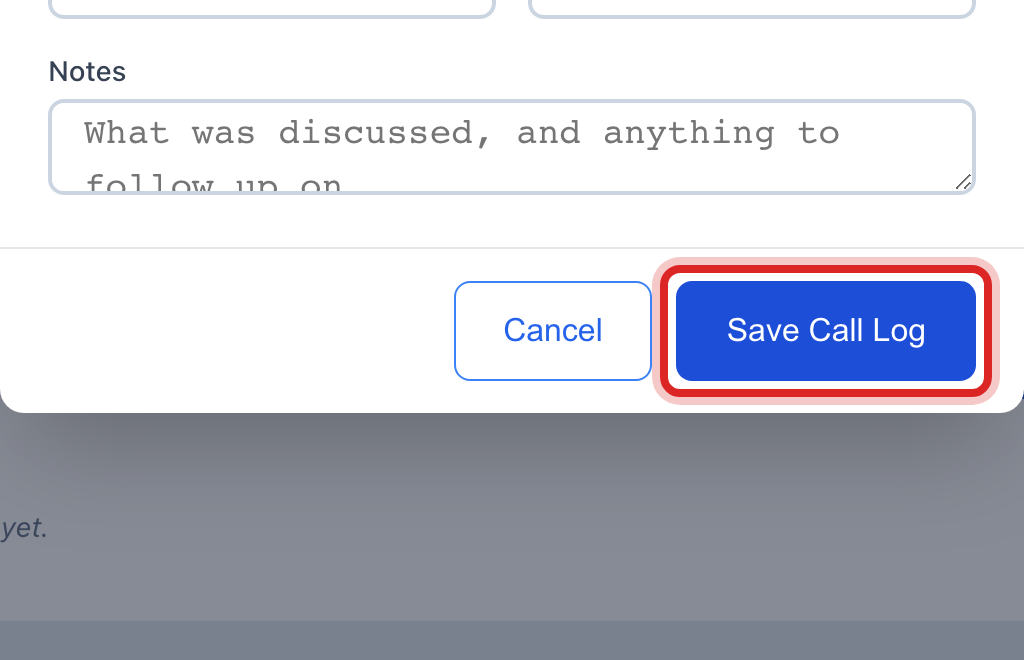
In the Notes box, type what was said and what you promised.
Click the blue Save Call Log button.
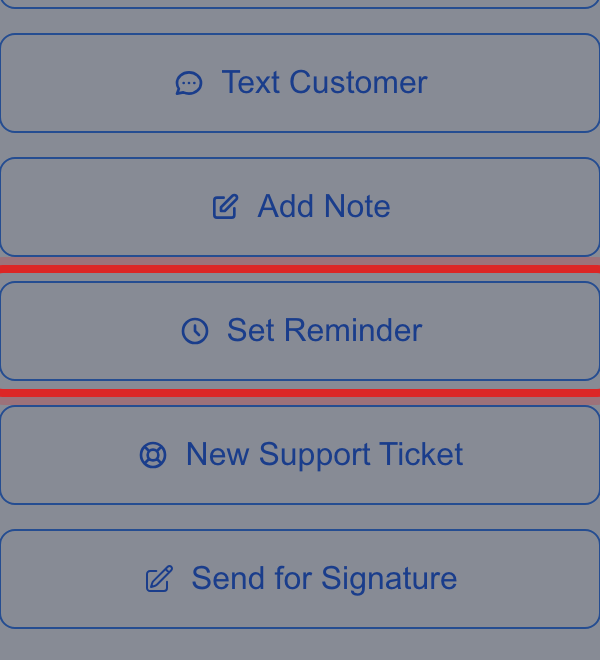
Back on the Quick Actions card, click Set Reminder.
Type what you need to do in the Reminder Title box, like "Call back about the high bill".
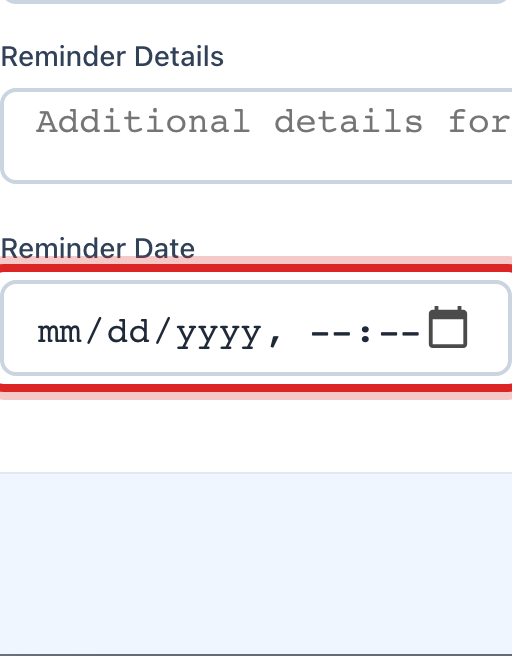
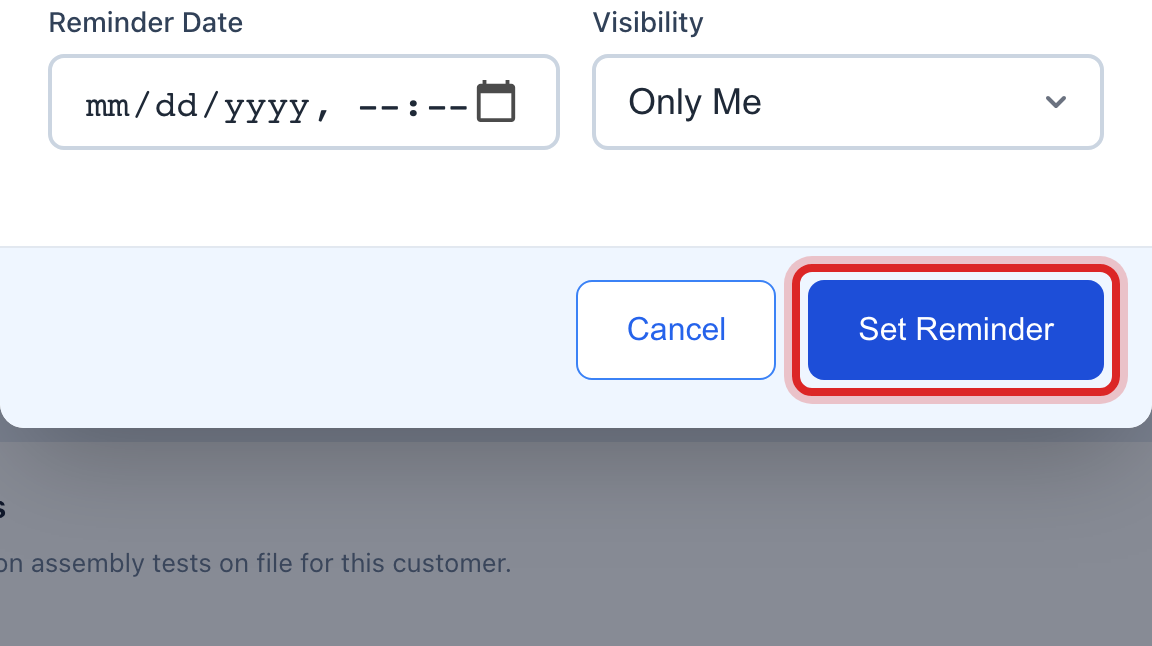
Click the Reminder Date box and pick the day and time.
Click the blue Set Reminder button.
Made a mistake? Click Undo on the green message that appears, or open Show me how at the top and pick Undo a mistake.
You are done when
The call shows at the top of Recent Activity on the Overview tab, with your name and the time. The reminder shows under Customer Support, then Follow-up Reminders, on the day you picked.
If something looks different
You just want to write a note, not a call. Click Add Note on the same card. Pick a Note Type, type the note and click Save Note.
Someone else should do the follow up. In the reminder window, pick a team under Visibility so they see it too.
The Call Customer button is missing. The account has no phone number. Click Edit at the top of the page and add one first.
You want to see every call ever made. Click the Activities button under the name. Click Phone at the top of the list to see only calls.