
Appearance
5. Change how a customer gets their bill
When you need this: a customer asks for the bill by email instead of paper. Or they want both. Or they moved and want paper again. One list on their page sets it, and the next bill follows.
Steps
On the left side of the screen, click Customer Management, then click Search. Find the customer and click their name.
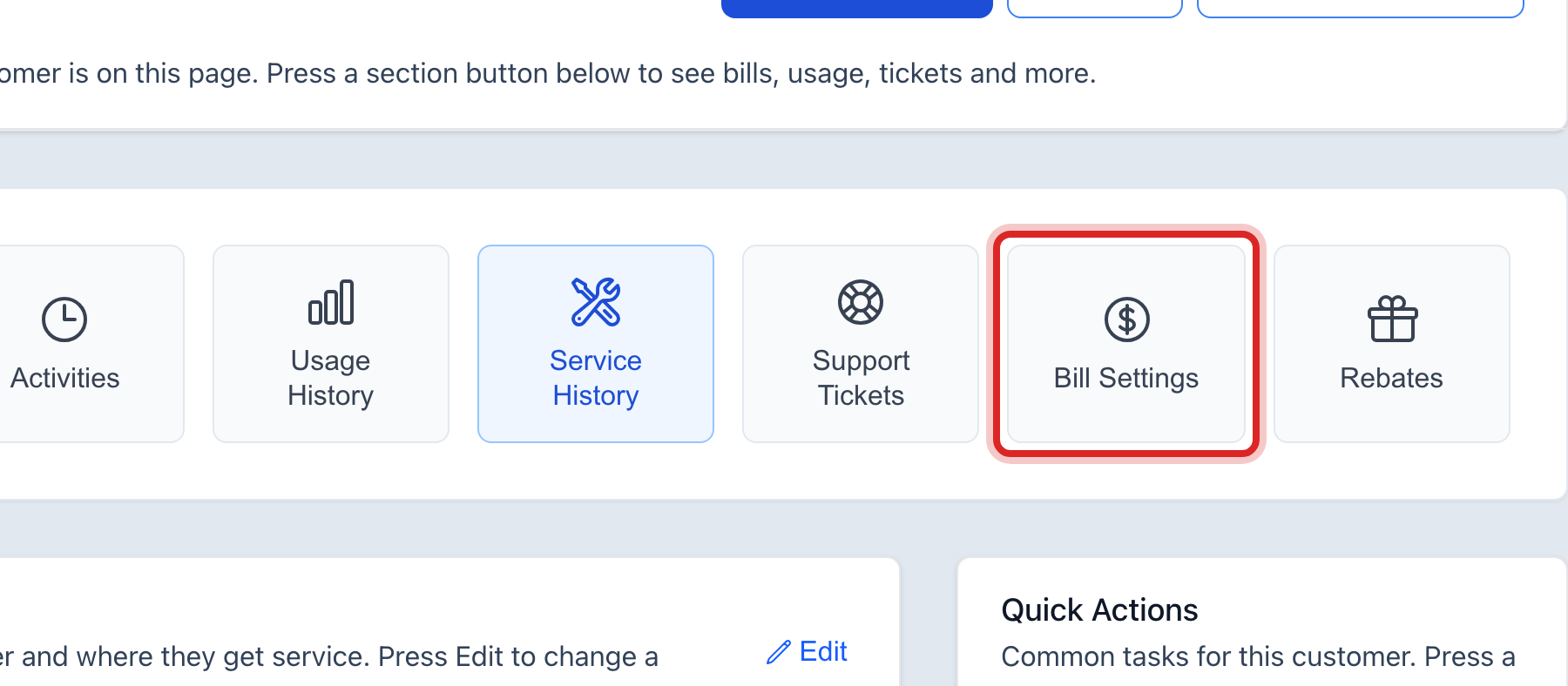
Click the Bill Settings button in the row under the name.
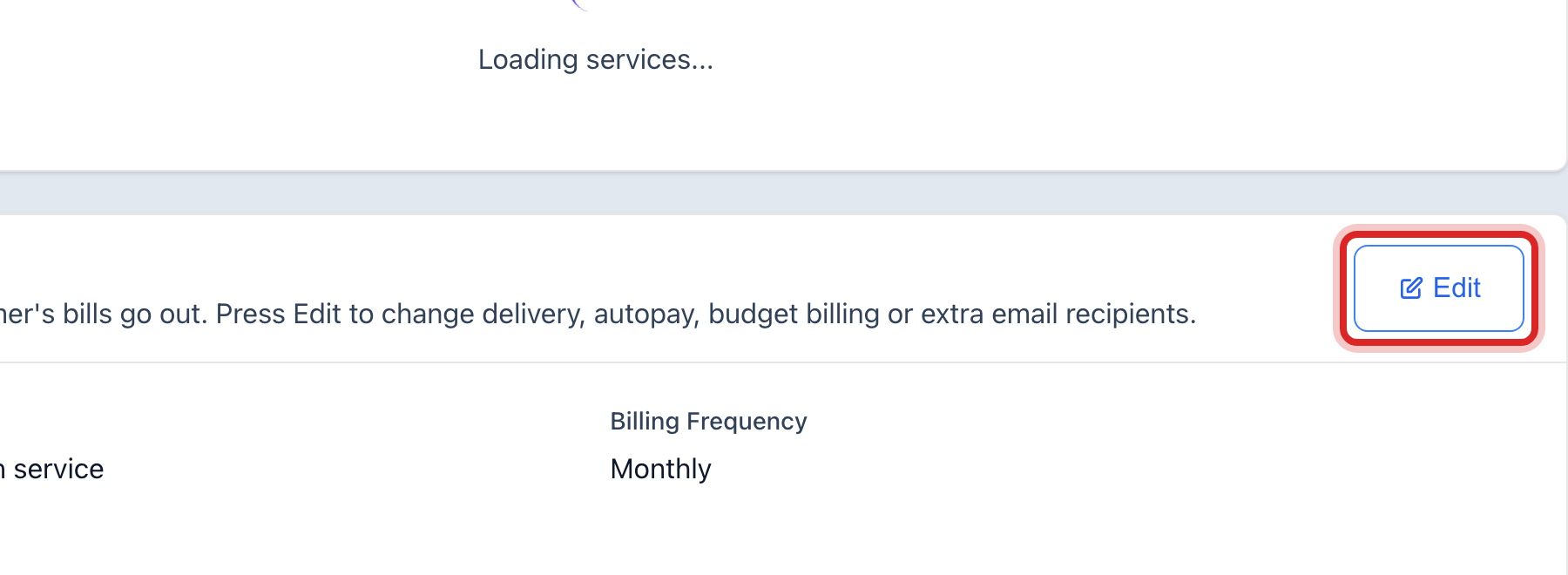
Find the card named Bill Settings. Click Edit at its top right.
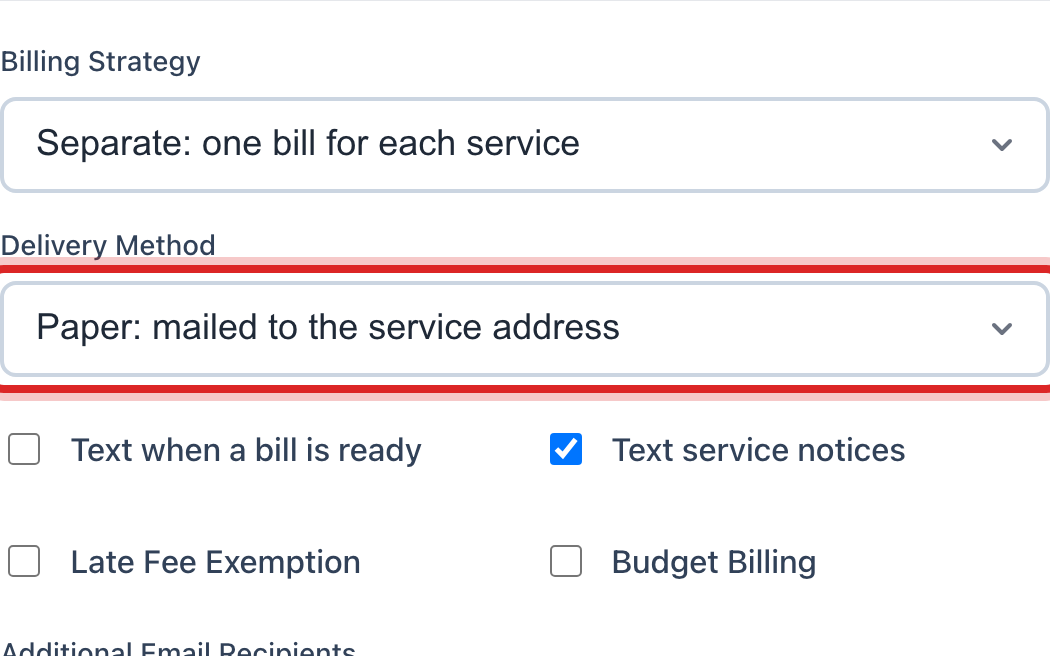
Click the Delivery Method list. Pick Paper: mailed to the service address, Email only: no paper bill, or Paper and email: they get both.
For email, check that an email address is on the account. The Contact Information card on the Overview tab has it.
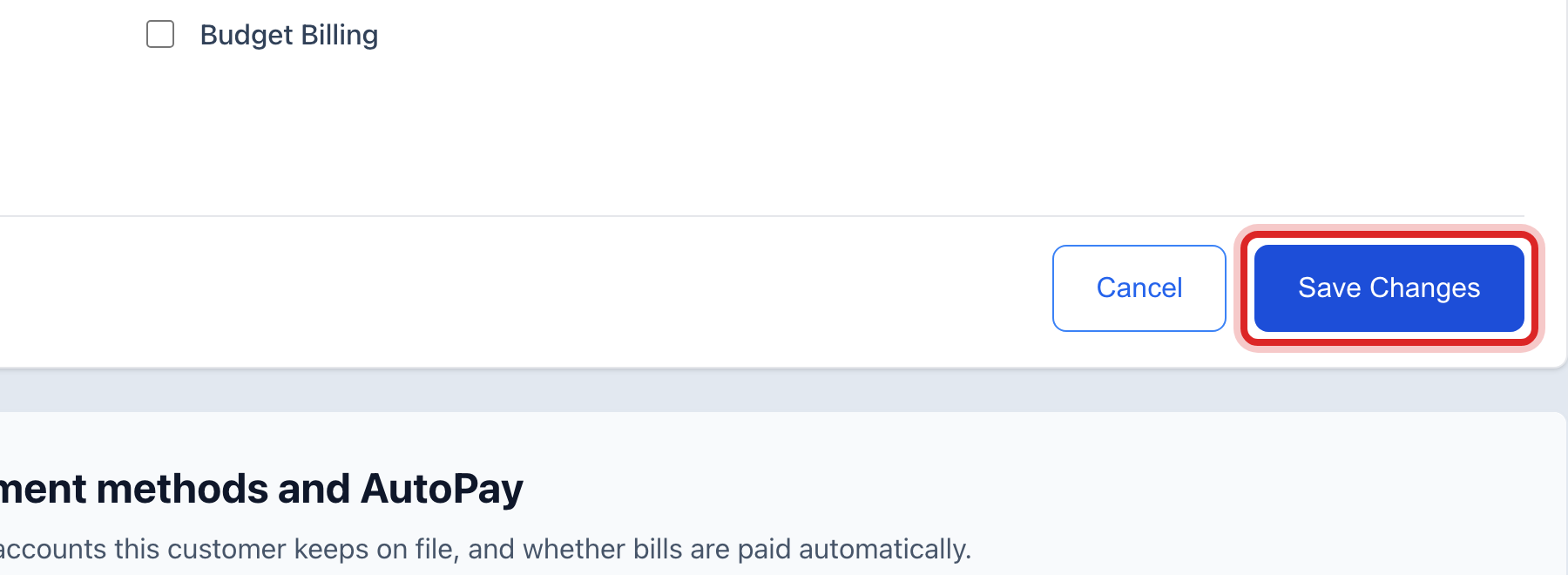
Click the blue Save Changes button at the bottom of the card.
Made a mistake? Click Undo on the green message that appears, or open Show me how at the top and pick Undo a mistake.
You are done when
The card closes and the Delivery Method line reads the choice you made. The next bill goes out that way.
If something looks different
They want a text when the bill is ready. On the same card, the Text when a bill is ready switch does that. It needs a cell phone on the account.
The bill should go to a second email too. While you are editing, add it under the extra email boxes on the same card.
They want to pay by card each month on their own. That is AutoPay, lower on the same tab. Quick start page 14 shows it.
You cannot click Edit. Only staff who may edit customers can change this. Ask your administrator.