
Appearance
8. Log an emergency incident
When you need this: a main break, an outage, a boil water notice. Sending the notice is quick start page 25. This is the record of it: when it started, who was told, what was done, and when it ended. The state asks for this after the fact, and it is the first thing an inspector reads.
Steps
On the left side of the screen, click Compliance, then click Emergency Incidents.
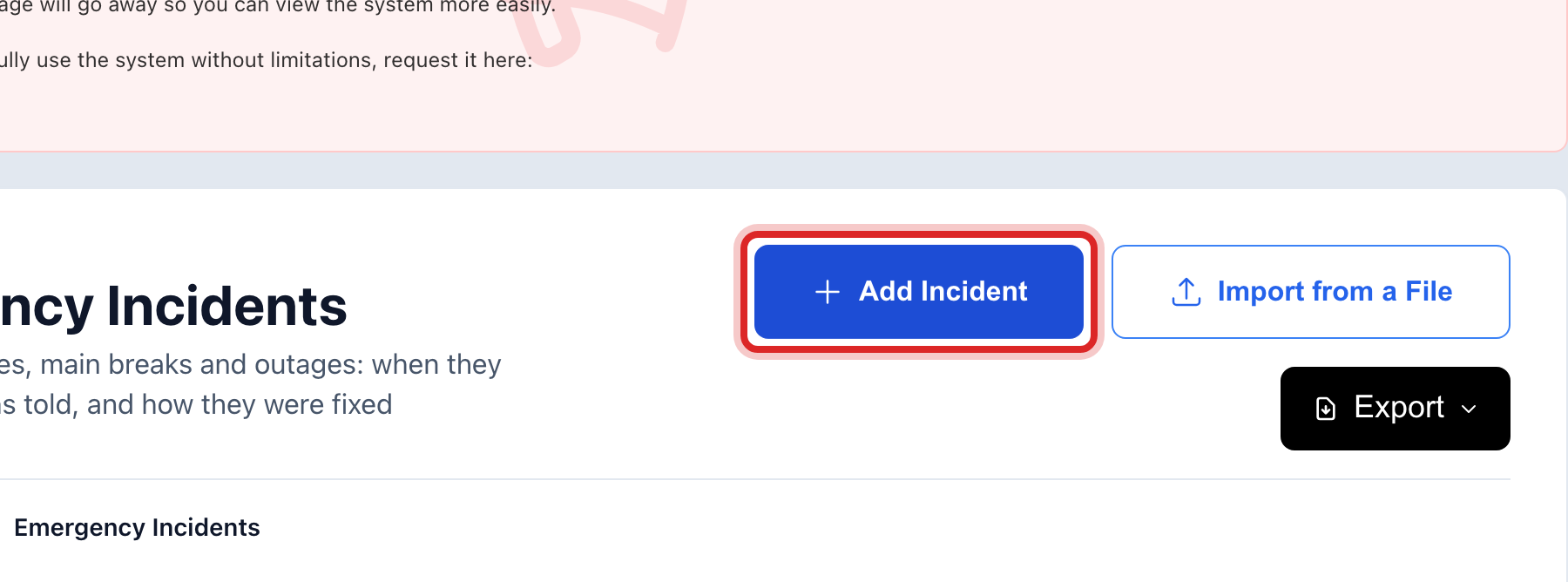
At the top right, click Add Incident. A window opens.
In What Happened, type it plainly, like Main Break or Boil Water Notice.
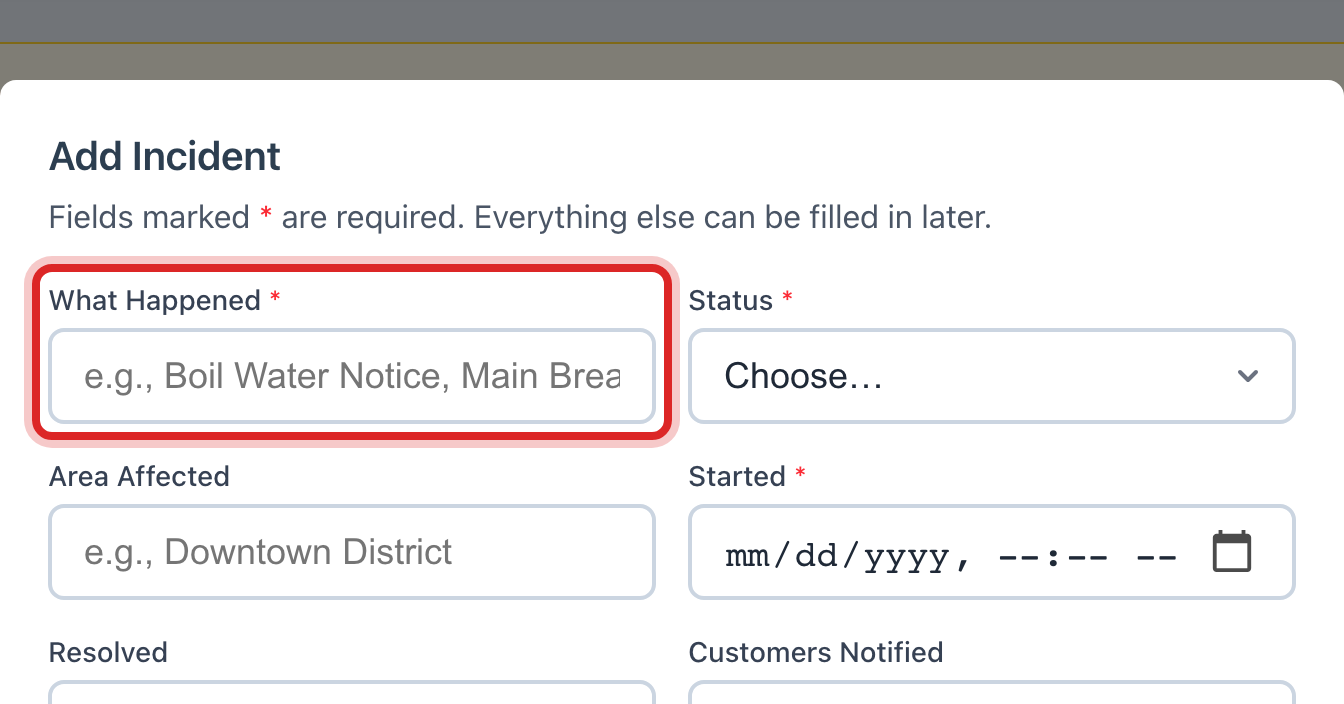
Leave Status on Open. Type the Area Affected, like Downtown or Elm Street east of 5th.
Set Started to the day and time it began. Set Customers Notified to Yes if the notice went out.
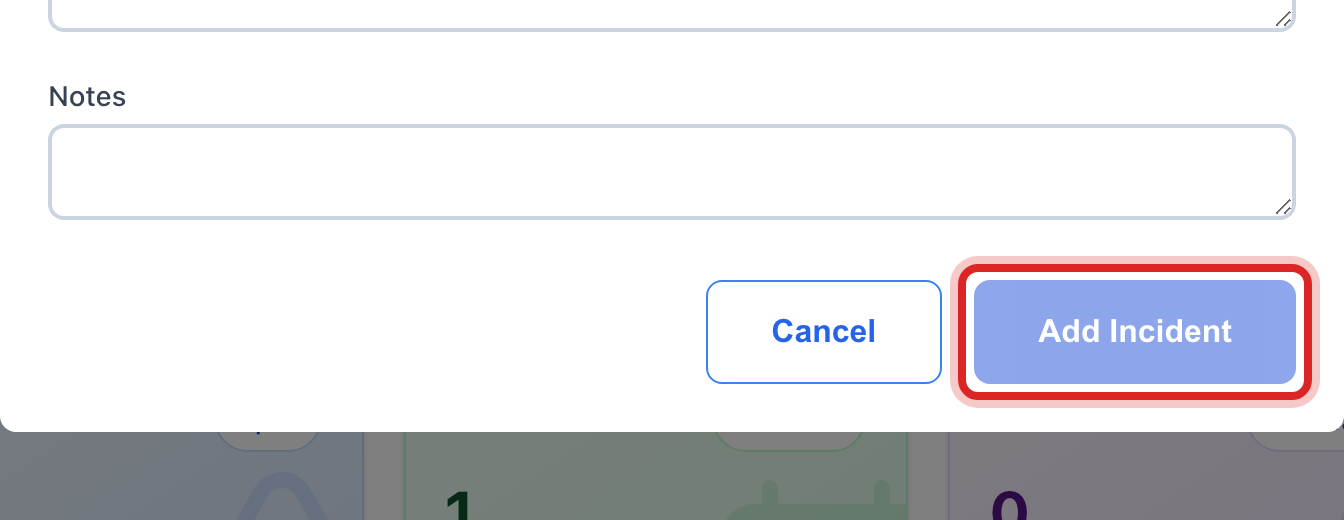
Click the blue Add Incident button at the bottom.
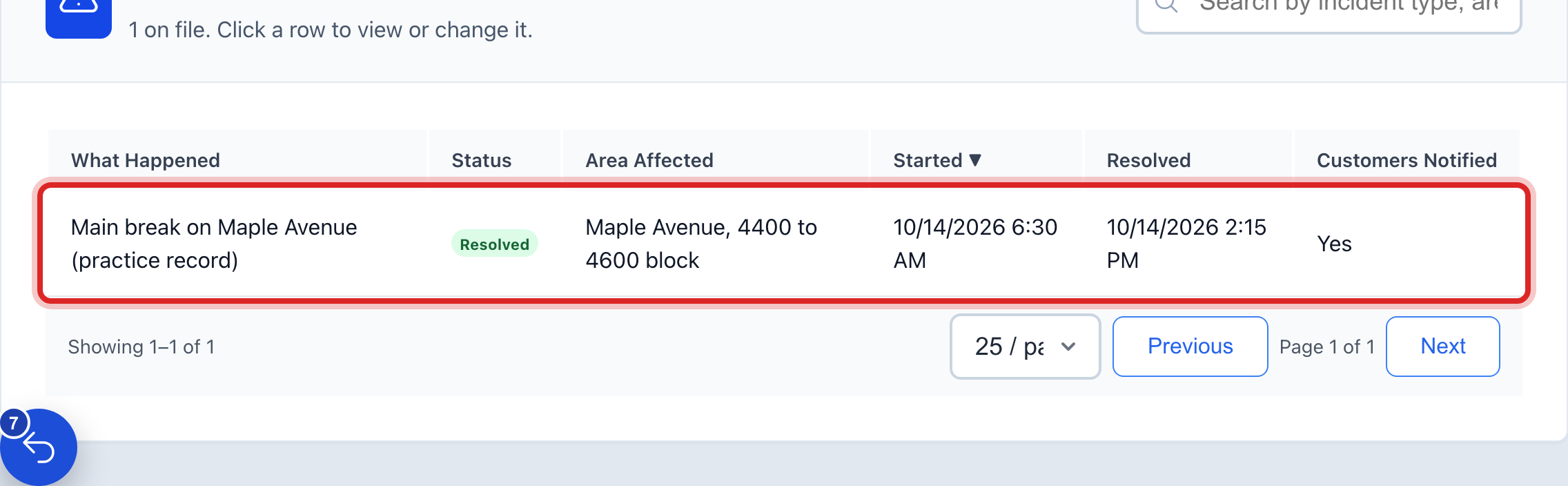
When it is over, click the row in the list. Set Status to Resolved, set Resolved to the day and time, say what was done in What Was Done, and click Save Changes.
Made a mistake? Click Undo on the green message that appears, or open Show me how at the top and pick Undo a mistake.
You are done when
A green message says the incident was added. Open Incidents at the top of the page counts it until you mark it resolved.
If something looks different
The state wants a written report. Type where and when you sent it in Report to the State, like Filed 1/16 by email.
It was a gas leak. Log it here the same way. The PHMSA incident report is under Report Generator on a gas utility.
You want the same thing in the daily log. The daily log under Operations Logs is for your rounds. This page is for the event itself. Write both.
You cannot click Add Incident. Only staff who may edit compliance records can. Ask your administrator.