
Appearance
1. Add a well, a plant or a sampling point
When you need this: before anything else in Compliance works. The monitoring schedule, the lab imports and the reports all hang off your facilities: each well, the plant, the distribution system, and the spots where you pull samples. The state gives each one an ID. Put those IDs in once.
Steps
On the left side of the screen, click Compliance, then click Facilities.
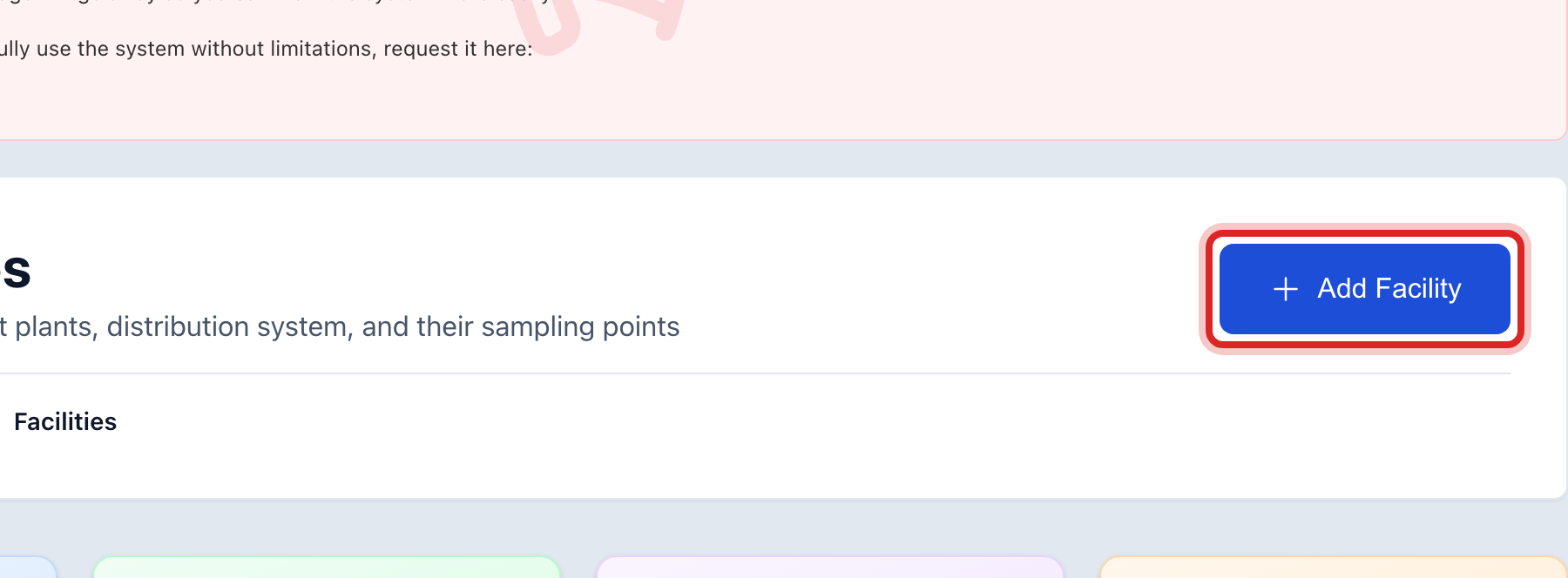
At the top right, click Add Facility. A window opens.
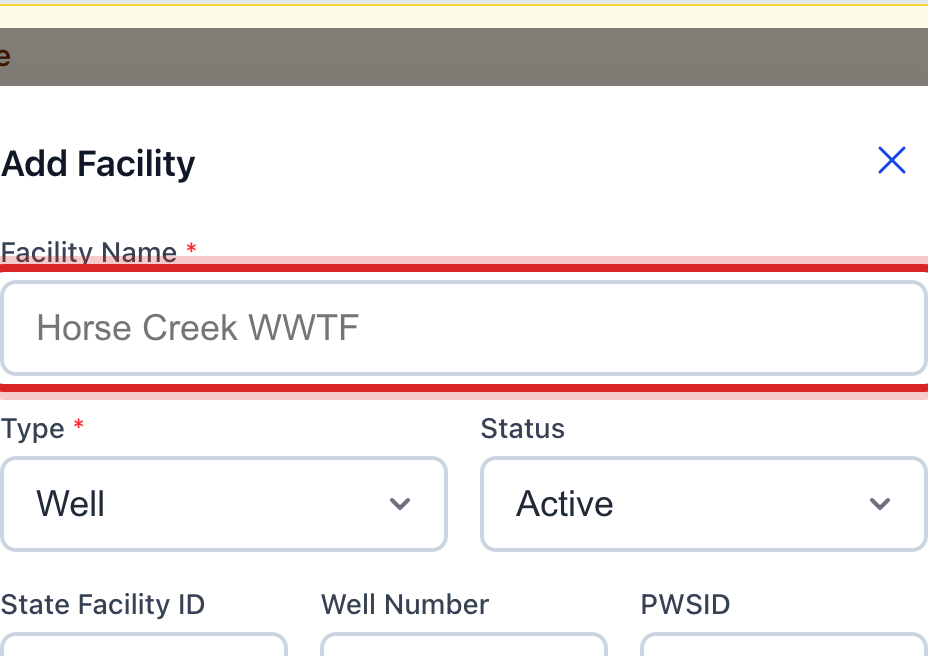
Type the Facility Name the way you say it, like Well 1 or Horse Creek Plant.
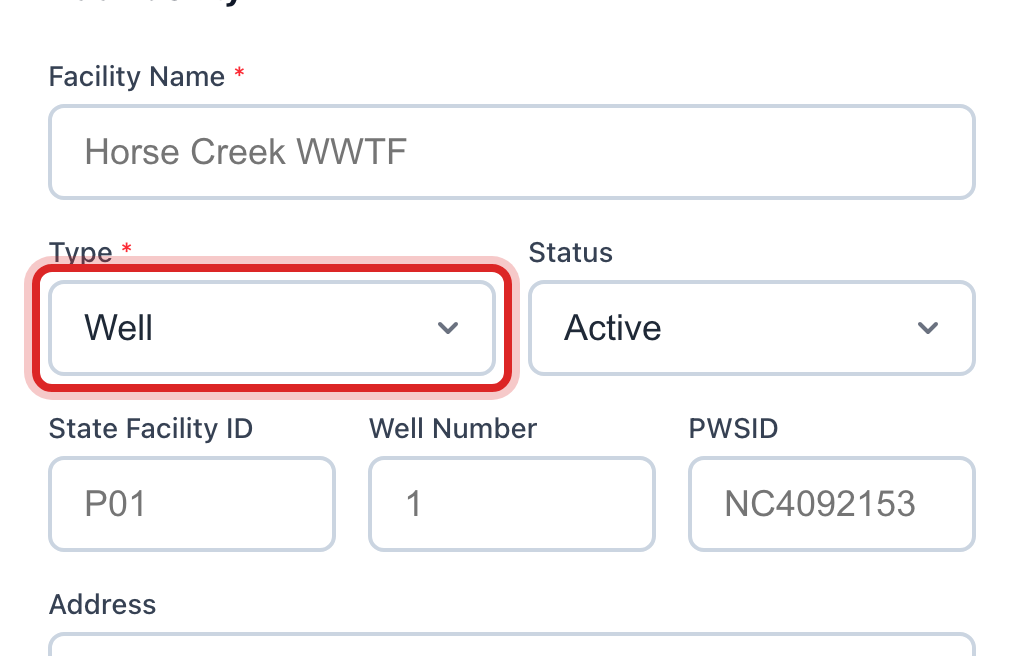
Pick the Type. Well, Water Treatment Plant, Distribution System, and so on.
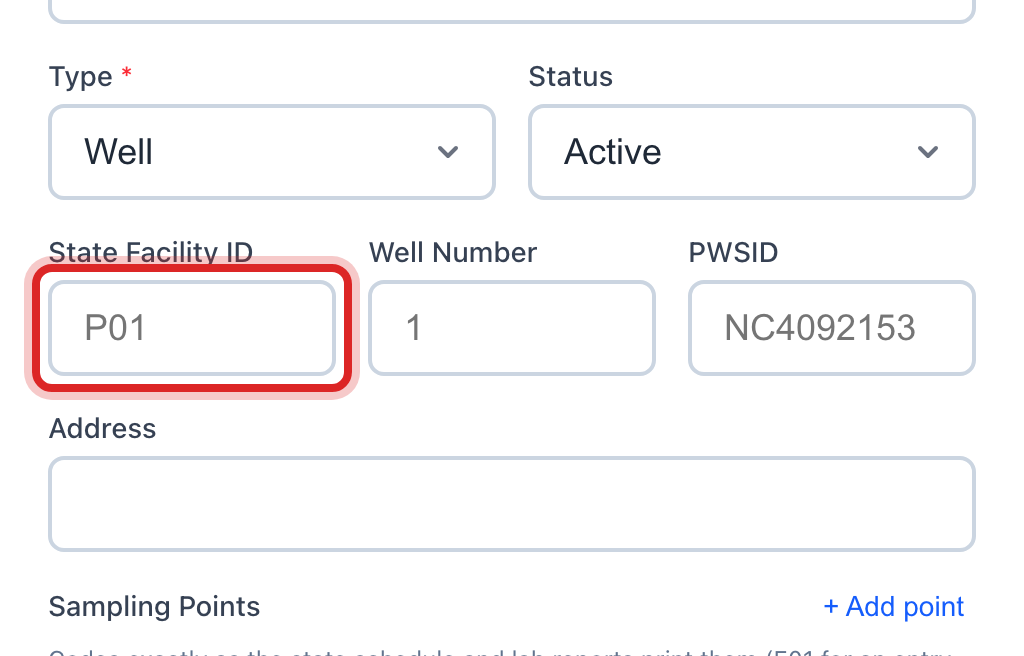
Type the State Facility ID. It is on your sample schedule from the state, often a letter and two numbers like P01.
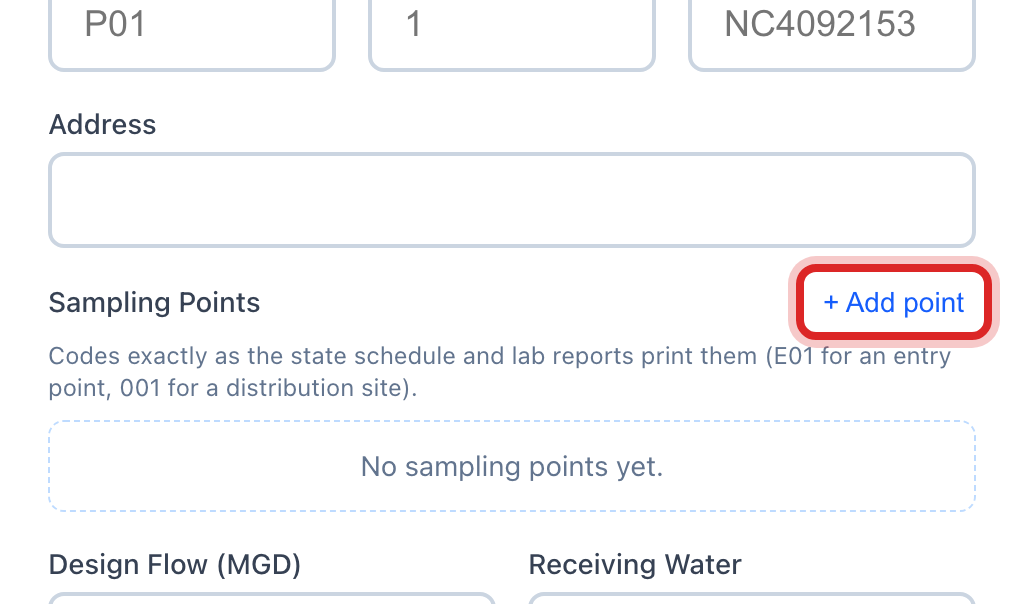
Under Sampling Points, click + Add point. A row appears.
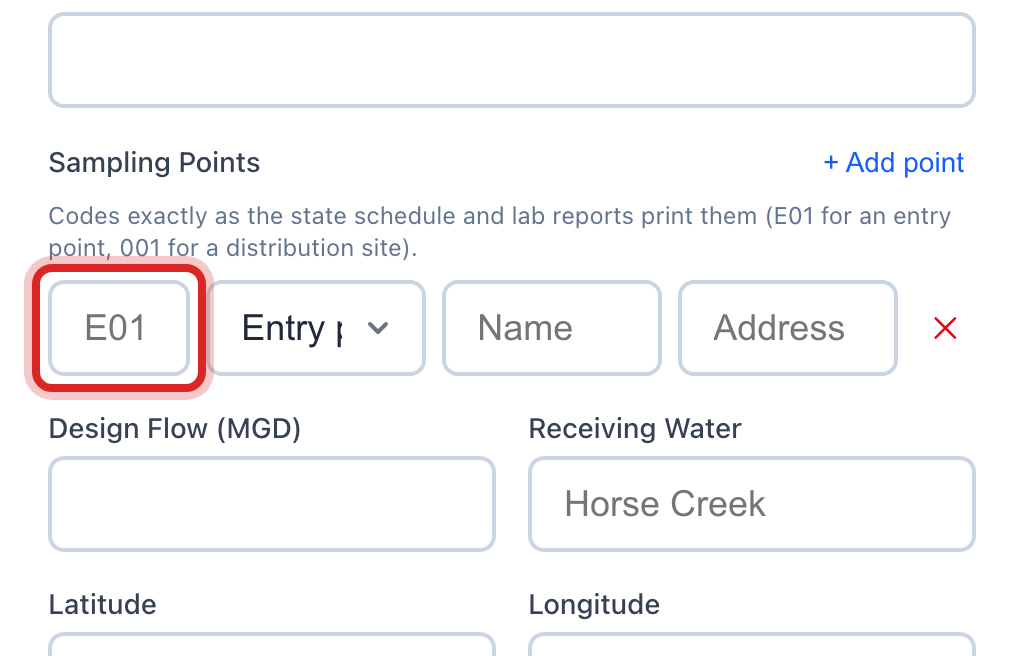
Type the point's code from the state, like E01, pick its kind, and give it a name like Entry Point Well 1.
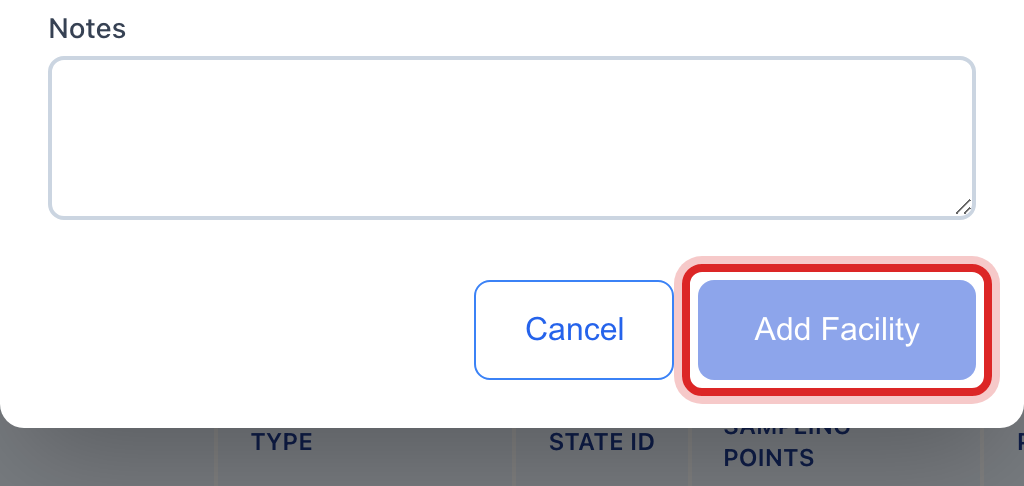
Click the blue Add Facility button at the bottom.
Made a mistake? Click Undo on the green message that appears, or open Show me how at the top and pick Undo a mistake.
You are done when
A green message says the facility was added. It is in the list, with its sampling points under it.
If something looks different
You do not know the State Facility ID. It is on the sample schedule your state mailed you, and on your last lab report. Save without it and add it when you find it. The monitoring schedule needs it before it can match samples.
PWSID. That is your water system number, the same for every facility. Type it once on the first one.
You need to change one later. Click Edit on its row. The same window opens.
It is a sewer plant. Pick Wastewater Treatment Facility. Then Design Flow and Receiving Water show, for the discharge permit.