
Appearance
5. Handle a violation
When you need this: a result came back over the limit. Utilops opened a violation for it on its own. The state will want to know what you did about it and when. You write the plan here, and close it here when it is fixed.
Steps
On the left side of the screen, click Compliance, then click Violations.
Under Active Violations, each box is one violation. It names the thing that was over, the result, the limit, and the sample it came from. Read it.
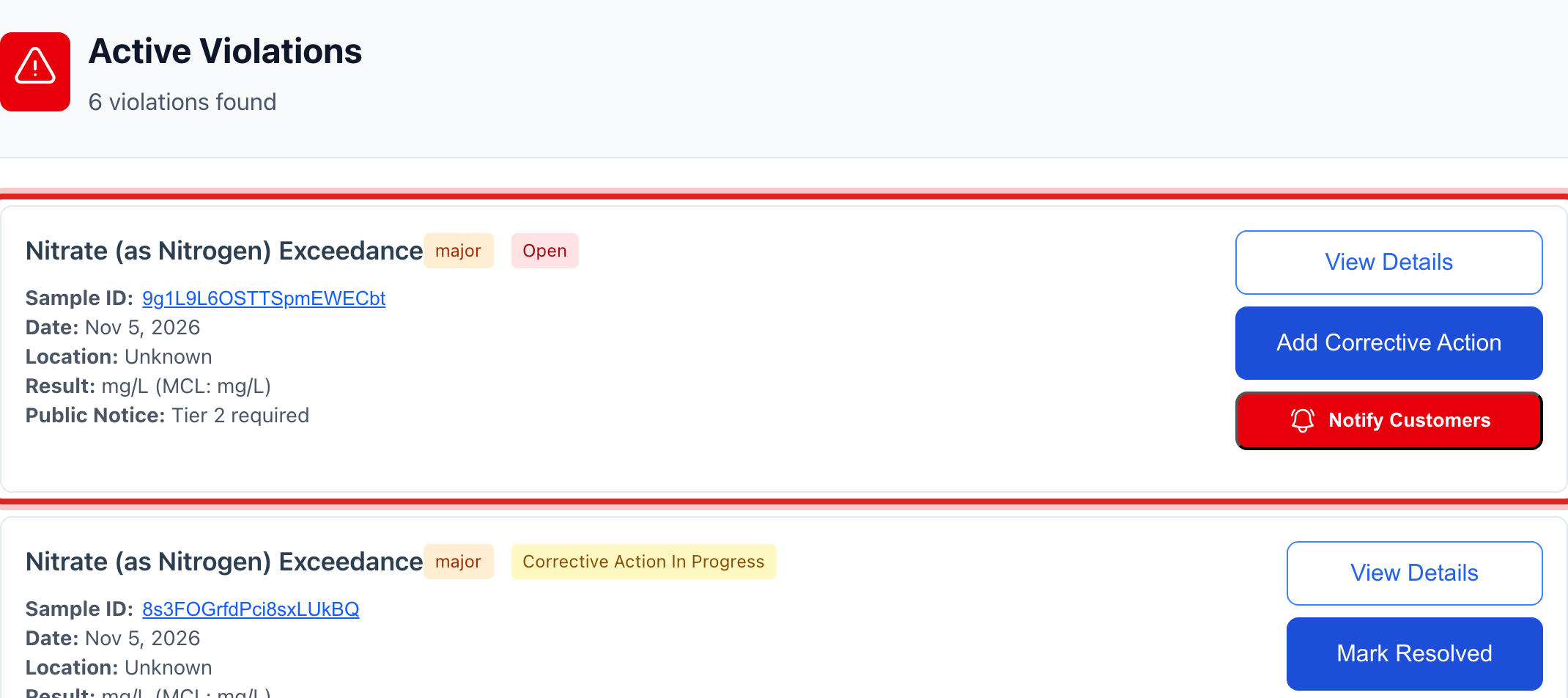
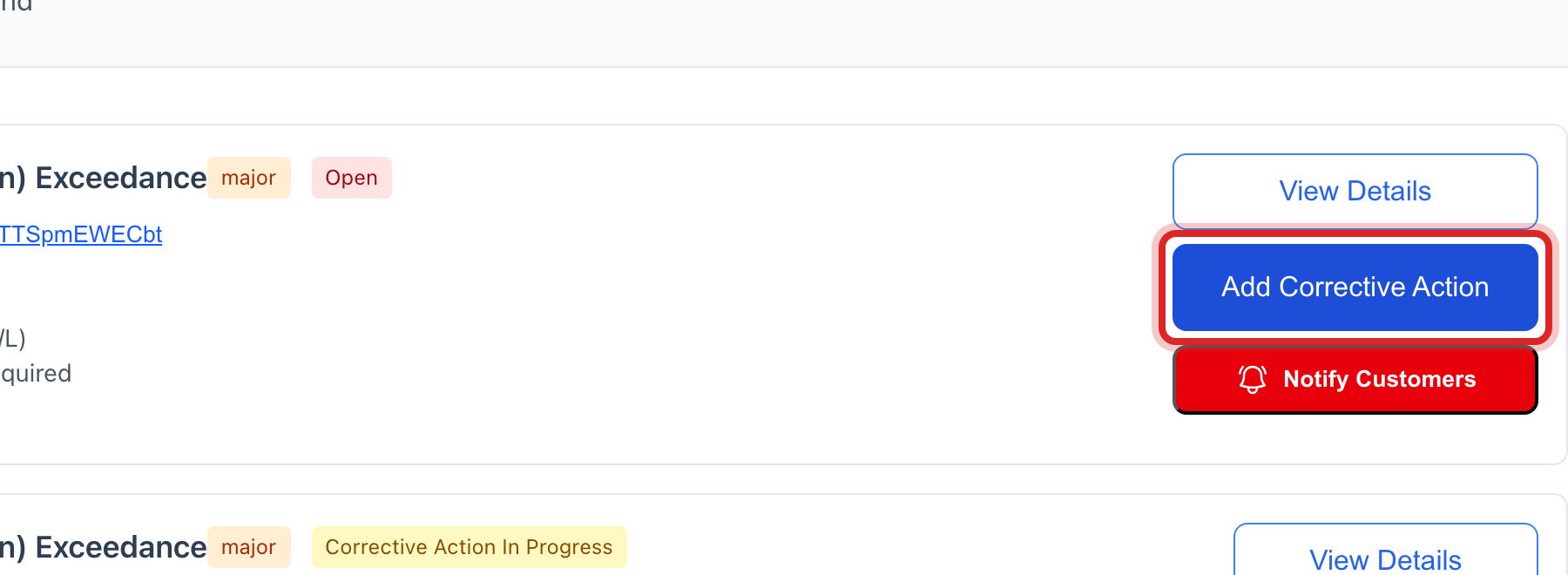
Click Add Corrective Action on the box. A window opens.
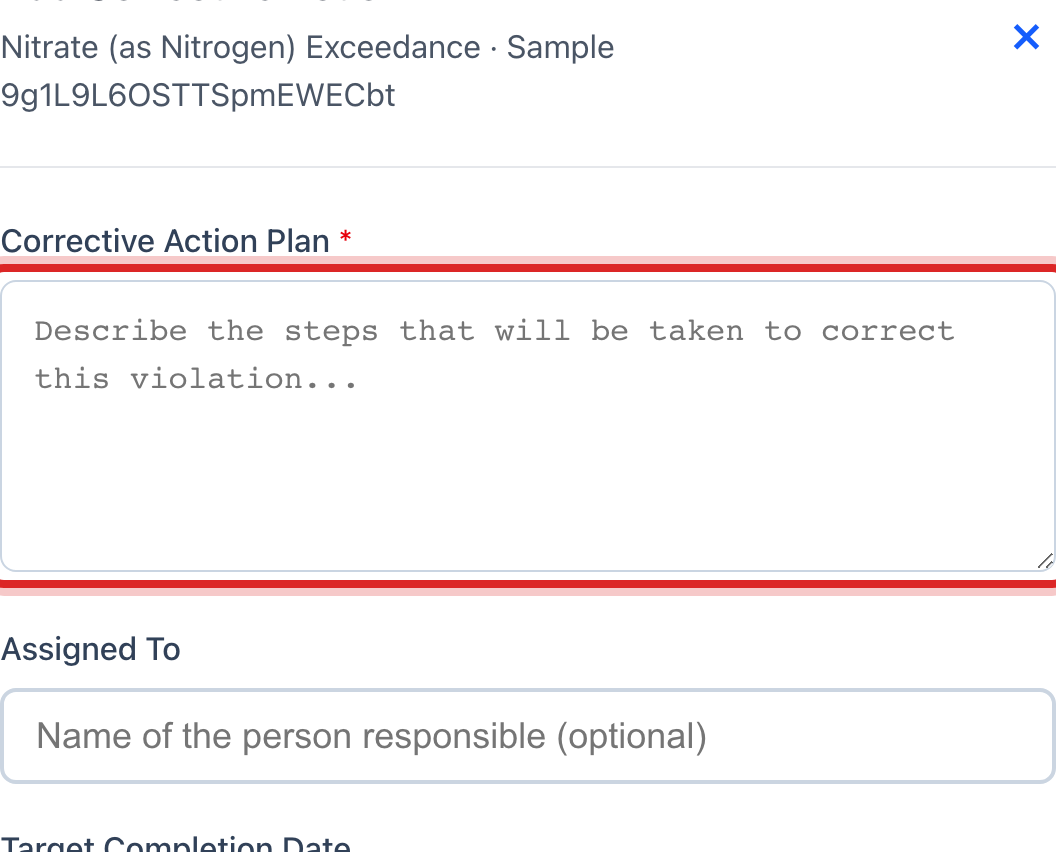
In the big box, say what you will do, like Flush the line and resample on Friday.
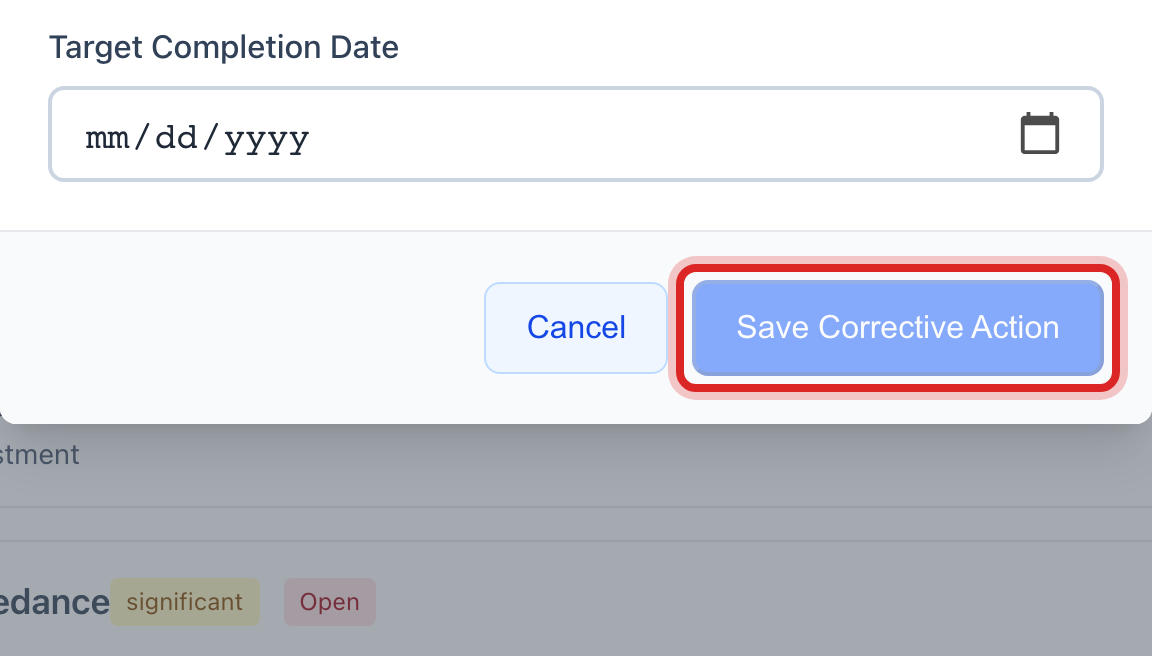
Type who is doing it in Assigned To. Set the Target Completion Date.
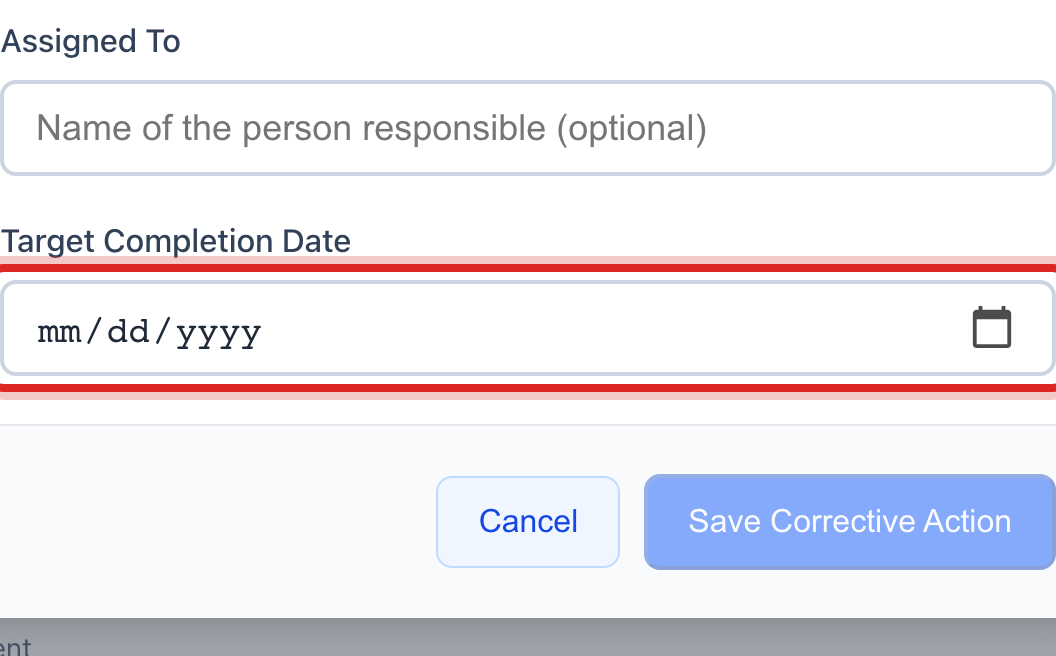
Click the blue Save Corrective Action button.
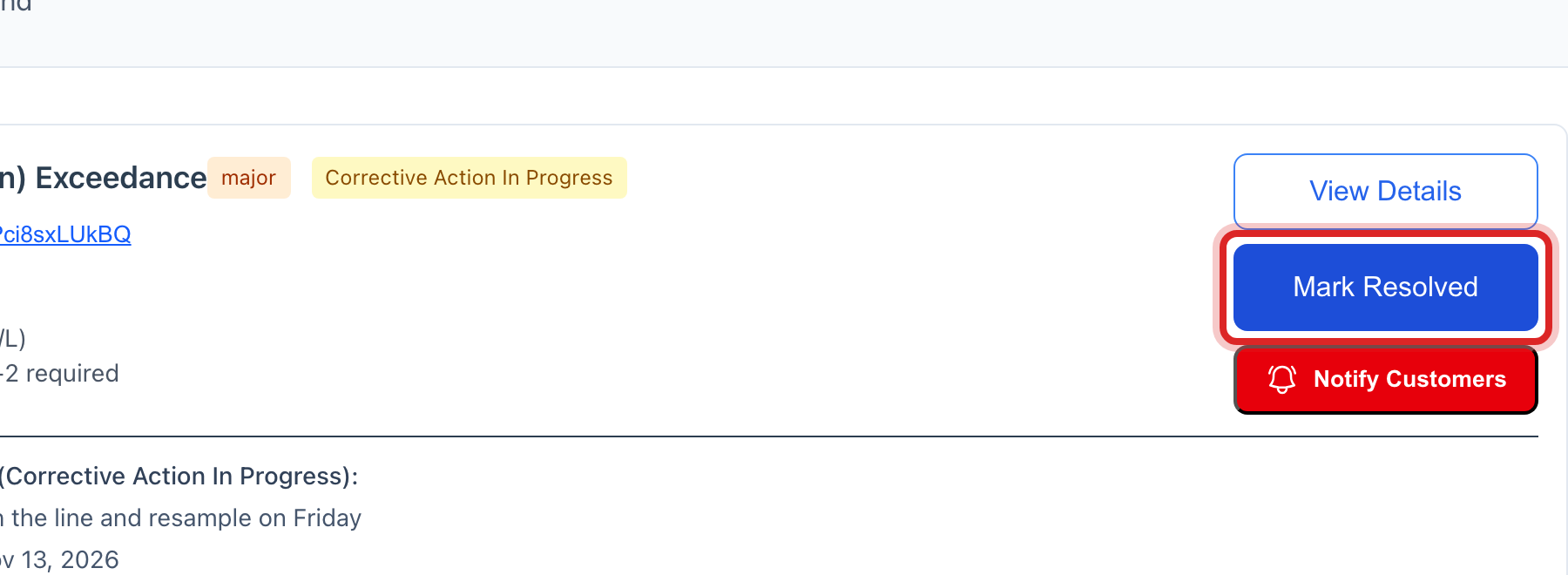
When the fix is done and the resample is clean, come back and click Mark Resolved on the same box.
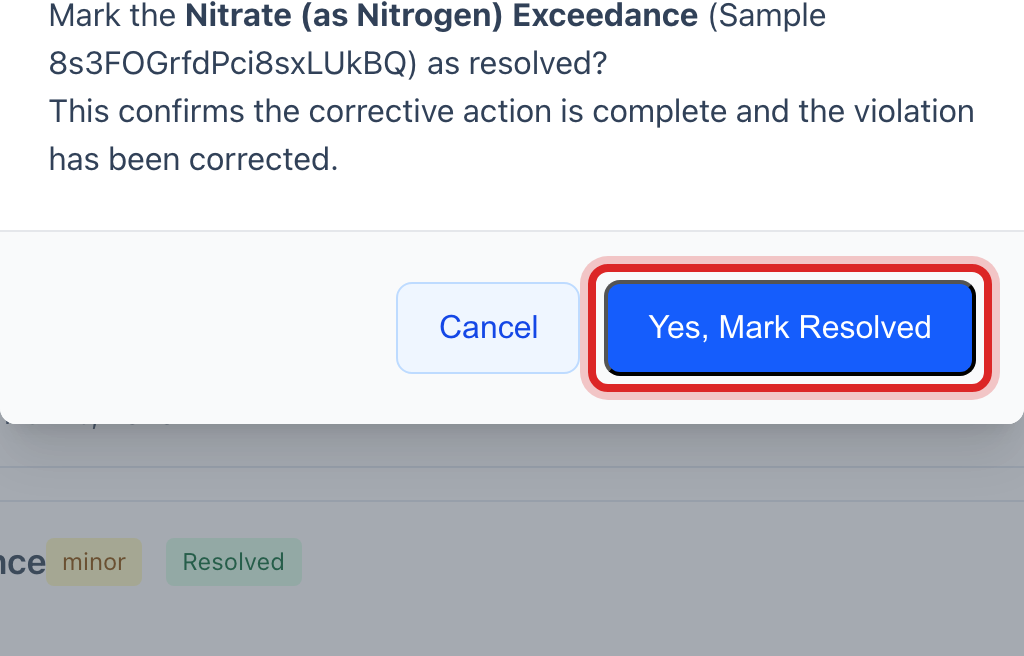
A window asks you to be sure. Click Yes, Mark Resolved.
Made a mistake? Click Undo on the green message that appears, or open Show me how at the top and pick Undo a mistake.
You are done when
The box shows Corrective Action after step 6 and Resolved after step 8. The counts at the top of the page follow.
If something looks different
The violation is for bacteria. A yellow or red box on it says what the rule wants next: repeat samples within 24 hours, and for E. coli a public notice. Notify Customers on the box opens the send page with the notice written.
Customers must be told. Click Notify Customers. It takes you to Customer Messaging with the words ready. Quick start page 25 shows the boil water notice.
It needs a crew. Click View Details, then Create Work Order. The work order is tied to the violation.
The list is empty. Nothing is over the limit. Set Status at the top to Resolved to see old ones.