
Appearance
6. Record a backflow test
When you need this: the tester's report came in for the car wash, the school or the farm. Every backflow device gets tested once a year, and the state can ask to see every test. Write each one down here the day it comes in.
Steps
On the left side of the screen, click Compliance, then click Backflow Tests.
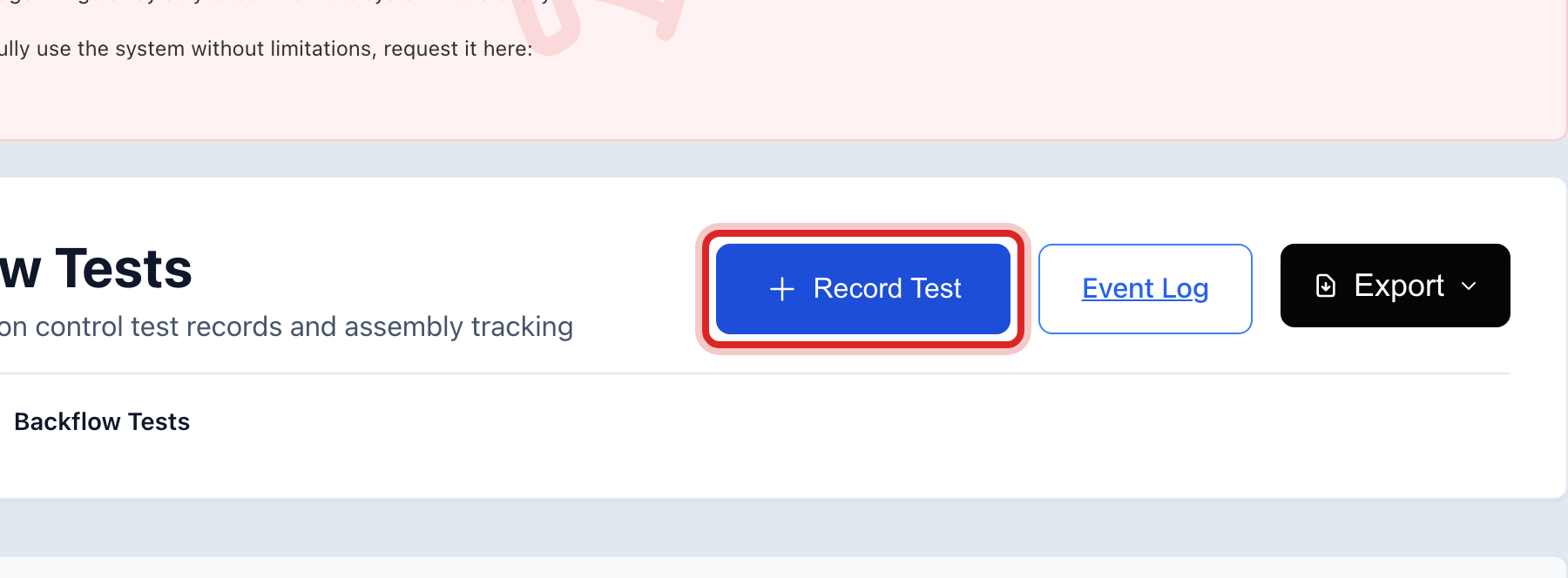
At the top right, click Record Test. A window opens.
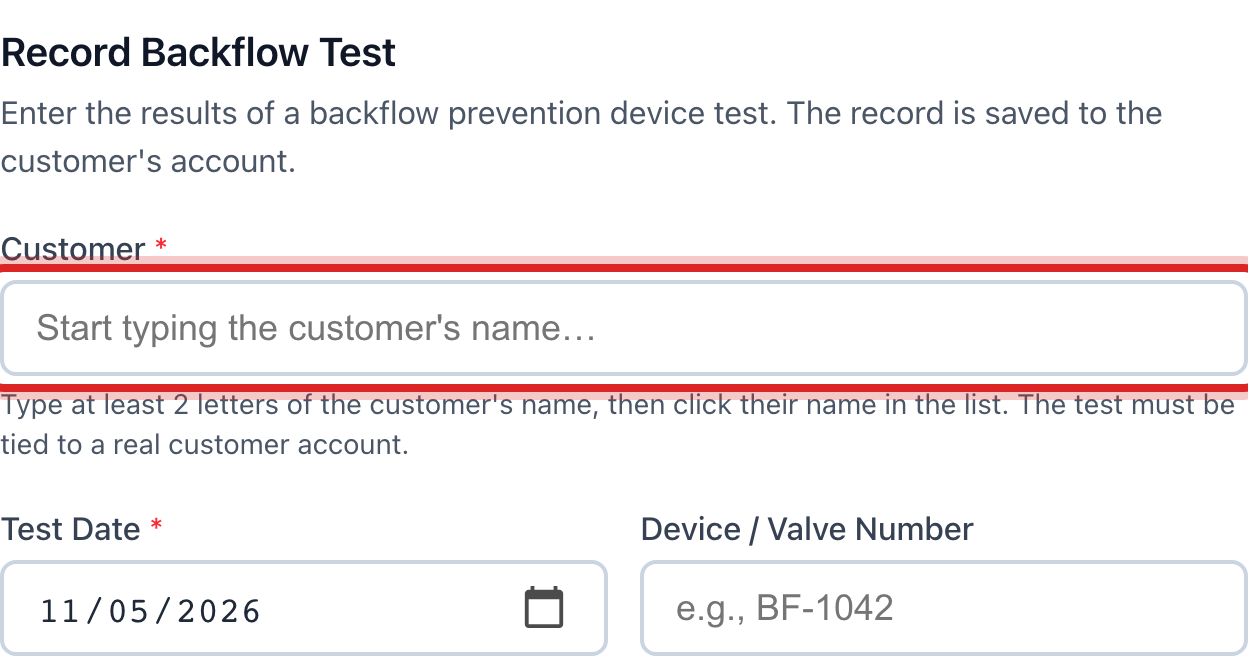
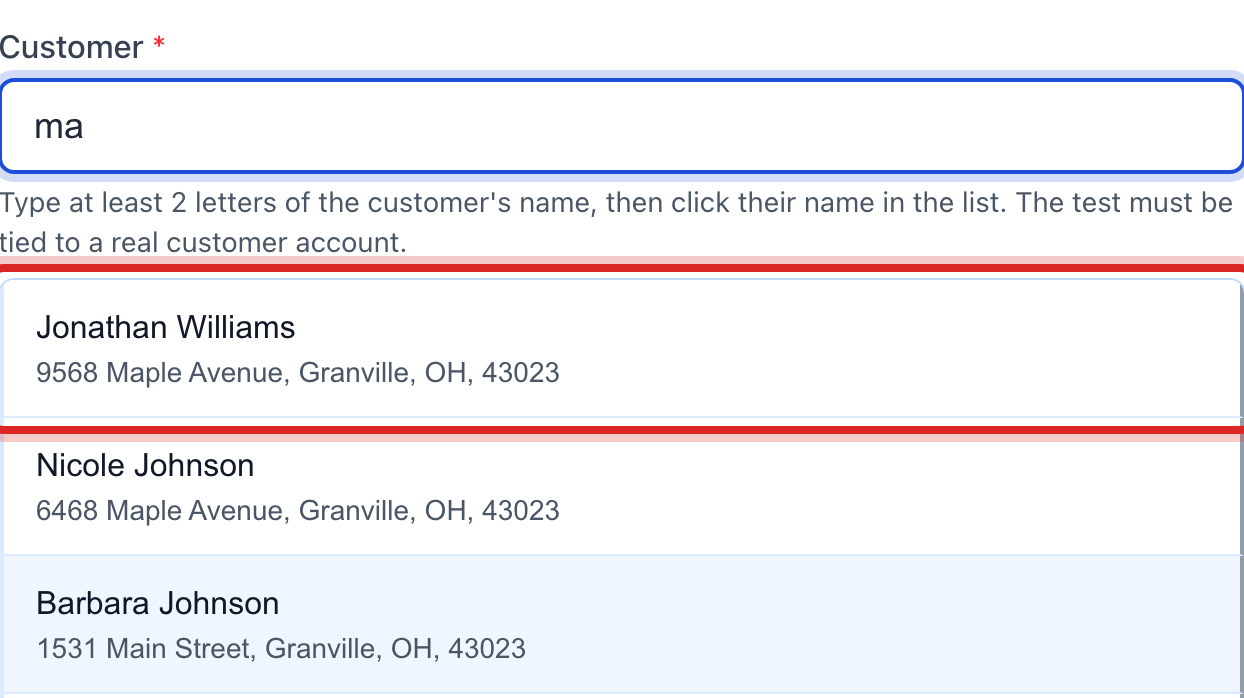
Click in Customer and start typing the name. Click the right one in the list that drops down.
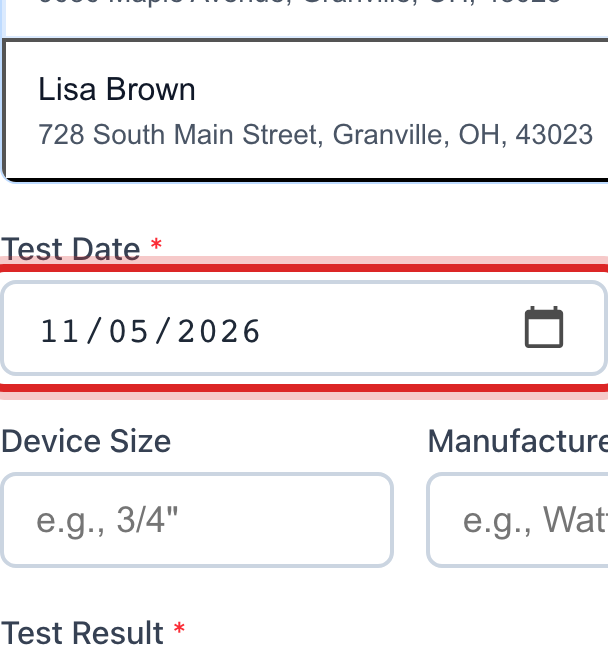
Set the Test Date to the day on the tester's report.
Type the Device / Valve Number off the tag. The size, maker and model are extra.
Under Test Result, click Passed or Failed.
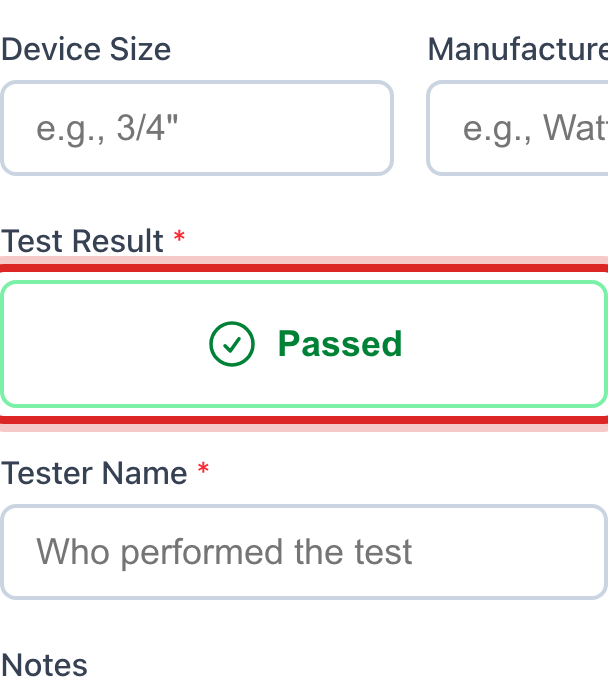
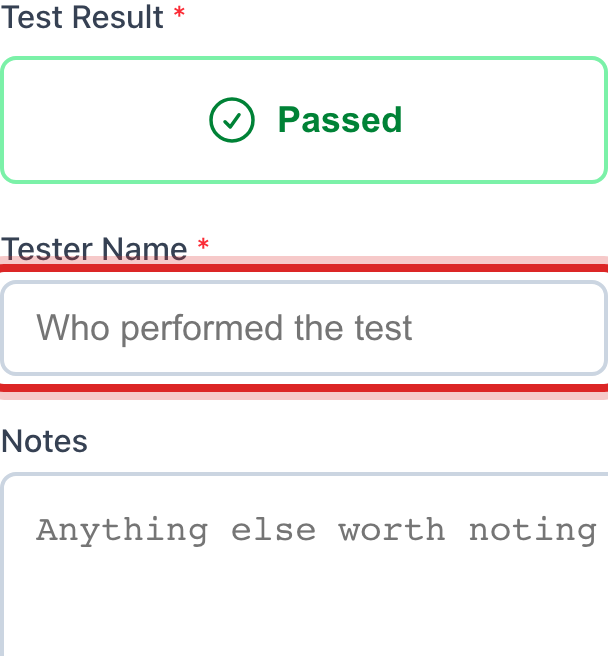
Type the Tester Name and the Tester Certification # from the report.
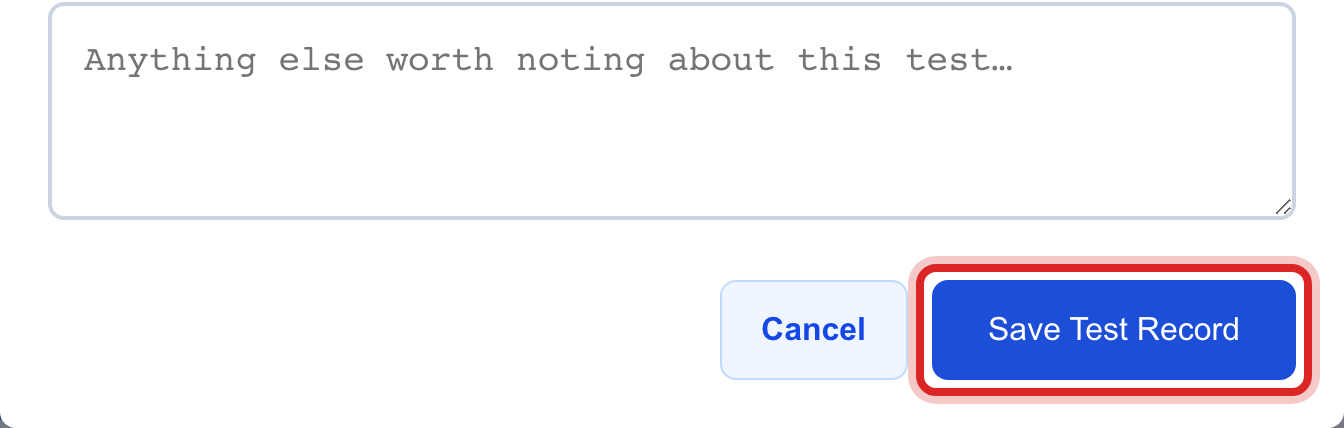
Click the blue Save Test Record button.
Made a mistake? Click Undo on the green message that appears, or open Show me how at the top and pick Undo a mistake.
You are done when
A green message says the test was recorded. The row is in Test Records with the date, and the device will not show as overdue for another year.
If something looks different
The customer is not in the list. They are not in Utilops yet, or the name is spelled another way. Try the street name instead.
You want to see who is overdue. In the list box above the records, pick Overdue (> 1 yr). Those customers need a letter.
A device failed. Record it as Failed. When the repair is done and it is tested again, record a second test that Passed.
Something happened, not a test. A device was replaced, a line was found cross connected. That goes under Backflow Event Log.