
Appearance
4. Bring in a lab report
When you need this: the lab emailed the results. Six pages, one per bottle. Do not type them. Give Utilops the file. It reads each page, matches it to your well and your sampling point, saves every result, counts them toward the schedule, and opens a violation for anything over the limit.
Steps
Save the lab's email attachment on your computer first.
On the left side of the screen, click Compliance, then click Lab Results.
At the top right, click Import Lab Report.
Click Start New Import.
Click Choose PDF and pick the file. Or drag the file onto the box. Then wait while Utilops reads it. A page takes a few seconds.
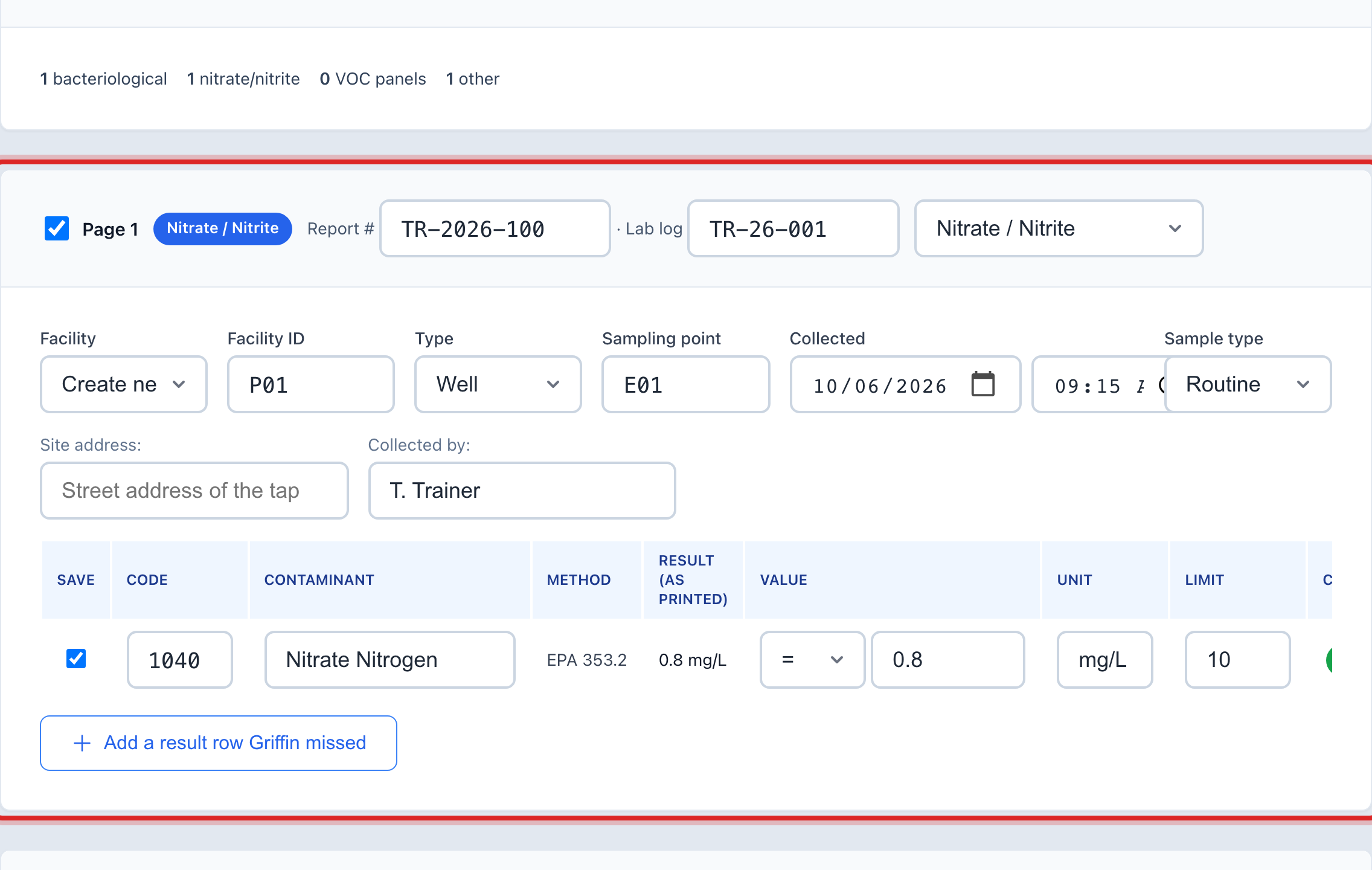
Step 2 — Check each page. Every page shows what was read from it: the facility, the sampling point, the date it was collected, and each result. Fix anything that was read wrong. Untick Page on any page that is not yours.
Click Continue →.
Step 3 — Save the results. Read the counts. Results to save is how many go in. Exceed a limit / positive is how many are over. Click Save Results.
Made a mistake? Click Undo on the green message that appears, or open Show me how at the top and pick Undo a mistake.
You are done when
The page says Results saved. Back on Monitoring Schedule, the Samples collected count on each line goes up. If anything was over the limit, Violations has a new row for it, and a positive coliform result puts the 24 hour repeat samples on your calendar.
If something looks different
It says the file was already imported. You brought this report in before. Go to Lab Results to see it instead of saving it twice.
A page could not be matched to a facility. The state ID on the page is not on any of your facilities. Pick the right facility in the Which facility box on that page. Then add the ID under Facilities, lesson 1, so it matches next time.
The lab sent a spreadsheet, not a PDF. On Lab Results, under CSV File Import, click Download Template, put the results in that shape, and click Upload & Import.
You saved it and it was wrong. On the Results saved page, click Undo this import. Every result from that file goes away.