
Appearance
9. Let Utilops do the routine jobs
When you need this: the same jobs come around every month. Make the bills. Remind people before the due date. Add the late fee after it. You can set each one up once and let Utilops do it from then on.
Steps
On the left side of the screen, click Billing & Payments, then click Automation.
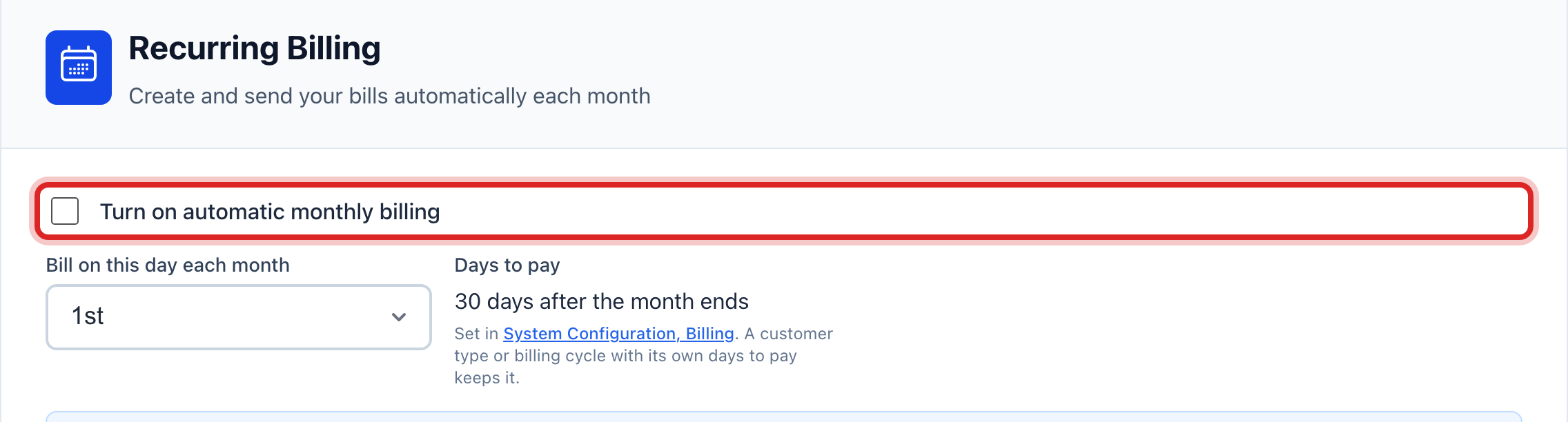
Under Recurring Billing, tick Turn on automatic monthly billing.
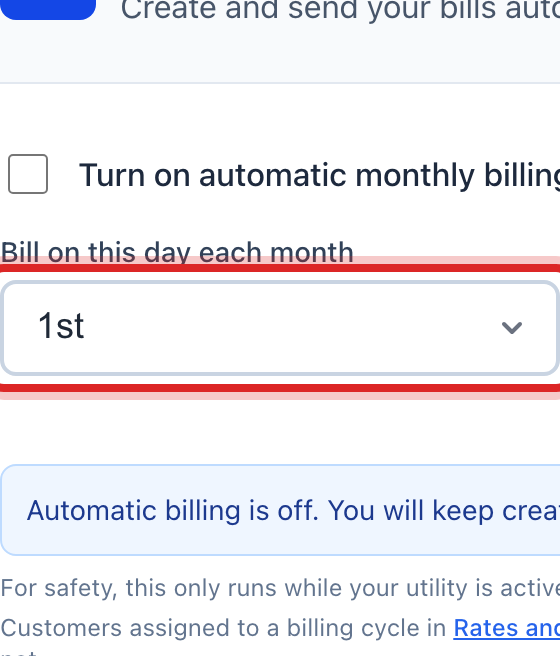
Pick the day under Bill on this day each month. The blue box reads back what will happen and when the next run is.
Click Save billing schedule.
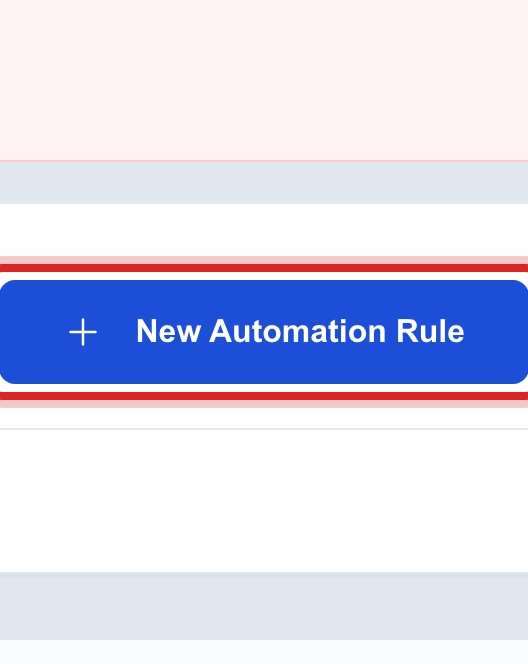
For reminders and late fees, click New Automation Rule at the top right.
Click one of the ready made cards at the top of the window, like a reminder before the due date. It fills in the rule for you.
Check the Rule Name and the Trigger Event. Under What should happen?, tick Send an email, Send a text message, or Add a late fee.
Click Preview who this affects to see how many bills it would touch right now. Then click Create Automation Rule.
Made a mistake? Click Undo on the green message that appears, or open Show me how at the top and pick Undo a mistake.
You are done when
The rule shows under All Billing Automation with a green status. Utilops checks the rules every day and sends what is due.
If something looks different
Days to pay says Not set yet. The number of days a customer has to pay is set under Settings. Set it there before you turn on automatic billing.
Some customers are on a billing cycle. They are billed on that cycle's own day instead. Cycles live under Rates and Tariffs, then Billing Cycles.
You have no late fee yet. The rule window tells you. Set the fee up under Rates and Tariffs, then Fee Schedules, and come back.
You do not want a customer on a payment plan to get reminders. Tick Exclude customers on payment plans when you make the rule.