
Appearance
2. Make a one off invoice
When you need this: a charge that is not part of the monthly bill. A returned check fee. A new meter. A trip charge. A deposit. You bill one customer for one thing, and it goes on their account like any other bill.
Steps
On the left side of the screen, click Billing & Payments, then click New Invoice.
Under Who is this invoice for?, click in the search box and type the customer's name or account number. Click the right person when they appear.
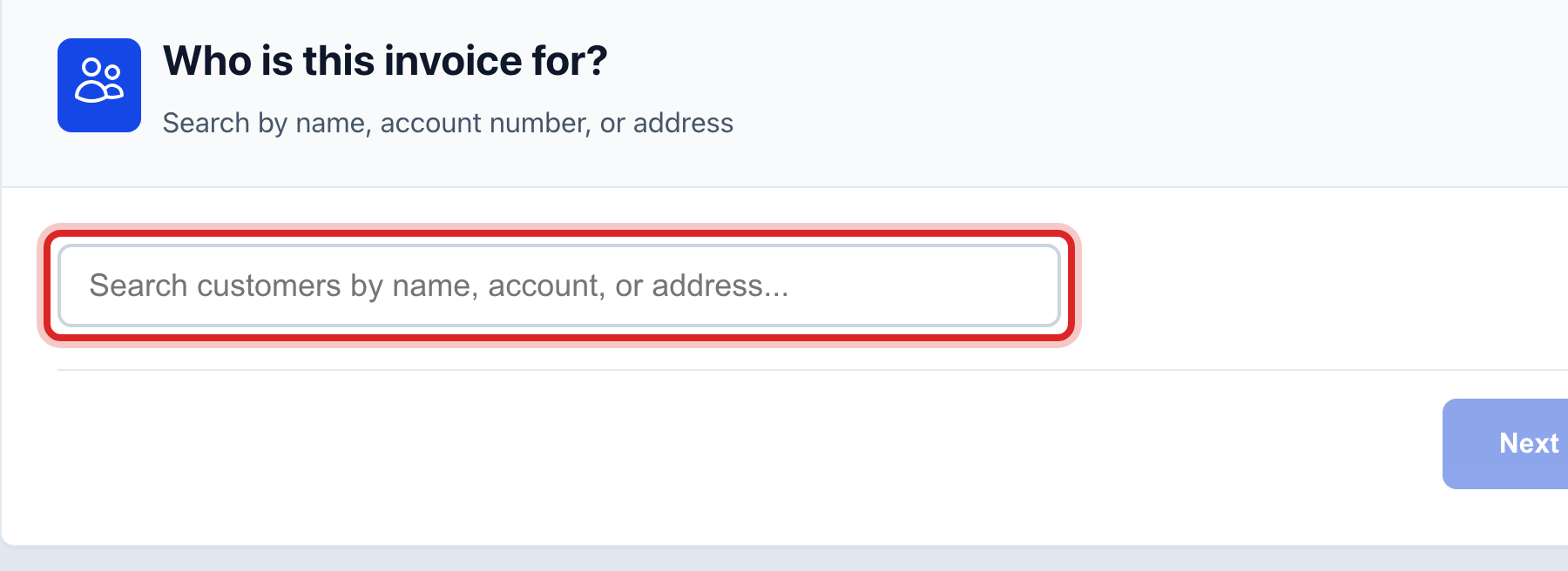
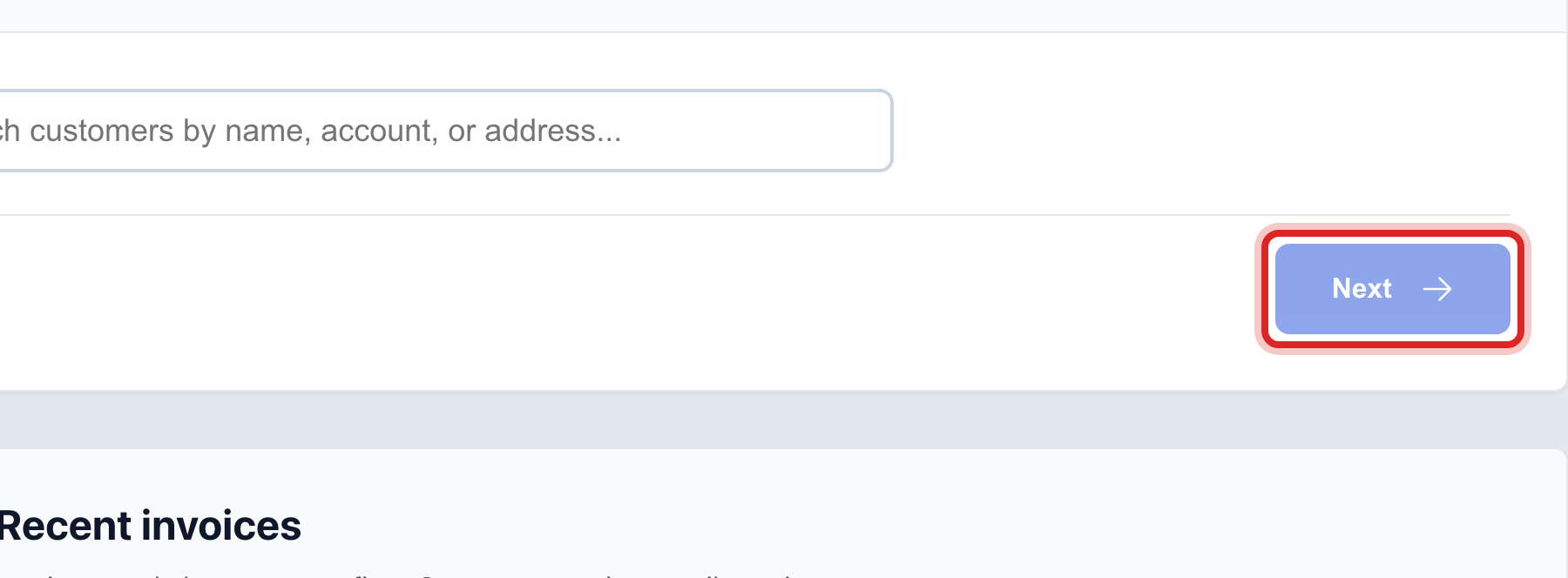
Click Next.
Under What are you charging for?, your standard fees show as cards. Click one to add it. Or, under Something else, type what the charge is for and the amount.
Set the Due date. If you want a note on the invoice, type it in the box next to it.
Click Next.
Under How should it go out?, pick Send it now to email, print or text it today. Pick Just save it to put it on the account and send it later.
Read the sentence in the blue box. It says who is being billed, for what, and how much. If it is right, click Create Invoice.
Made a mistake? Click Undo on the green message that appears, or open Show me how at the top and pick Undo a mistake.
You are done when
The page says Invoice created with the number and the amount. The invoice is on the customer's account and in All Bills with a green one off mark.
If something looks different
No fee cards show. Your utility has not set up standard fees yet. Type the charge under Something else. To add standard fees for next time, use Fee Schedules under Rates and Tariffs.
Email or Text message is faded. The customer has no email or cell phone on file. Add one on their profile, or print the invoice.
A note says the invoice did not post to your books. Your chart of accounts needs an account for this kind of charge. Open the bill and click Post to Books once that is set up.
You need to cancel it. Open the bill from All Bills and click Void This Invoice. This works only while nothing has been paid on it.