
Appearance
1. Find a bill and answer a question about it
When you need this: a customer calls about a bill. "Why is it so high?" "Did my payment post?" "Can you send it again?" Every bill your utility has ever made is on one list. Find it, open it, and the answers are on the page.
Steps
On the left side of the screen, click Billing & Payments, then click All Bills.
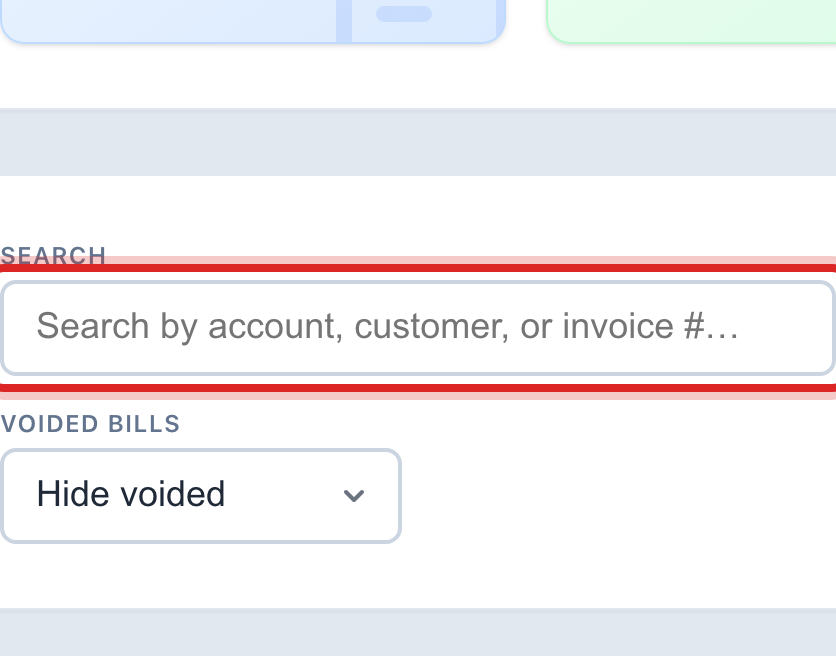
Click in the Search box. Type the account number, the customer's last name, or the invoice number.
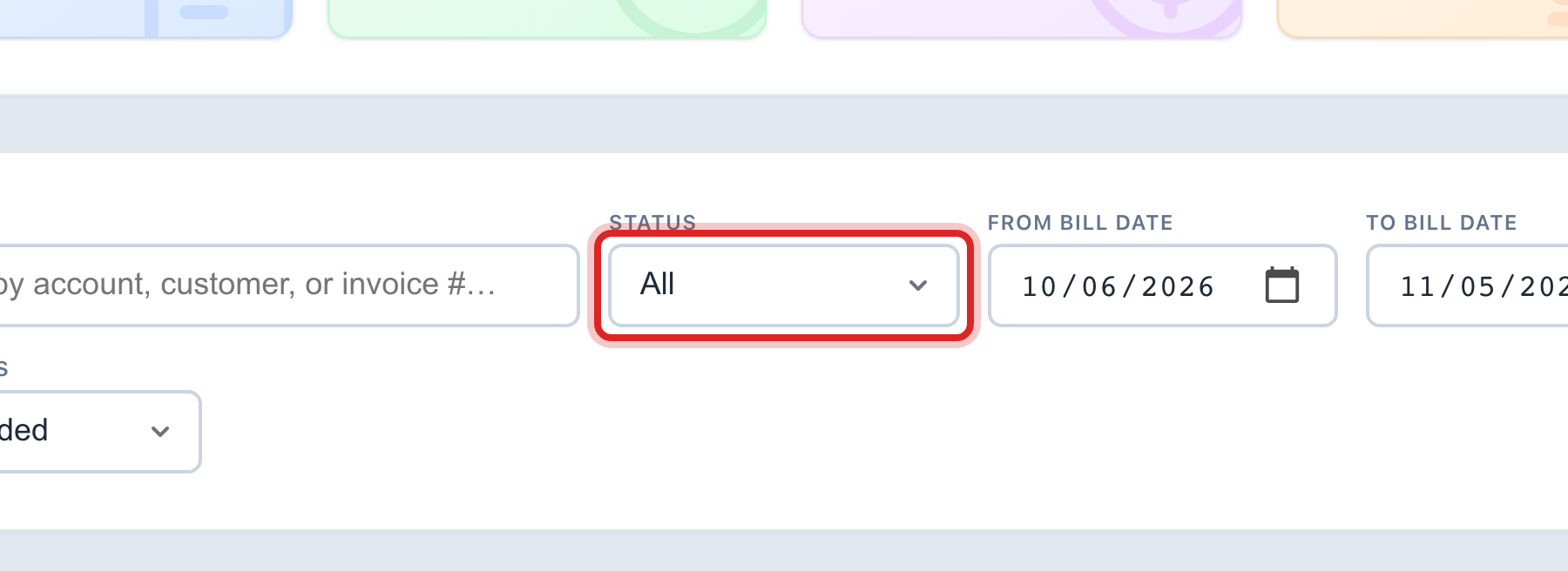
To see only unpaid bills, pick Overdue or Pending in the Status list. All shows everything.
Find the bill in the list and click its row. The bill opens on its own page.

The top of the page shows the customer, the amount, the due date and what is still owed. Scroll down for Payments on this bill and Change History.
To see the bill the way the customer sees it, click View Bill PDF. To send it again, click Email Bill to Customer. To print it, click Print.
You are done when
The bill is open, with the customer's name at the top and every charge listed under it.
If something looks different
You know the invoice number. Click Bill Lookup instead of All Bills. Type the number and the bill opens straight away.
The customer asks why the bill is high. Click Bill Tier Breakdown on the left. It shows how much water went into each price step. Quick start page 6 walks you through it.
You need to change a charge. Click Edit Bill on the right side of the bill page. You must type a reason for each change, and Utilops keeps the old numbers.
You do not see Edit Bill. Only people with the billing edit right can change a bill. Ask your administrator.