
Appearance
7. Work the past due list
When you need this: once a month, or whenever you have an hour, you go through who owes money. This page sorts every past due account into steps: past due, late notice sent, shut off scheduled, shut off, sent to collections, written off. You see where each account stands and what comes next.
Steps
On the left side of the screen, click Billing & Payments, then click Collections.
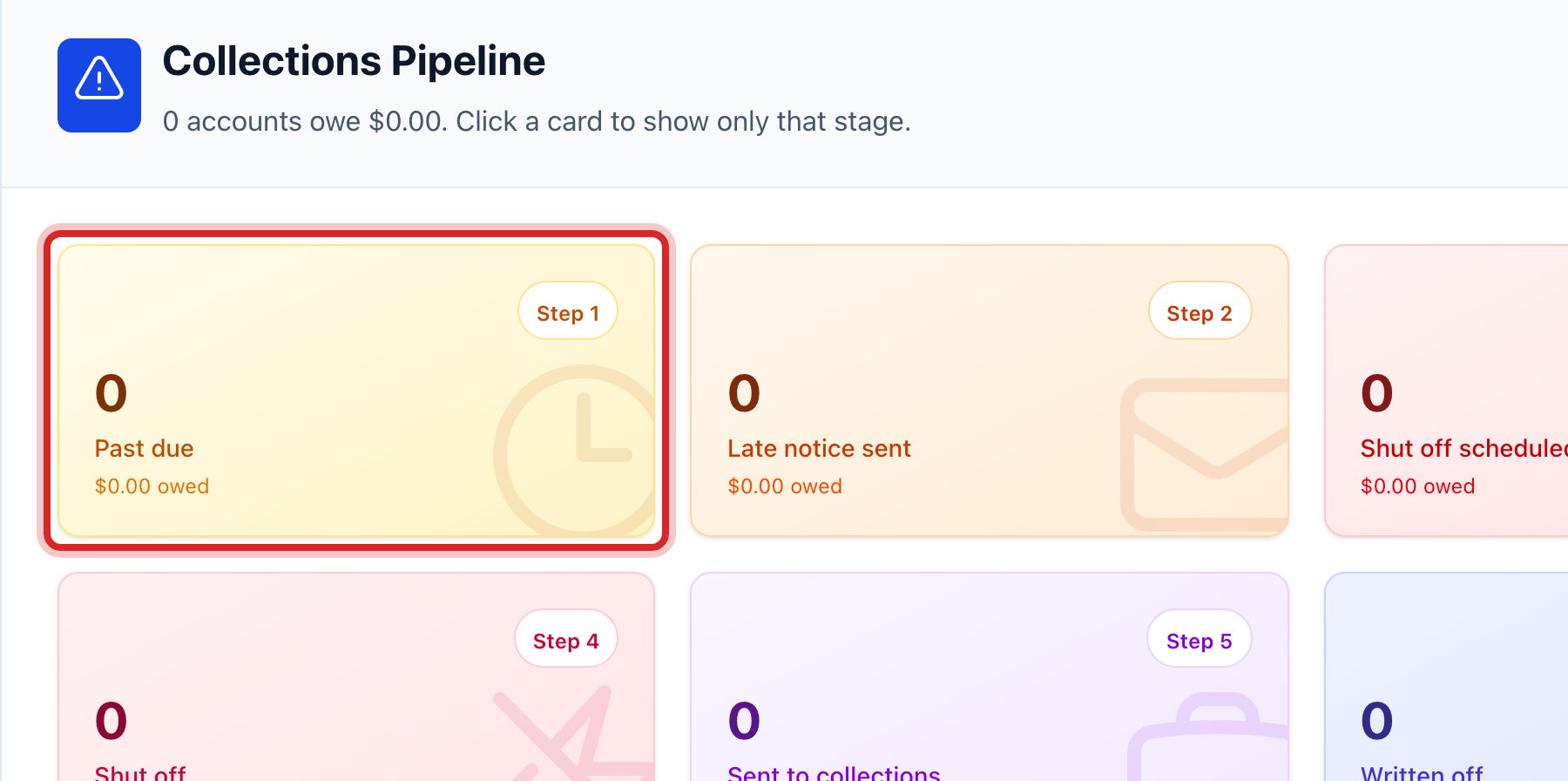
The cards at the top are the steps. Each one shows how many accounts are at that step and how much they owe. Click the Past due card to see only those accounts.
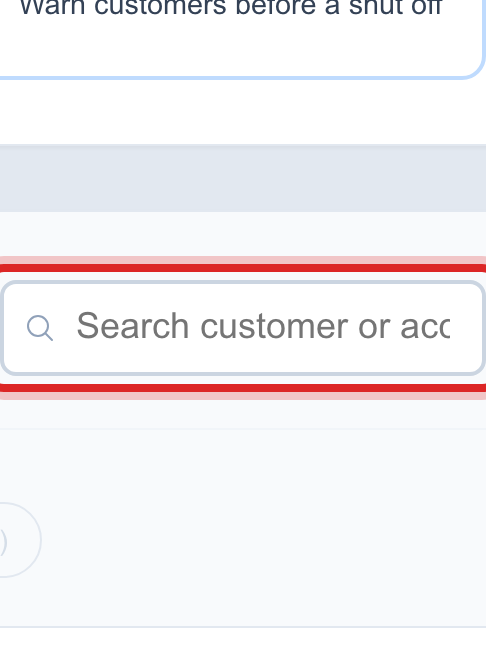
To find one person, type their name or account number in the search box above the list.
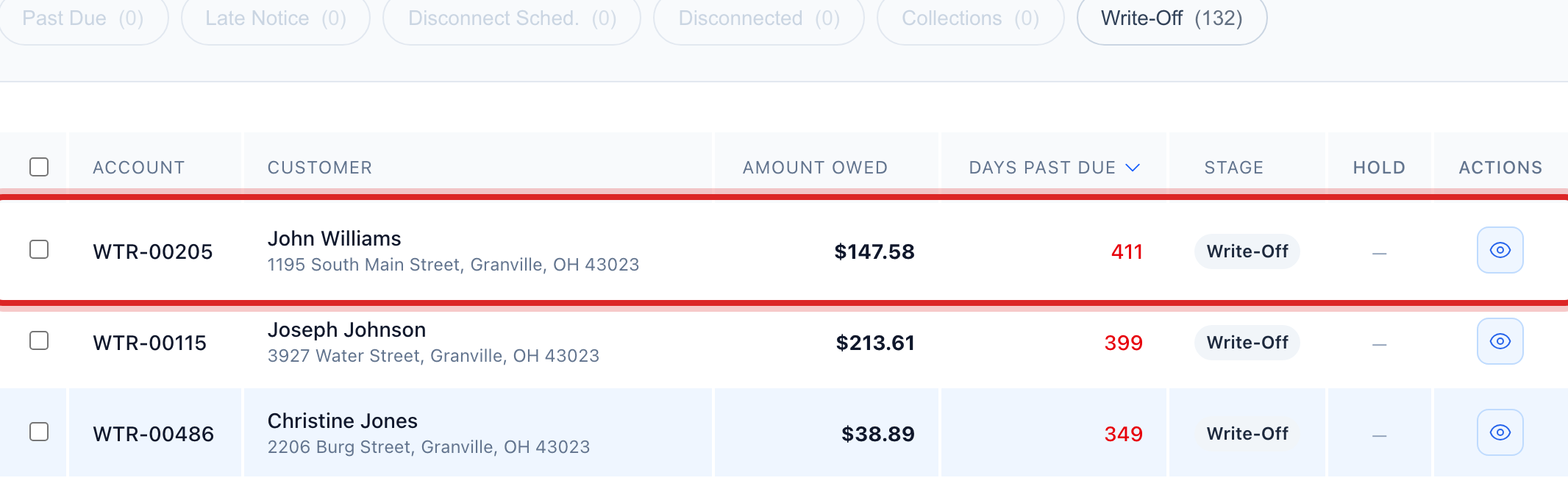
Click an account row. A panel opens with their balance, how many days late, and what has been sent to them.
To do the next step for a group, use the buttons under Quick Actions: Add Late Fees, Send Late Notices, Send Shut Off Notices and Cut off day. Quick start page 12 walks through each one.
When a balance will never be collected, click the write off button on that row. Read what will happen, type the reason, and click Yes, write off.
Made a mistake? Click Undo on the green message that appears, or open Show me how at the top and pick Undo a mistake.
You are done when
The list shows only the step you picked, and the card for it reads Showing. Click Show every stage to see everyone again.
If something looks different
The list is empty. Nobody is past due. That is good news.
A customer on a payment plan shows here. Their old balance still counts, but Utilops skips them for late fees and notices while the plan runs.
You do not see the write off button. Writing off needs its own right. Ask your administrator.
A write off was wrong. The window that confirms it has an Undo this write off button. It puts the balance back and cancels the journal entry.