
Appearance
6. Give money back
When you need this: a customer paid twice. A customer moved out and has a deposit coming back. A card payment was a mistake. You find the payment and send the money back the same way it came in.
Steps
On the left side of the screen, click Billing & Payments, then click Refunds.
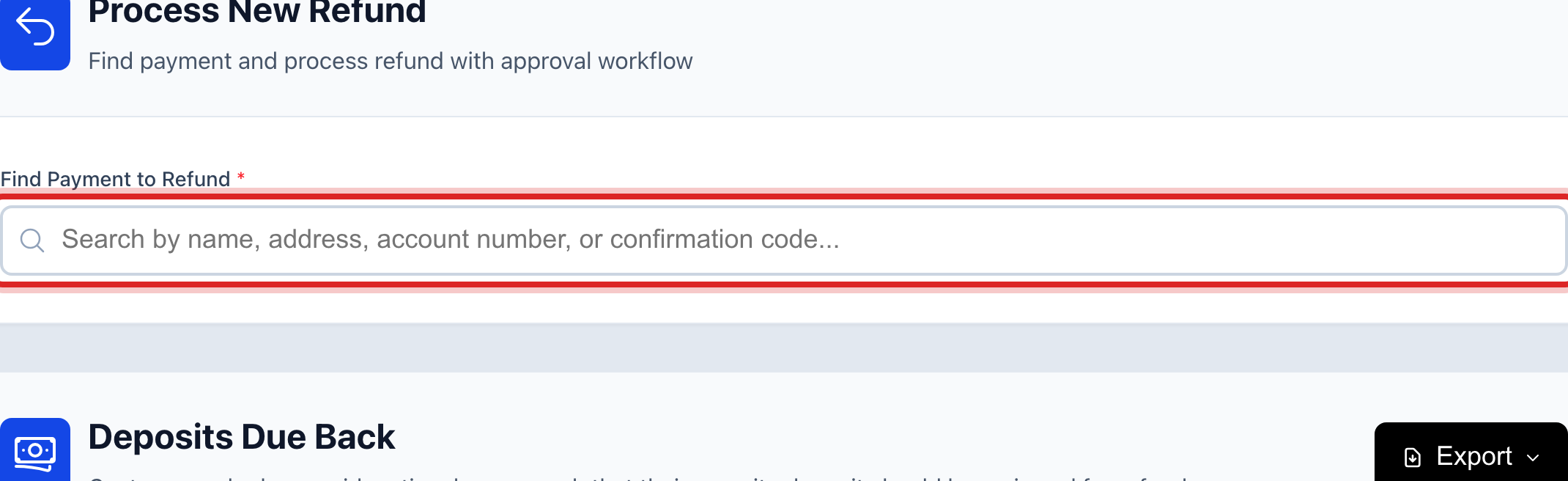
Under Process New Refund, click in Find Payment to Refund. Type the customer's name, account number or the confirmation code from their receipt.
Click the payment in the list that appears. Check the date and the amount.
Under Refund Amount, type how much goes back. Click Full Refund to send it all.
Pick a Refund Reason from the list, like Duplicate Payment or Overpayment.
Type a few words in Refund Notes so the next person knows why.
Click Process Refund. For a card or bank payment the money goes back to the same card or account. For cash or check, Utilops records the refund and you write the check.
Made a mistake? Click Undo on the green message that appears, or open Show me how at the top and pick Undo a mistake.
You are done when
The refund shows under Recent Refunds with the amount and the date. The customer's balance goes up by the refund.
If something looks different
The payment does not show up. Only payments that can still be refunded are listed. Type the exact confirmation code from the receipt. A bank payment that is still clearing shows in yellow and cannot be refunded yet.
A check bounced. Pick Returned Check (NSF) as the reason. Tick Also charge the returned check fee and the fee invoice goes out at the same time.
Your office needs a second signature. Tick Requires supervisor approval. The refund waits under Pending Refunds until a supervisor clicks Approve.
You do not see Refunds on the left. Only people with the refund right can do this. Ask your administrator.