
Appearance
7. Go back to an earlier version of your website
Show me: roll back the website
When you need this: the website looked fine yesterday and wrong today. Or one page lost a section. Publishing is not taken back from a green message. Going back is a real action, done on purpose, on one of two pages. The whole website rolls back from Publish Site. One page goes back from its own Versions list.
Steps: roll back the whole website
On the left side of the screen, click Public Website, then click Publish Site.
Scroll down to Deployment History. Each row is one time the website was published, with the date and who did it.
On the row you want to go back to, click the rollback button at the right. A window asks if you are sure. Click Rollback.

Steps: restore one page
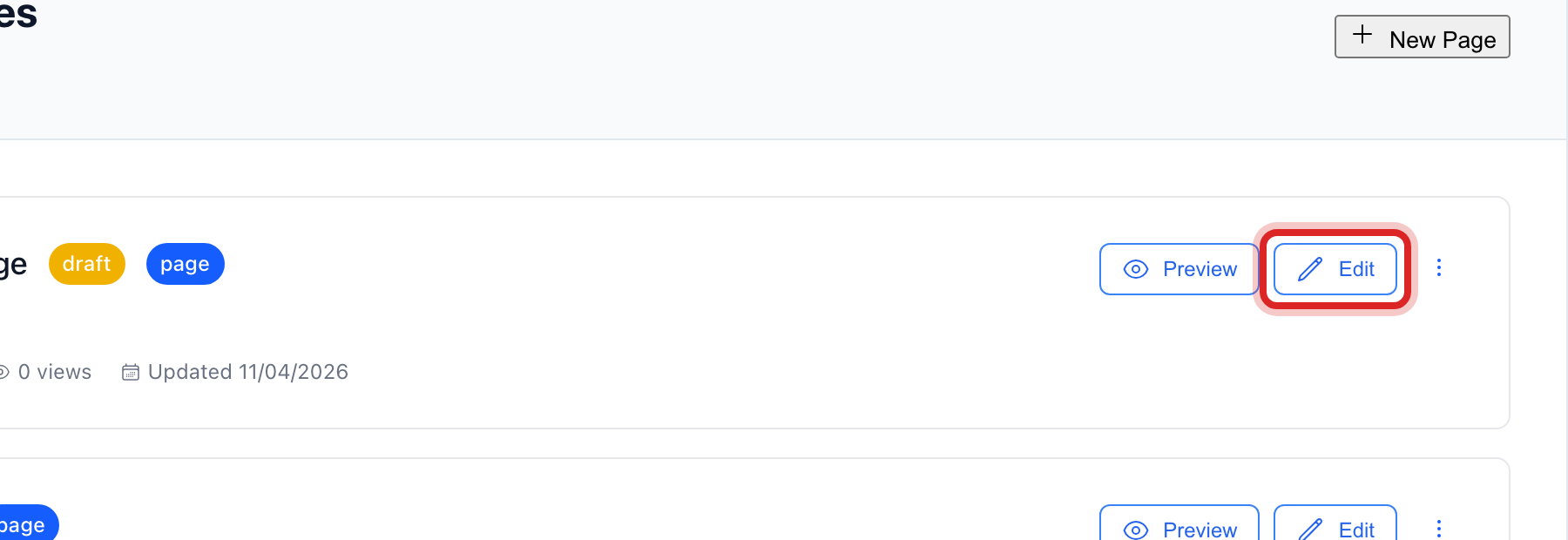
On the left, click Public Website, then click Page Builder. Click Edit on the page.
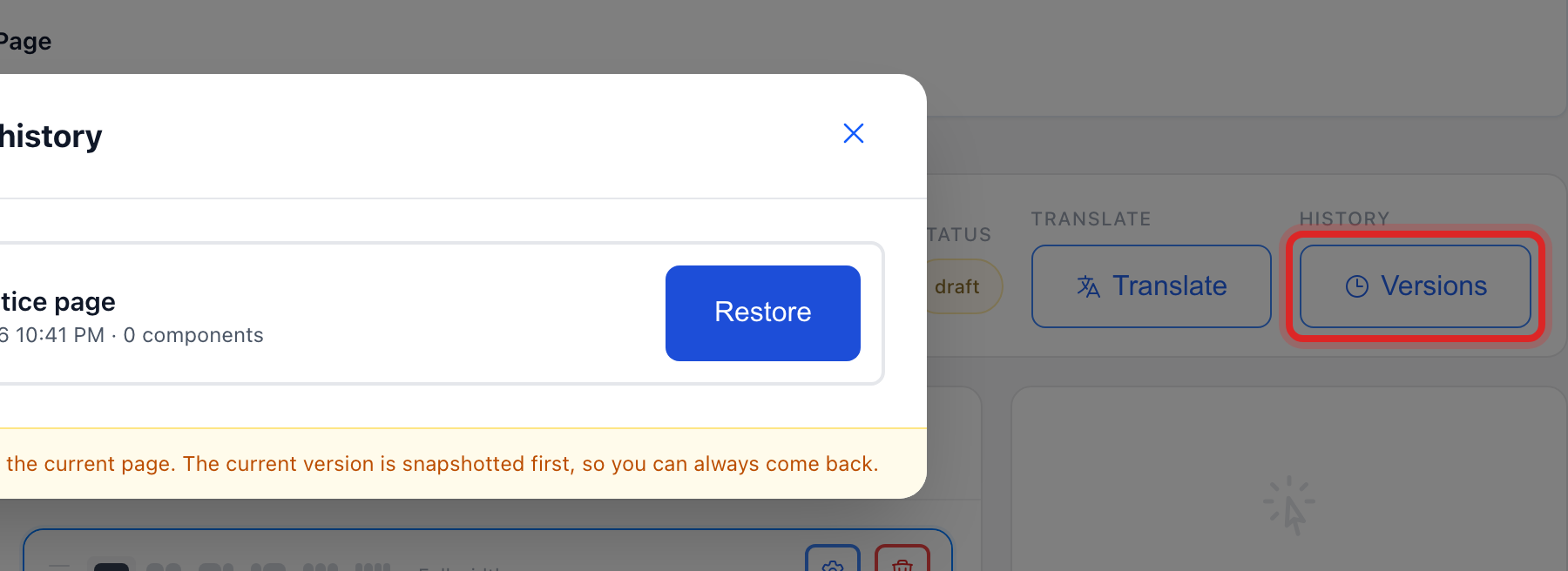
At the top of the editor, click Versions. Every earlier save of this page is listed, newest first.
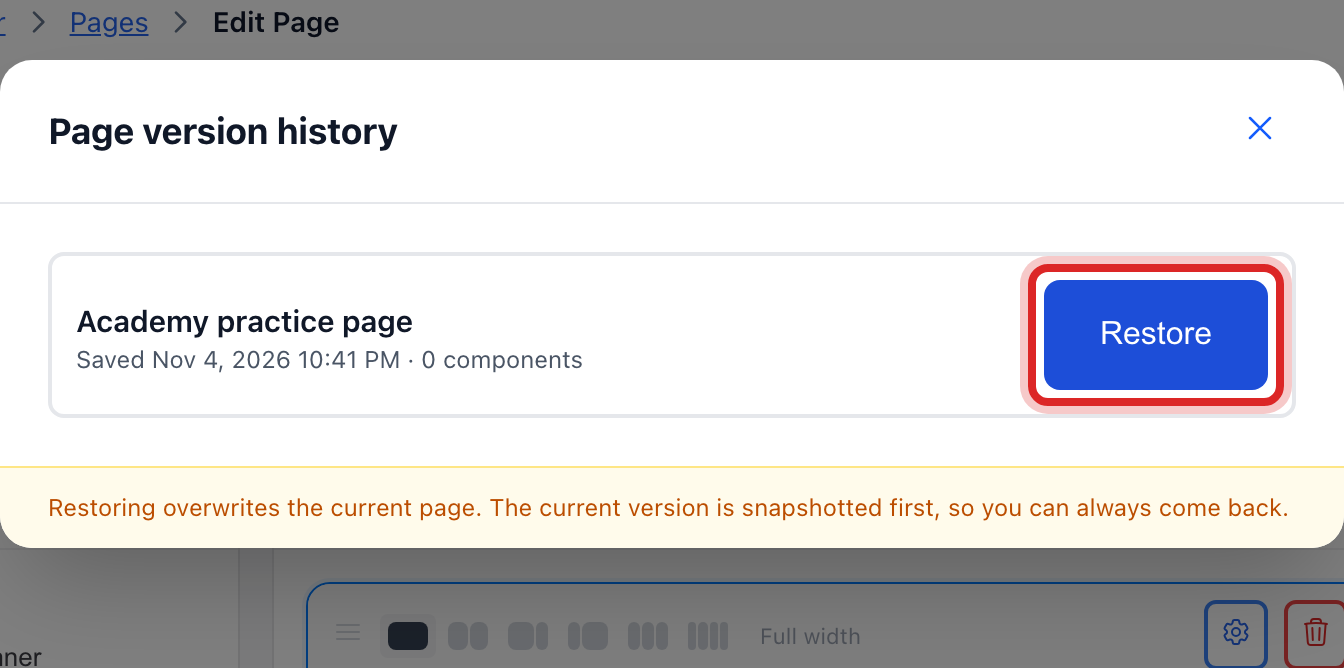
Click Restore on the version you want. Your current page is saved first, so you can come back to it.
Made a mistake? Click Undo on the green message that appears, or open Show me how at the top and pick Undo a mistake.
You are done when
For the website, a new row reads Rollback in Deployment History and the site shows the older version. For a page, the editor shows the older content, and the green message offers Undo if you picked the wrong one.
If something looks different
Deployment History is empty. Nothing has been published from this page yet. Changes you save under Website Settings and Page Builder go live on their own.
The Versions list says no saved versions yet. A version is kept each time you click Save. Save once, and from then on there is something to go back to.
You do not see Publish Site on the left. It is one of the advanced pages. Ask your administrator to turn them on for your login.