
Appearance
4. Add a page to your website
When you need this: you want a page about rates, about the board, about how to report a leak. A page is a stack of sections: a heading, a block of words, a picture, a list of questions. You add the sections you want and fill them in.
Steps
On the left side of the screen, click Public Website, then click Page Builder.
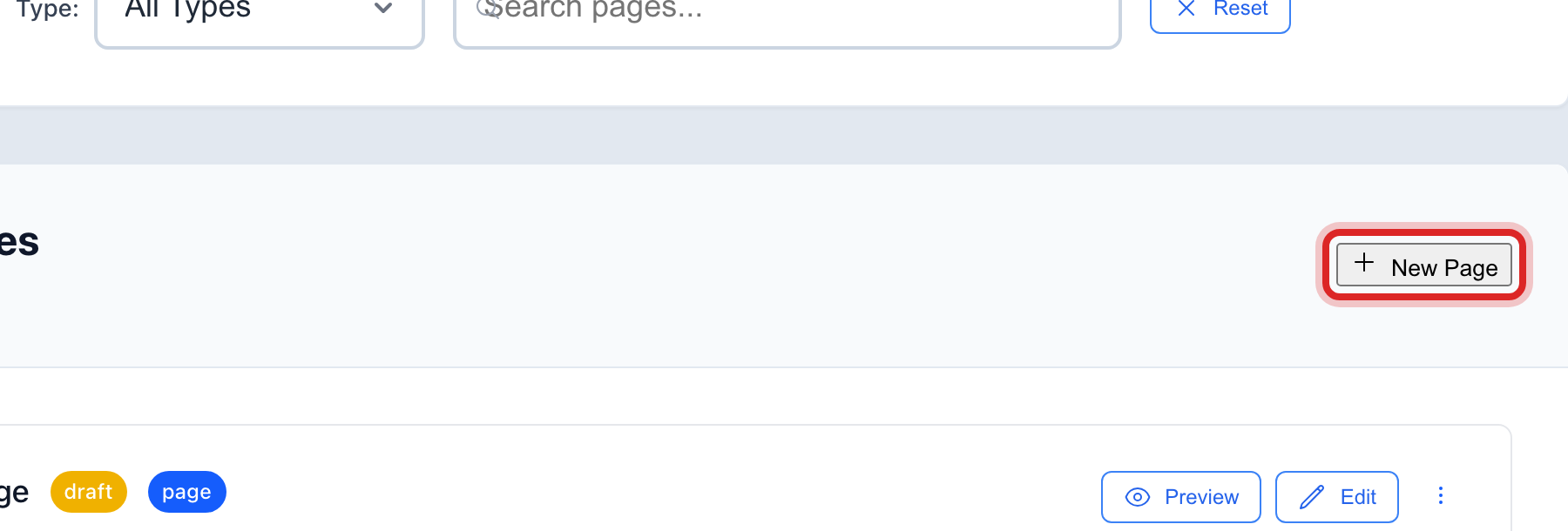
Click the blue New Page button. The page editor opens.
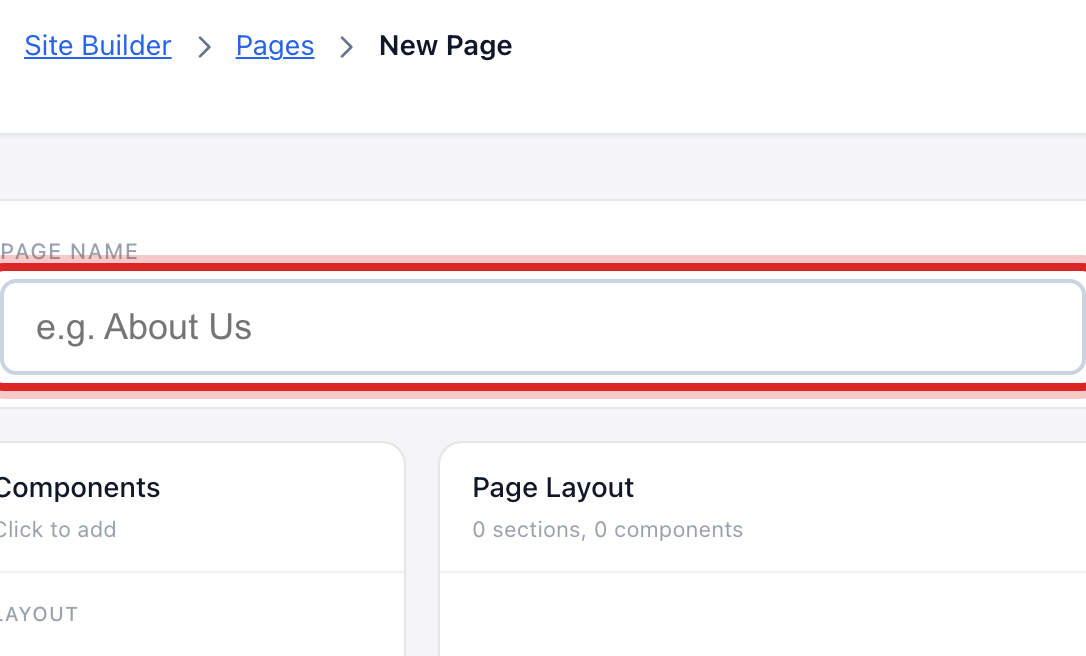
Type a Page Name, like Report a Leak. The web address under it fills in on its own.
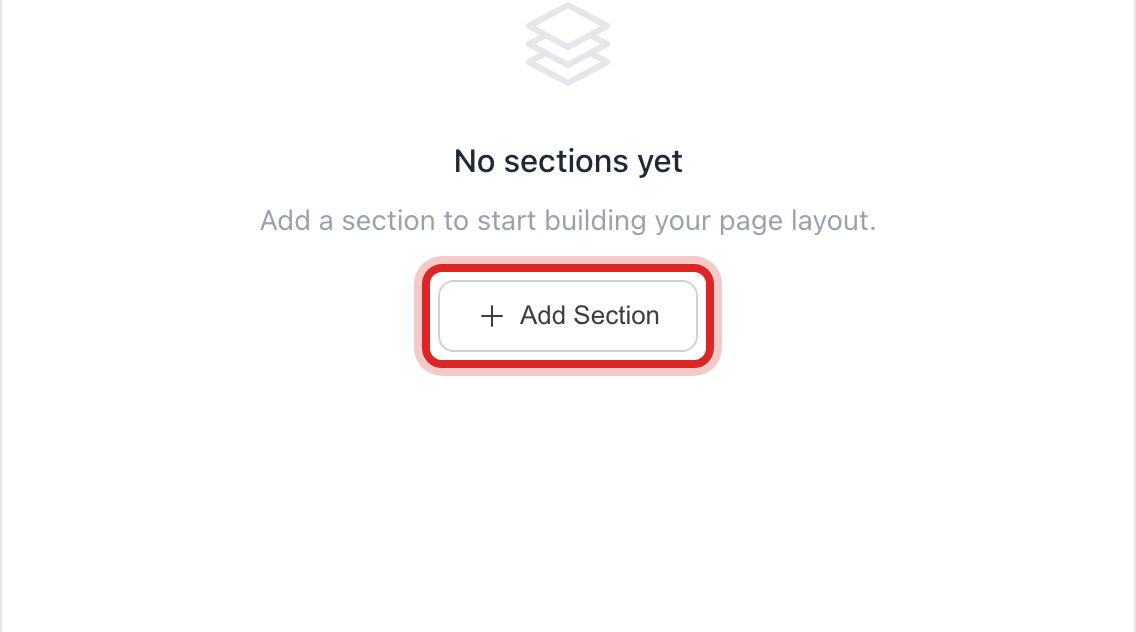
Click Add Section. Pick the kind of section, like a block of words. It appears in the page layout.
Click the section and type into its boxes on the right, like the Title and the Content. Add more sections the same way.
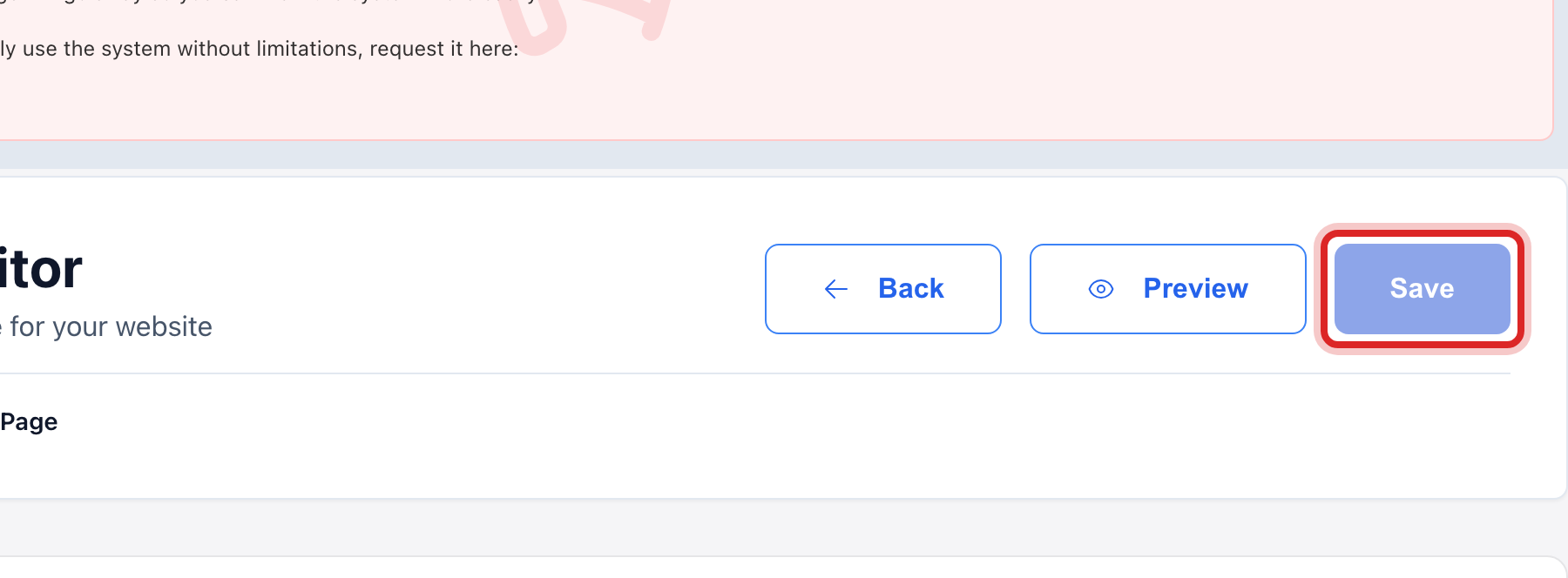
Click Save at the top.
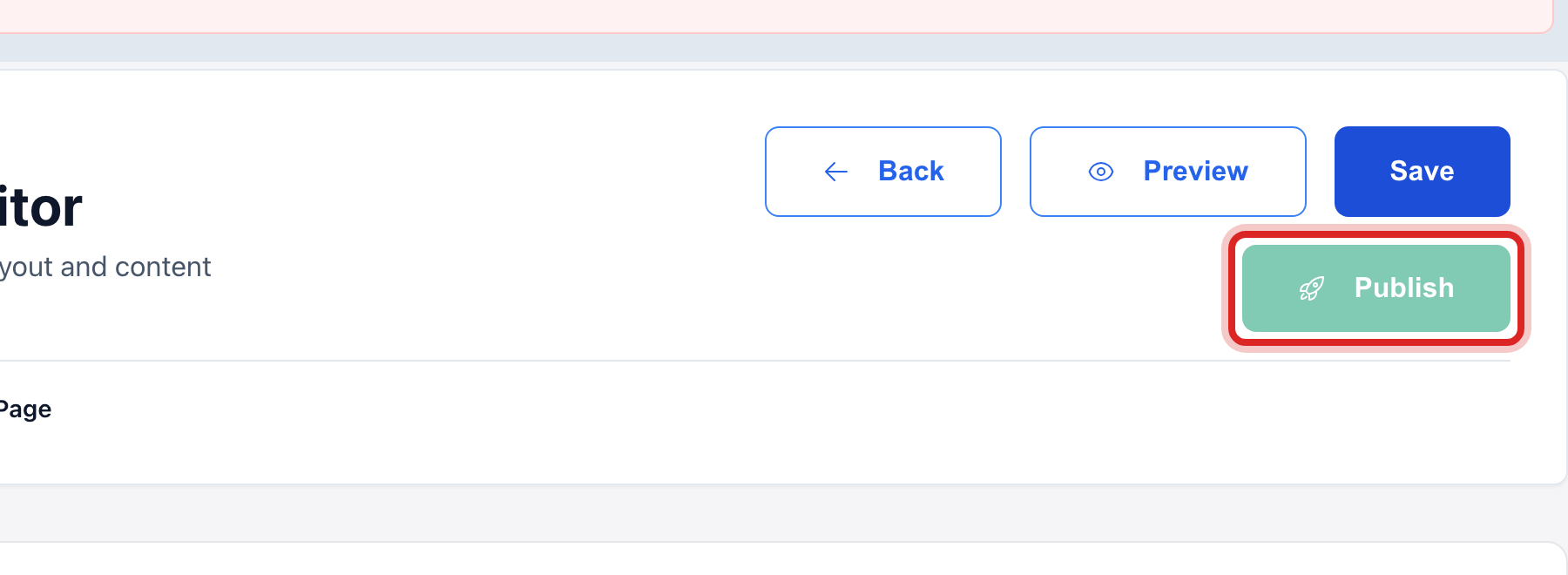
Click Preview to see it. When it looks right, click the green Publish button.
Made a mistake? Click Undo on the green message that appears, or open Show me how at the top and pick Undo a mistake.
You are done when
Back under Page Builder, the page is in the list with the word Published. Visitors can open it.
If something looks different
You want to change a page you already have. Under Page Builder, click Edit on its row.
The page should come down for now. Click Edit, then click Unpublish at the top. The page stays saved.
You need it in Spanish. In the editor, click Translate, pick the language, and Utilops makes a copy in that language for you to check.
Something went wrong with a page. In the editor, click Versions. Lesson 7 shows how to go back to an earlier save.