
Appearance
5. Put the required pages on your website
When you need this: federal and state rules say a water utility must post certain things, like the yearly water quality report. Utilops knows which ones apply to your state. Each one is a row. You decide where the words come from: a report you already have, a page you already have, or words Utilops writes for you to check.
Steps
On the left side of the screen, click Public Website, then click Regulatory Pages.
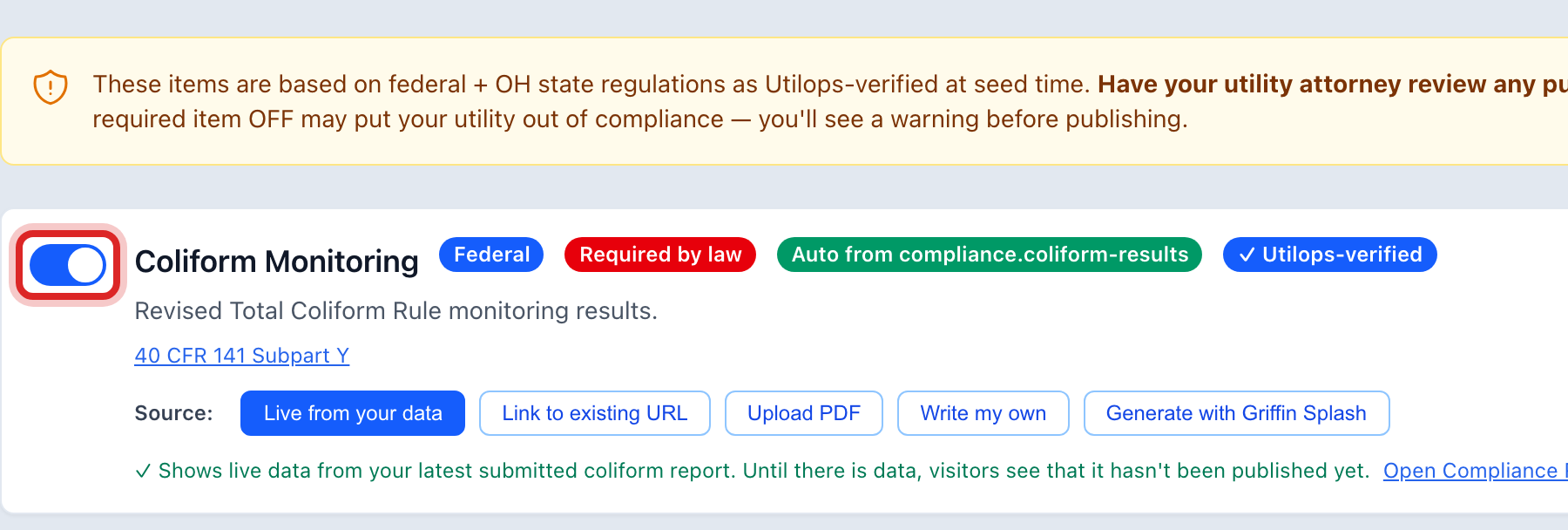
Read the yellow box. These pages come from the law, and your attorney should read what you publish.
Each row is one page. A red mark means Required by law. The switch at the left of the row turns the page on. Leave the required ones on.
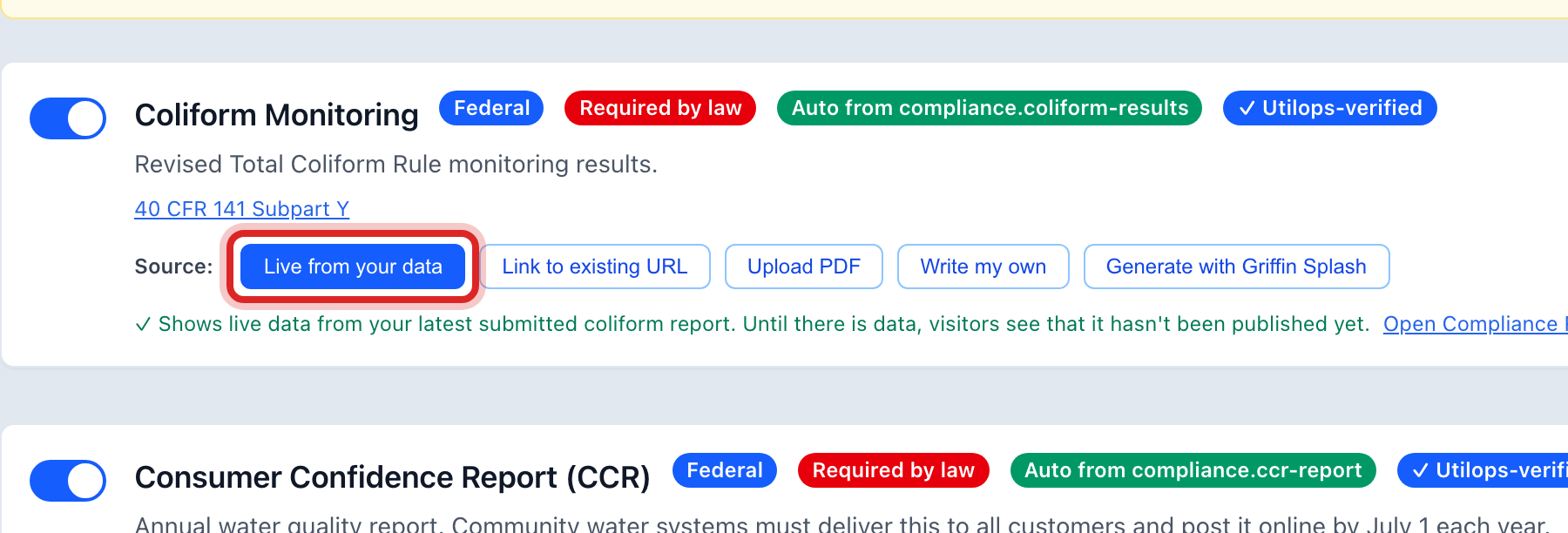
Under Source on the row, click where the words come from. If you already have the report as a PDF, pick the PDF choice. If it is on your old website, pick the choice for a web address and paste the link.
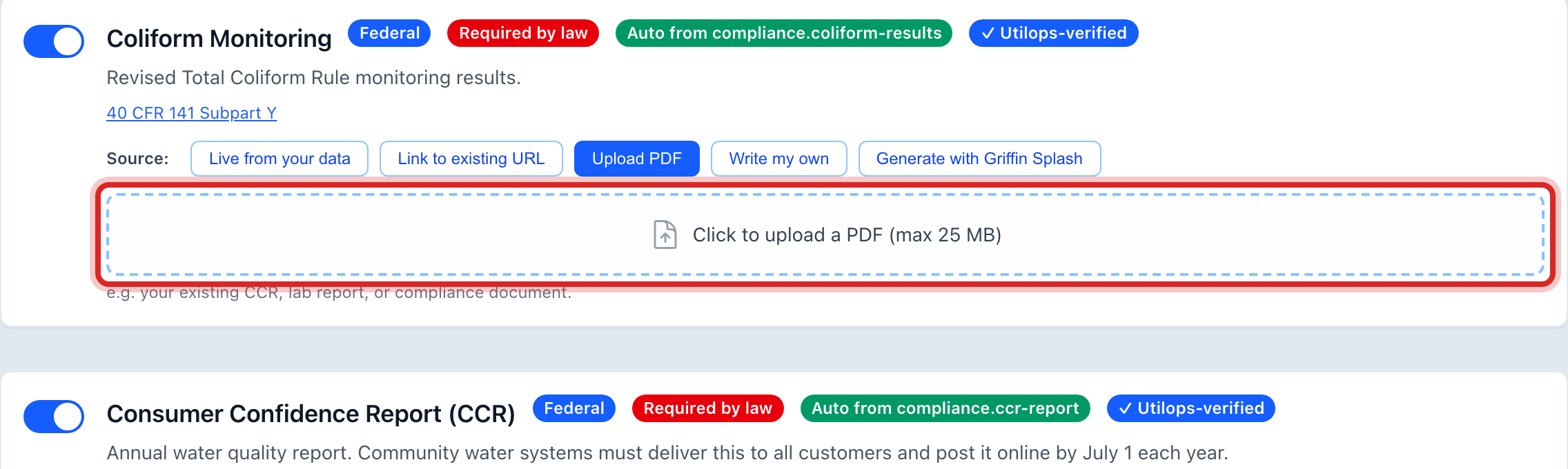
For a PDF, click Click to upload a PDF and pick the file. It saves on its own.
For words Utilops writes, click the button to make a draft. Read every line. When it is right, click I've reviewed this to unlock publishing. Nothing goes out until you do.
Made a mistake? Click Undo on the green message that appears, or open Show me how at the top and pick Undo a mistake.
You are done when
Each row you turned on has its source picked and its file or words in place. Click Preview Website at the top; the pages are in the website's menu.
If something looks different
The page says Set Your State First. Click Open Utility Settings and pick the state that regulates your system. Then come back.
A row says Auto from another part of Utilops. That page fills itself from your records, like the drought stage. Type the stage and the rules in the boxes and click Save drought stage.
You turned a required page off. Utilops warns you before publishing. Turn it back on unless your attorney says otherwise.
You are a gas utility. Different rows apply. Utilops picks them by your service and your state.