
Appearance
6. Answer messages from your website
When you need this: a visitor filled in the contact form on your website. Maybe a leak, maybe a question about a bill. The message lands here, not in anyone's personal email, so nothing is missed when someone is out.
Steps
On the left side of the screen, click Public Website, then click Website Inbox.
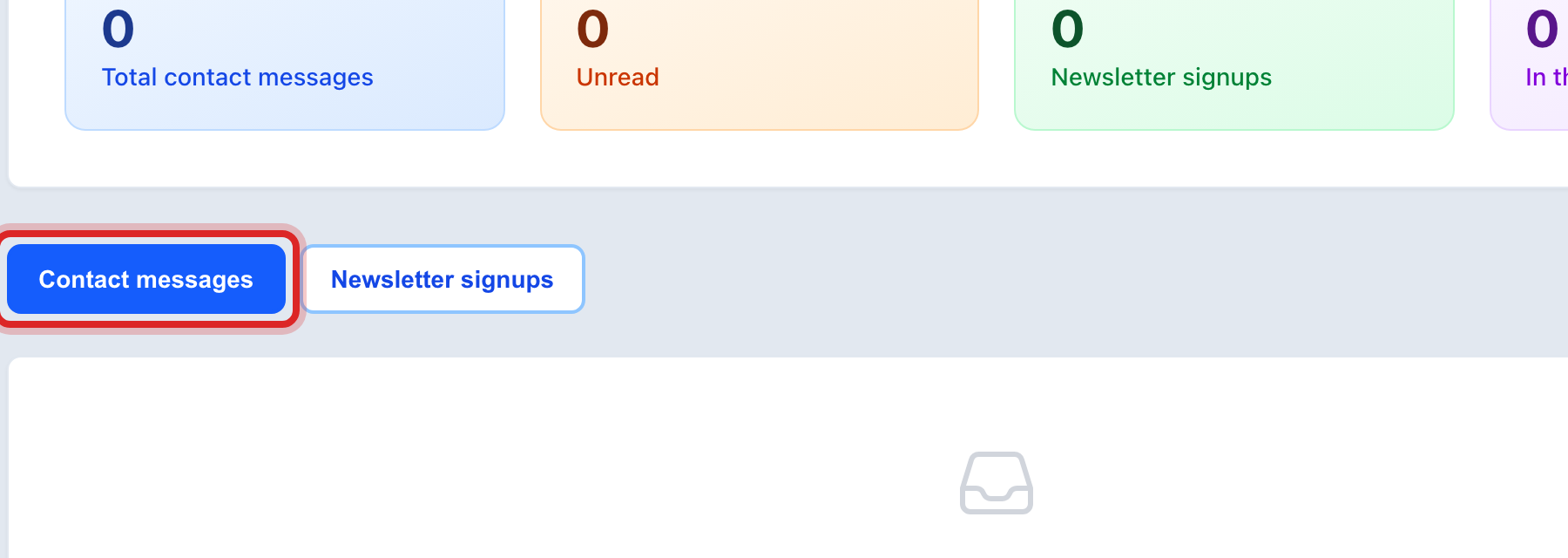
Stay on the Contact messages tab. Messages are listed on the left, newest first. An orange dot means nobody has read it yet.
Click a message. The whole thing shows on the right, with the person's name, email and phone.
Click Reply by email. Your email program opens with their address and the subject filled in. Write your answer and send it.
Back here, the message is marked read. If you want a coworker to look at it too, click Mark unread.
Made a mistake? Click Undo on the green message that appears, or open Show me how at the top and pick Undo a mistake.
You are done when
The orange dot is gone from the message, and your reply is in your sent email.
If something looks different
It is a leak or a work request. Answer the person, then make a work order under Work Orders so the crew sees it.
The message is junk. Click Delete.
The Newsletter signups tab. People who signed up for your news are listed there. Click Export CSV to get the list for a mailing.
The list is always empty. The contact form may be off. Under Website Settings, tick Contact & Service Request Forms and save.