
Appearance
3. Post news on your website
When you need this: hydrant flushing next week. A new rate takes effect in June. The office is closed for a holiday. A news post goes on the website's news page and the home page, where visitors look first.
Steps
On the left side of the screen, click Public Website, then click Content Management.
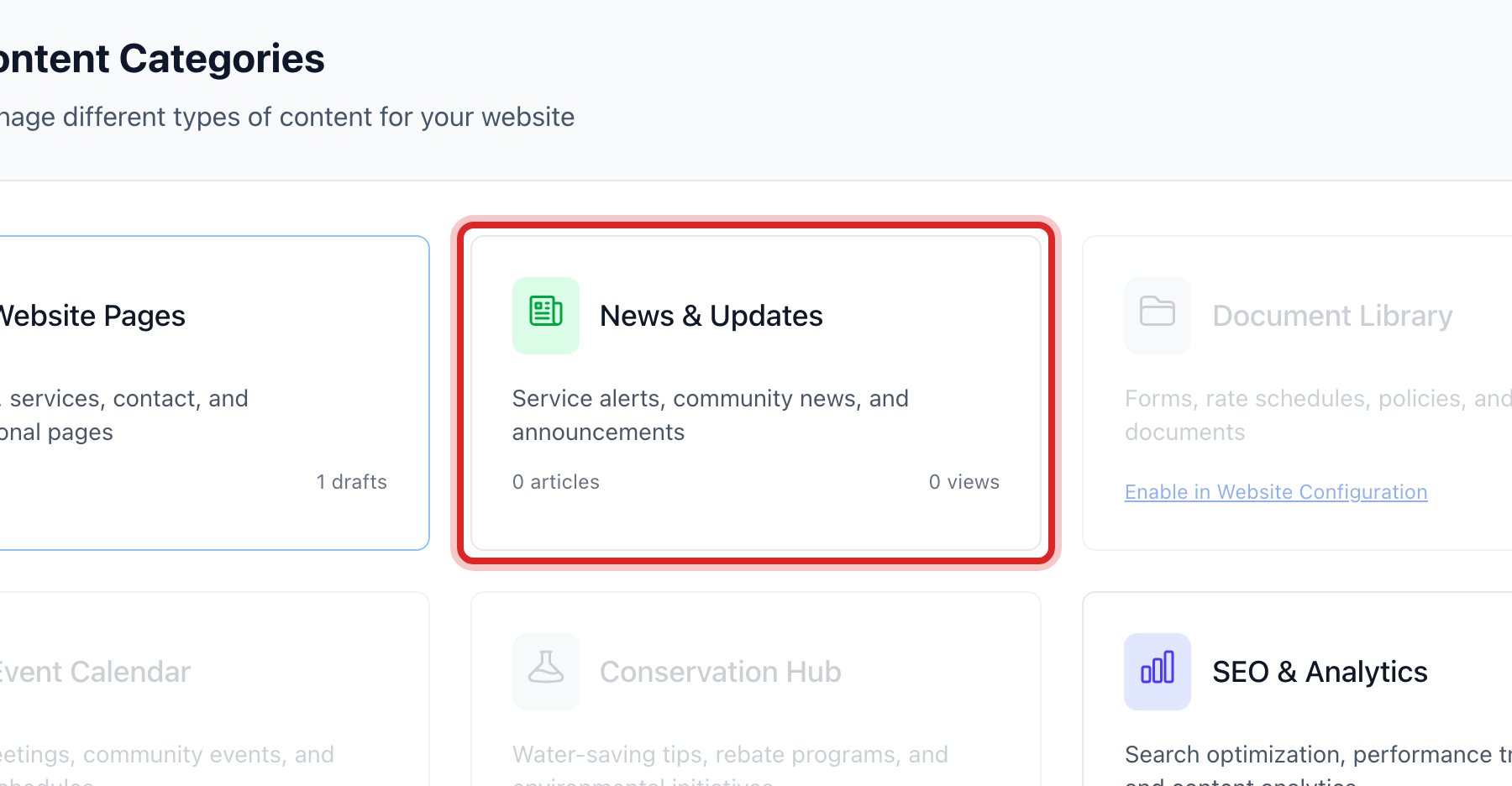
Under Content Categories, click the News & Updates card. A window opens.
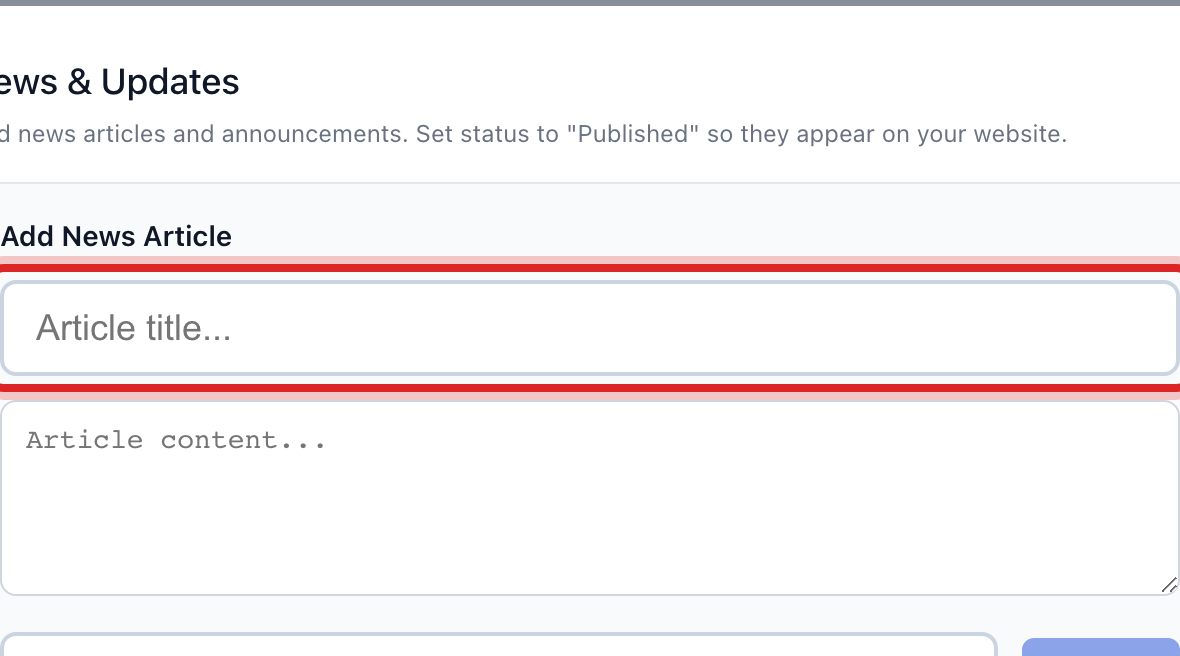
Under Add News Article, type the title in the box, like Hydrant flushing May 12 to 16.
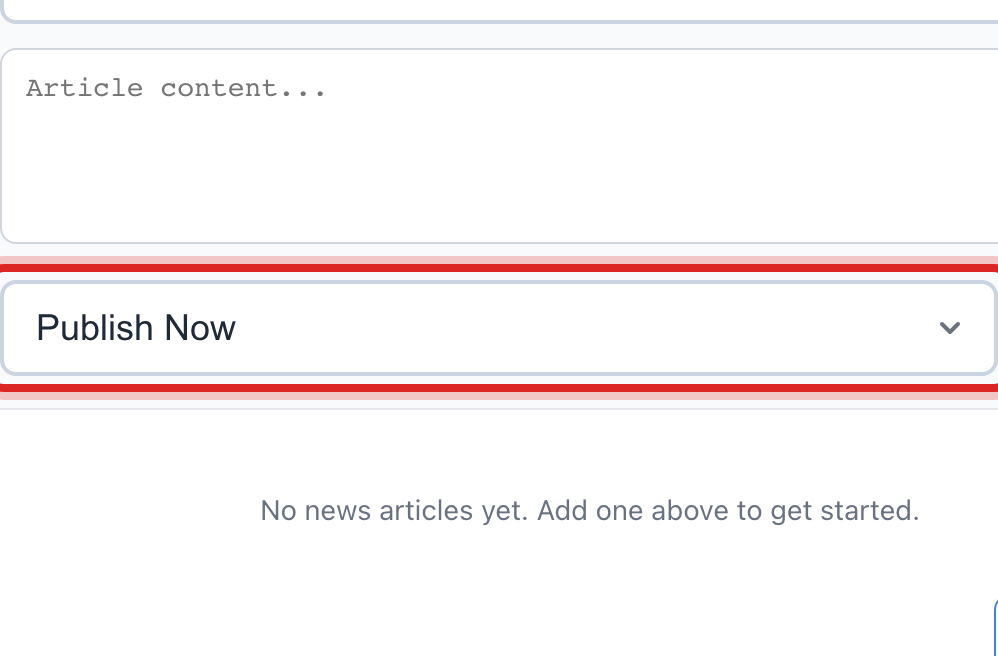
Leave the list on Publish Now so it shows right away. Pick Save as Draft if you want to finish it later.
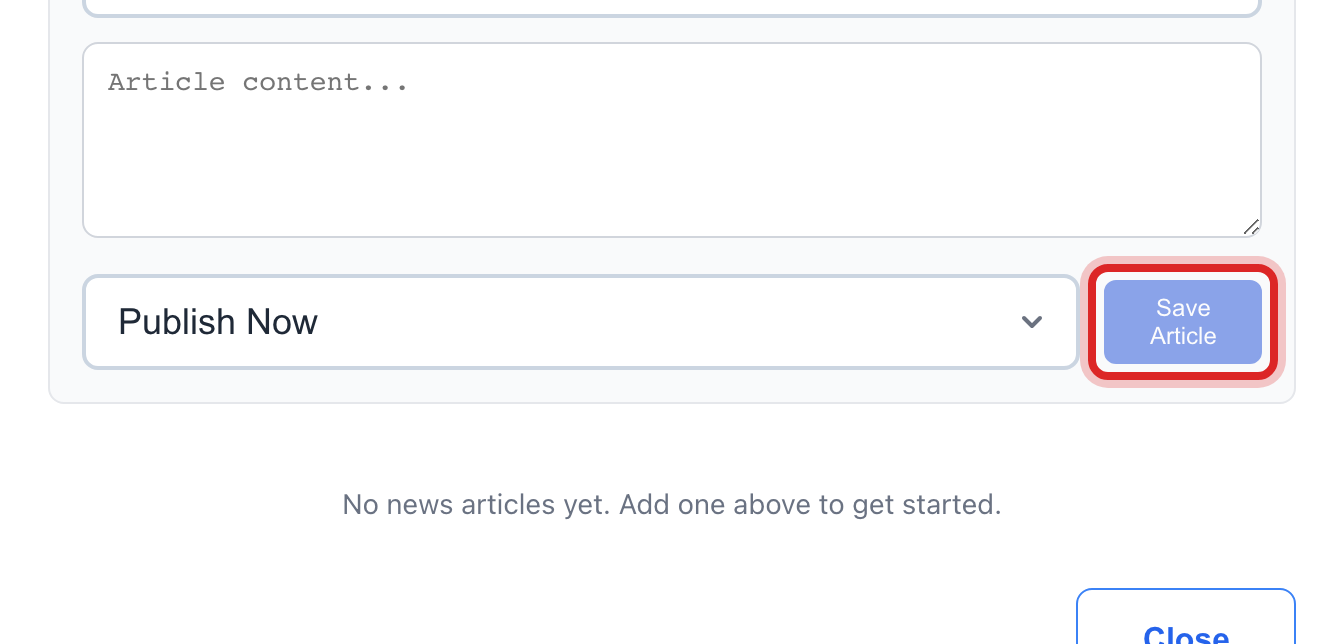
Click the blue Save Article button.
Your post shows in the list under the box with a green published mark. Click Close.
Made a mistake? Click Undo on the green message that appears, or open Show me how at the top and pick Undo a mistake.
You are done when
Click Preview Website at the top. The post is on the news page and the home page.
If something looks different
The News & Updates card says to enable it. News is turned off for your website. Click the link on the card, tick News & Service Updates, and save.
The post should come down. In the same window, click the small button on its row to make it a draft, or click Delete.
You have a document to share, like the water quality report. Click the Document Library card instead and add the file there.
It is a boil water notice. Post it here, and also send it by text and email from Customer Messaging. Not everyone reads the website.