
Appearance
2. Pick a look for your website
When you need this: you want the website to look finished without hiring anyone. You pick a layout and a set of colors. Utilops builds the pages, with your name and details already in them.
Steps
On the left side of the screen, click Public Website, then click Website Templates.
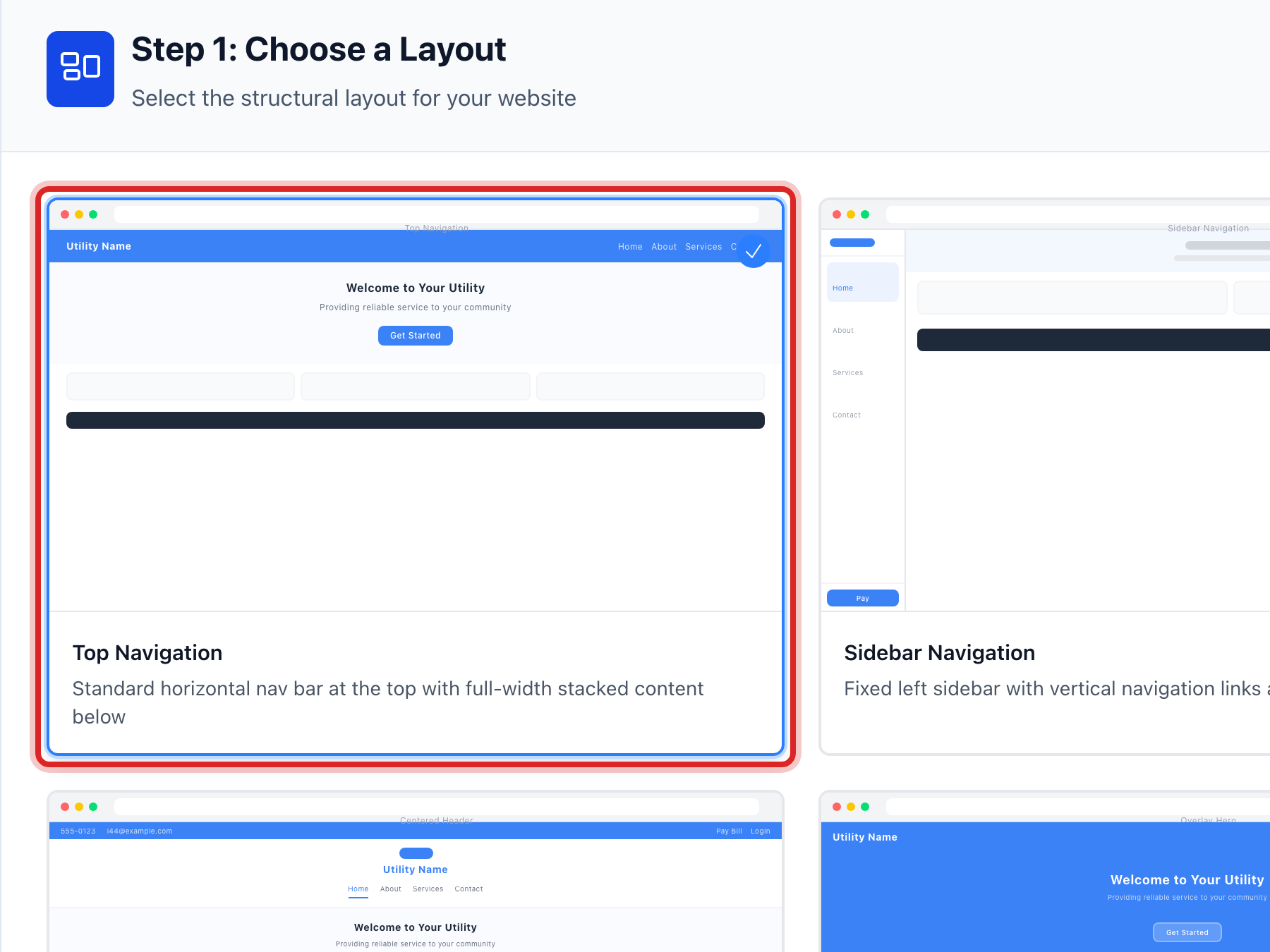
Under Step 1: Choose a Layout, click the layout you like. Each card shows a small picture of how the pages are arranged.
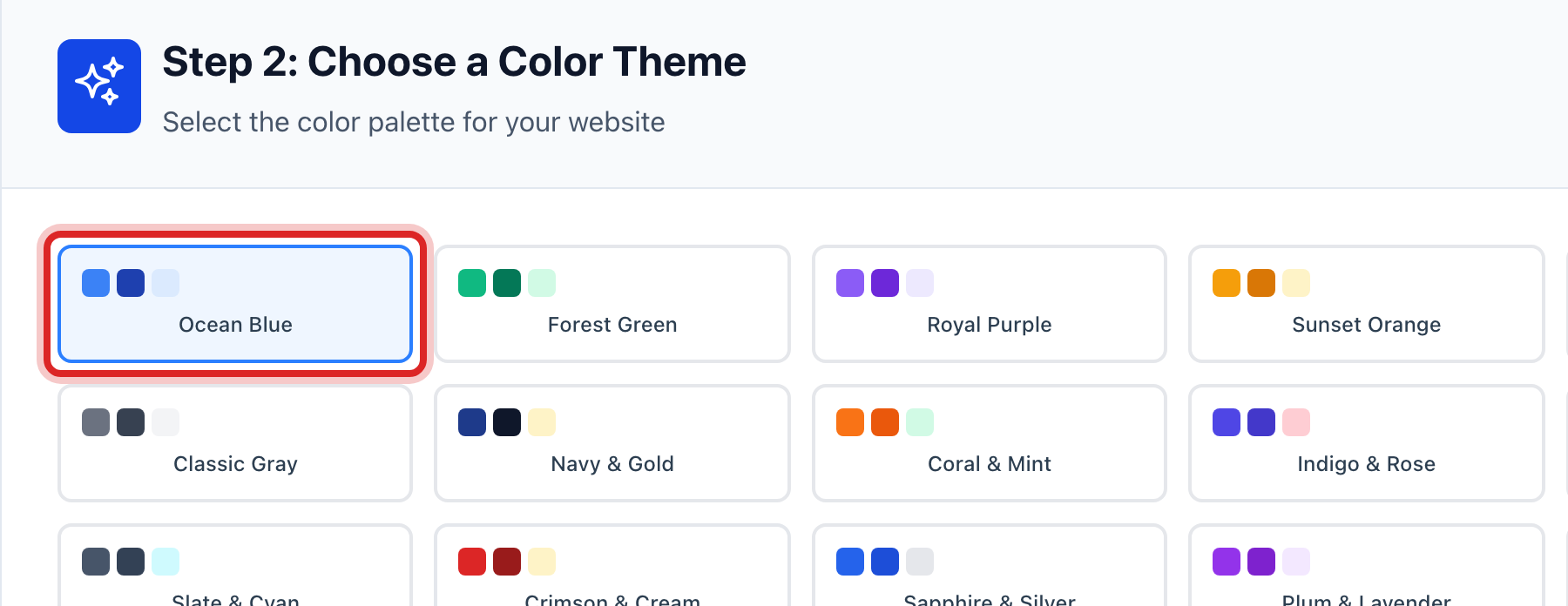
Under Step 2: Choose a Color Theme, click a set of colors. Pick the one closest to your utility's colors.
A preview opens below with your two choices and a list of what the layout includes. Read it.
Click the blue Apply This Template button. A window asks you to confirm. Click to say yes.
Made a mistake? Click Undo on the green message that appears, or open Show me how at the top and pick Undo a mistake.
You are done when
A green message says the template is applied. Click Preview Website at the top. Your pages are there, in the new look, with your name and phone already in them.
If something looks different
You already made pages. Applying a template adds its pages next to yours. It does not delete yours. If you get a page twice, delete one under Page Builder.
You want different colors later. Come back here and apply the same layout with a new color theme.
The page says Payment Portal Required. Click Set Up Portal Branding, save your logo and colors there, then come back.