
Appearance
5. Approve a log or send it back
When you need this: you are the person who signs off on the crew's logs. A log that is approved goes into the monthly report. A log with a problem goes back to the operator with a note.
Steps
On the left side of the screen, click Operations Logs, then click All Logs.
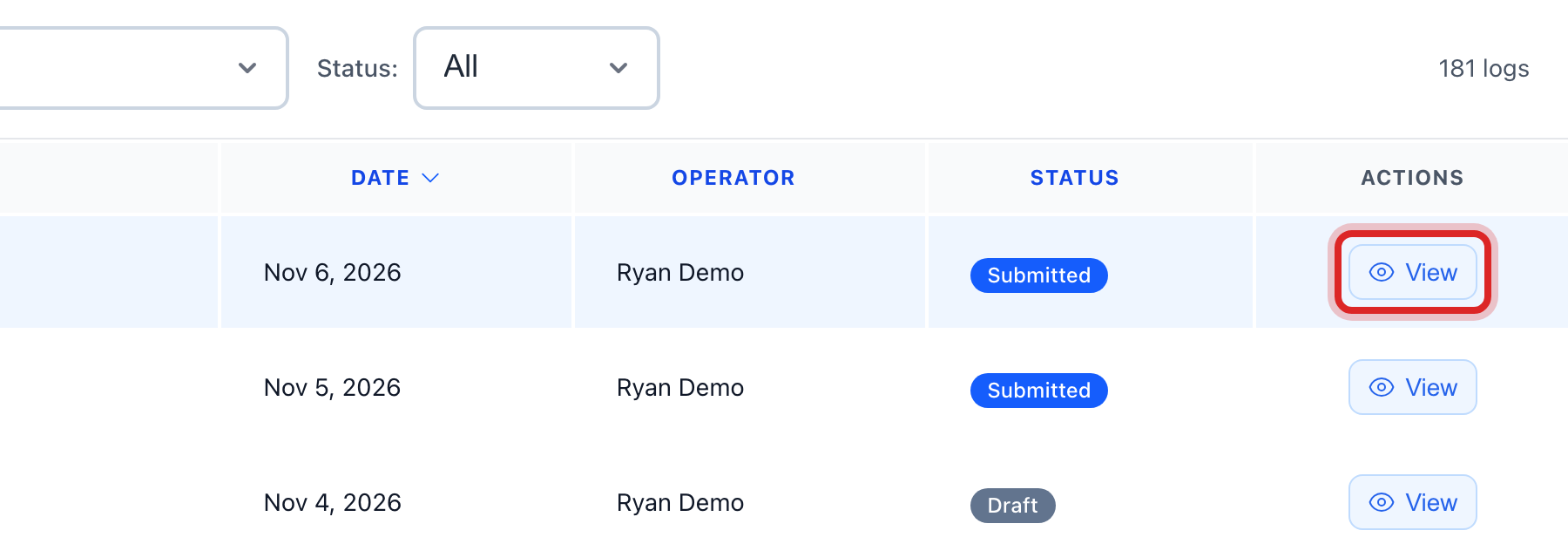
Find a row that says Submitted. Click the eye button at the right end of the row. Its name is View.
Read Log Details. Check the numbers against what you expect.
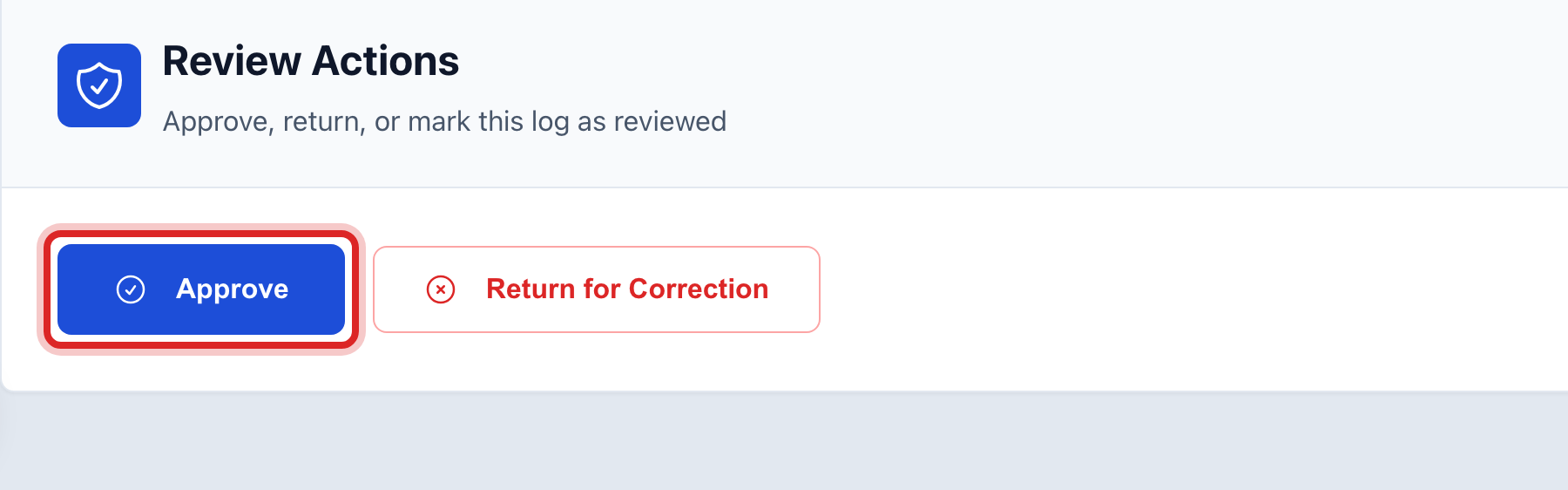
If it is right, scroll to Review Actions and click Approve.
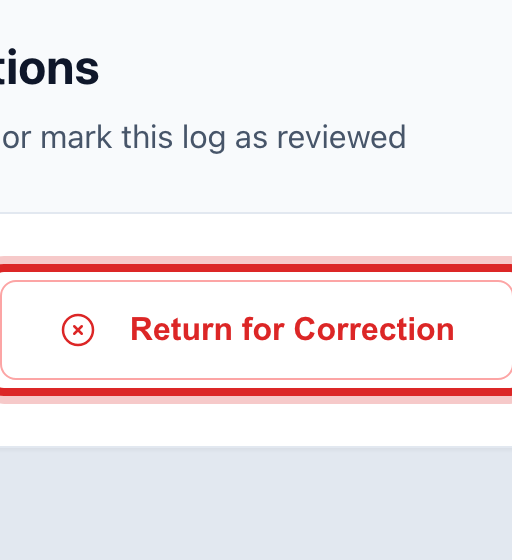
If something is wrong, click Return for Correction instead.
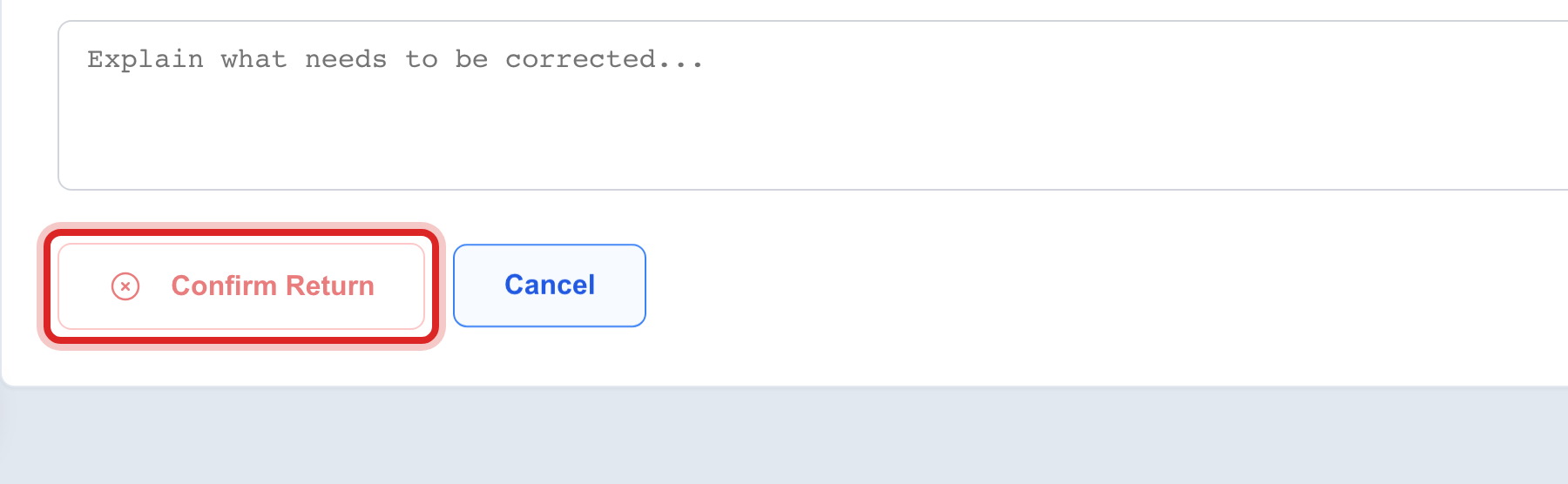
Type what needs fixing under Reason for returning this log. Say which box and why.
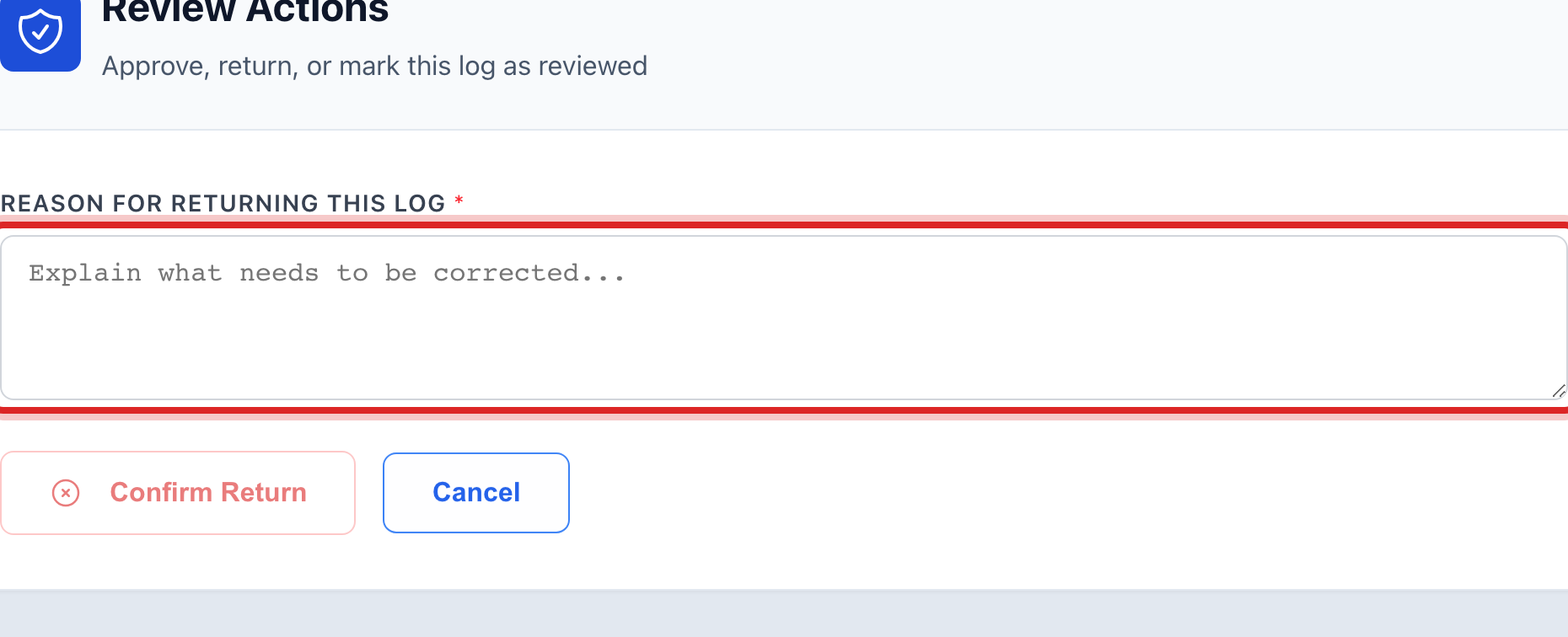
Click Confirm Return.
Made a mistake? Click Undo on the green message that appears, or open Show me how at the top and pick Undo a mistake.
You are done when
The status at the top of the log reads Approved or Returned. A returned log shows up for the operator under My Logs with your note.
If something looks different
There is no Review Actions box. Your account may not have permission to review logs, or the log is not waiting for review. Ask your administrator.
The button says Mark as Reviewed. This kind of log has two sign offs. You mark it reviewed, then the approver approves it. Lesson 7 shows where that is set.
The home page shows them too. Under Recent Submissions, a submitted log has a review button at the right end of its row.