
Appearance
3. Fix a log that was sent back
When you need this: a reviewer looked at your log and found a problem. A number that cannot be right, or a box left empty. They sent it back with a note. You fix it and send it again.
Steps
On the left side of the screen, click Operations Logs, then click My Logs.
Find the row that says Returned.
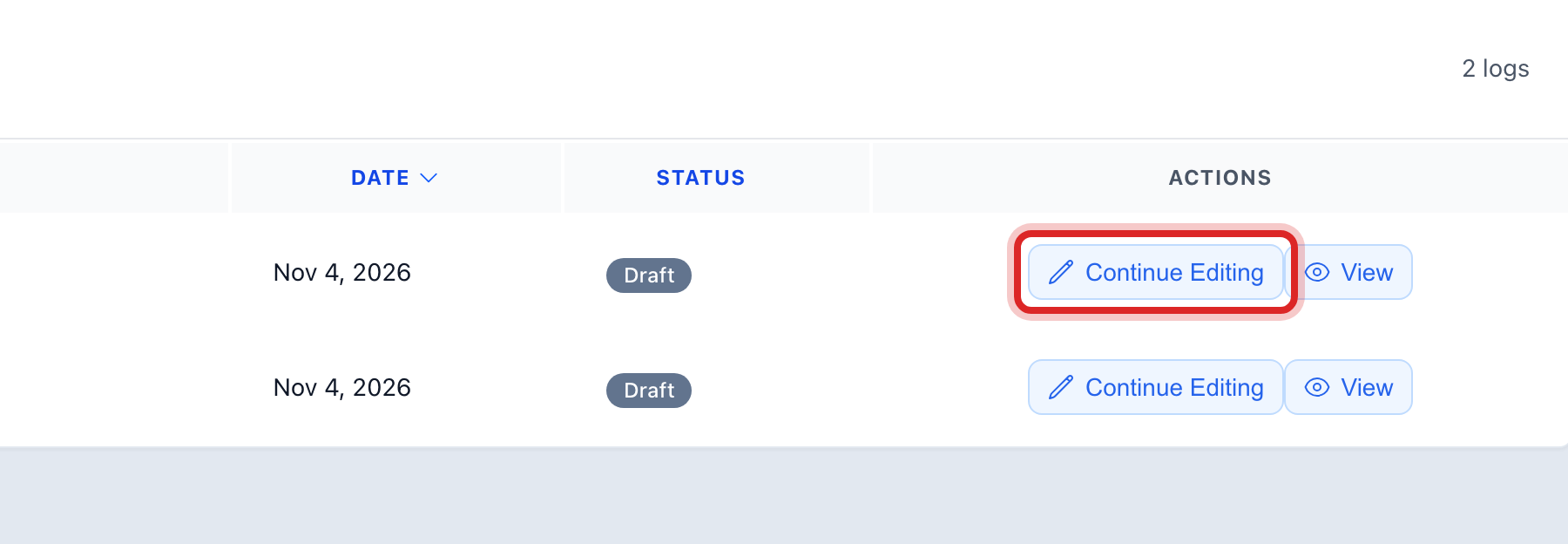
Click the pencil button at the right end of the row. Its name is Continue Editing.
A red box at the top of the form says This log was returned for correction, with the reviewer's note under it. Read the note.

Fix what the note asks for.
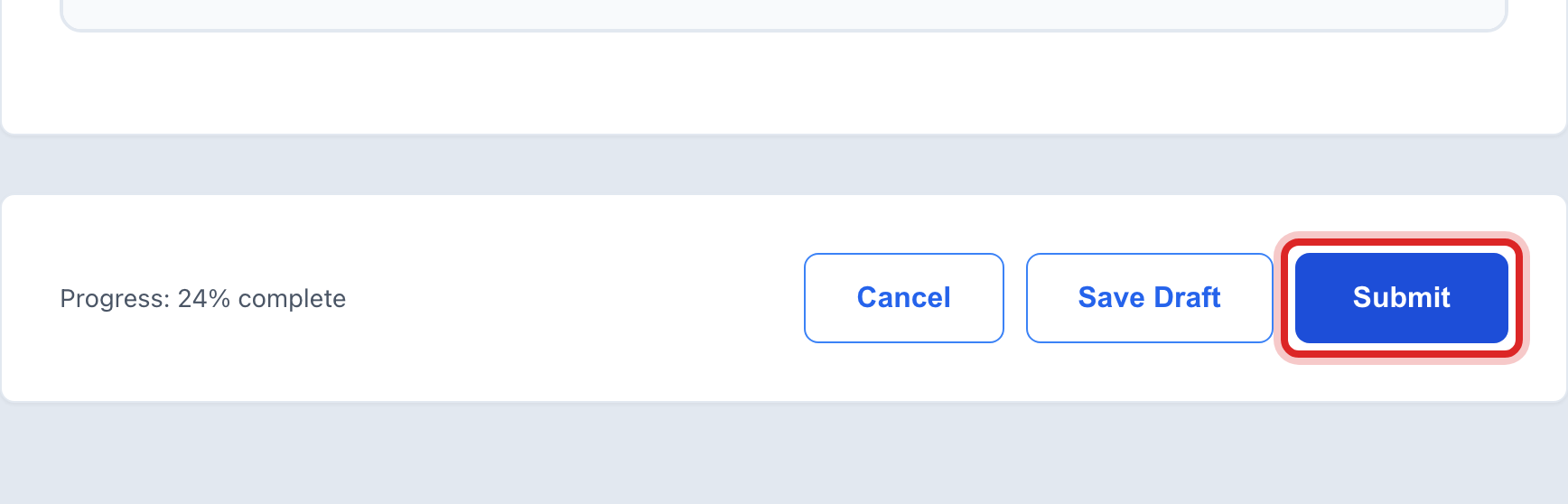
Click the blue Resubmit button at the bottom.
Made a mistake? Click Undo on the green message that appears, or open Show me how at the top and pick Undo a mistake.
You are done when
A green message says the log was submitted. The row under My Logs reads Submitted again, and the reviewer sees it in their list.
If something looks different
You want to read the note first, without opening the form. Click the eye button on the row instead. Under Status & Workflow you see who sent it back and why. The Revise & Resubmit button there opens the form.
The home page shows it too. Under My Pending Logs, a returned log has a Revise button. Same form.
You are on a phone. The row is a card, and the button says Revise.