
Appearance
7. Pause or remove a connection
When you need this: you changed meter companies. The lab closed. Or a connection is sending bad data and you want it stopped until someone looks at it. Pausing keeps the keys so you can start again. Removing wipes them.
Steps
On the left side of the screen, click Integrations, then click Marketplace.
Find the card for the connection. A connection you already have shows a Manage button. Click it.
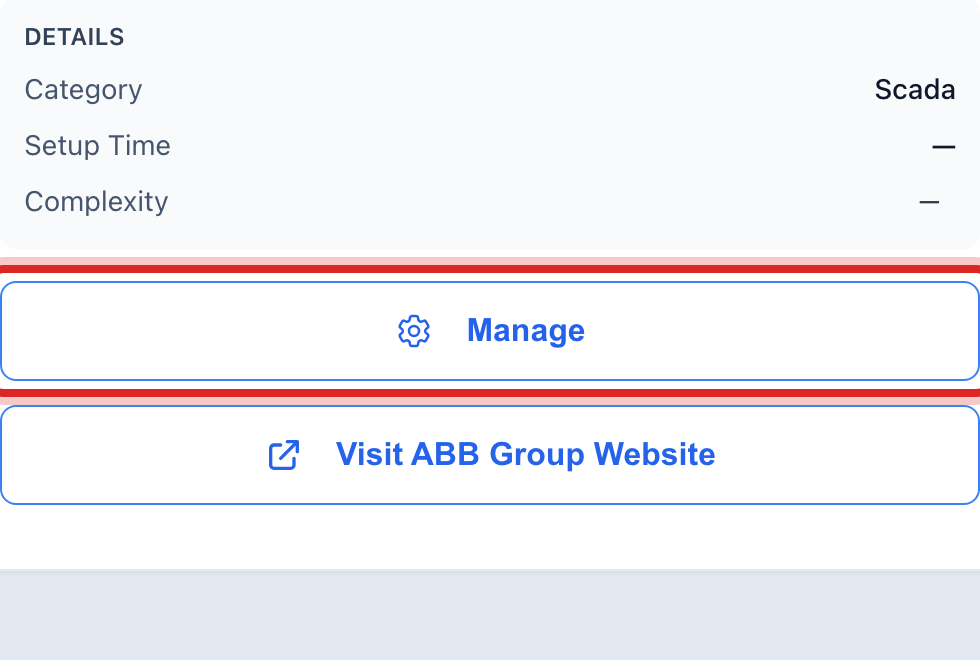
Scroll down to Danger Zone. Read the yellow box first. It says what stops when you pause or remove.
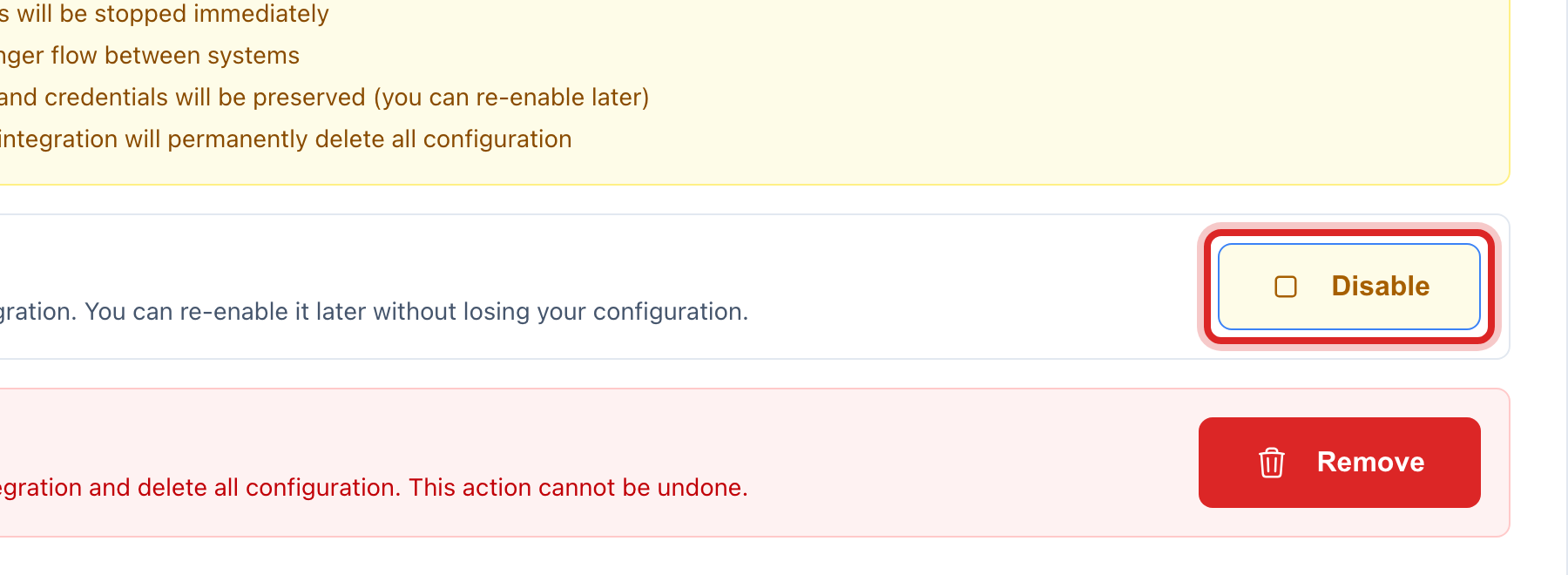
To stop it for now, click Disable. Click to say yes. The keys stay saved. The button changes to Enable, and clicking that starts it again.
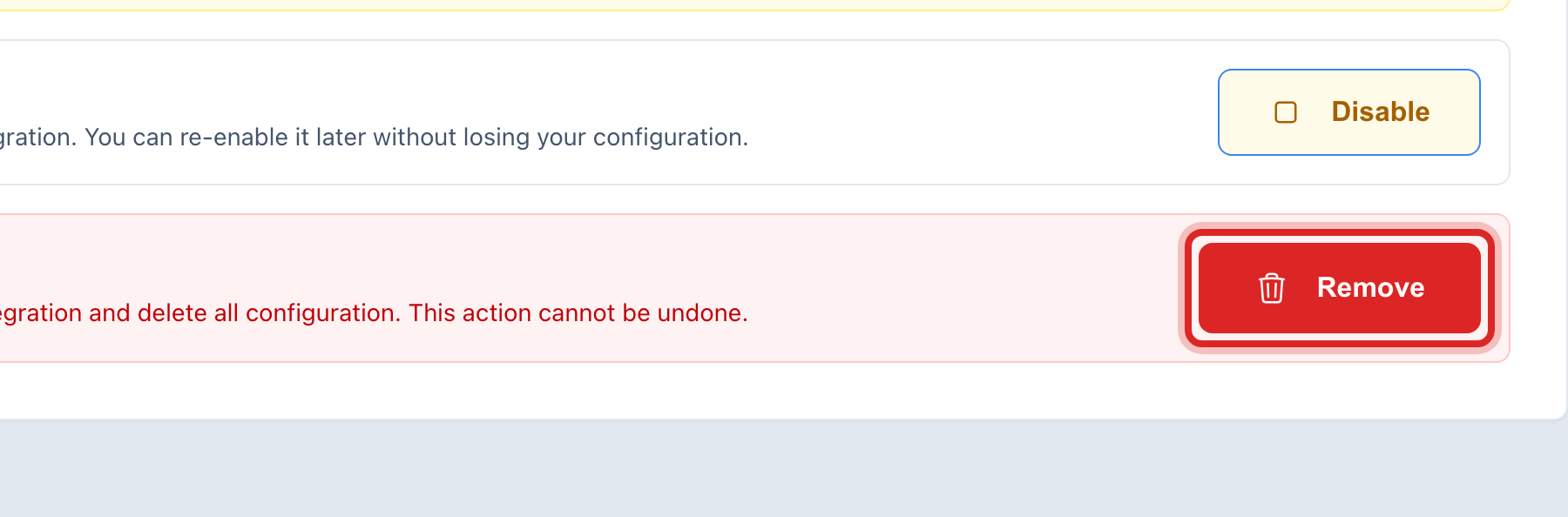
To get rid of it for good, click Remove. Type the word DELETE in the box to show you mean it, then click to say yes.
Made a mistake? Click Undo on the green message that appears, or open Show me how at the top and pick Undo a mistake.
You are done when
For a pause, the status at the top of the page reads disabled and the card in the Marketplace still shows Manage. For a remove, the card shows Deploy Integration again, as if you never had it.
If something looks different
You removed it and want it back. Deploy it again from the card. The keys were wiped when you removed it, so you must type them again. Removing cannot be undone.
The Disable and Remove buttons are faded. Only some roles may change connections. Ask your administrator.
It is the payment company. You cannot pause or remove that here. Call Utilops.