
Appearance
6. See that every connection is healthy
When you need this: once a month, or whenever readings or results stop showing up. One page lists every connection, says whether it is working, and shows when it last sent anything.
Steps
On the left side of the screen, click Integrations, then click Monitoring & Health.
Stay on the Live Status tab. Each row is one connection. The colored pill says healthy, unfinished or failing. The last column says when it last sent or received data.
A row that reads unfinished has a Finish setup button. Click it to go to that connection's set up page and fill in what is missing.

A row with red words under its name is failing. The words say why. Most of the time the key expired or the company changed its address. Call them.
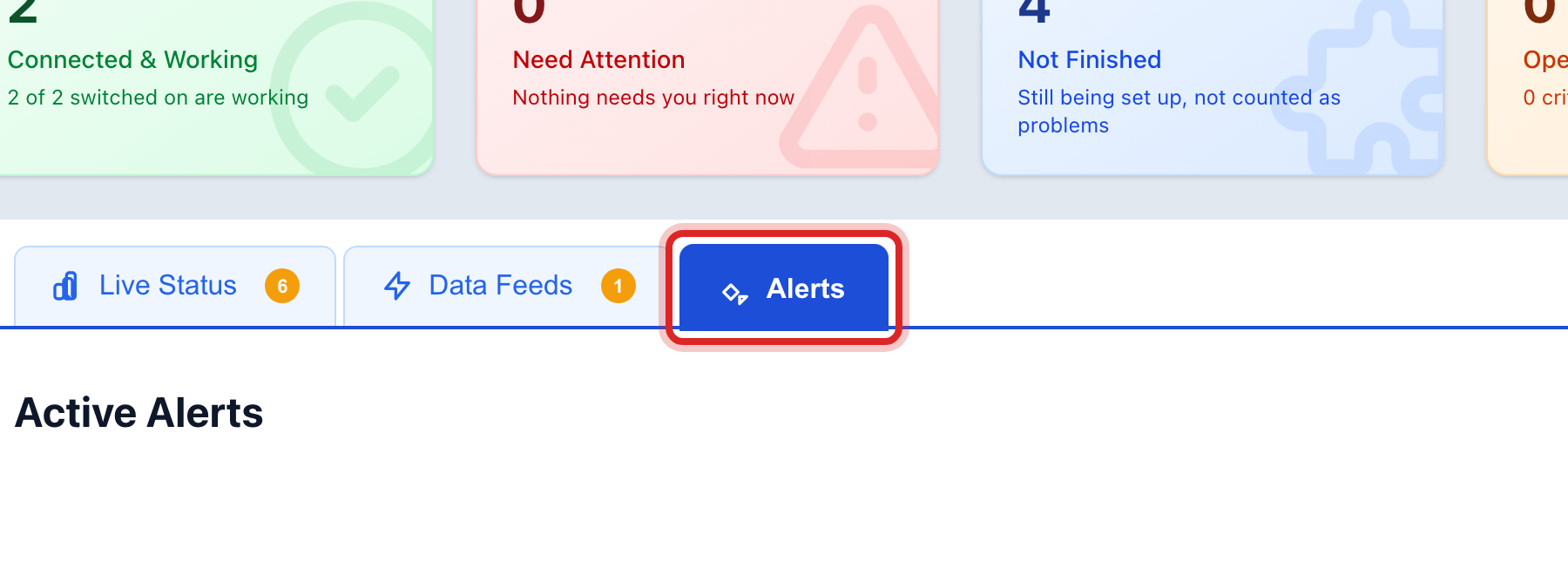
Click the Alerts tab. Each alert is one problem Utilops noticed.
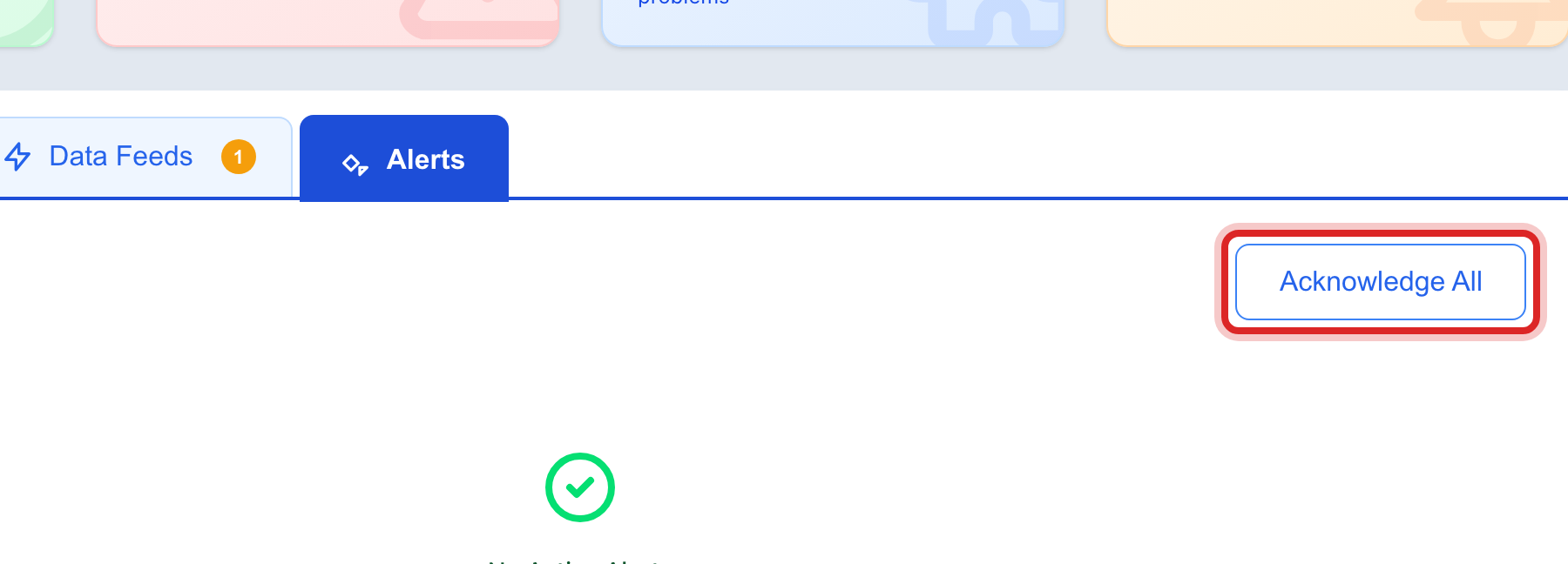
When you have read them and dealt with them, click Acknowledge All.
Made a mistake? Click Undo on the green message that appears, or open Show me how at the top and pick Undo a mistake.
You are done when
Every row on Live Status shows a green pill, and the Alerts tab says No Active Alerts.
If something looks different
The list is empty. You have not added any connection yet. Click Browse the Marketplace.
A row has a Send data button. That connection is one where the other system sends to Utilops. The button shows the address and key to give them. Lesson 2 shows how.
The Data Feeds tab. It lists what each connection sent recently, so you can check that this morning's readings arrived.