
Appearance
3. Apply for card and bank payments
When you need this: you want customers to pay online, by card or straight from their bank. The payment company has to approve your utility first. You fill in one application here. Utilops sends it in and connects everything when they say yes. You never type a key for it.
Steps
On the left side of the screen, click Integrations, then click Payment Processors. On that page, open the set up page for card and bank payments.
Read How card payments get turned on. It is three steps, and only the first one is yours.
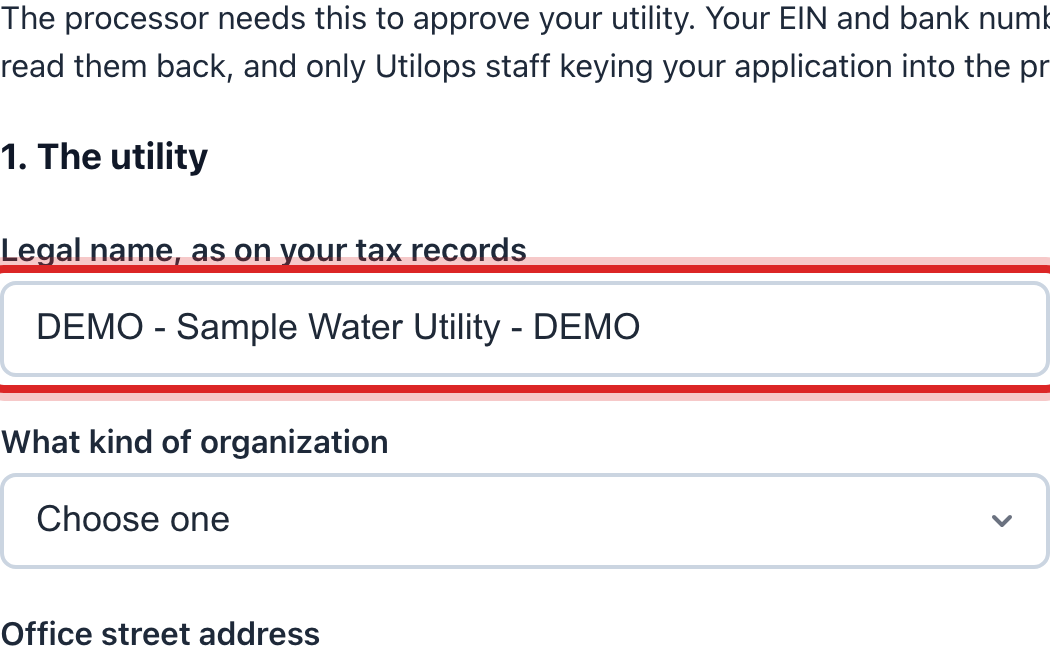
Under Application for card and bank payments, type your utility's Legal name, as on your tax records, pick What kind of organization you are, and type your EIN.
Type the office address, phone and email. Then the person who signs: their Name, Title, Email and Phone. The agreement goes to that email.
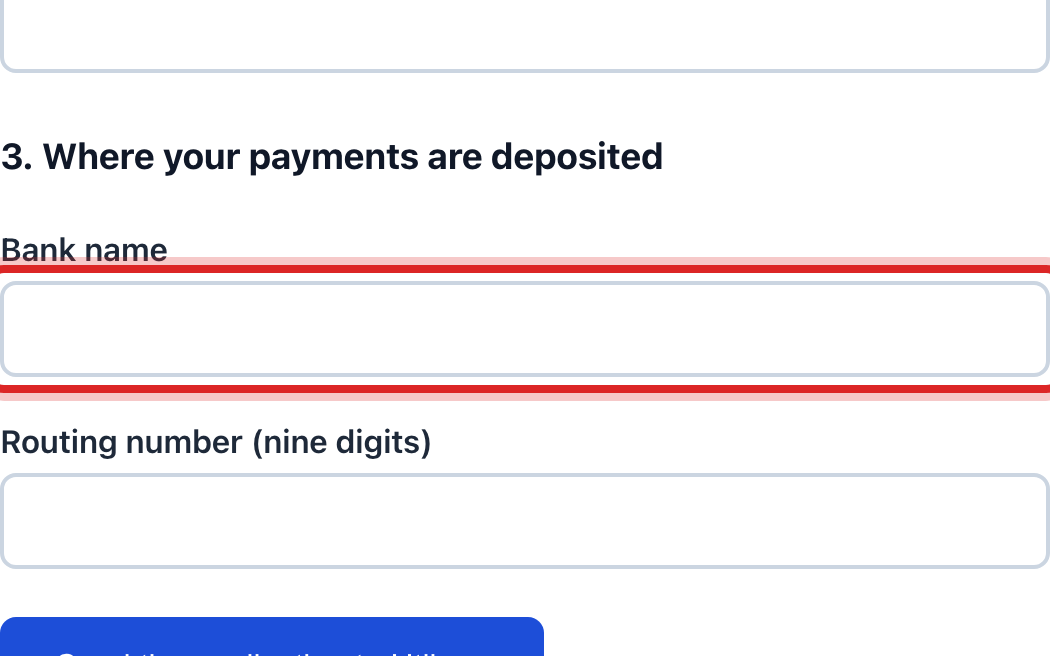
Type the Bank name, pick Checking or Savings, and type the Routing number and Account number. This is where the money lands.
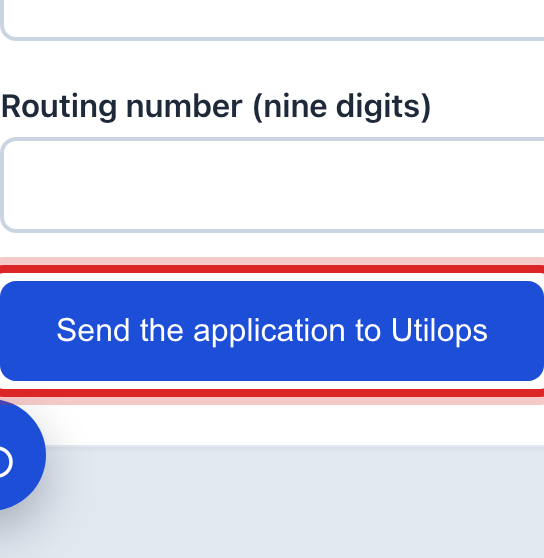
Click the blue Send the application to Utilops button.
You are done when
The page now shows Your application with the date it was sent and a status. When the payment company approves, the page changes to Card and bank payments are on and your portal starts taking payments.
If something looks different
The page already says Card and bank payments are on. You are done. Click Who pays the fee to see whether the customer or the utility pays the card fee. Utilops sets those fees. Call us to change them.
You typed something wrong after sending. Click Change something and send it again. Once it is approved, call Utilops to change the bank account.
The page shows a button to open the payment company's own form. Some companies take the application on their site. Click the button, fill in their form, and Utilops turns payments on when they approve.
The Send button is faded. The list above it names what is still blank.