
Appearance
1. Add a connection from the Marketplace
When you need this: the state wants your reports sent straight from Utilops. Your lab can send results on its own. Your meter company has a system that sends readings. Every one of those starts as a card in the Marketplace.
Steps
On the left side of the screen, click Integrations, then click Marketplace.
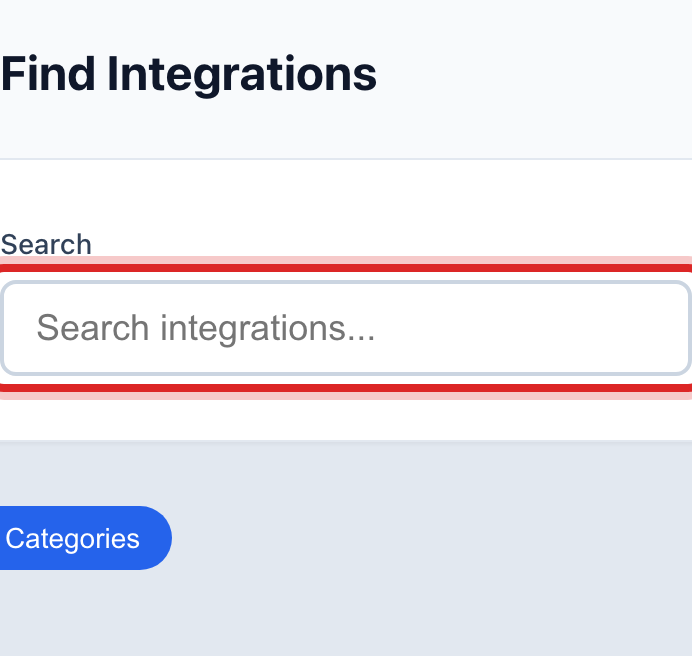
Click in the Search box and type the name of the system or what it does, like state reporting. The cards below narrow down as you type.
Read the card. It says what the connection does and which company it is with.
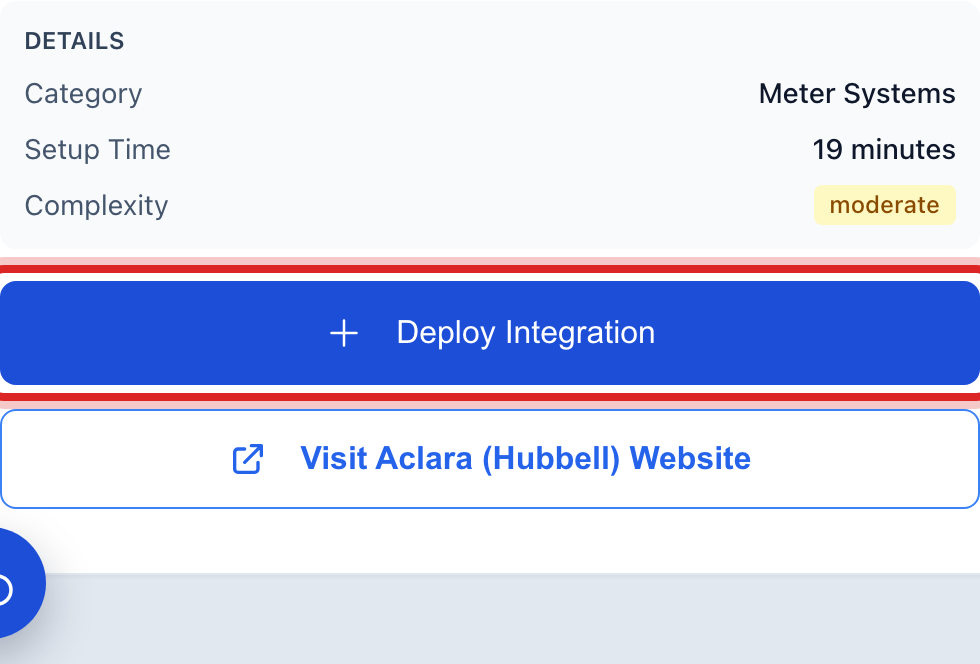
Click the blue Deploy Integration button on the card.
A set up page opens. Fill in what the company gave you, like a login or a key. Click Test Connection to make sure it answers. Then click the blue save button at the bottom of the page.
Made a mistake? Click Undo on the green message that appears, or open Show me how at the top and pick Undo a mistake.
You are done when
Back in the Marketplace, the card now shows a Manage button instead of Deploy. Under Monitoring & Health, the connection is in the list.
If something looks different
The card says Set up by Utilops. It is a payment company. Lesson 3 shows what to do.
The card says Active, Managed by Utilops. It is already on for every utility. There is nothing to do.
You see a blue box about your state. Click Show followed by your state's name. It lists the state reporting connections that apply to you.
You need a key and do not have one. Call the company. They give you the login or key for their system. Utilops cannot make it for you.