
Appearance
2. Give your meter company its address and key
When you need this: you have smart meters, and the company that runs them can send readings to Utilops on its own. Then nobody imports a file every month. They need two things from you: an address to send to, and a key that proves it is them.
Steps
On the left side of the screen, click Integrations, then click Meter Systems & AMI.
Your meter system is listed under Connected Systems. If the list is empty, click Add System, find your meter company in the Marketplace and add it. Lesson 1 shows how.
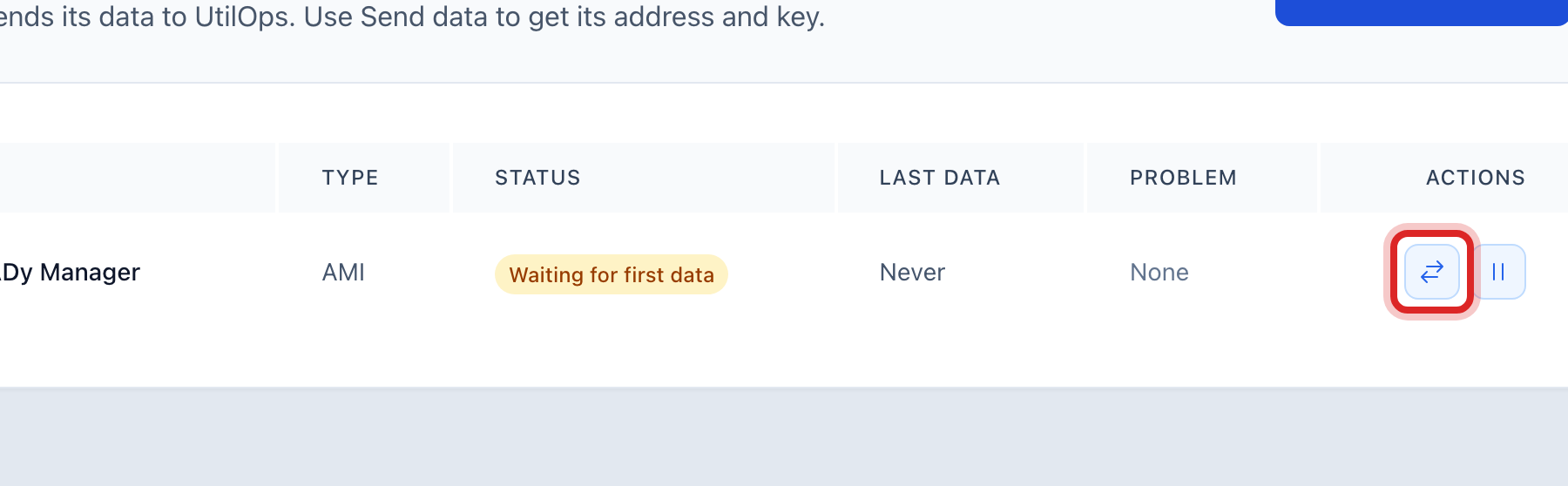
On the row for your system, click the Send data button.
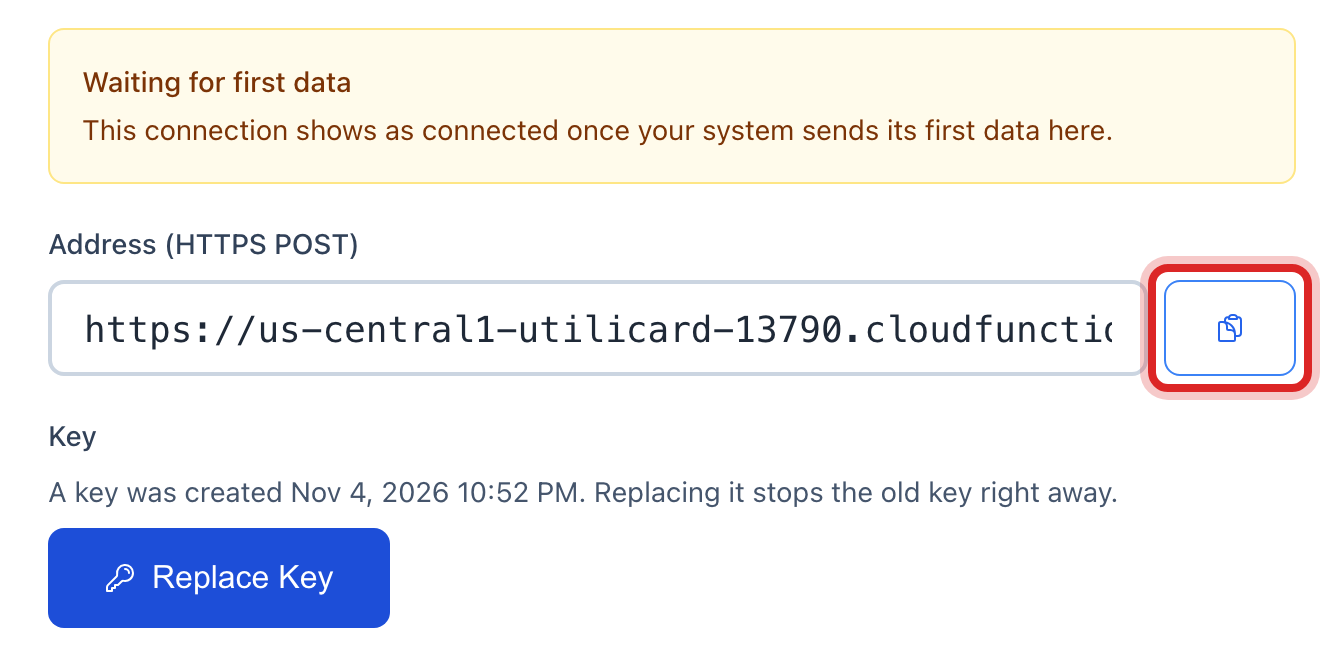
A window opens. Next to Address, click Copy. Paste it into an email to your meter company.
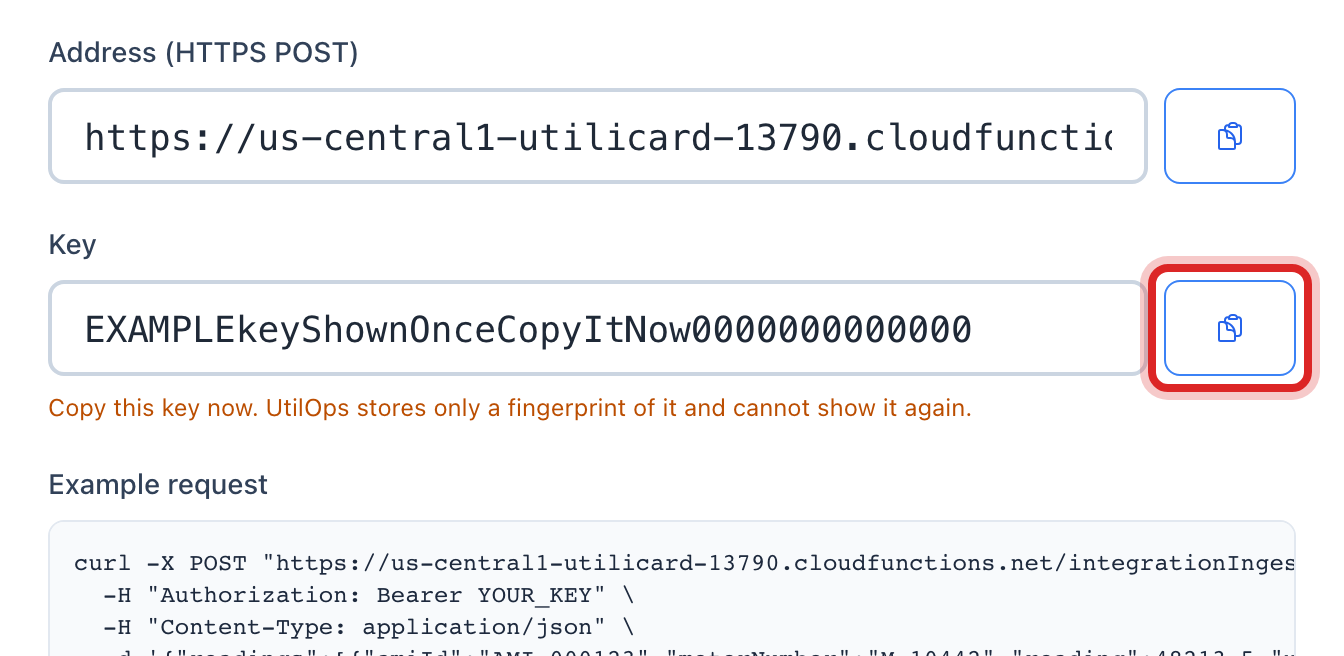
Next to Key, click Copy and paste it into the same email. Send the email. The key shows only this once, so do not close the window before you paste it.
Click Close.
Made a mistake? Click Undo on the green message that appears, or open Show me how at the top and pick Undo a mistake.
You are done when
Once the company starts sending, the Last Data column on the row shows a recent time, and the Status reads healthy. New readings show under Meter Reading on their own.
If something looks different
You lost the key. Click Send data again and make a new one. The old key stops working. Send the new one to the company.
Readings stopped coming in. The Problem column says why. Call the meter company and read it to them.
You want to stop readings for a while. Click the pause button on the row. Click it again to start.
You are a gas utility. This page works the same for gas meters.