
Appearance
5. Check on letters in the mail queue
When you need this: you sent the bills to the mailing company this morning and a customer asks whether hers went out. Or a batch did not go and you want to know why. This page lists every job handed to the mailing company and where it is.
Steps
On the left side of the screen, click Integrations, then click Print/Mail Queue Monitor.
The boxes at the top count the jobs waiting, the jobs being printed, the jobs done and the jobs that failed.
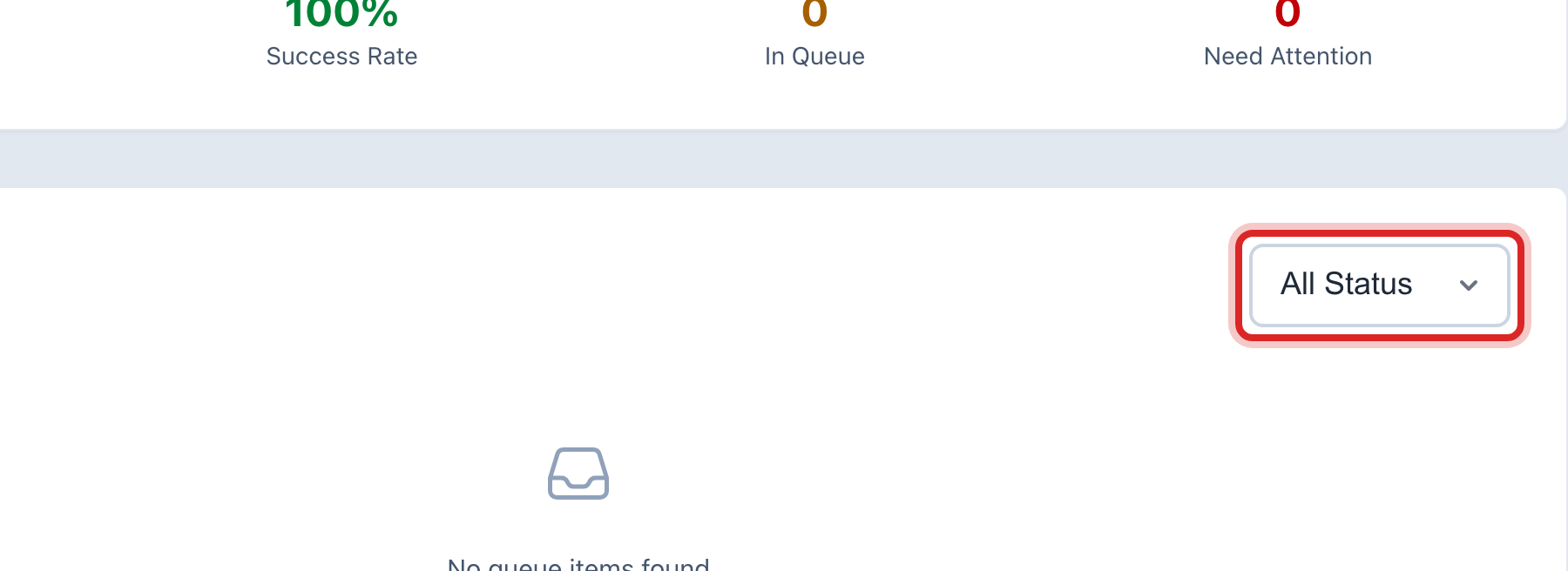
Under Queue Items, click the status list and pick Failed to see only the jobs that did not go.
Each row says how many letters are in the job, when it was made and how long it has waited.
On a failed row, click the retry button. Utilops hands the job to the mailing company again.

Made a mistake? Click Undo on the green message that appears, or open Show me how at the top and pick Undo a mistake.
You are done when
The row changes from Failed to Pending, and then to Completed once the mailing company takes it.
If something looks different
A job keeps failing. The Retry Count column shows how many tries. After three, call the mailing company with the job number from the first column.
The list is empty. You have not sent anything to a mailing company yet, or you print at the office.
You want a warning when jobs pile up. Click Alert Settings at the top and set how many waiting jobs is too many.