
Appearance
7. Undo an older action or a whole import
When you need this: the green message is long gone. Someone changed a record last week and it was wrong. Or an import put 400 bad readings in, and you want all 400 out in one go. Change History lists every change, who made it, and when, and it has an Undo button on each row.
Steps
On the left side of the screen, click Data Management, then click Change History.
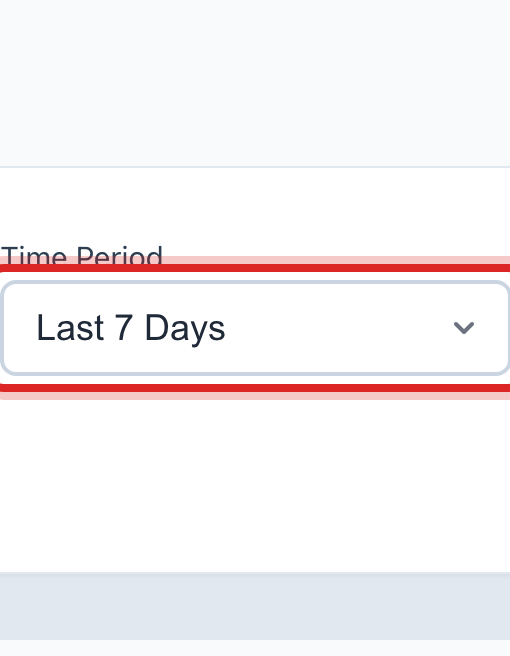
Click the Time Period list and pick when it happened, like Last 7 Days. To look for one kind of record, pick it in Entity Type.
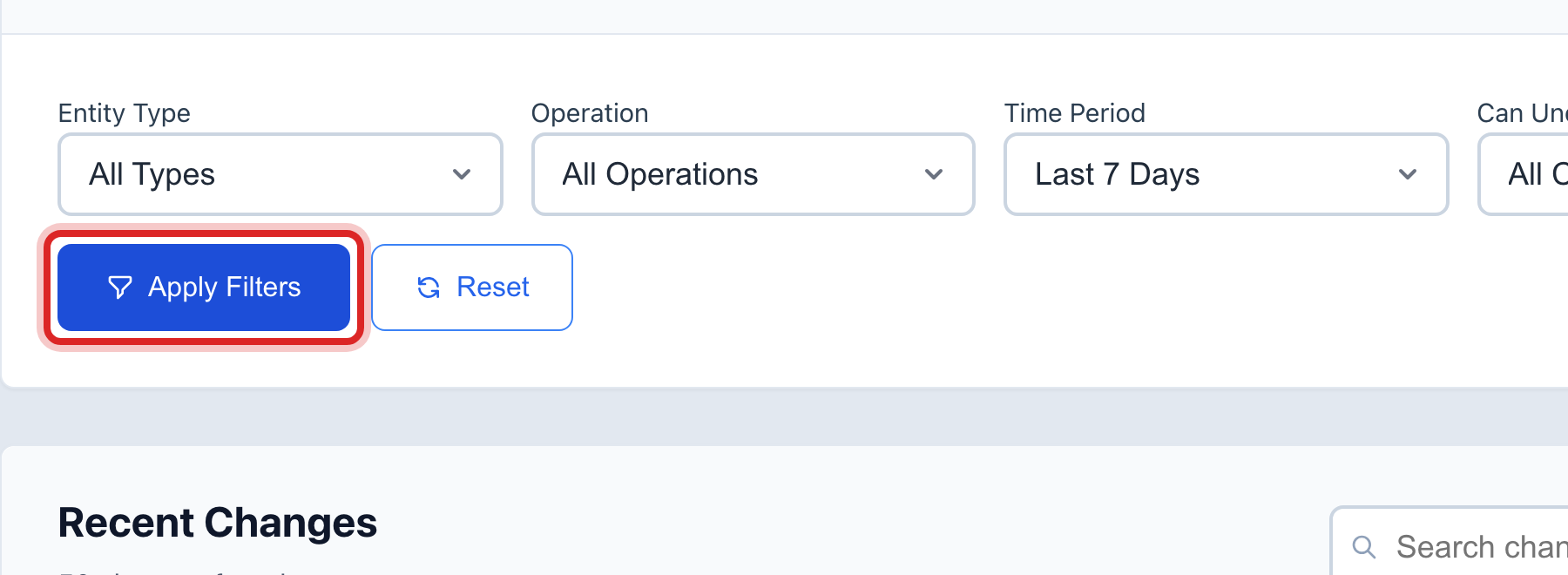
Click Apply Filters. The list under Recent Changes fills in, newest first.
Find the row. Click it to read what changed, the old value and the new value.
Click Undo on the row. A window says what it will do. Click to say yes.
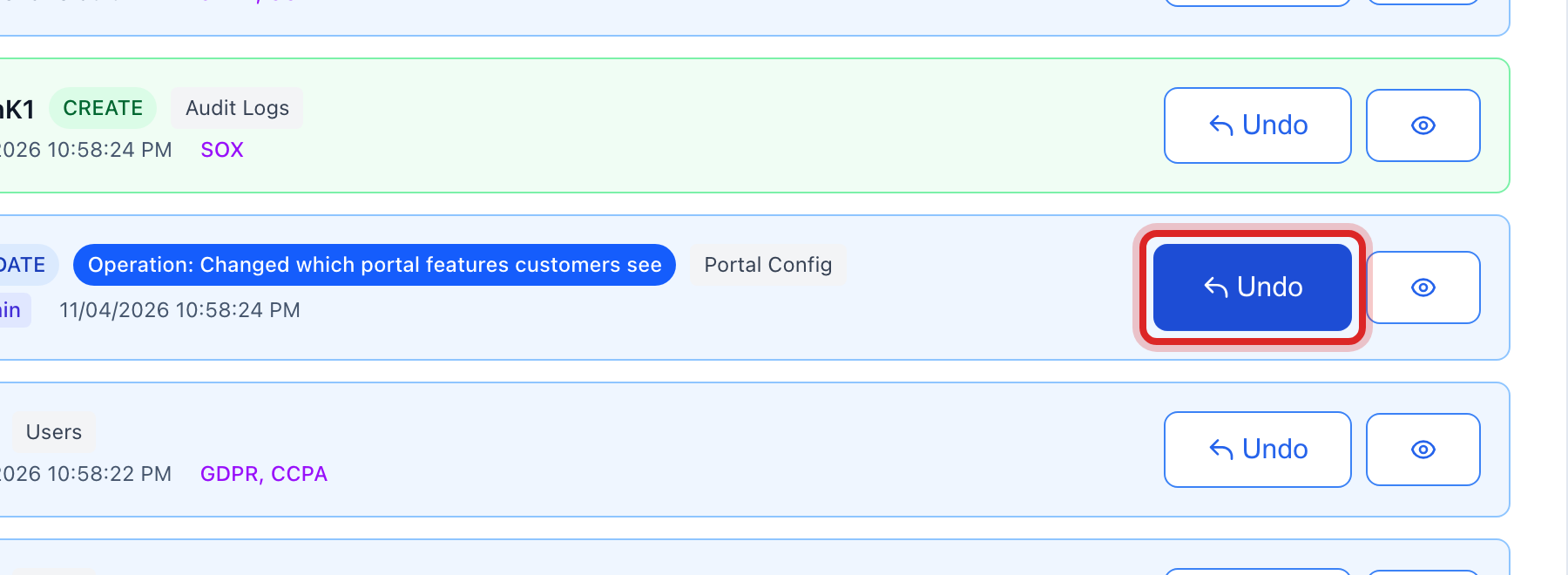
To take back a whole import, find any row from that import and click Undo Operation. Every record that import made goes at once.

Made a mistake? Click Undo on the green message that appears, or open Show me how at the top and pick Undo a mistake.
You are done when
The row reads Undone. The record reads the way it did before. For an import, the green message says how many records went.
If something looks different
The row has no Undo button, only words. That action cannot be taken back. The words say what to do instead.
The row shows a small round button instead. It is a money record, like a payment. Those are fixed on the record itself, with a refund or a void.
Someone changed the same record after that. Utilops says so and offers to undo both at once, newest first.
You do not see this page. It is one of the advanced pages. Ask your administrator to turn them on for your login.