
Appearance
3. Save how a file's columns line up
When you need this: the lab or the meter company sends a file every month, and its columns have their own names. Instead of fixing the file by hand each time, tell Utilops once which column is which. Next month you pick the saved mapping and import.
Steps
On the left side of the screen, click Data Management, then click Templates & Mapping.
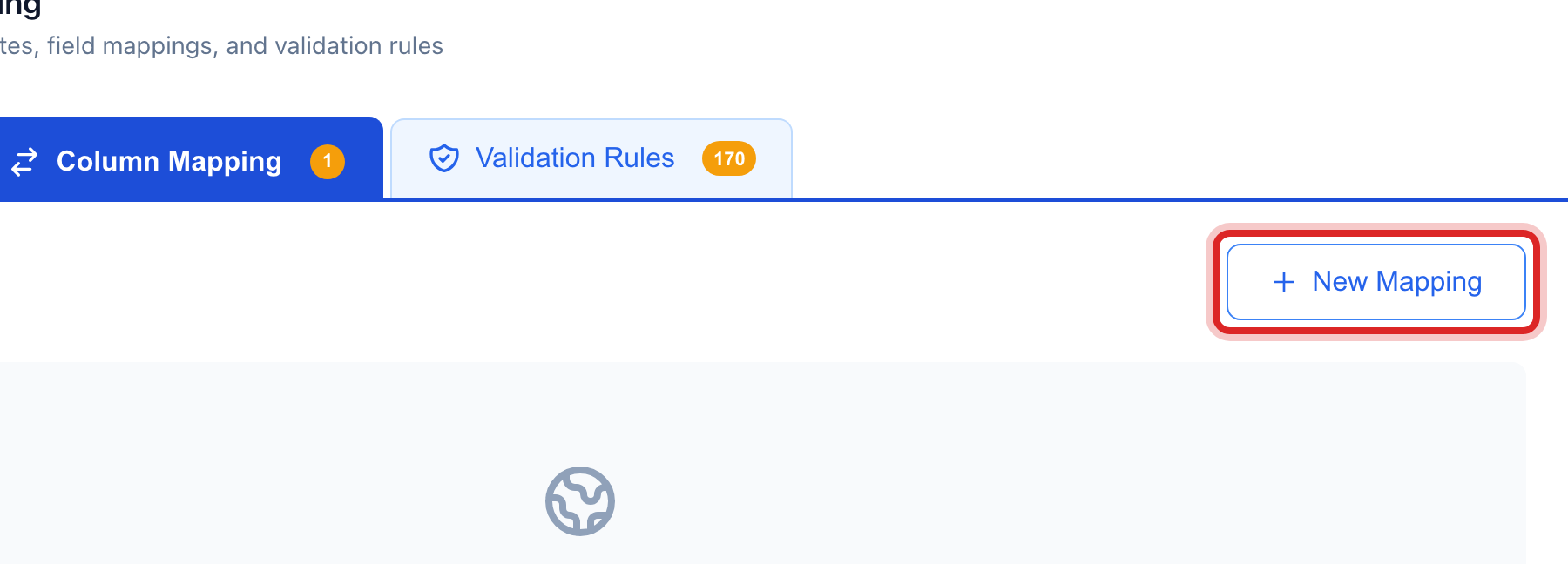
Click the Column Mapping tab, then click New Mapping.
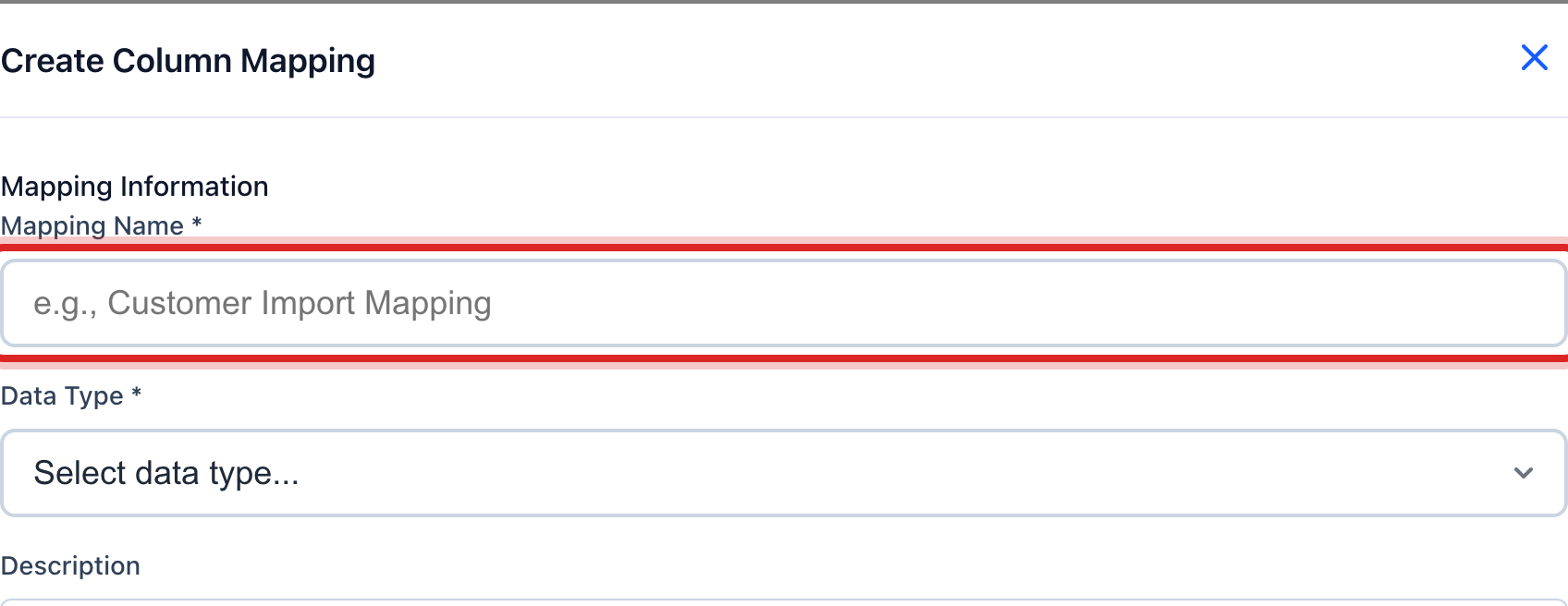
Type a name in Mapping Name, like the name of the company that sends the file. Click the Data Type list and pick what the file holds.
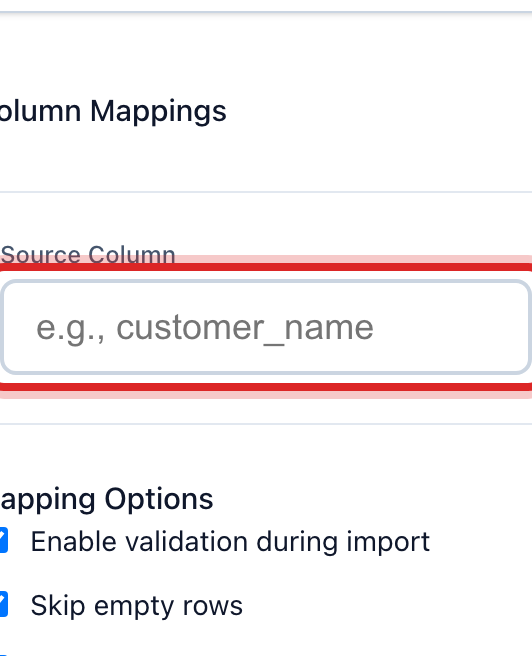
Under Source Column, type the column name as it is in their file. Under Target Field, type the Utilops field it goes in, like customerName. Click Add Mapping for each column in the file.
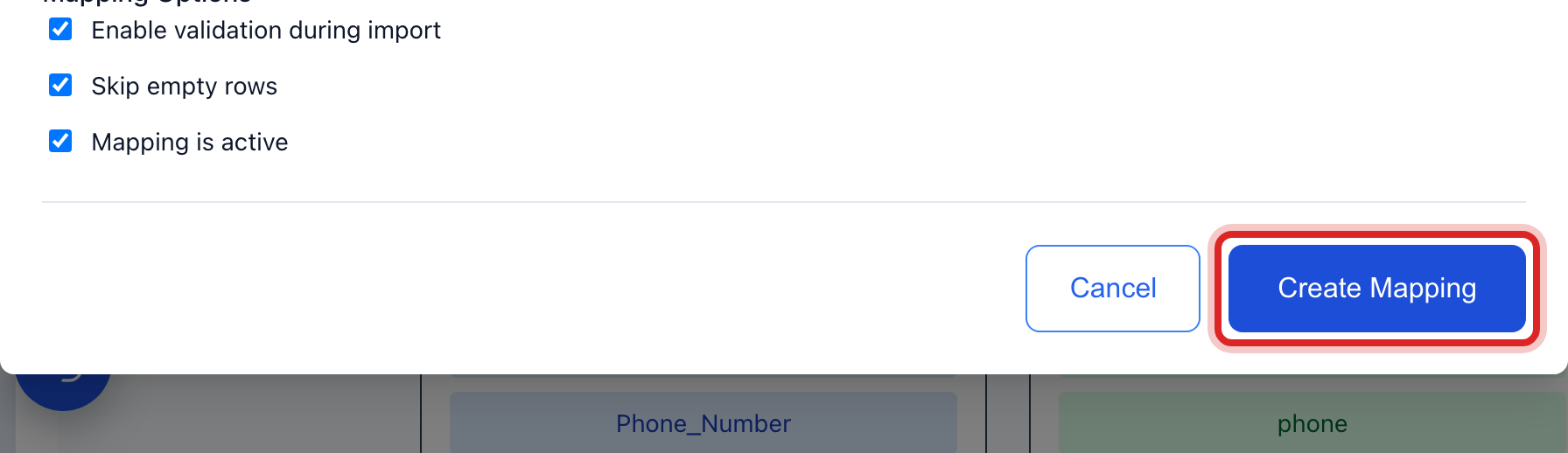
Click the blue Create Mapping button.
Made a mistake? Click Undo on the green message that appears, or open Show me how at the top and pick Undo a mistake.
You are done when
Your mapping shows in the list with a Use Mapping button. On the Import Center, it now shows in the Column Mapping list.
If something looks different
You do not see this page. It is one of the advanced pages. Ask your administrator to turn them on for your login.
The file already uses our column names. You do not need a mapping. On the Import Center, leave Column Mapping set to none.
Their file changed. Click Edit on the mapping and fix the column that moved.