
Appearance
2. Send records out to a spreadsheet
When you need this: the auditor wants a list of customers. The board wants last year's readings. Your engineer wants the meters in a file. You pick what to send out and Utilops makes the file.
Steps
On the left side of the screen, click Data Management, then click Export Center.
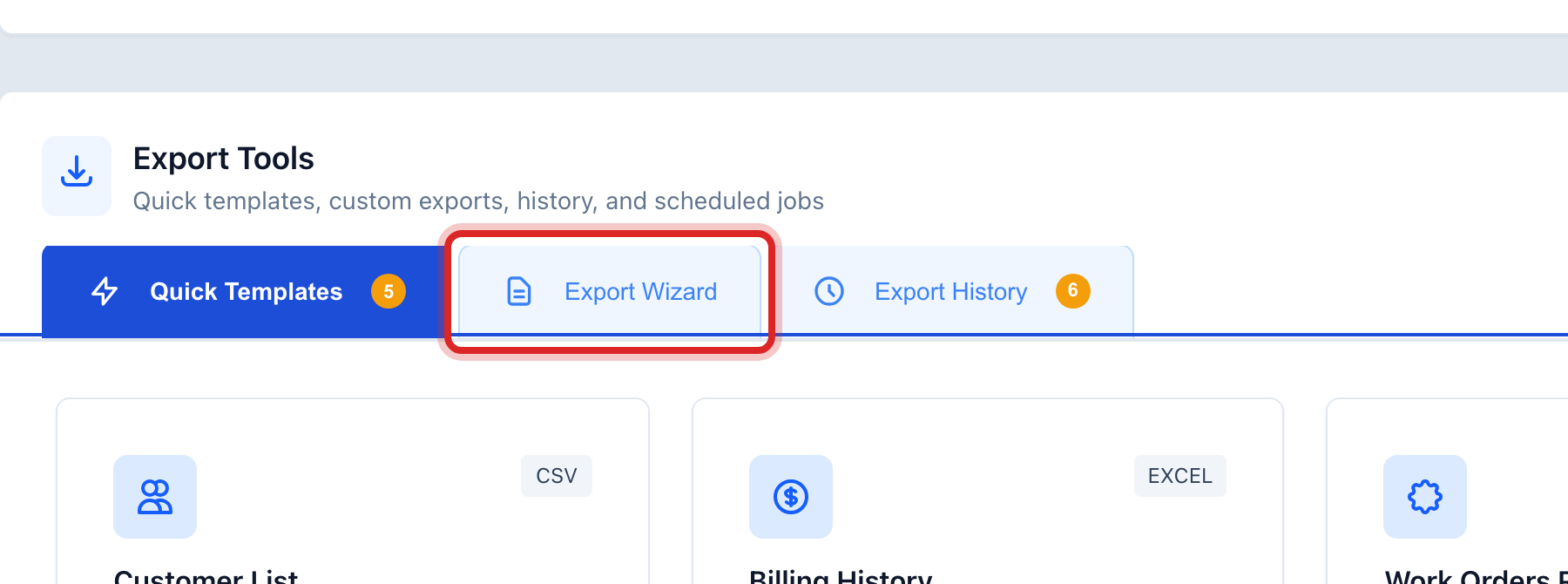
Click the Export Wizard tab.
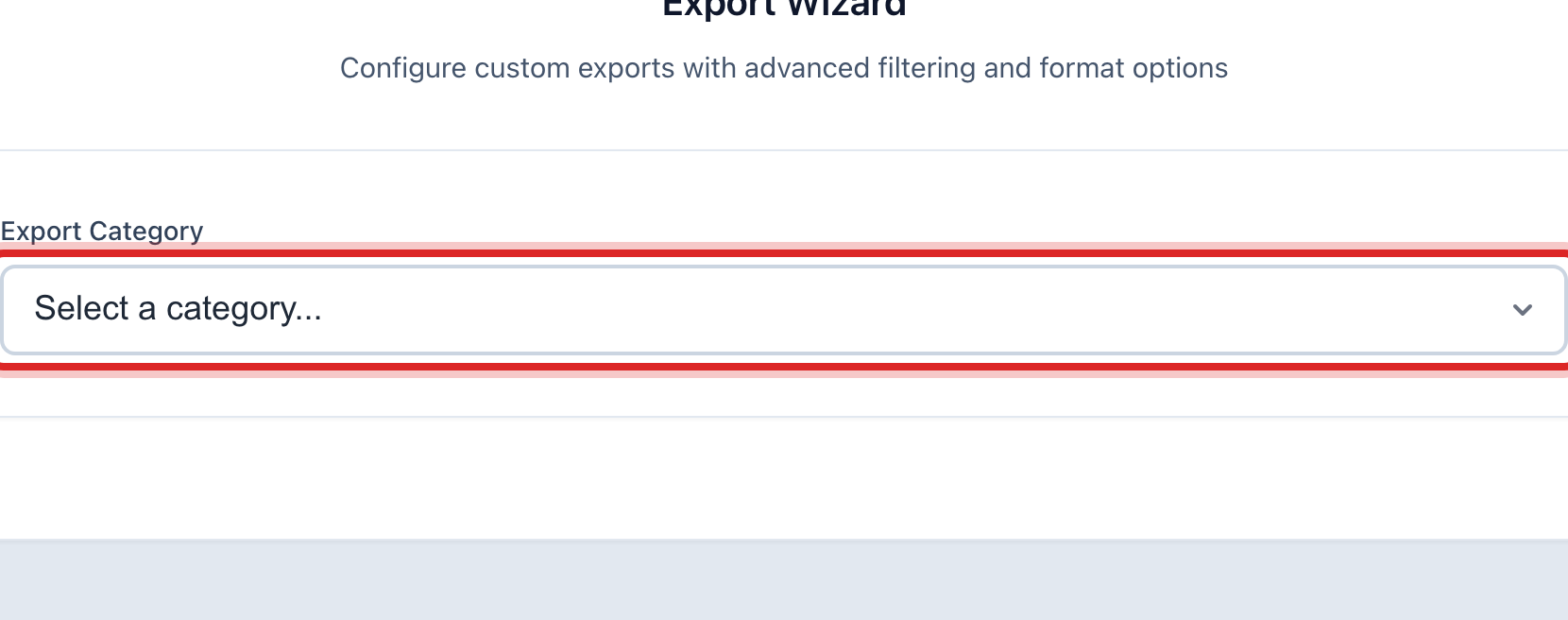
Click the Export Category list and pick a group, like customers or meters. Then click the Data Type list and pick the records you want.
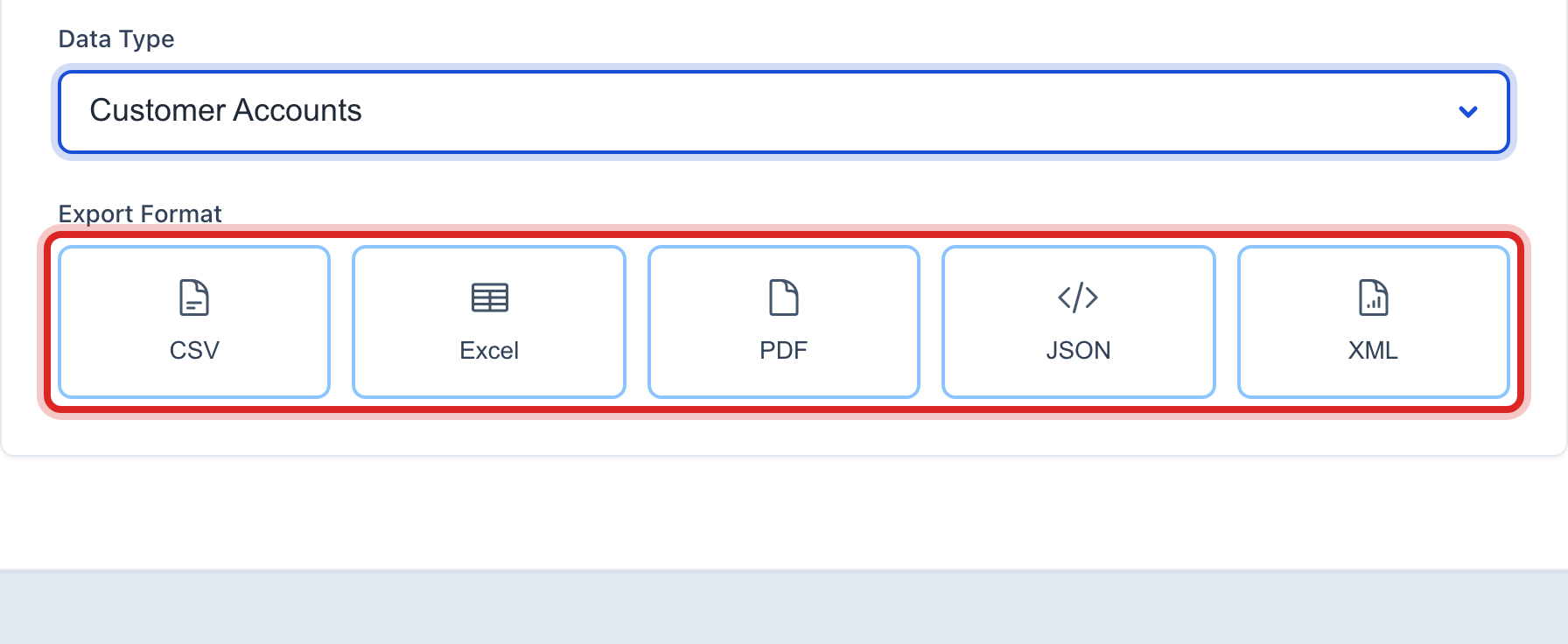
Under Export Format, click the kind of file you want. A spreadsheet is the safe choice for most people.
If you only want part of the year, pick dates under Date Range. The buttons like Last 30 Days fill the dates for you.
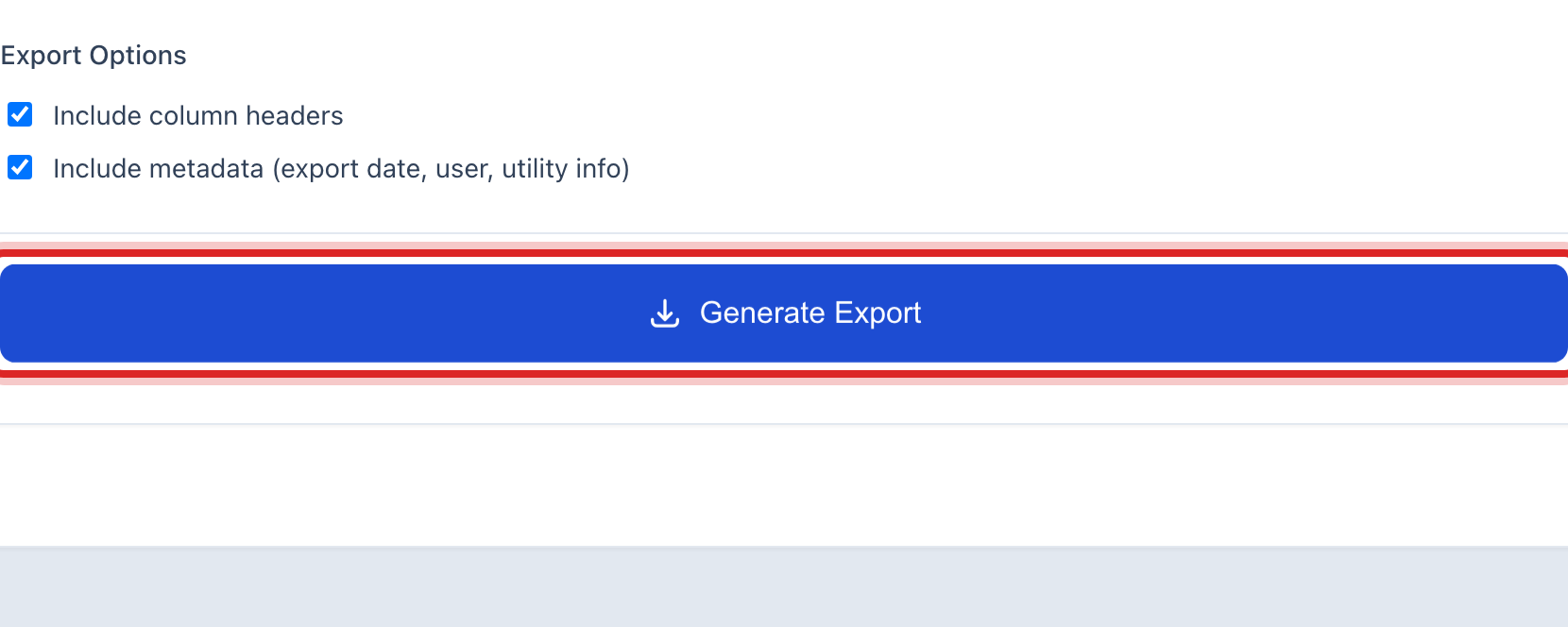
Click the blue Generate Export button. The file downloads to your computer.
You are done when
The file is in your Downloads folder. The Export History tab lists it with the date and who made it.
If something looks different
You send the same file every month. Click the Quick Templates tab. Click a card like Customer List and the file downloads with no other steps.
The Quick Templates tab is empty. Click Create Default Templates once. The common ones appear.
The Generate Export button is faded. Something above it is not picked yet. Check the category, the data type and the file type.