
Appearance
5. Fix rows that failed to come in
When you need this: an import finished, but the green message said some rows failed. A blank account number. A date typed the wrong way. A customer listed twice. Each failed row waits here with its reason.
Steps
On the left side of the screen, click Data Management, then click Error Handling.
Click the status list and pick Pending. Only the rows nobody has fixed yet stay in the list.
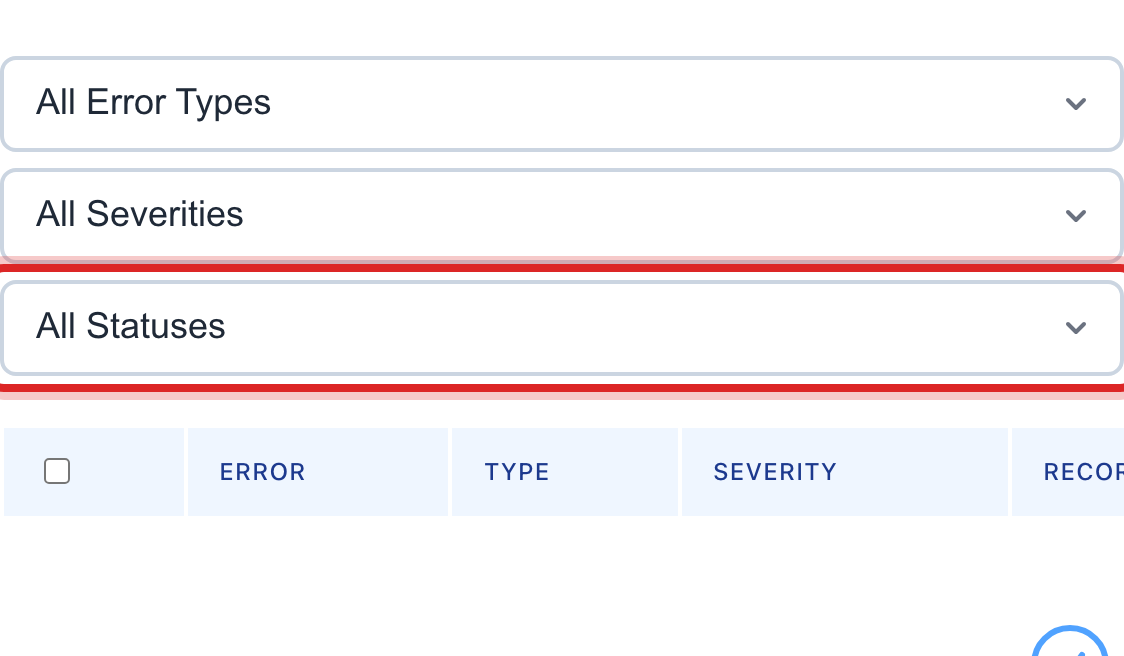
Each row says what went wrong and which row of the file it came from. Click the eye button on a row to read the whole message.

Click the pencil button to open the record and fix it. Type the missing or wrong value and save.
Back on this page, click the check mark button on the row. Its status changes to Resolved.
Made a mistake? Click Undo on the green message that appears, or open Show me how at the top and pick Undo a mistake.
You are done when
The row reads Resolved, and the pending count at the top of the page goes down by one.
If something looks different
The list says No errors found. Every row came in. There is nothing to fix.
Many rows failed the same way. The file itself is wrong, like a date column in the wrong order. Fix the file and import it again. Then click Bulk Resolve to clear the old rows at once.
You do not see this page. It is one of the advanced pages. Ask your administrator to turn them on for your login.