
Appearance
1. Bring a file of records into Utilops
When you need this: you have a spreadsheet of customers, meters or readings and you want them in Utilops. Maybe the lab sent test results. Maybe the meter reader handed you a file. One page takes them all.
Steps
On the left side of the screen, click Data Management, then click Import Center.
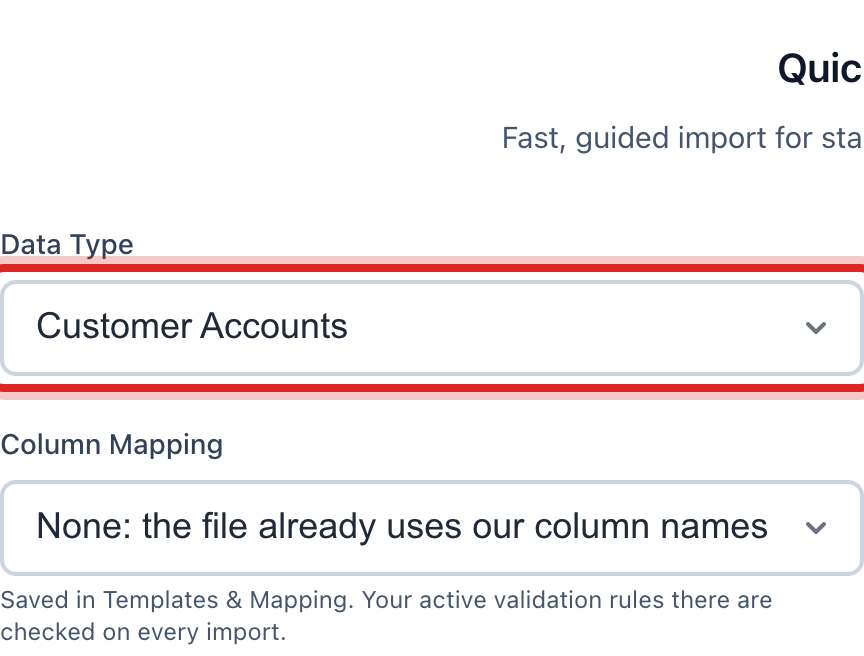
Stay on the Quick Import tab. Click the Data Type list and pick what the file holds, like Customer Accounts or Meter Readings (AMR/AMI).
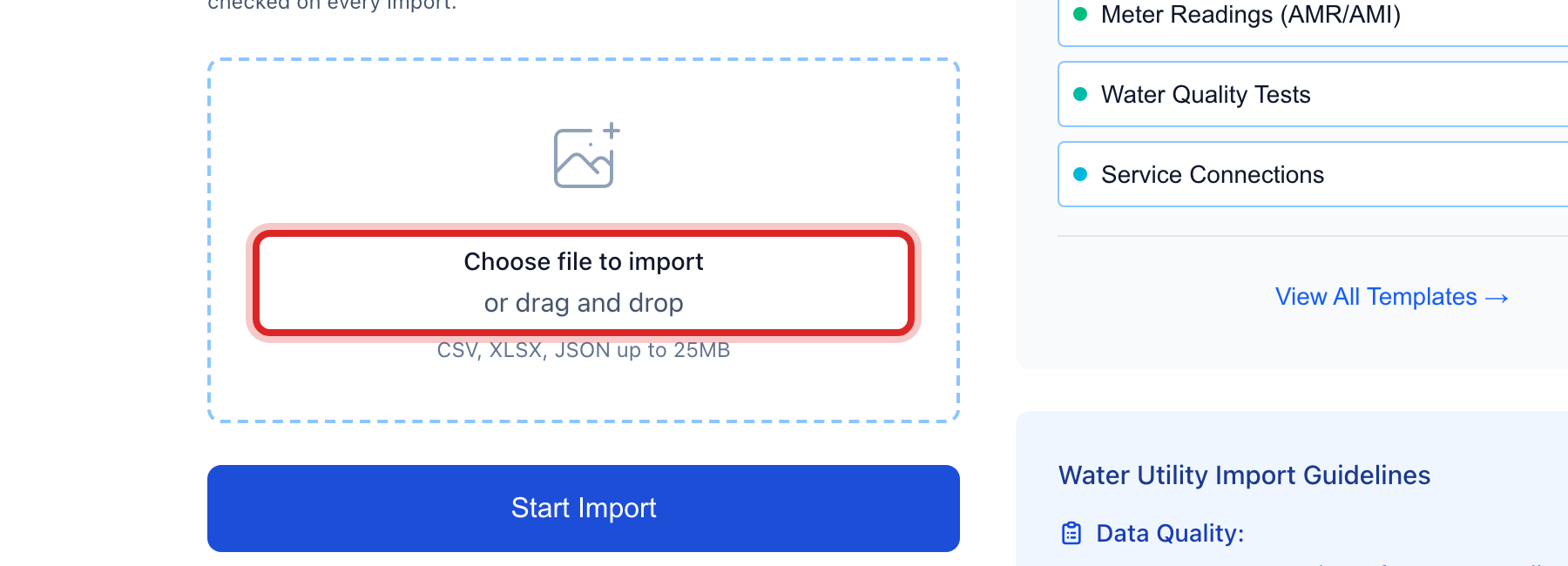
Click Choose file to import and pick the file on your computer. A spreadsheet or a CSV file both work. The file name shows in green when it is picked.
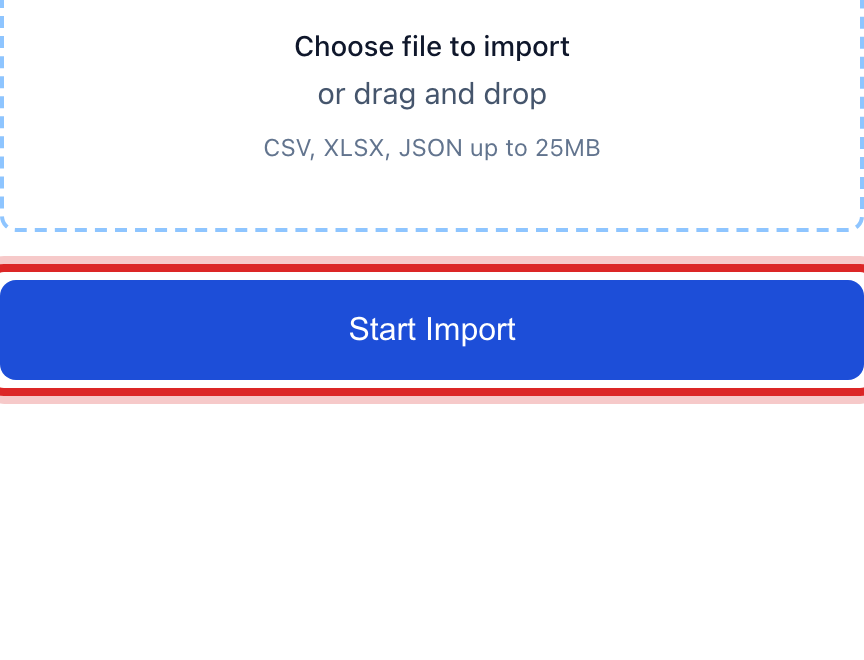
Click the blue Start Import button. A status box shows each step. Wait for it to finish.
Click the History tab to see your import in the list, with how many rows came in.
Made a mistake? Click Undo on the green message that appears, or open Show me how at the top and pick Undo a mistake.
You are done when
A green message says the import is done and how many records it made. The new records show in their own part of Utilops, like Customer Management.
If something looks different
You do not have a file yet. Click the Templates tab and click Download Template next to the kind of record. Fill in the blank file and come back.
The columns in your file have different names. Pick a saved mapping in the Column Mapping list before you start. Lesson 3 shows how to make one.
Some rows did not come in. The green message says how many failed. Lesson 5 shows how to fix them.
You want the whole import gone. Lesson 7 shows how to undo it as one unit.