
Appearance
7. Set how fast tickets must be answered
When you need this: your board says a no water call gets a reply within the hour and a fix the same day. A rule here holds the office to it. Each ticket shows a clock, and a ticket that runs late is flagged so it does not get lost. SLA is the office word for that promise.
Steps
On the left side of the screen, click Customer Support, then click SLA Management.
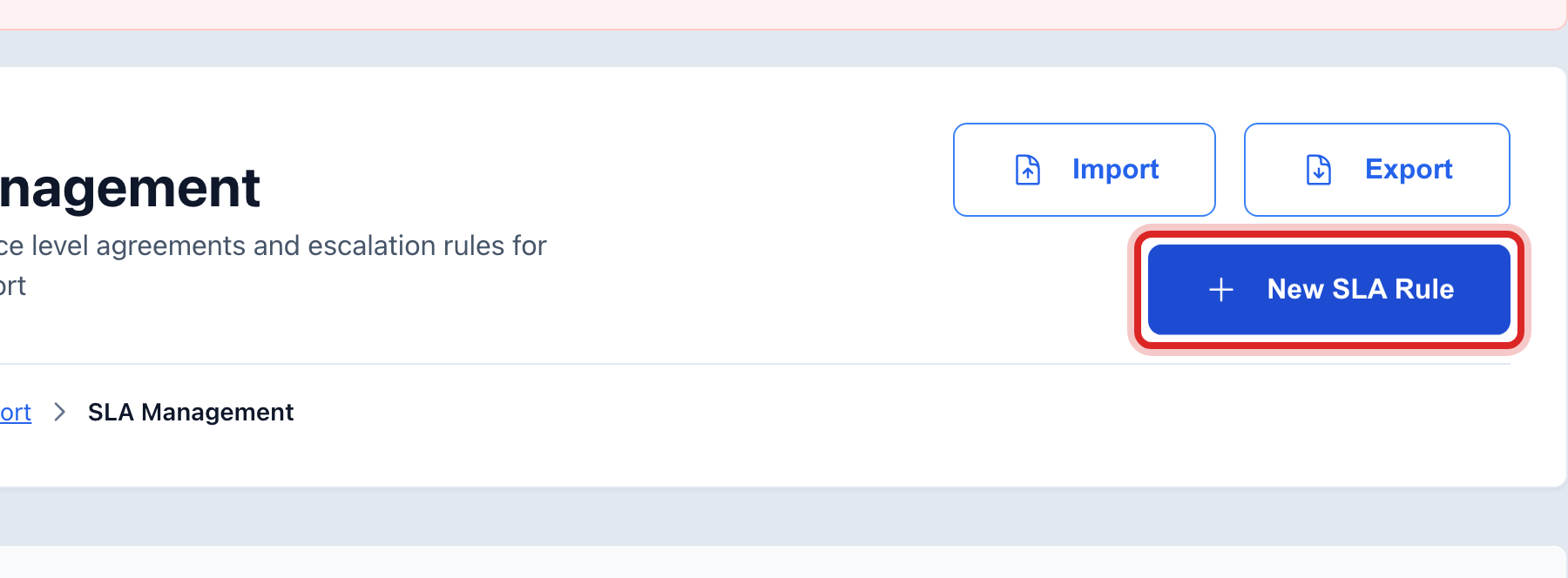
Click New SLA Rule at the top right.
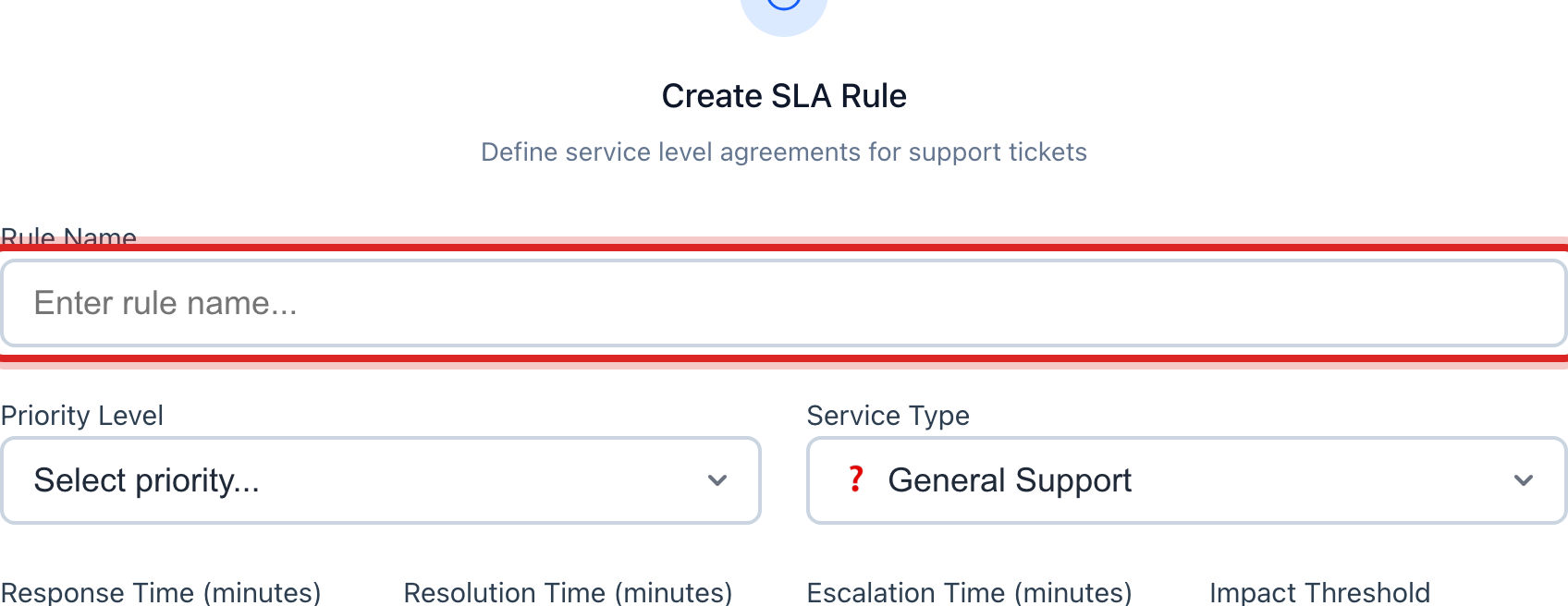
Type a name in the Rule Name box, like "No water, same day".
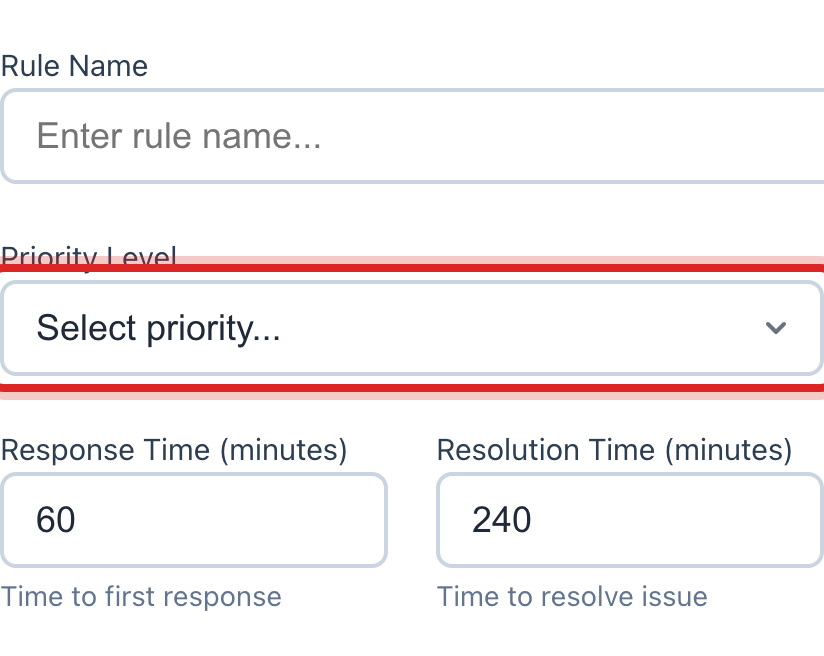
Click the Priority Level list and pick which tickets this is for, like Urgent. Click the Service Type list and pick the kind, like Water Outage.
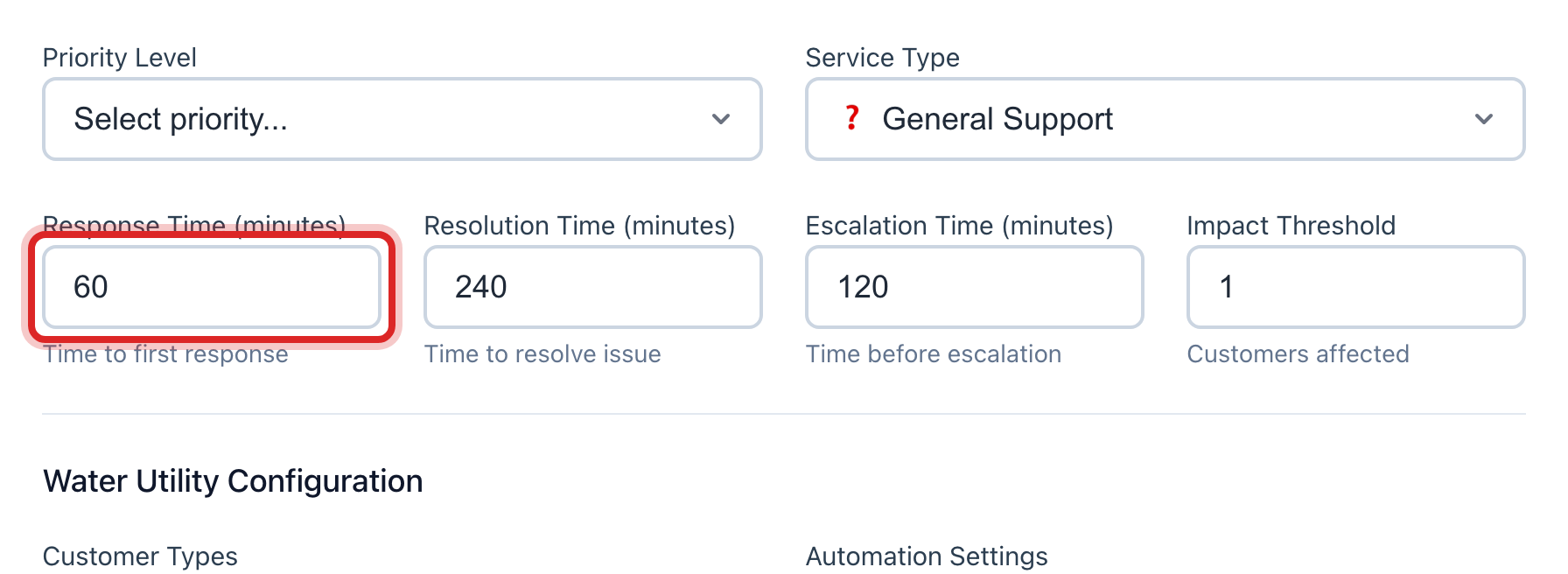
In Response Time (minutes), type how soon someone must reply. 60 is one hour.
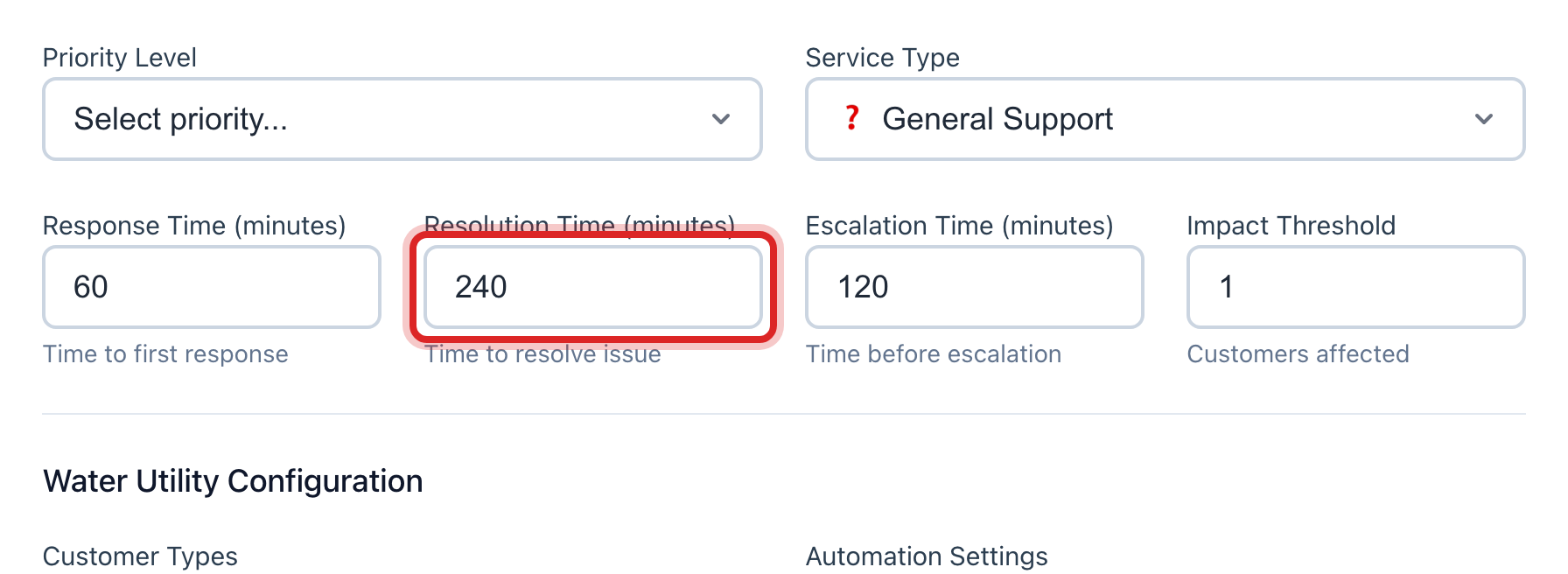
In Resolution Time (minutes), type how soon it must be fixed. 480 is eight hours. In Escalation Time (minutes), type when to flag it to a manager.
Click the blue Create Rule button.
Made a mistake? Click Undo on the green message that appears, or open Show me how at the top and pick Undo a mistake.
You are done when
The rule shows in the SLA Rules list. New tickets that match it show a target time on the ticket page.
If something looks different
You only want a rule for business hours. Under Time Restrictions in the window, tick Business hours only (non-emergency).
A ticket ran late. It shows under Recent Escalations at the bottom of the page. Open it and work it first.
Your office has no promise like this. Leave the page alone. Tickets work fine without rules.
SLA Management is not on the left. It is under the advanced pages. Ask your administrator to show them.