
Appearance
5. Write an answer once in the Knowledge Base
When you need this: the same question comes in every week. "Why is my water cloudy after flushing?" "When is the bill due?" Write the answer once here. Then anyone in the office finds it in a second, and the new hire gives the same answer you would.
Steps
On the left side of the screen, click Customer Support, then click Knowledge Base.
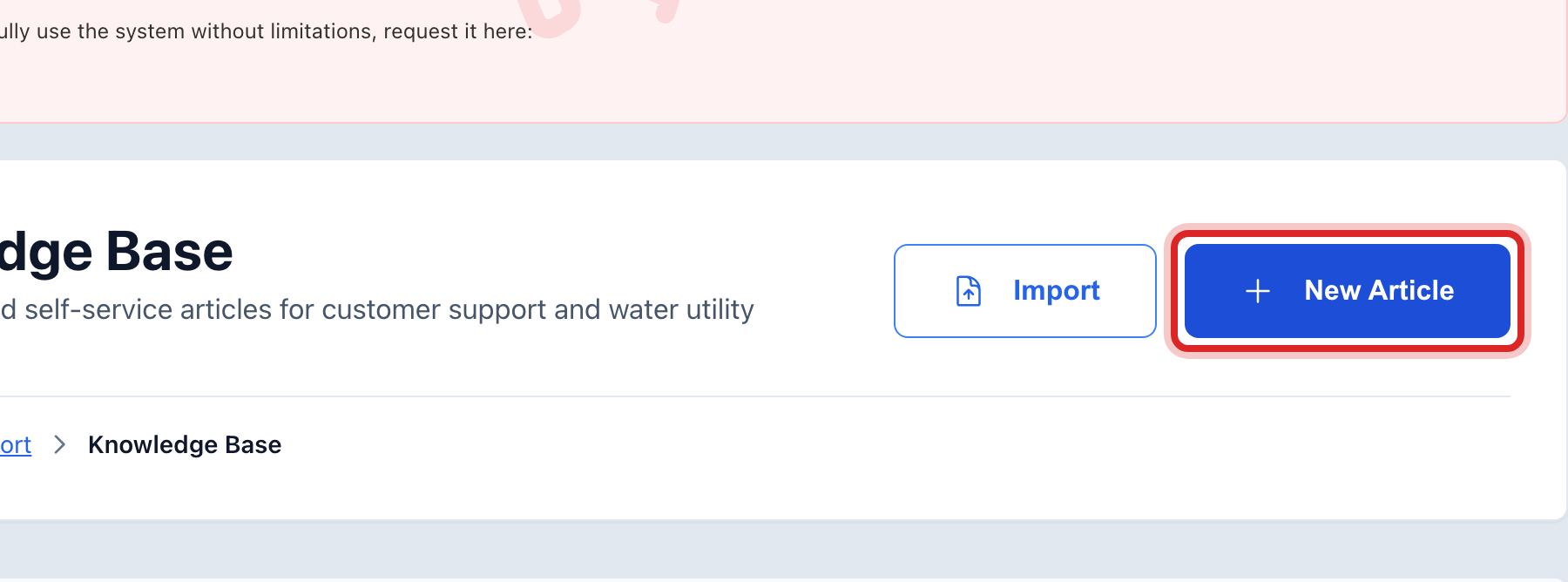
Click New Article at the top right.
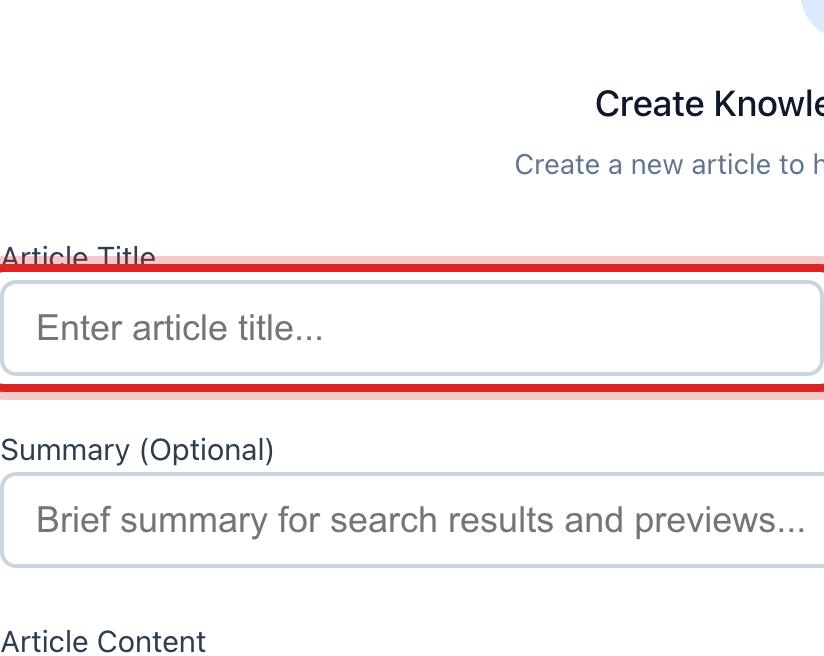
Type the question in the Article Title box, the way a customer would ask it.
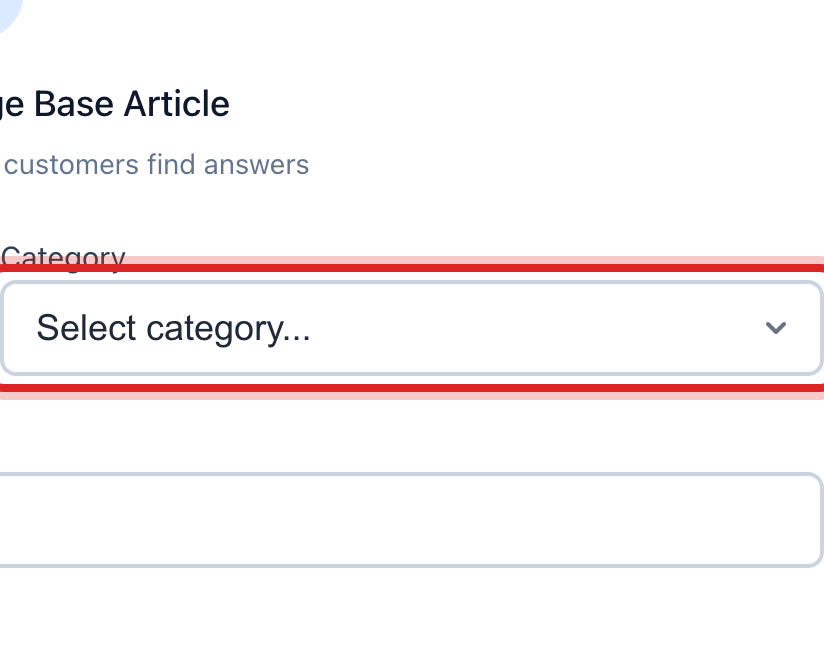
Click the Category list and pick the one that fits, like Water Quality or Billing & Payments.
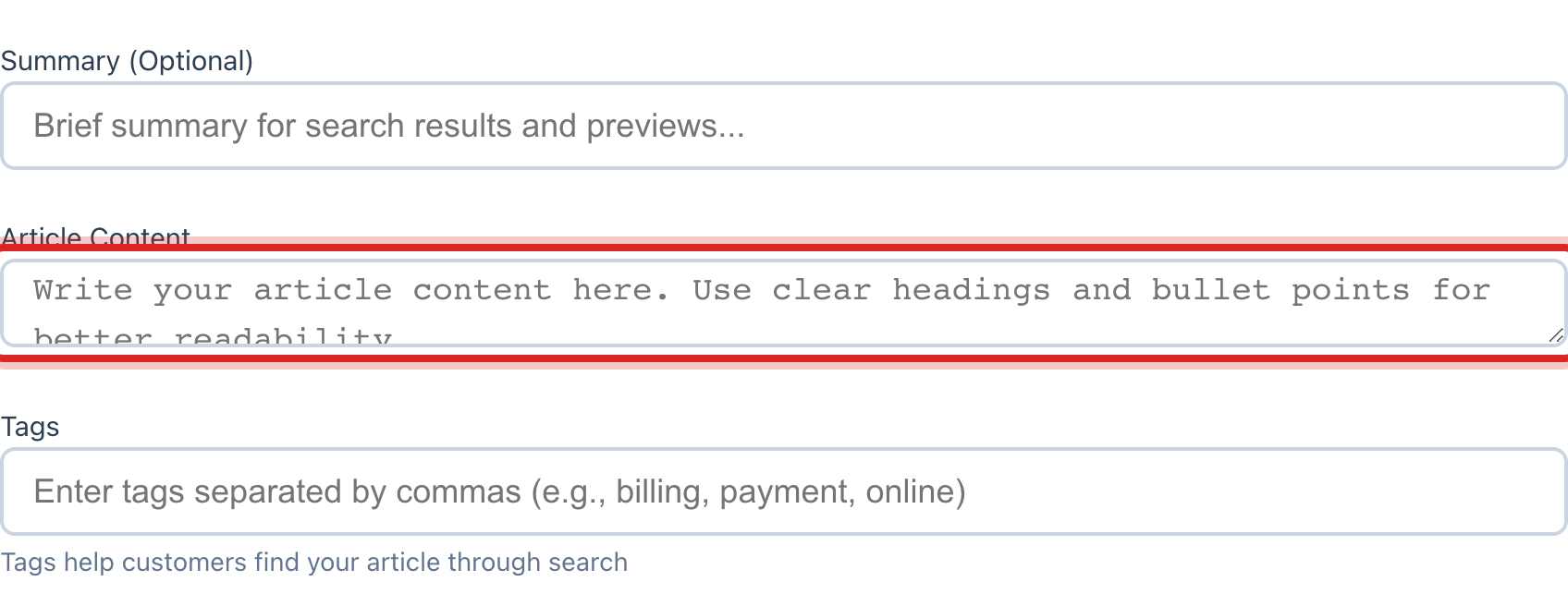
Type the answer in the Article Content box. Short sentences. Say what to do, in order.
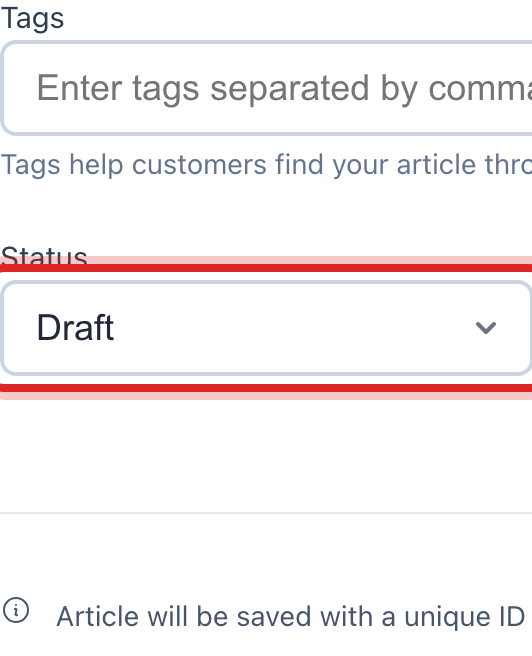
Click the Status list and pick Published so the office can see it. Draft keeps it hidden until you are ready.
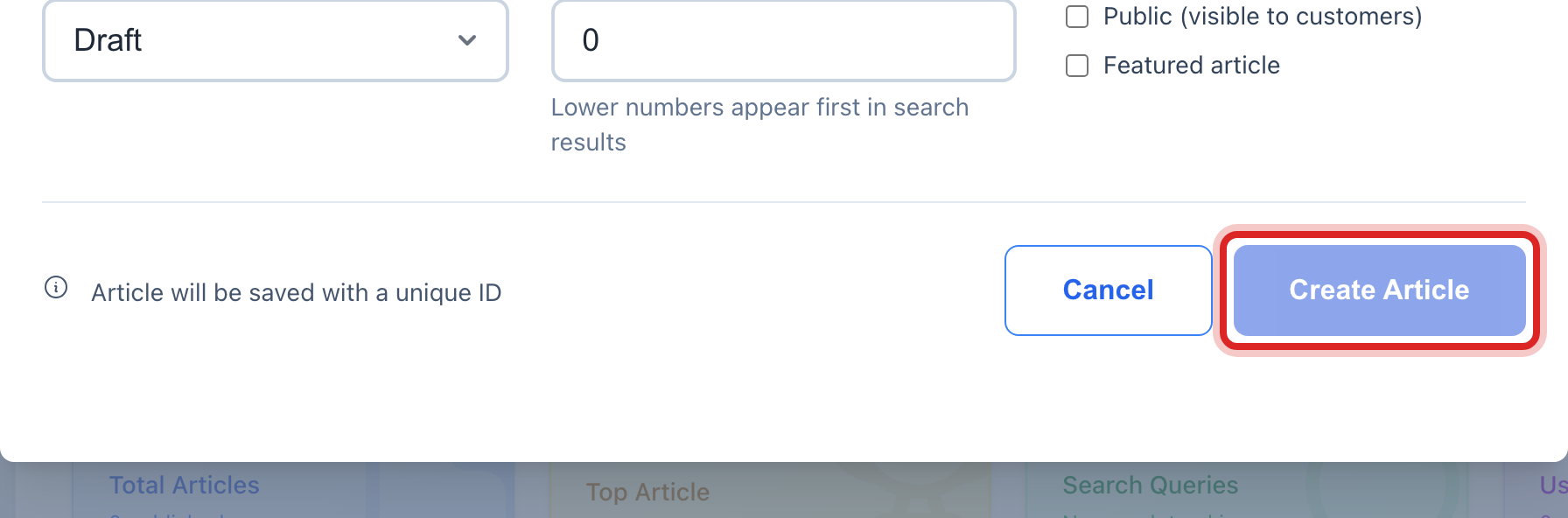
Click the blue Create Article button.
Made a mistake? Click Undo on the green message that appears, or open Show me how at the top and pick Undo a mistake.
You are done when
The article shows as a card on the page. Type a word from it in the Search box and it comes up.
If something looks different
You want to change an answer. Click the article, then click Edit, change the words and click Update Article.
You have a stack of answers in a file already. Click Import at the top and pick the file. Ask your administrator to help the first time.
You cannot see New Article. Only some roles may write articles. Everyone can read them.
Knowledge Base is not on the left. It is under the advanced pages. Ask your administrator to show them.