
Appearance
1. Open a ticket for a customer
When you need this: a customer calls with no water, low pressure, a high bill or a broken lid. A ticket is the written record of that problem. Open one while they are on the phone. Then anyone in the office can see what was said and what happens next.
Steps
On the left side of the screen, click Customer Support, then click Create Ticket.
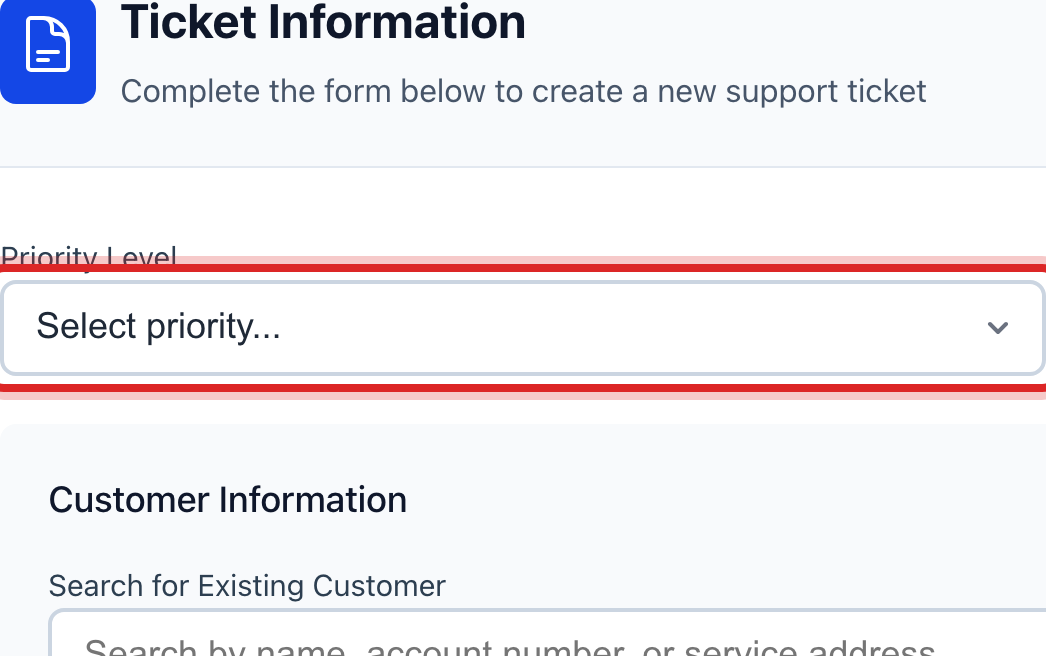
Click the Priority Level list. Pick Medium for most calls. Pick High when their service is affected. Pick Emergency only for a safety problem.
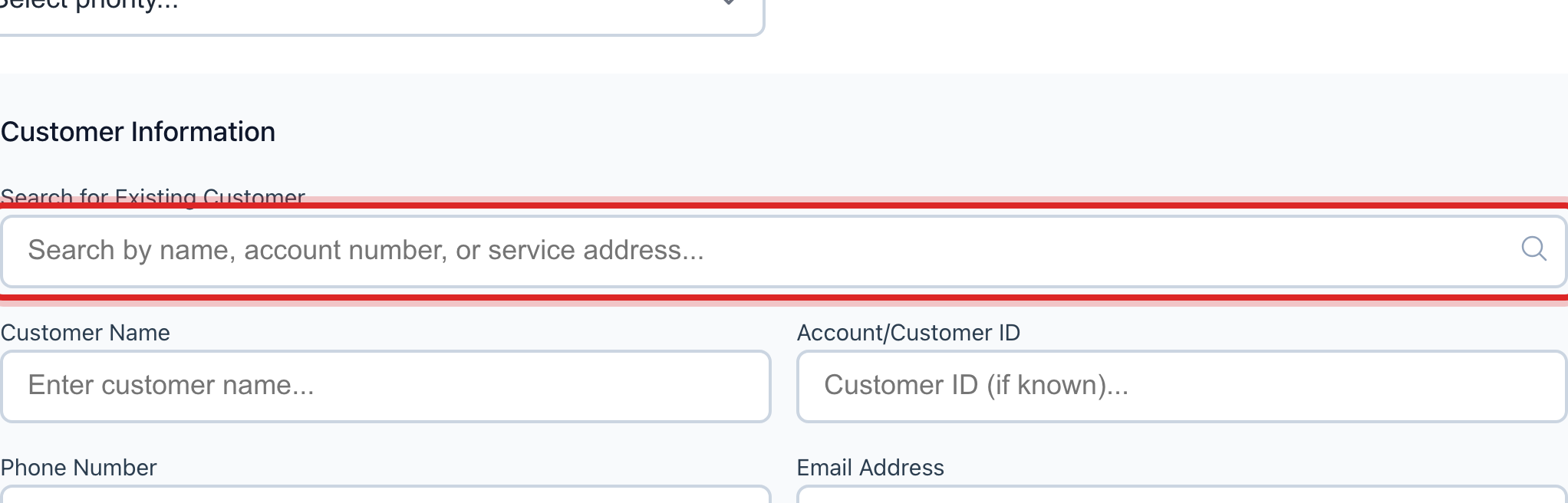
Click in the Search for Existing Customer box. Type part of the name. Click the customer in the list. Their name, phone, email and address fill in for you.
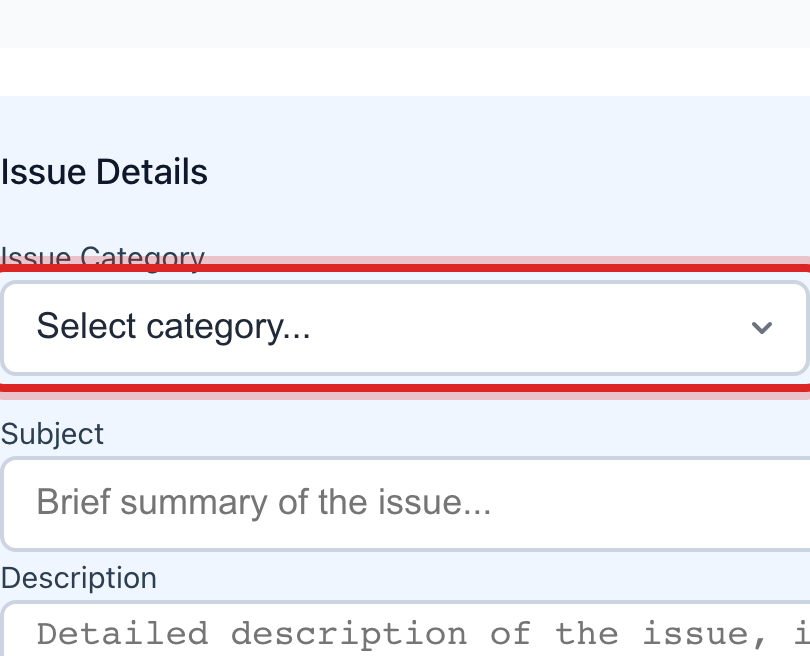
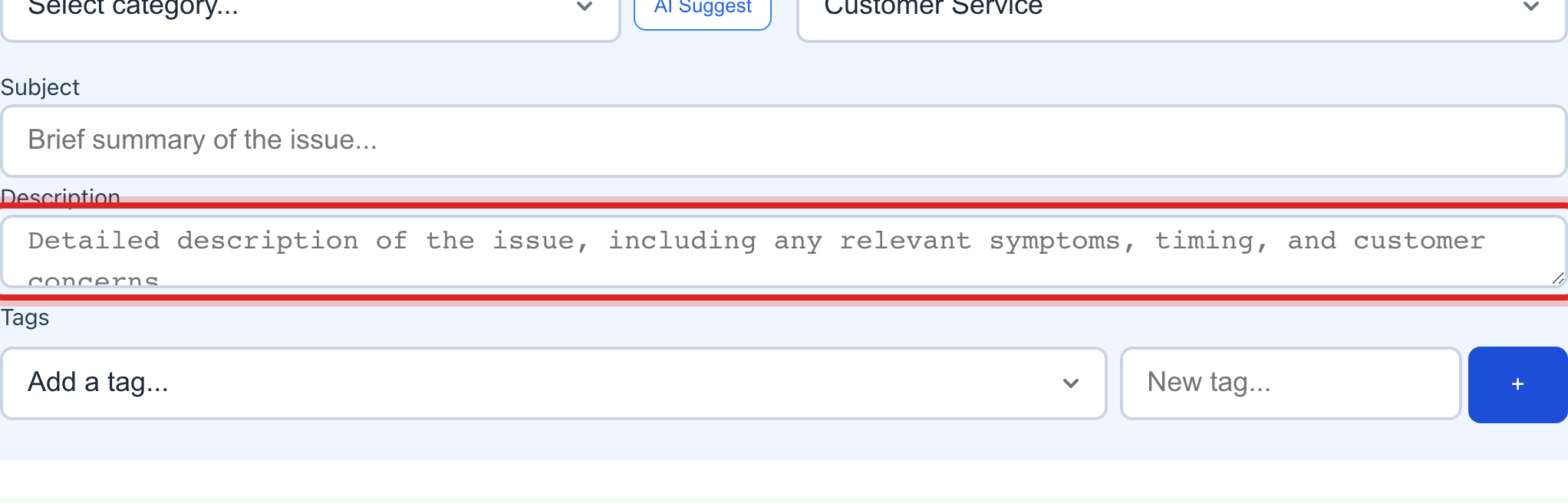
Click the Issue Category list. Pick what fits, like Low Water Pressure or Billing Inquiry.
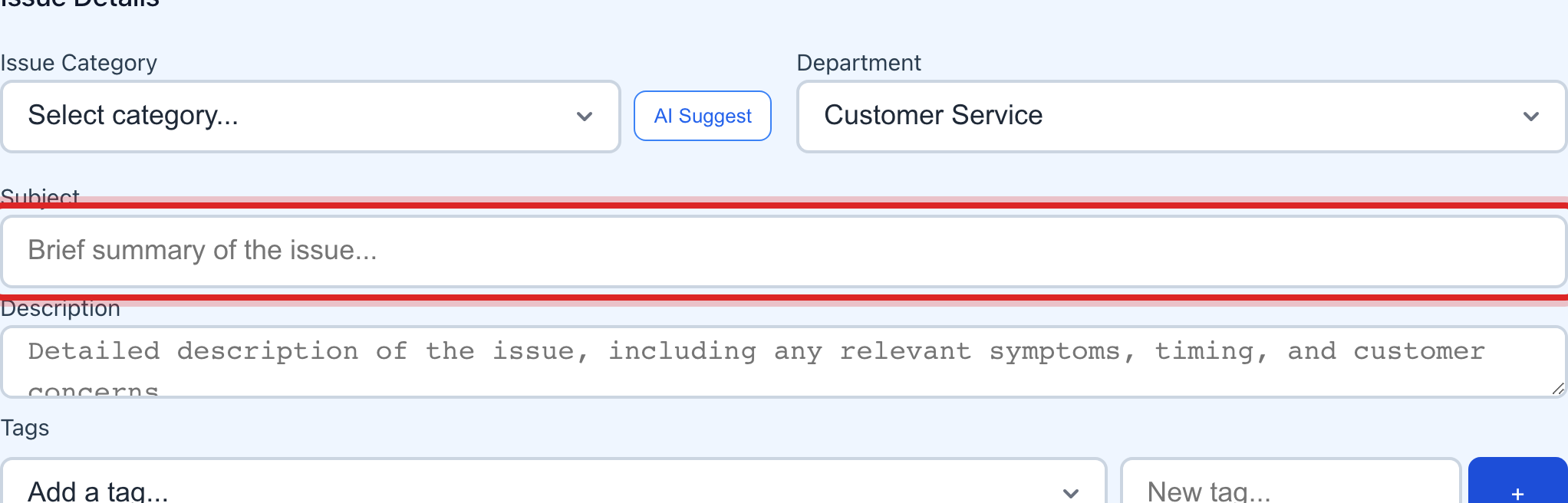
Type one short line in the Subject box, like "Low pressure since Monday".
Type what the customer told you in the Description box. When it started, what they see, what they already tried.
Leave Send ticket confirmation to customer ticked if they want a text or an email saying it was logged.
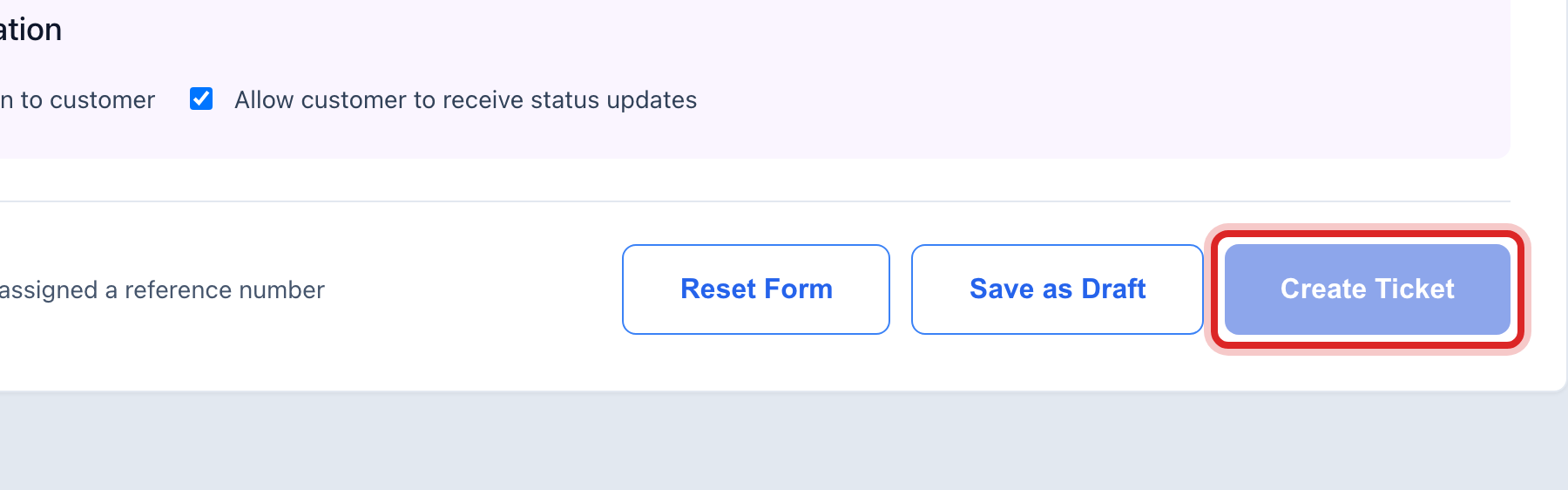
Click the blue Create Ticket button at the bottom.
Made a mistake? Click Undo on the green message that appears, or open Show me how at the top and pick Undo a mistake.
You are done when
The ticket page opens with a ticket number at the top. The status reads Open.
If something looks different
The customer is not in Utilops. Type their name, phone and address in the boxes under the search. The ticket still opens. Add them as a customer later.
The Create Ticket button is faded. A red box at the top lists what is missing. The name, the address, the category, the subject and the description are all required.
It is an emergency. A red box reminds you to call the on call operator. The ticket does not replace the call.
You know who should do the work. Pick them under Assign to Technician before you create the ticket.