
Appearance
4. Set a follow up reminder
When you need this: you told a customer you would check back Thursday. Or the crew said the part comes in next week. A reminder sits on this page until you mark it done, and it turns red if the day goes by.
Steps
On the left side of the screen, click Customer Support, then click Follow-up Reminders.
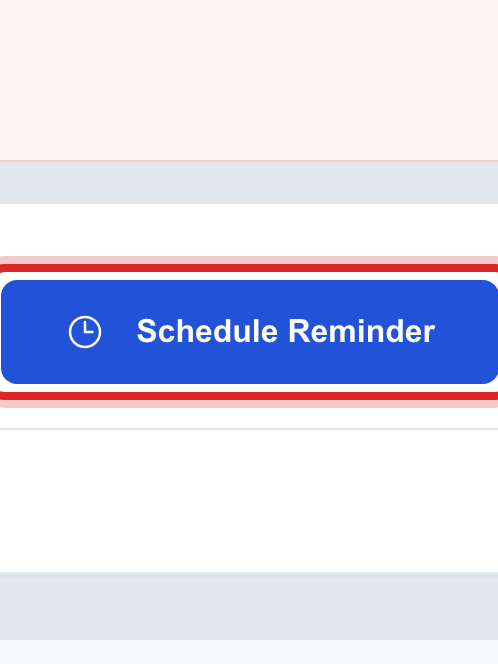
Click Schedule Reminder at the top right.
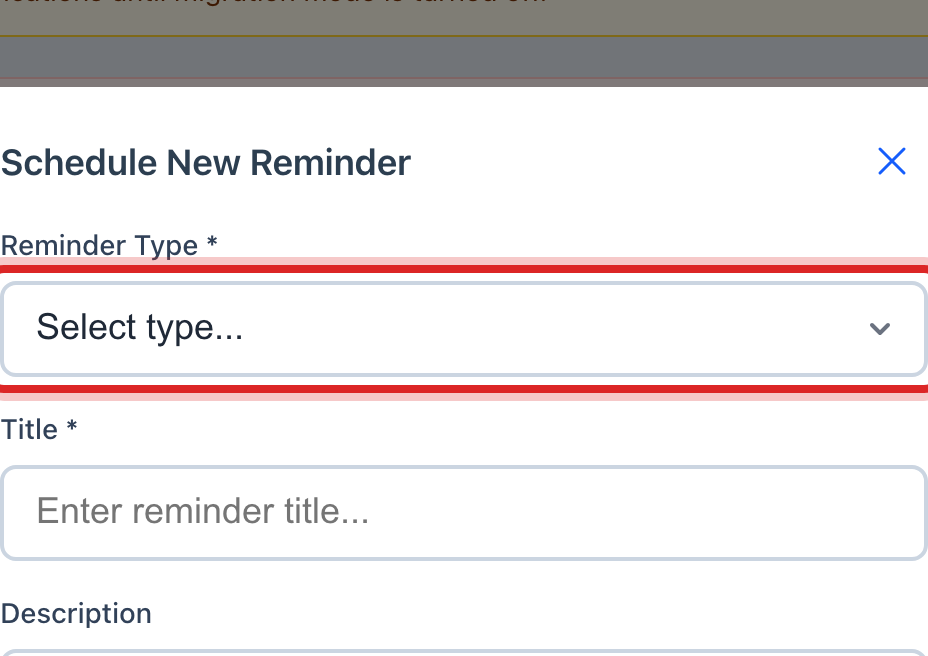
Click the Reminder Type list and pick one. Follow-up Call is the usual one.
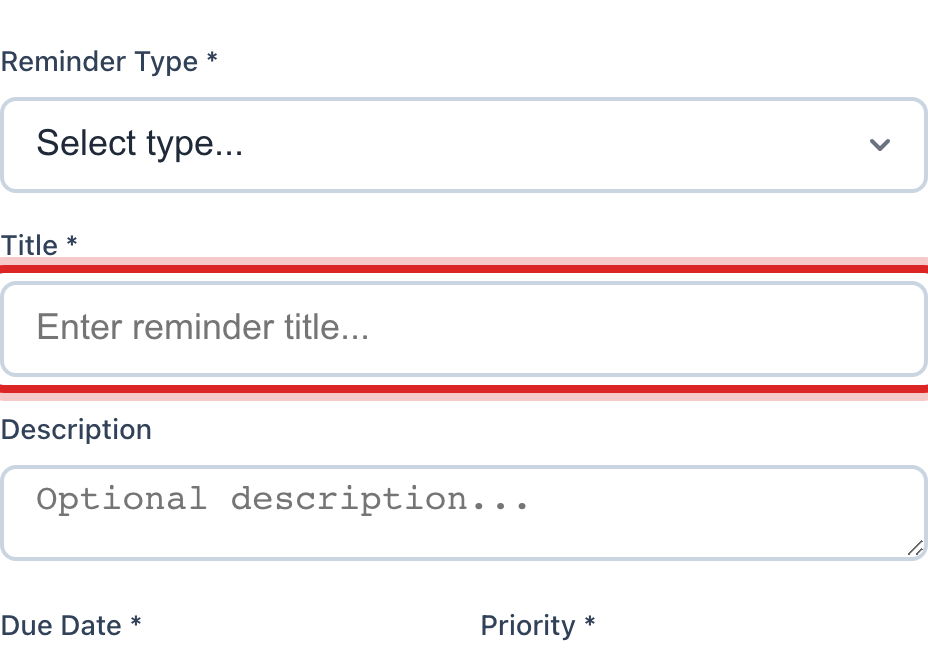
Type what to do in the Title box, like "Call Mrs. Lopez about the pressure".
Click the Due Date box and pick the day.
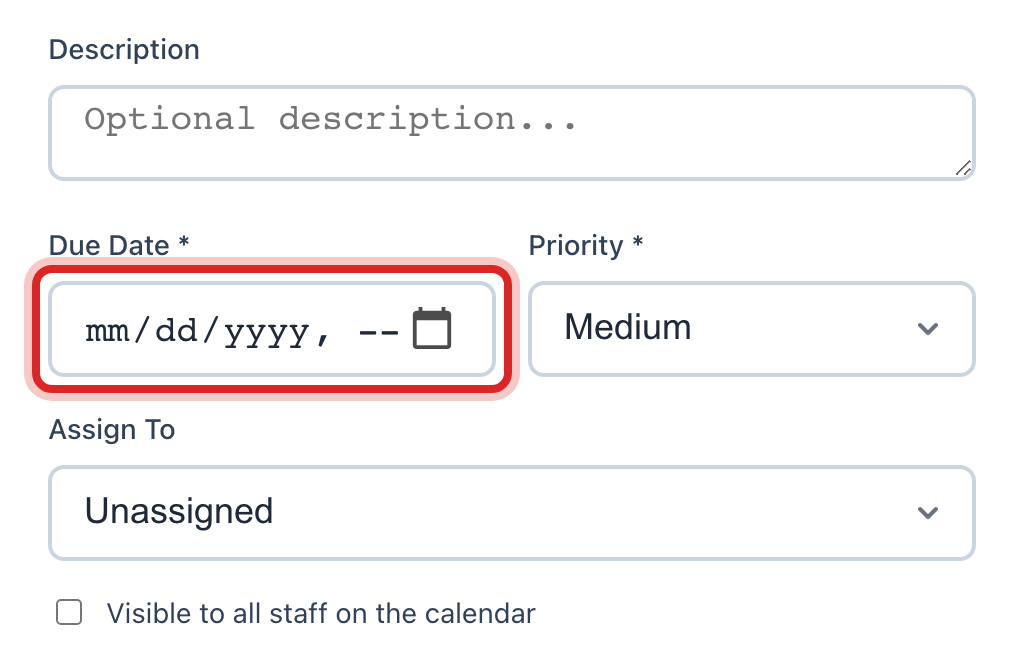
Pick a Priority. Pick a person under Assign To if someone else should do it.
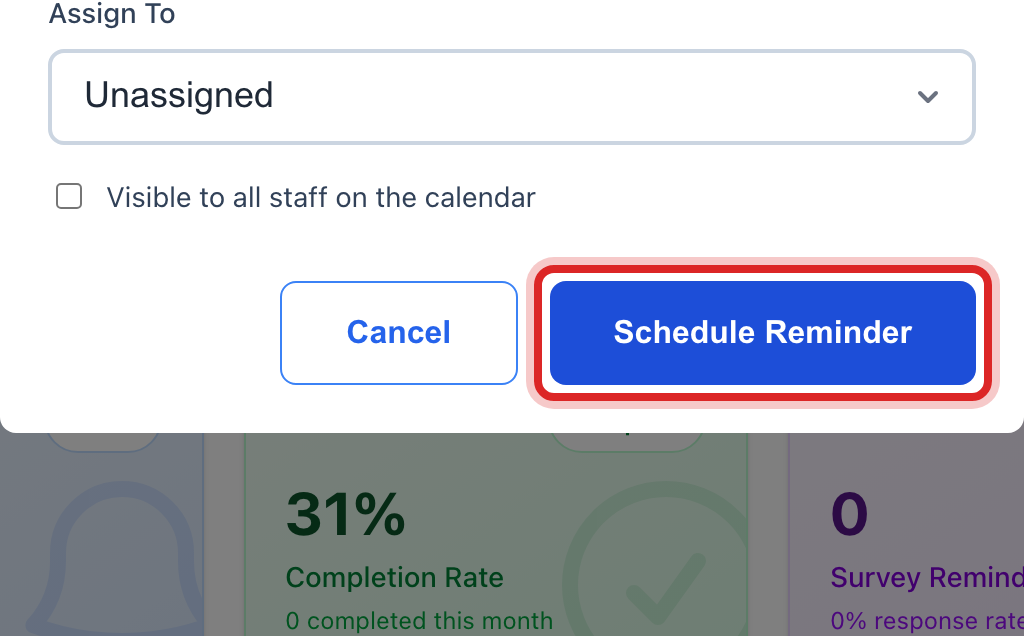
Click the blue Schedule Reminder button at the bottom.
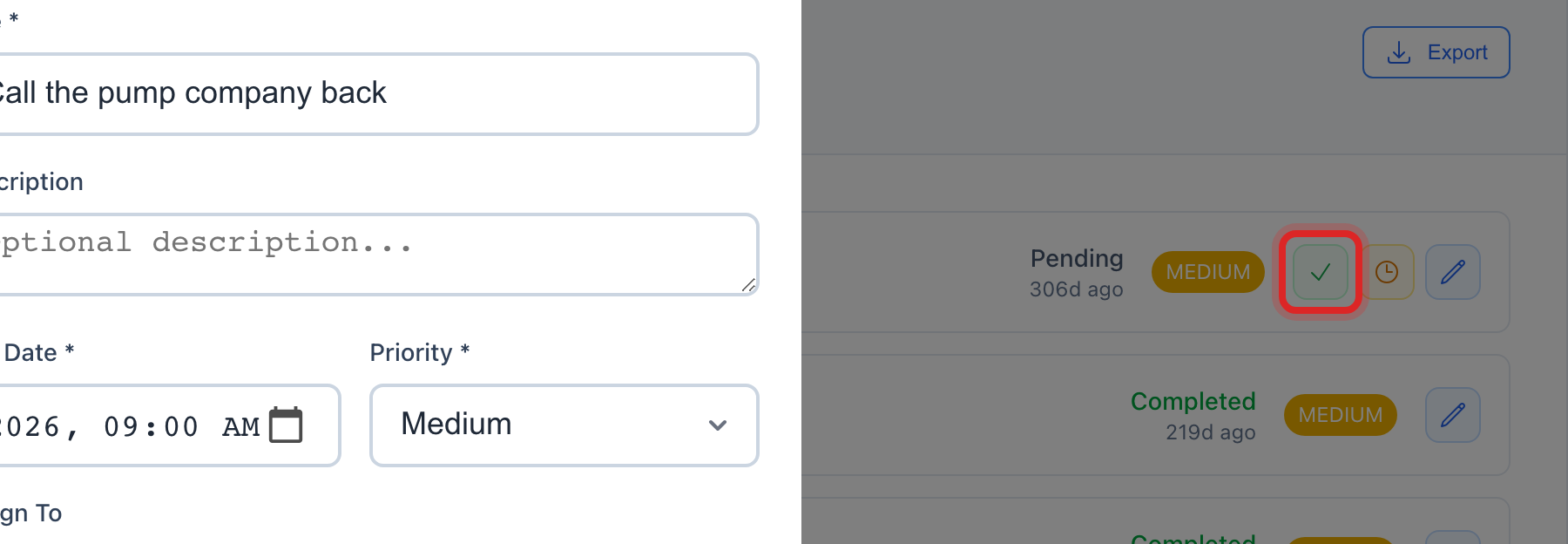
When the follow up is done, come back here and click the green check on its row. The tip on it says Complete.
Made a mistake? Click Undo on the green message that appears, or open Show me how at the top and pick Undo a mistake.
You are done when
The reminder shows in the Active Reminders list with the day you picked. Once you complete it, it drops out of the list and the count at the top goes down.
If something looks different
You want the reminder on the customer's own page too. Set it from there instead: Customer Management, find the customer, Set Reminder on the Quick Actions card. It shows on both.
Today is too busy. Click the clock on the row. The tip says Snooze 2 hours.
Reminders should set themselves. The Automated Rules card lower on the page makes one after a set number of hours, like a check 48 hours after a ticket closes. Ask your administrator before you add a rule.
The Schedule Reminder button is missing. Only some roles may make reminders. Ask your administrator.