
Appearance
6. Save a reply you send often
When you need this: you type the same reply ten times a week. "We have logged your leak report and a crew will come by." Save it once. Then on any ticket, pick it from a list and it fills in with the customer's name.
Steps
On the left side of the screen, click Customer Support, then click Response Templates.
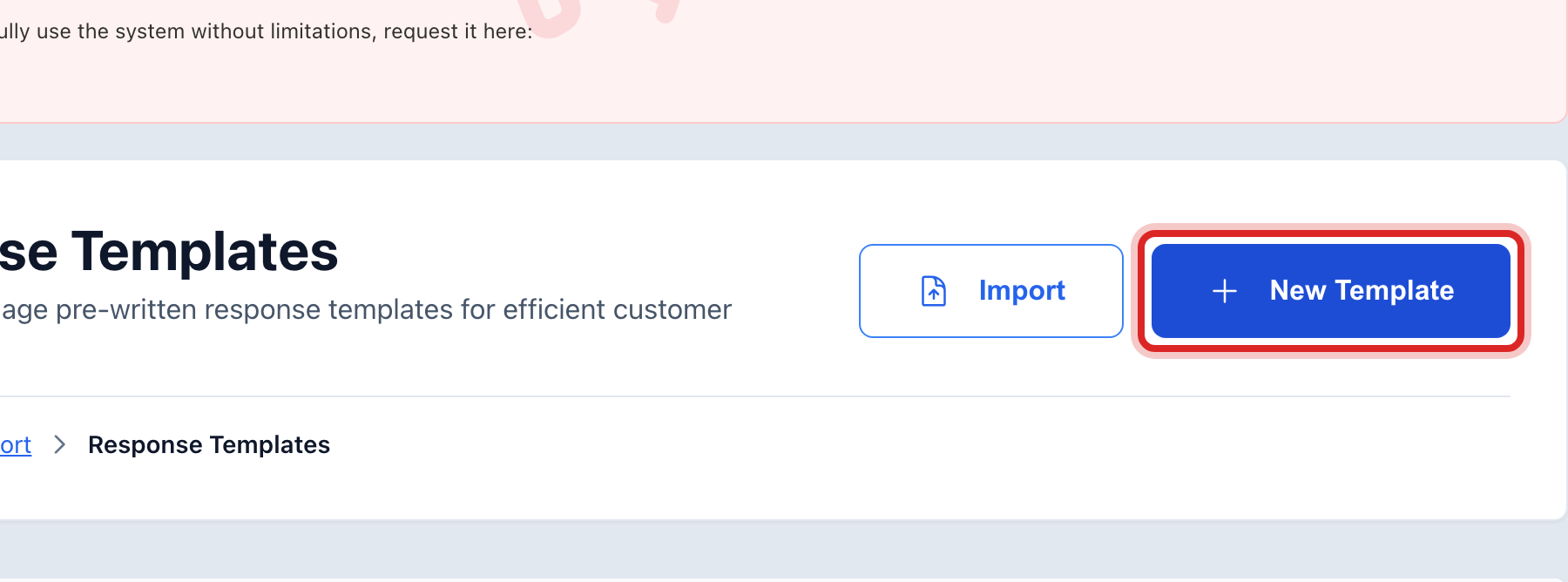
Click New Template at the top right.
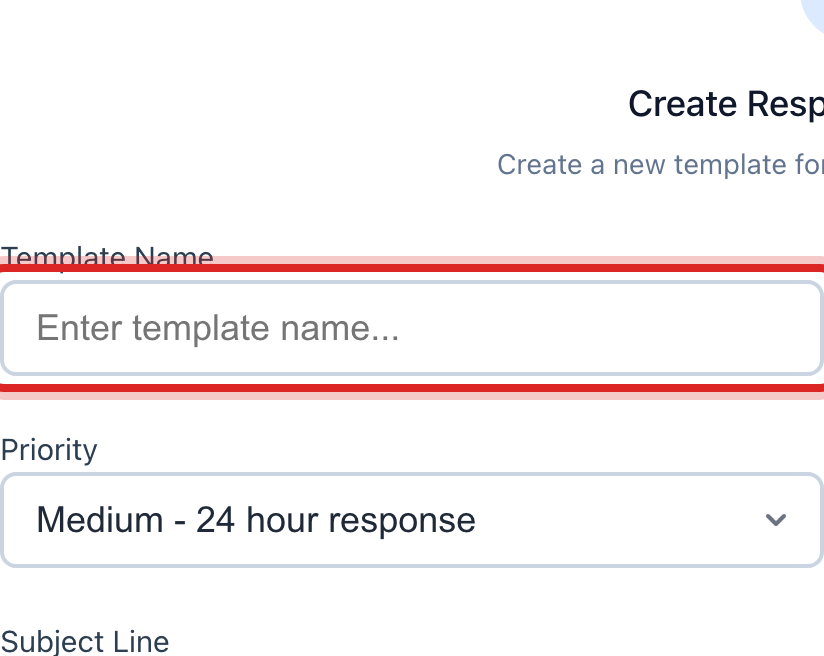
Type a short name in the Template Name box, like "Leak report logged".
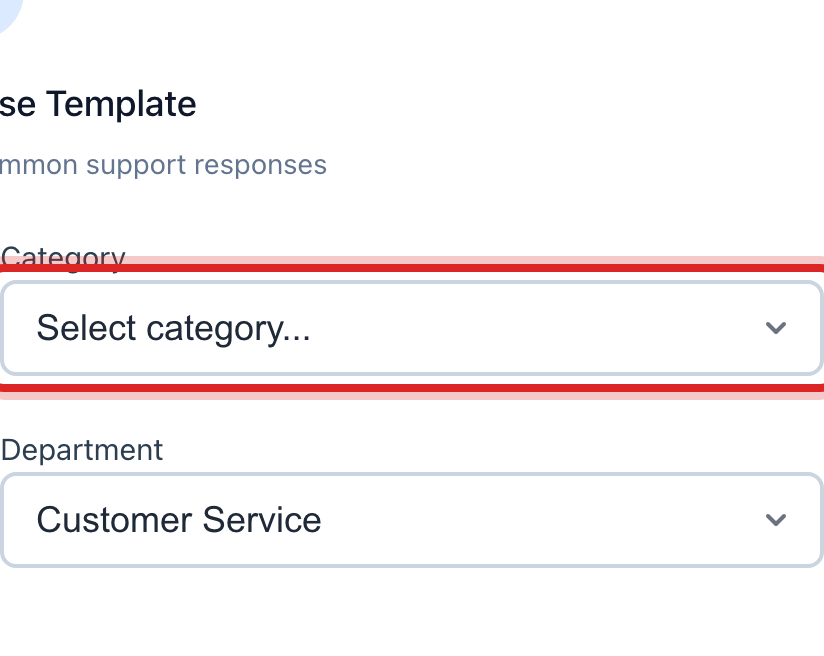
Click the Category list and pick the kind of ticket it answers. Pick a Priority and a Department too.
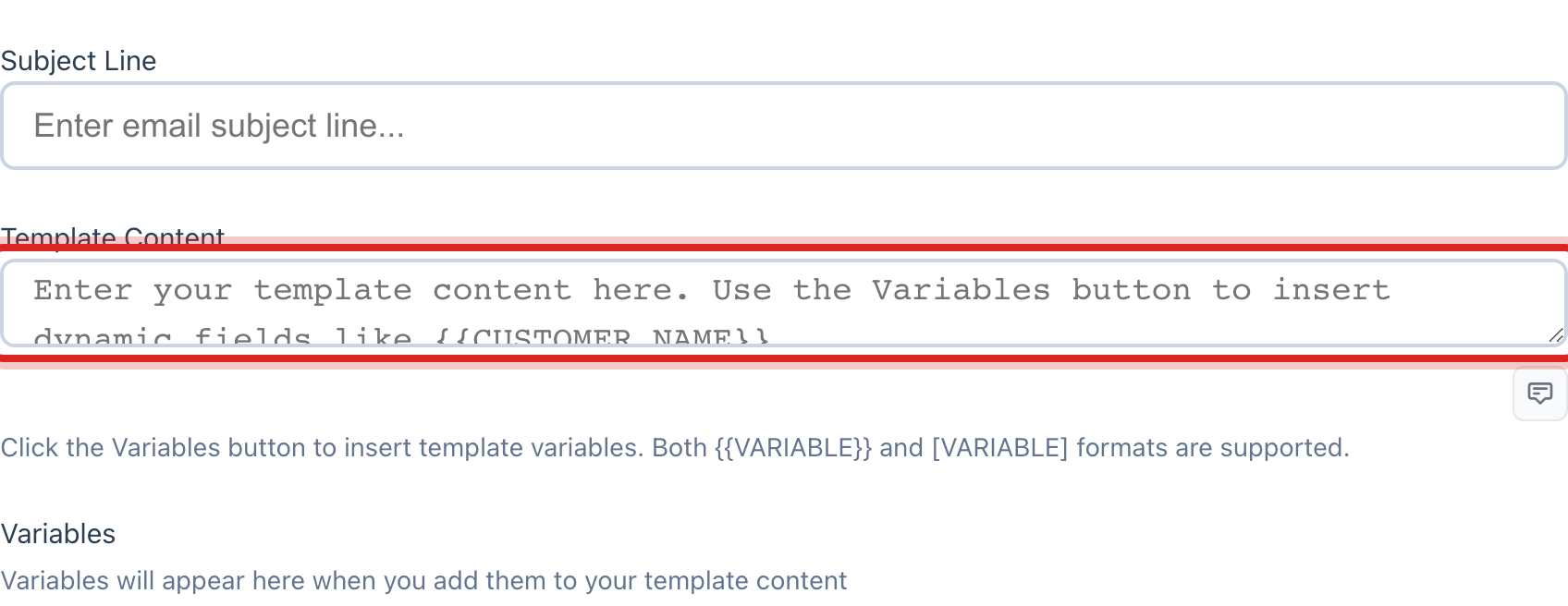
Type the email subject in the Subject Line box.
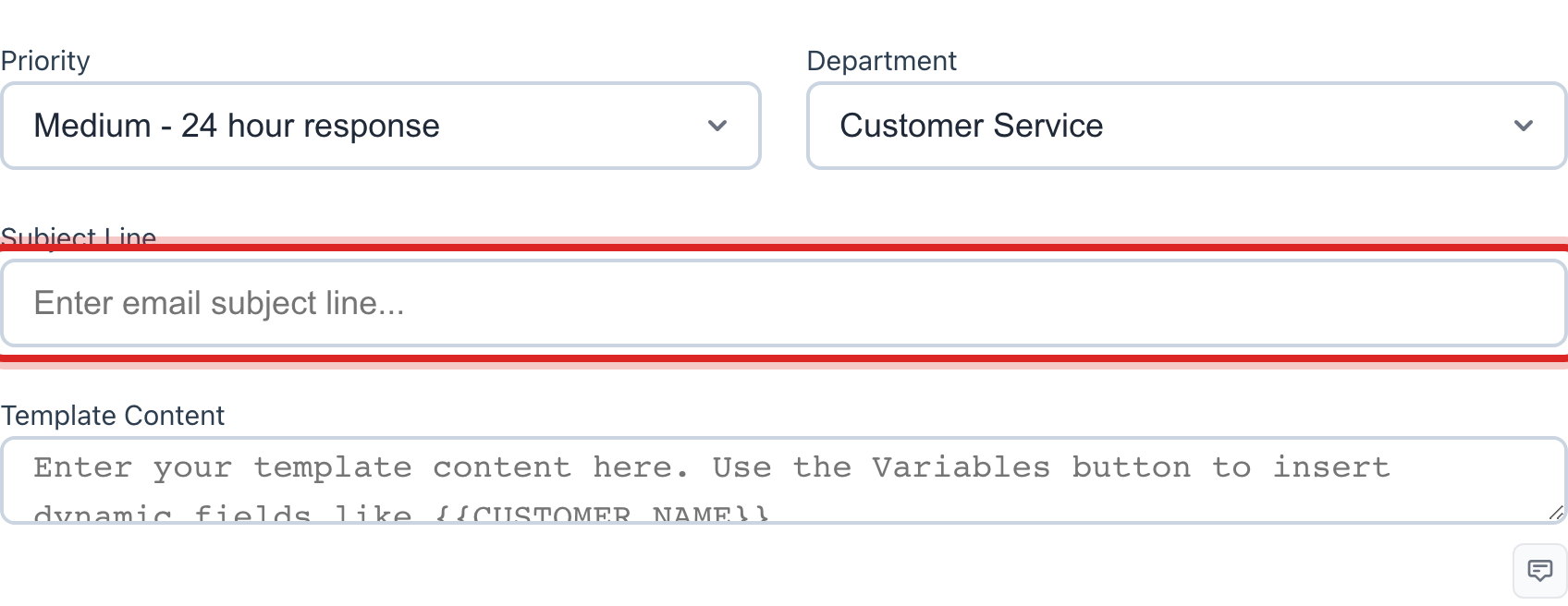
Type the reply in the Template Content box. Under Variables, click a name like the customer name or the ticket number to drop it in. It fills in on its own when you use the reply.
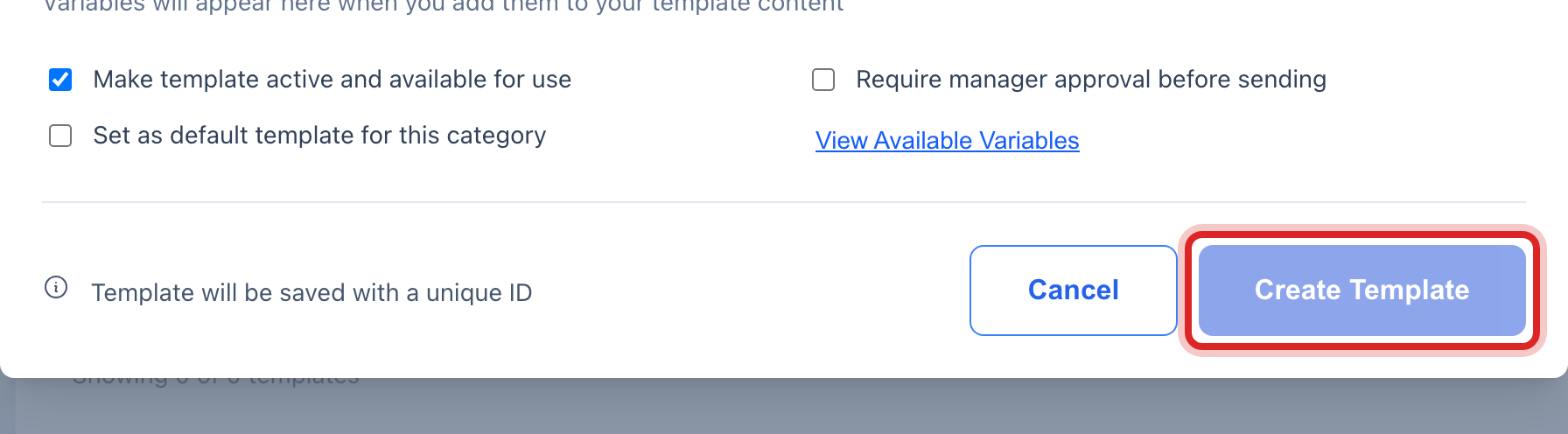
Click the blue Create Template button.
To use it: open a ticket, click Email Customer or SMS Customer, and pick your reply under Use a canned response. Then click Send.
Made a mistake? Click Undo on the green message that appears, or open Show me how at the top and pick Undo a mistake.
You are done when
The reply shows as a card on the page. On any ticket it is in the Use a canned response list.
If something looks different
You want to see it before you save. Click Preview on its card. The variables show with sample words.
It is for texts, not emails. Save it the same way. Keep it short. The SMS window on a ticket shows the same list.
Messages are unlimited. Every reply you send is part of your Utilops subscription. There is no charge per message.
Response Templates is not on the left. It is under the advanced pages. Ask your administrator to show them.