
Appearance
6. Mark maintenance done
When you need this: you changed the oil. You ran the generator. Write it down the same day, so the job stops showing as due, the asset's record shows it, and the inspector sees it was done.
Steps
On the left side of the screen, click Asset Management, then click Maintenance Scheduler.
The list on the right shows what is coming up, soonest first. Overdue jobs are in red. Find the one you did.
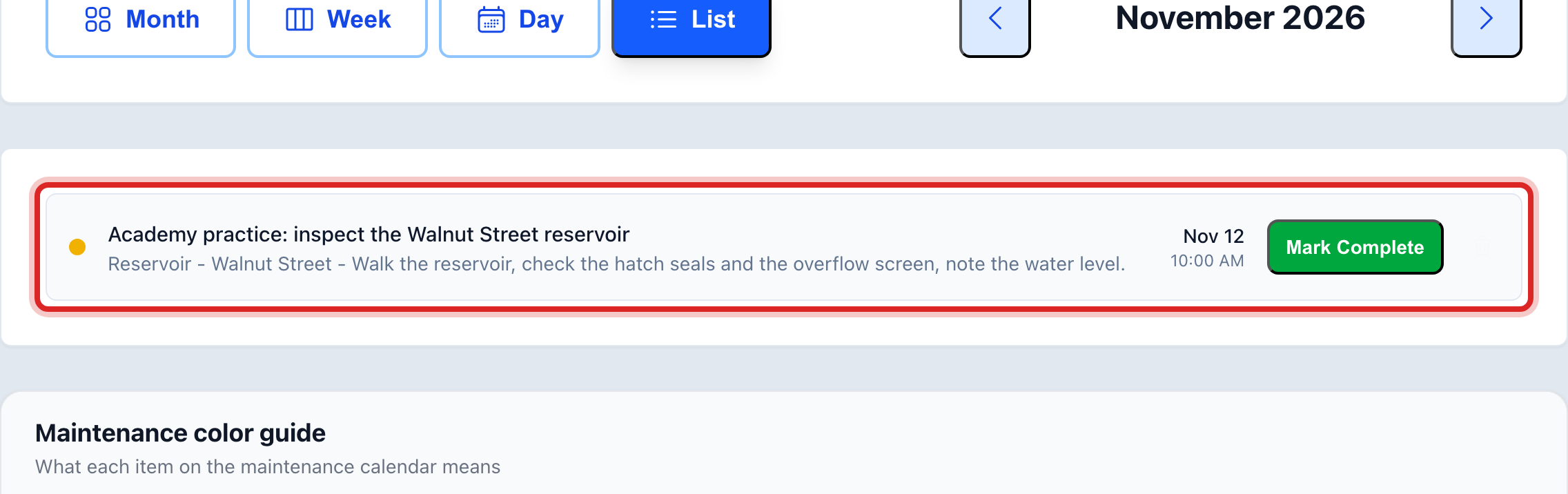
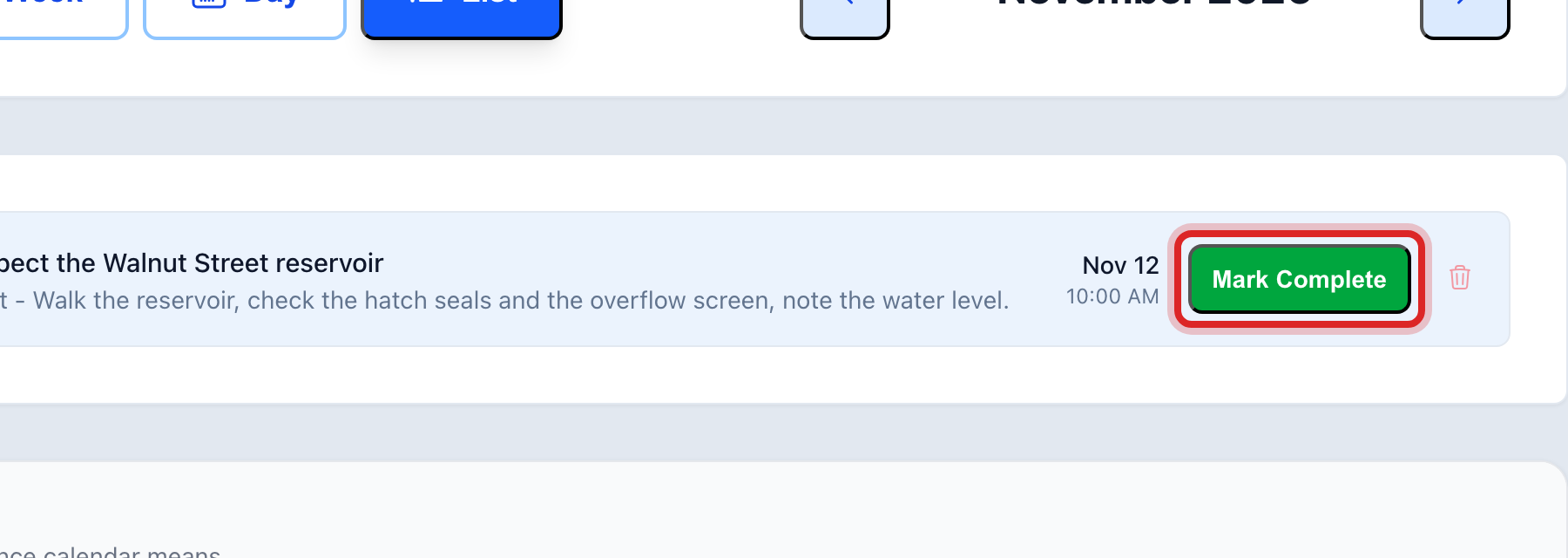
Click the green Mark Complete button on its row. A window opens.
Set the Completion Date to the day you did it, not today.
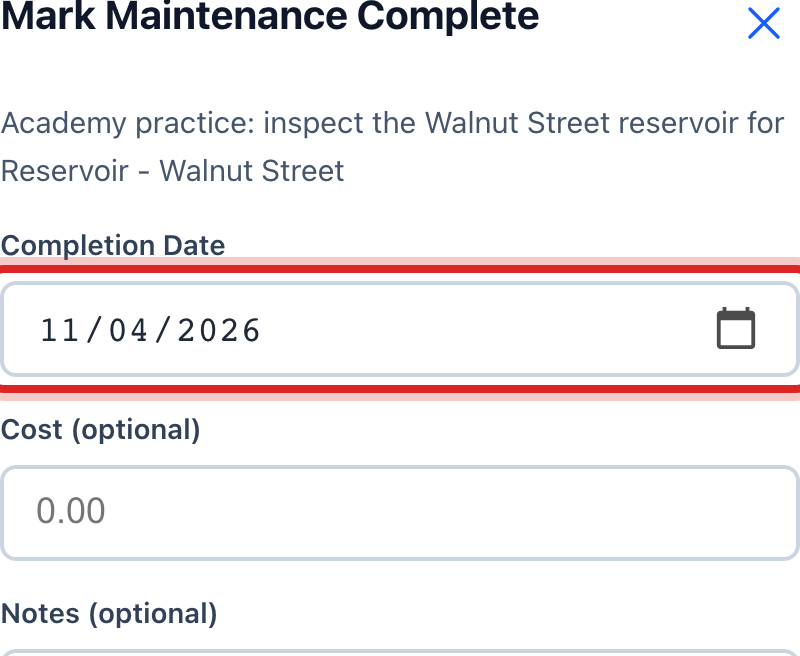
Type the Cost if you bought parts. In Notes, say what you found, like Oil was dark, changed filter too.
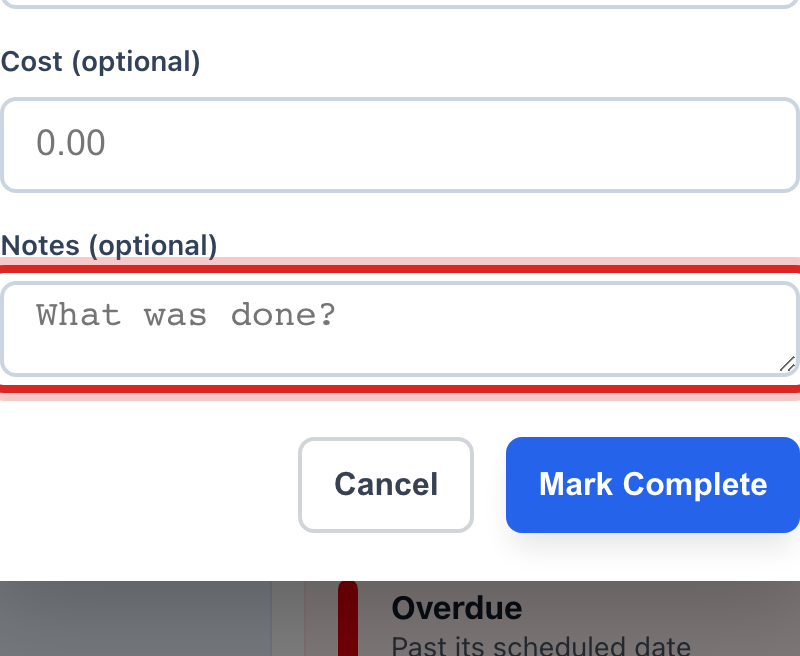
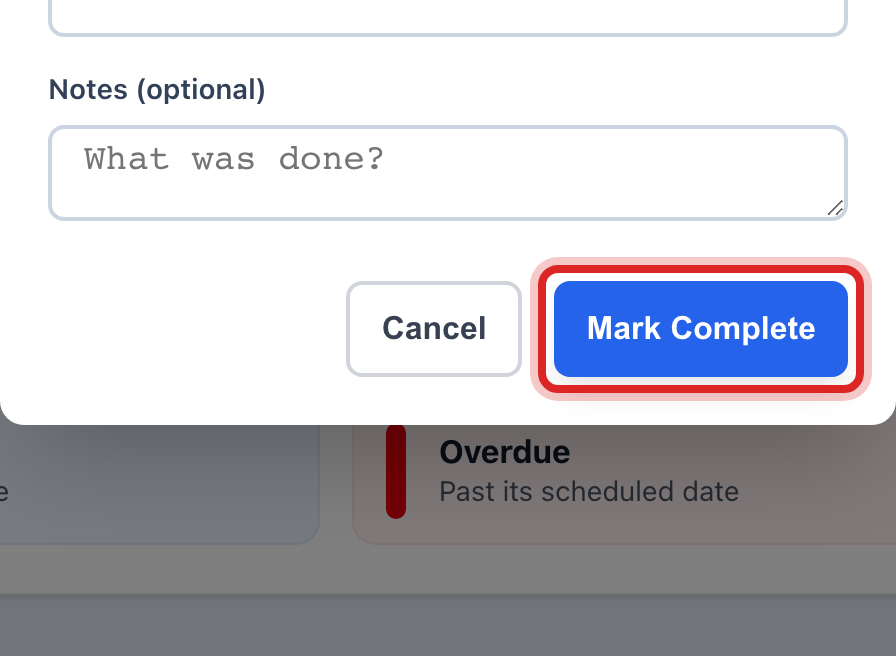
Click the blue Mark Complete button at the bottom.
Made a mistake? Click Undo on the green message that appears, or open Show me how at the top and pick Undo a mistake.
You are done when
The job leaves the list. If it repeats, the next one appears on its new date. The asset's record shows it under its maintenance history.
If something looks different
The job is not in the list. Click the day on the calendar, or click Today at the top to come back to this week.
You did a job that was never scheduled. Schedule it first, lesson 5, with the day you did it. Then mark it complete.
You want to see everything ever done on a pump. On the left, click Maintenance Log and search for the pump.
There is no Mark Complete button. Only staff who may manage assets can close a job. Ask your administrator.