
Appearance
2. Add a new asset
When you need this: a new pump went in. A hydrant was set on the new street. A tank was added. Each one gets a record the day it goes in, so the next person can find it, and so maintenance can be planned for it.
Steps
On the left side of the screen, click Asset Management, then click Create New Asset.
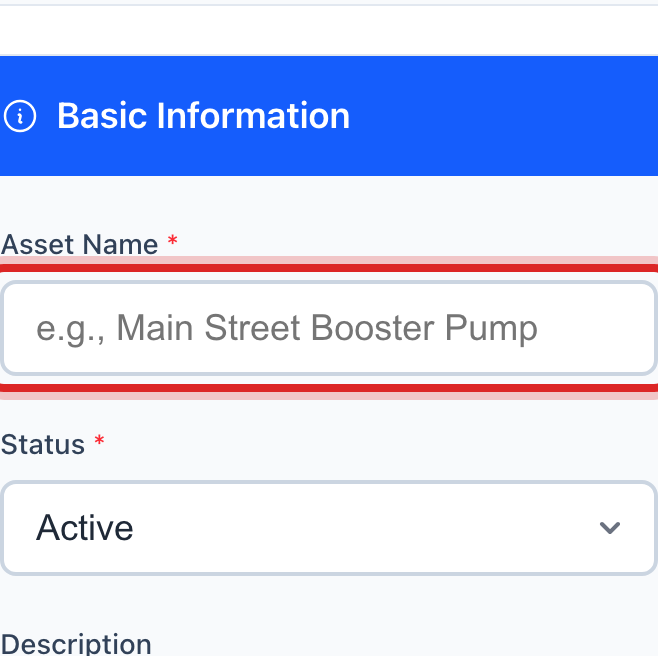
Type the Asset Name. Say what it is and where, like Main Street Booster Pump.
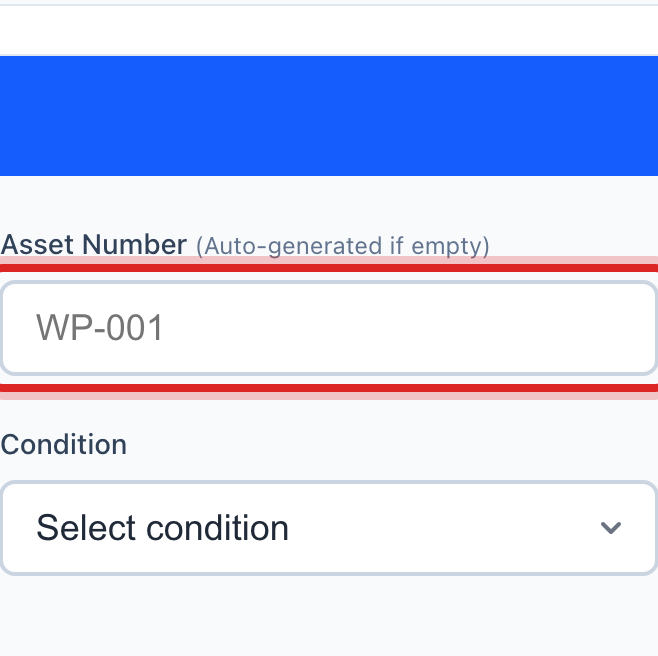
Type the Asset Number if your utility numbers equipment, like WP-001. Leave it blank if you do not.
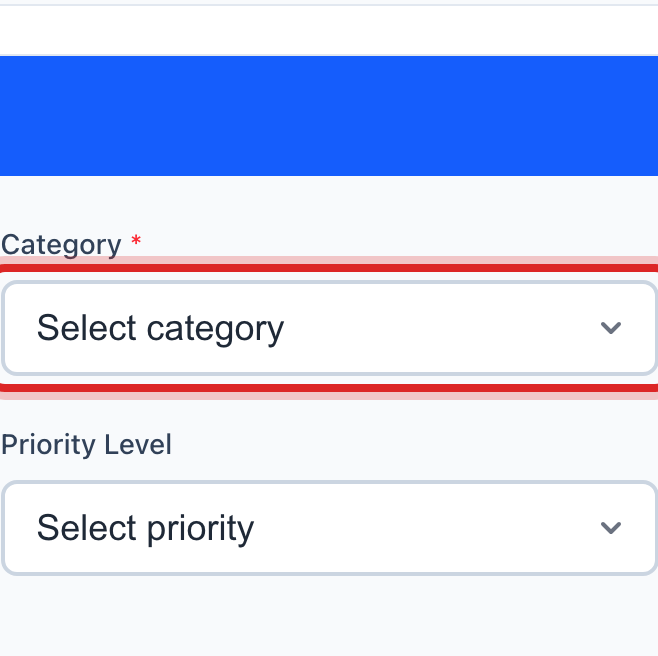
Pick the Category, like Pumps or Hydrants.
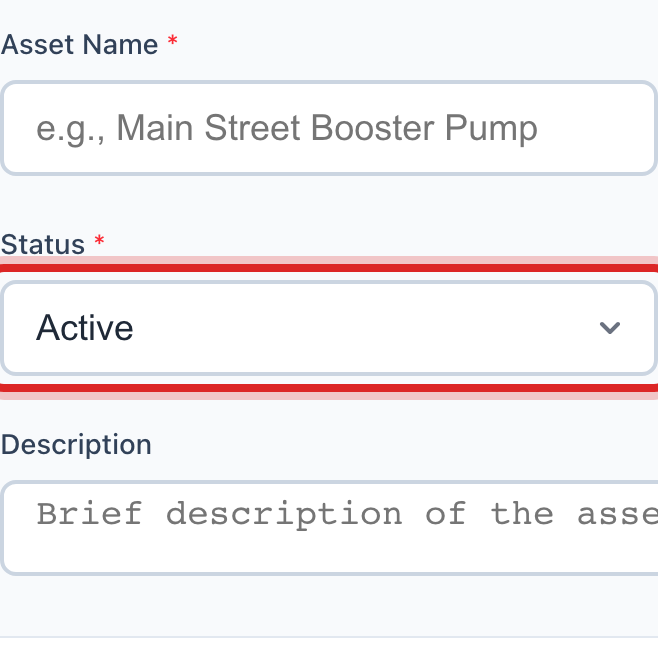
Status is Active for anything in use. Pick Planned if it is not in the ground yet.
Scroll down to the location section. Type the Street Address, or the nearest corner, with the City, State and ZIP Code.
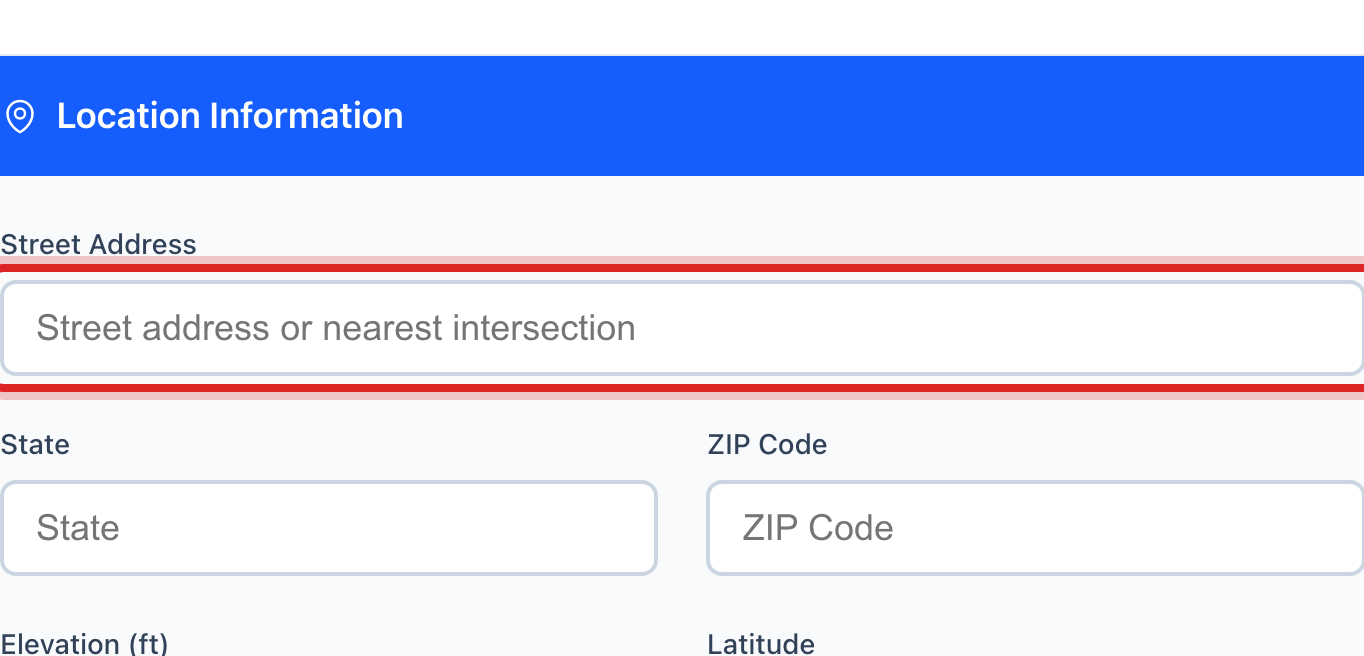
Everything else on the page is extra. Fill in the manufacturer, size, cost and install date if you have them. You can come back later.
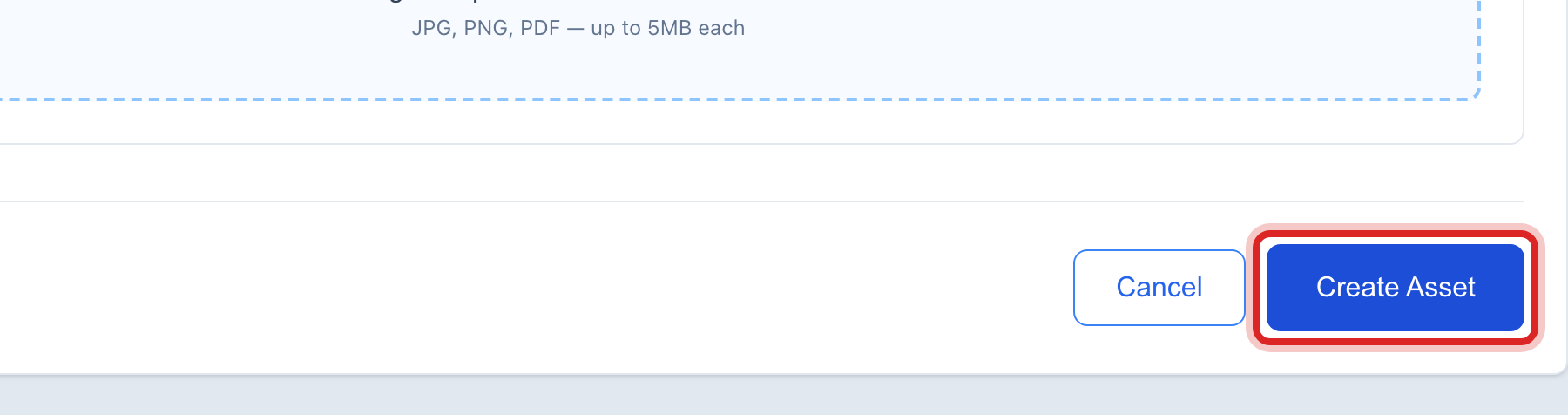
Scroll to the bottom and click the blue Create Asset button.
Made a mistake? Click Undo on the green message that appears, or open Show me how at the top and pick Undo a mistake.
You are done when
A green message says the asset was created, and it is in the list under Inventory.
If something looks different
The Category list is missing the kind you need. An administrator adds one under Categories & Types, then it shows here.
You have a whole spreadsheet of equipment. Do not type them one at a time. On the left, click Data Management, then Import Center, and pick assets.
The page says Update Asset at the top. You are editing an existing record, not adding one. Click Create New Asset on the left to start fresh.
It is a gas utility. The Service box at the top says Gas, and the material list shows gas pipe materials.