
Appearance
1. Find an asset and open its record
When you need this: someone asks when the booster pump was installed, or what size the main on Elm Street is, or where the shutoff valve for the school is. Every piece of equipment has one record with all of that on it.
Steps
On the left side of the screen, click Asset Management, then click Inventory.
Click in Search Assets and type part of the name or the number. Well 2 or BP-01 is enough.
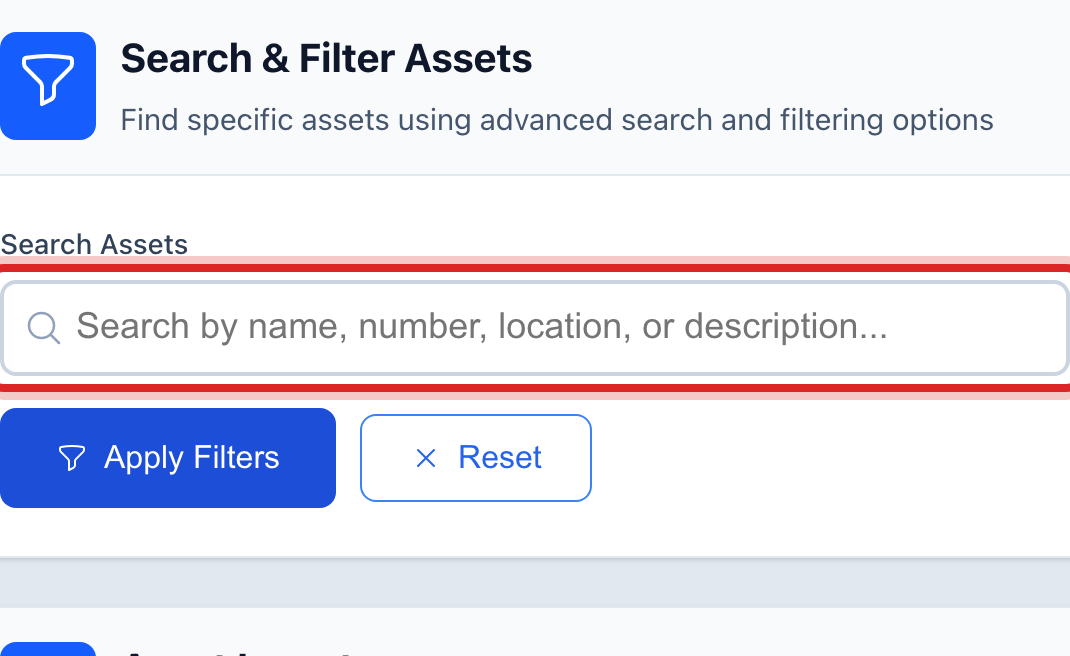
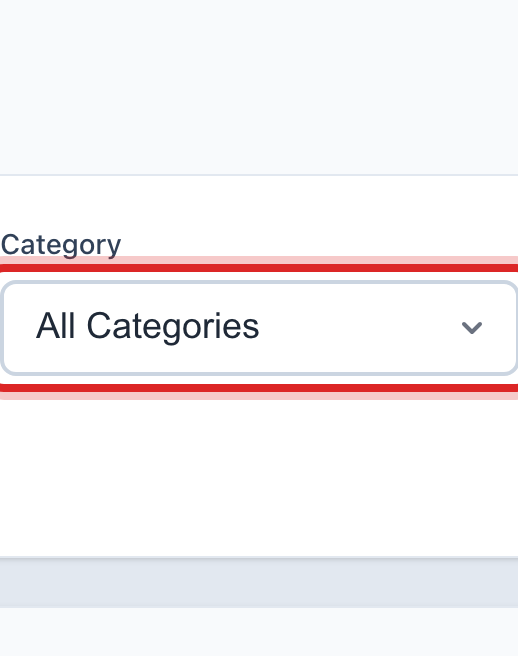
Or pick a kind in the Category box, like Valves or Hydrants, to see all of them.
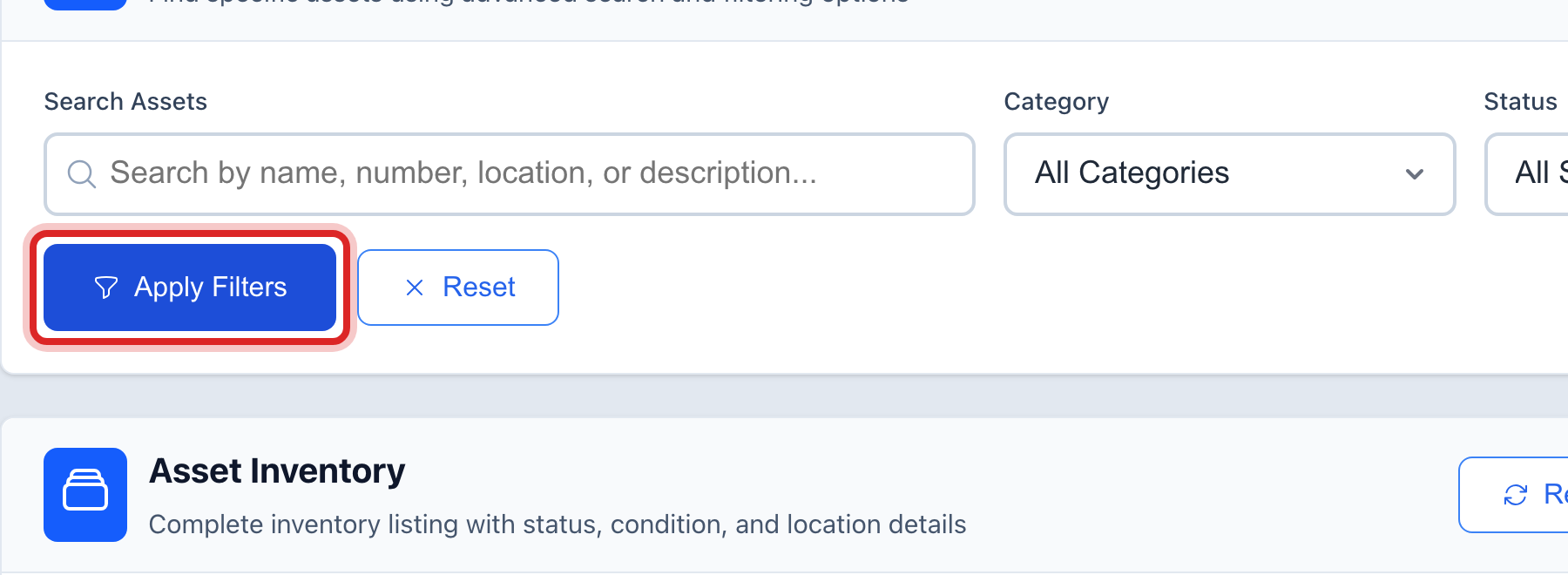
Click the blue Apply Filters button.
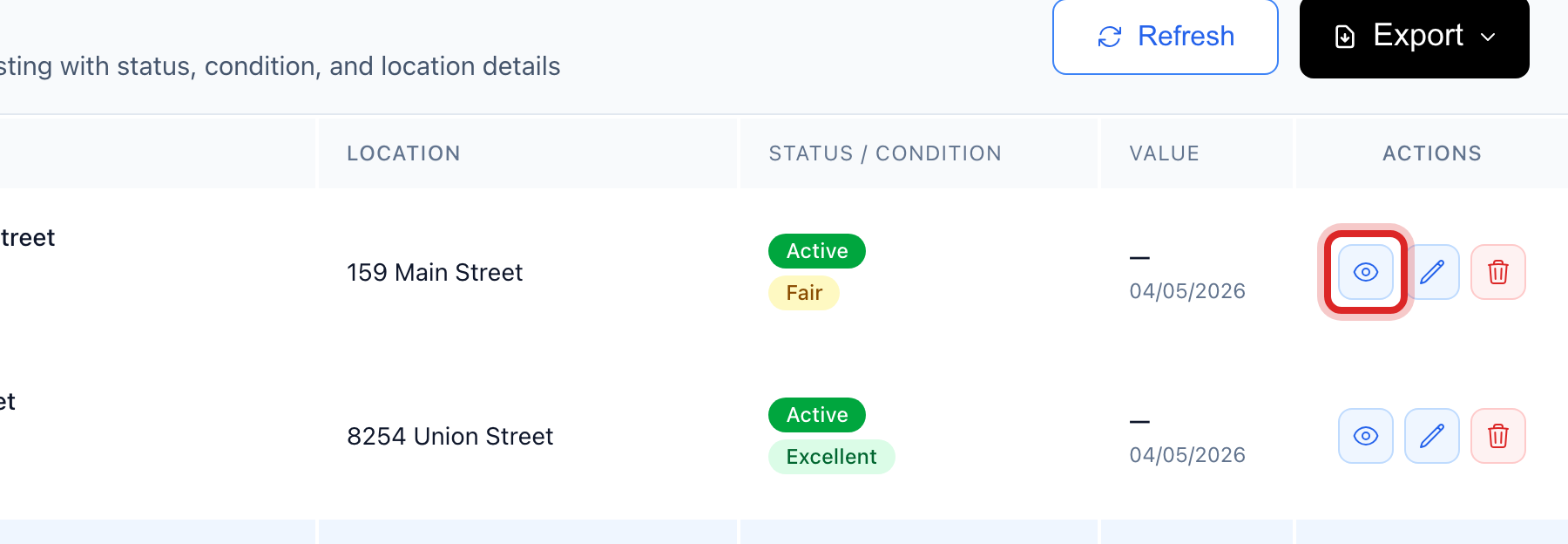
Find the row and click the eye button at the right end. It is called View. A window opens with the record.
Read down the window. Basic Information, Location, Specifications, and the maintenance and inspections done on it. Edit at the top opens the full form if something needs changing.
You are done when
The window shows the asset's name and number at the top, with its status and condition next to them.
If something looks different
No Assets Found. Try fewer letters, or set Category back to All Categories and click Apply Filters again.
The row has a meter button. That asset is a water meter. Open in Meter Reading takes you to its readings under Metering.
You want to see it on the map. Click GIS Mapping on the left, and click Assets under the map. Its pin opens this same window.
You do not see Edit. Only staff who may change assets see it. Ask your administrator.