
Appearance
3. Put an asset on the map
When you need this: a valve has a record but no pin on the map. A new operator cannot find it in the dark. A pin needs two numbers, the latitude and the longitude. Your phone gives you both while you stand on the spot.
Steps
Stand at the valve, the hydrant or the well. Open the map app on your phone. Press and hold on the blue dot that is you. The two numbers that appear are the latitude and the longitude. Write them down or copy them.
Back at the computer, on the left side of the screen, click Asset Management, then click Inventory.
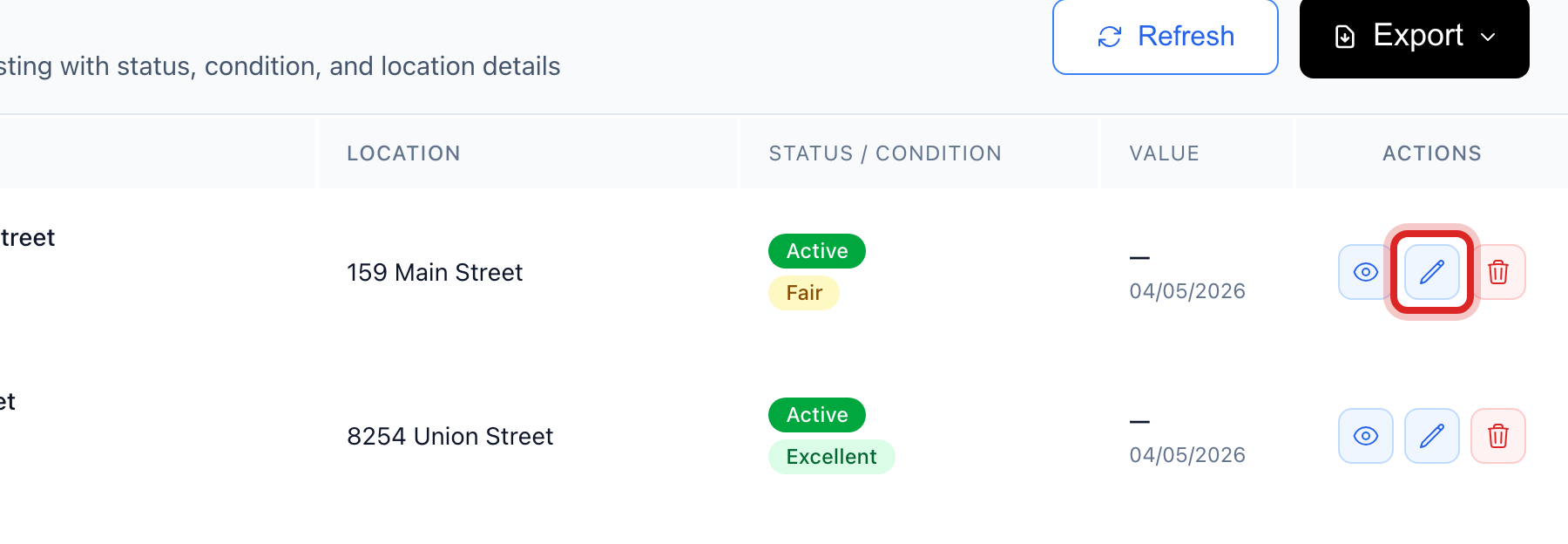
Find the row and click the pencil button at the right end. It is called Edit. The full form opens.
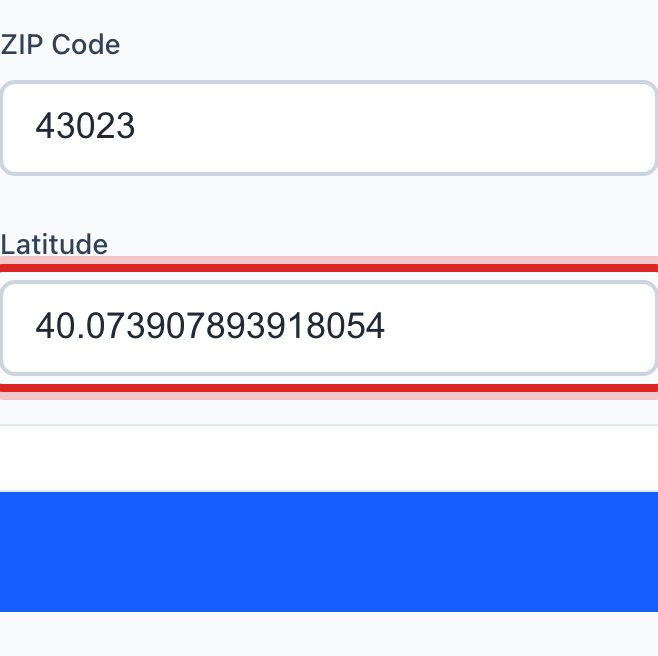
Scroll to the location section. Type the first number in Latitude. In this country it starts with a 2, 3 or 4.
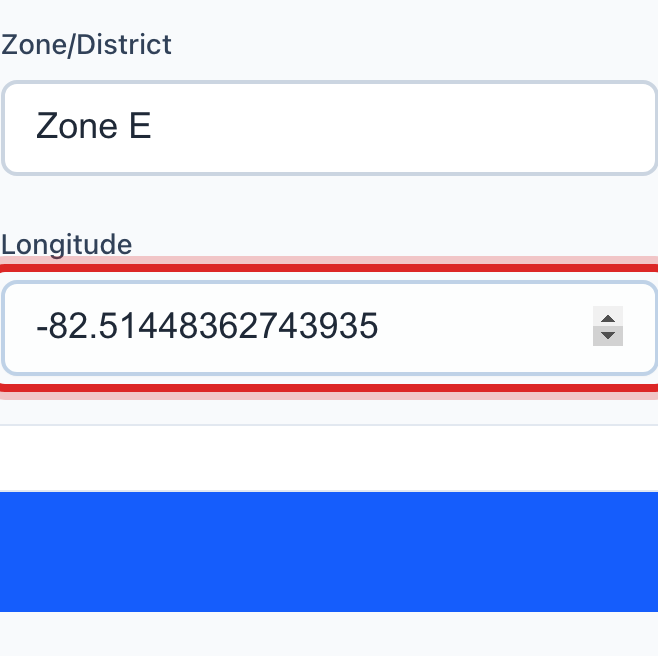
Type the second number in Longitude. In this country it starts with a minus sign.
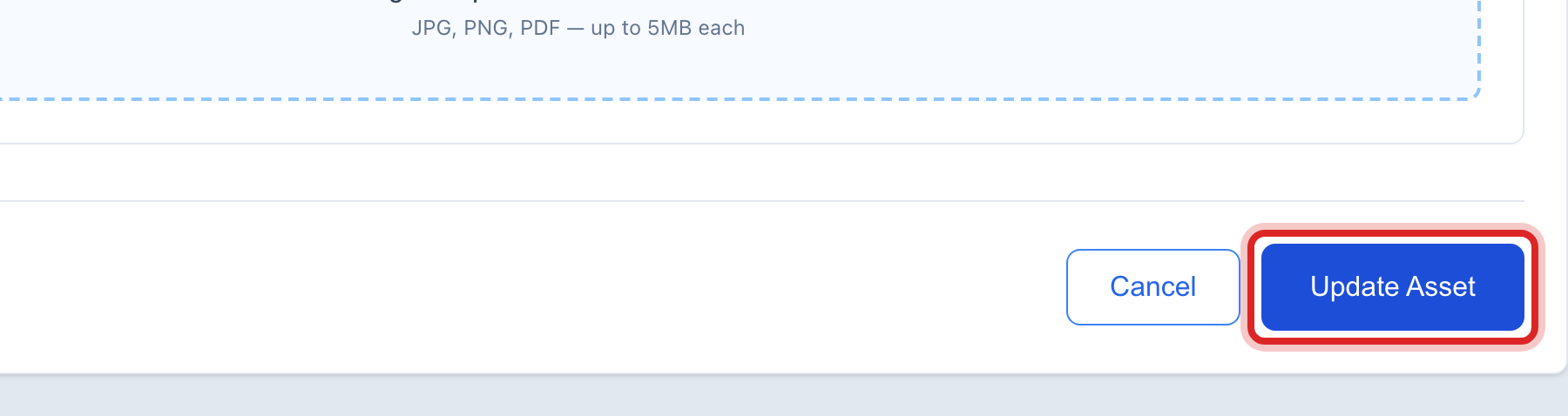
Scroll to the bottom and click the blue Update Asset button.
Made a mistake? Click Undo on the green message that appears, or open Show me how at the top and pick Undo a mistake.
You are done when
A green message says the asset was updated. Under GIS Mapping, with Assets turned on under the map, its pin is on the spot.
If something looks different
The pin is in the ocean or another state. The two numbers are swapped, or the minus sign is missing. Swap them and save again.
You have the numbers in degrees and minutes. The boxes want plain decimals, like 38.4405. The map app on your phone shows decimals if you copy from it.
There is no pencil button on the row. Only staff who may change assets can edit. Ask your administrator.
You want to do fifty of them. Walk the system with your phone and write the numbers in a spreadsheet next to each asset number. Then bring it in under Data Management, Import Center.